Integration Status and Troubleshooting
What each integration status in the Mondoo App means, which alerts to watch for, and how to fix the most common integration errors.
Every integration in Mondoo shows a status that tells you whether it's working. When a scan, import, or export fails, the integration's page also tells you why. This page shows where to find that information, explains each status and alert, and lists fixes for the most common errors.
Where to look
The integrations list
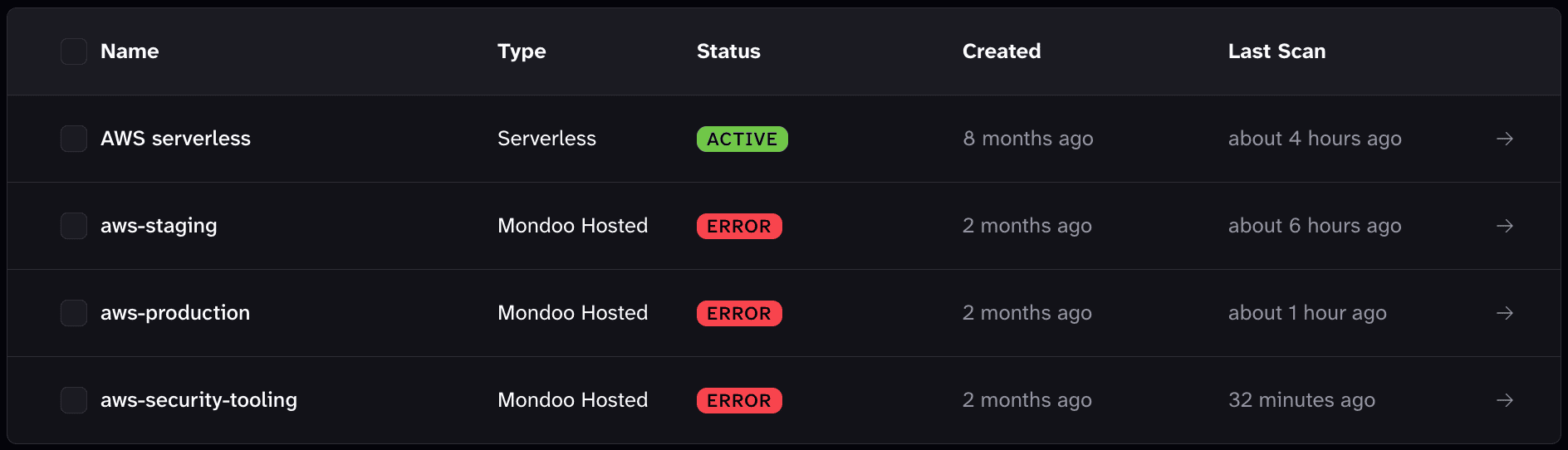
To open an integration, navigate to the space and select Integrations in the side navigation bar. Select the integration's card to see the list of integrations of that type. The list shows each integration's status, so you can spot the ones that need attention before you open them.
The integration page
Select an integration in the list to open its page. The buttons at the top right of the page let you:
- Start a scan right away (RUN). Some integrations, such as Microsoft Intune, label this button SYNC.
- Edit the integration (pencil icon).
- Remove the integration (trash can icon).
- Pause and resume the integration (... menu). This menu appears only for integrations that Mondoo runs on its own infrastructure.

Below the buttons, the page shows how the integration is doing:
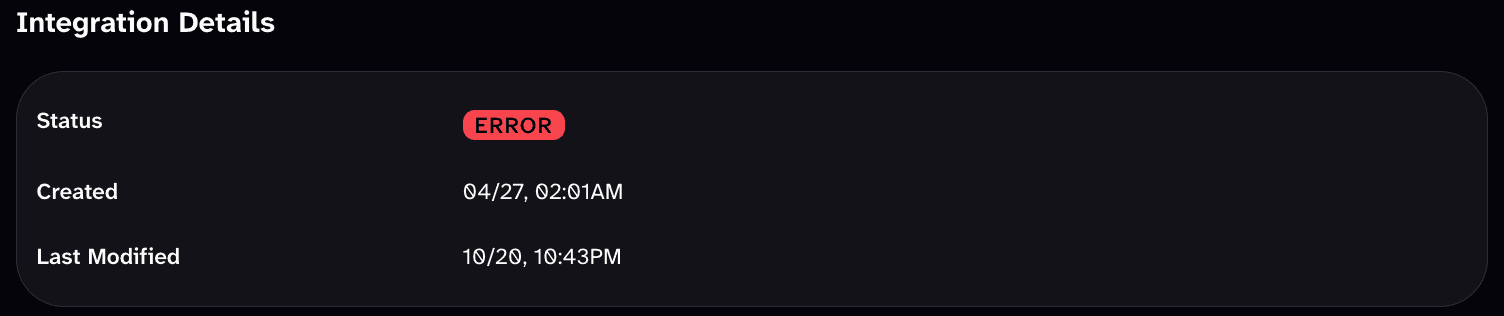
- Integration Details shows the Status, Last Check-in, Last Scan (or Last Export for export integrations), and when the integration was created and last changed.
- Scan Details (Import Details or Export Details for those integration types) shows Last Successful Scan and Last Attempted Scan. If the last attempt is newer than the last success, the most recent attempt failed.
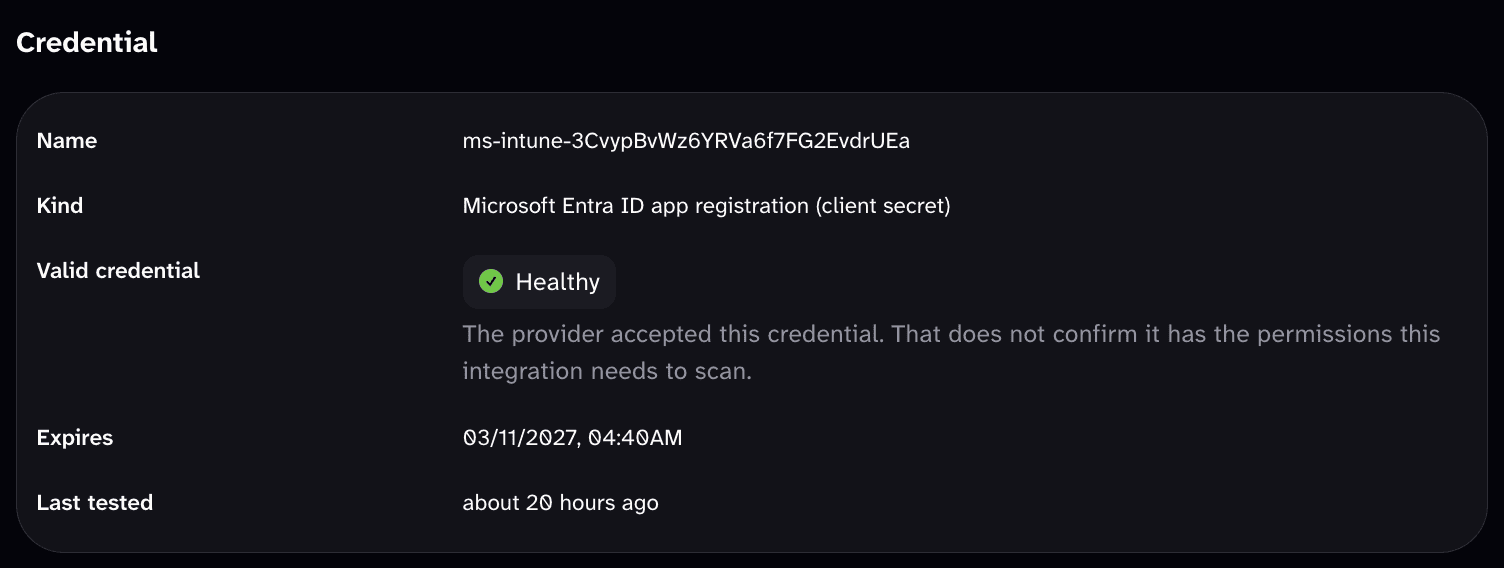
- Credential, for integrations that use a stored credential, shows whether the provider accepted it (Valid credential), when it expires, and when Mondoo last tested it.
- Integration Configuration shows the settings you entered when you created the integration.
Most Recent Activity
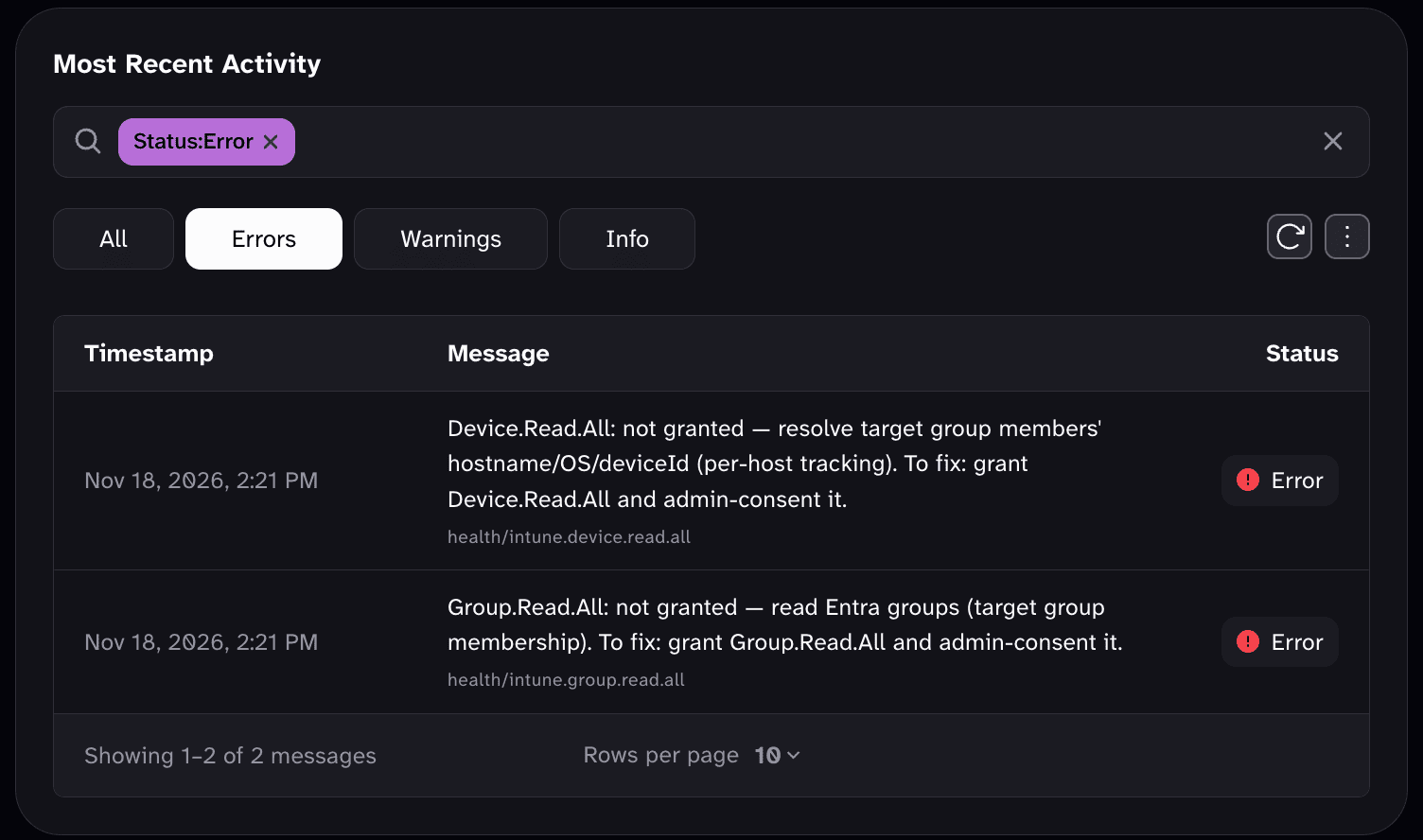
Most Recent Activity, lower on the integration page, lists the messages the integration reported, newest first. To see only problems, select Errors or Warnings. To find a message, type part of it in the Filter messages box. Look up the error message in Common errors. To save the full history, select the more (⋮) button, Export activity.
Diagnosis tabs
Some integrations have a tab that checks their setup for you:
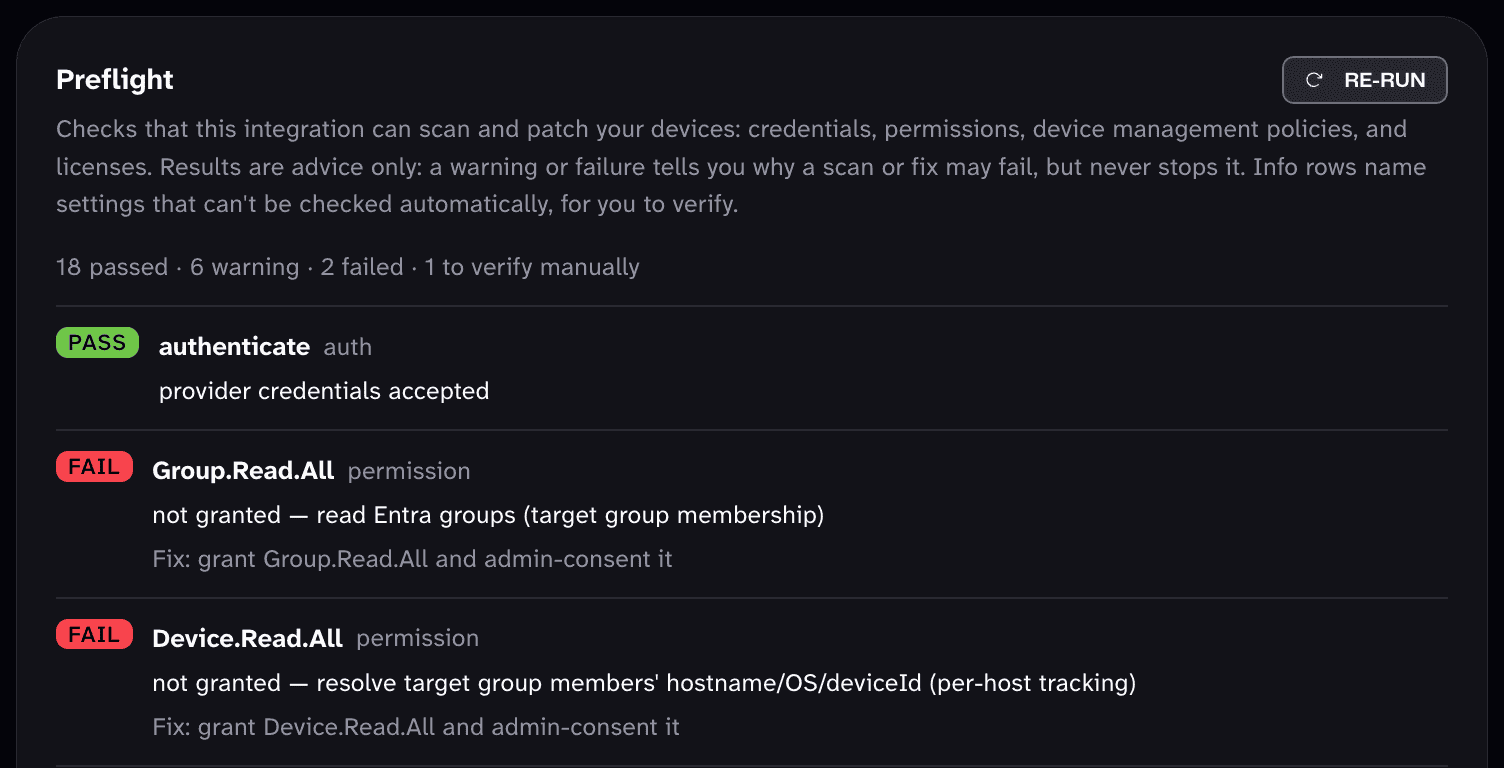
- Endpoint management integrations that run fleet scans (Microsoft Intune, CrowdStrike Falcon, opsi, and Action1) have a Diagnosis tab. It runs preflight checks of the integration's credentials, permissions, device management policies, and licenses, and marks each check PASS, WARN, FAIL, or INFO. A warning or failure explains why a scan may fail, but doesn't stop it. Select Re-run after you fix something. These integrations also have a Scan Jobs tab that lists each fleet scan.
- GitHub integrations that scan an organization have a Diagnose tab. Its Scan readiness check confirms that an enabled policy covers each kind of asset the integration scans. These integrations also have a Repositories tab.
Integration status
| Status | What it means | What to do |
|---|---|---|
| Not ready | The integration hasn't reported a successful scan, import, or check-in yet. | Wait for the first scan to finish. If the status doesn't change, select RUN and check Most Recent Activity for an error. |
| Waiting for setup | Mondoo is waiting for you to finish a setup step outside the Mondoo App. | Finish the step listed in Waiting for setup. The status changes on its own. |
| Active | The last scan, import, export, or check-in succeeded. | Nothing. |
| Queued | A scan job is waiting to start. | Nothing. |
| Running | A scan, import, or export is in progress. | Nothing. |
| Processing | An import finished, and Mondoo is still adding its findings to your space. | Nothing. A large import can take a long time. The page shows Processing findings since and when processing began. |
| Warning | The integration works, but something needs a look. | Read the warning in Most Recent Activity or in the Integration needs attention alert. |
| Error | The last run failed, a health check failed, or the credential stopped working. | Look up the error in Common errors. If the page shows Scans are paused, follow Scans are paused. |
| Missing | An integration that runs in your environment stopped checking in. | Read Missing. |
| Paused | Someone paused the integration. Scheduled scans stop and RUN is unavailable. | Open the ... menu and select Resume. |
The Mondoo App shows each status in capital letters, for example ERROR. The list of integrations shows the same names as the integration page, with one exception: Not ready appears in the list as PENDING (except for Microsoft Intune integrations, whose list shows NOT READY).
A Kubernetes integration stays in Not ready until the Mondoo Operator in the cluster checks in. A Warning from an import or export usually means some assets were incomplete, or some stale findings couldn't be closed.
A credential that expired or was rejected sets the status to Error, not Paused, even though the page says Scans are paused. Rotate the credential to fix it, as described in Scans are paused. Errors, check-ins, and health checks never change the status of an integration that someone paused.
Waiting for setup
| Integration | What Mondoo is waiting for |
|---|---|
| AWS serverless | The CloudFormation stack or StackSet to finish deploying in your AWS account and the Lambda function to check in. If the stack fails to create, read Troubleshoot the AWS serverless integration. |
| Azure with workload identity federation | The client ID of the Entra app registration. Most Recent Activity shows Finish the setup: add the client ID of the Entra app registration to the Azure integration. If you ran the provisioning script, edit the integration and enter the client ID it printed in Application (client) ID. The script appears only when you create the integration, so if you don't have it, delete the integration and create it again. Read Step 6: Create the integration. |
| GitHub, connected through the Mondoo GitHub App | The GitHub App installation to finish. Most Recent Activity shows Waiting for the GitHub App installation to be completed. An integration also returns to this status if the app is uninstalled and the integration has no token to fall back on. Read GitHub. |
| Microsoft Intune | A first fleet scan or scan schedule. Start a scan or add a schedule on the Scan Jobs tab. Read Microsoft Intune. |
Missing
Only AWS serverless integrations (the Lambda function deployed by CloudFormation) and Kubernetes integrations (the Mondoo Operator) can go Missing. Both check in every 10 minutes. If Mondoo receives no check-in for an hour, the status changes to Missing.
- AWS serverless: Follow Advanced debugging.
- Kubernetes: Make sure the Mondoo Operator is still installed and running in the cluster and can reach Mondoo Platform. Read Continuously Scan Kubernetes with the Mondoo Kubernetes Operator.
Alerts on the integration page
Scans are paused
When an integration's credential has expired or the provider rejected it, Mondoo stops sending scan jobs for the integration and sets its status to Error. A red Scans are paused alert at the top of the integration page names the credential and the reason, and the RUN button is unavailable.
The Credential section of the integration page shows the credential's state. Valid credential shows Healthy when the provider accepts it.
To fix it:
-
Create a new secret (key, token, or client secret) in the other service. If the provider rejected a secret that hasn't expired, check whether someone revoked or deleted it there.
-
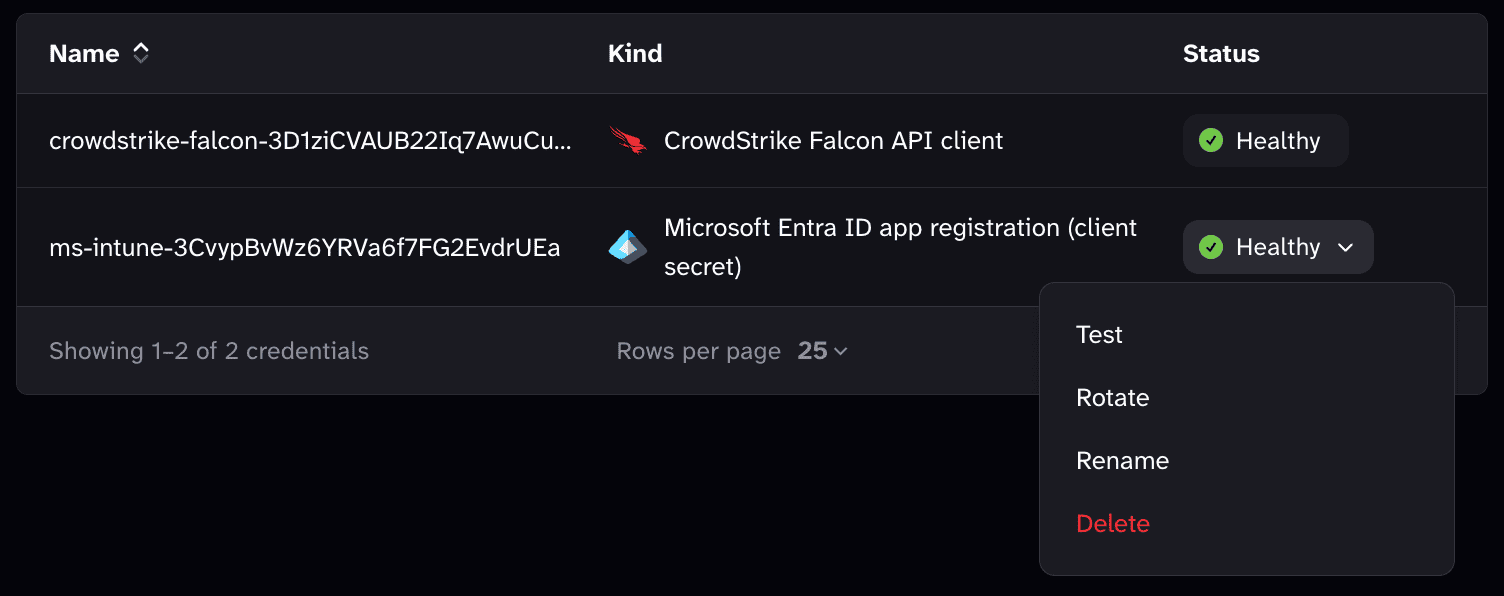
In Mondoo, in the left navigation, select Settings, then Credentials.
-
Find the credential the alert names, open the menu in its Status column, and select Rotate. Enter the new secret.
-
Return to the integration page and select RUN to confirm scanning works.
Every integration that uses the credential switches to the new secret right away. To learn more, read Manage Integration Credentials.
A ticketing integration with an expired or rejected credential shows Tickets can't be filed instead, because Mondoo can't create, update, or close tickets through it. The fix is the same.
A credential whose last test reached no verdict (Check failed) doesn't pause scans. That usually means the provider was briefly unavailable or rate-limited the check. Mondoo keeps scanning.
Integration needs attention
Mondoo runs automatic health checks for Microsoft Intune, Microsoft Defender for Endpoint, and Action1 integrations: after every import, every day, and whenever someone opens the Diagnosis tab. When a check reports a problem, the integration page shows an Integration needs attention alert that names the failing checks. The alert is red if any check failed and amber if the checks only warn, and the integration's status changes to Error or Warning to match.

To see the details and the suggested fix for each check, select View diagnosis in the alert, or read the check's message in Most Recent Activity. After you fix the cause, select Re-run on the Diagnosis tab. The alert disappears when the checks pass.
Integration created, but its first scan could not be started
When you create an integration, Mondoo saves it and then asks for its first scan. If saving works but starting the scan doesn't, the Mondoo App shows a warning such as GitLab integration created, but its first scan could not be started. Import and export integrations show the same warning with "import" or "export" in place of "scan".
The integration exists and its schedule is set up, so don't create it again. To start the first scan yourself, open the integration's page and select RUN. If that fails too, read the error in Most Recent Activity. If the integration has no RUN button, wait for its next scheduled run.
If Mondoo can't queue a scheduled scan, Most Recent Activity shows The scan could not be started. Mondoo retries automatically on the next scheduled scan. If this keeps happening, contact support.
Common errors
Integration errors come from the service Mondoo connects to, so the exact wording varies. Search this page for a distinctive part of the error in Most Recent Activity, such as 401 or AccessDenied. Each section below lists the text that identifies the error.
The service rejected the secret
Error contains: unauthorized, 401, invalid_grant, invalid_token, token is expired, ExpiredToken, token_revoked, invalid_auth, account_inactive, InvalidClientTokenId, SignatureDoesNotMatch, invalid github token, invalid username or token, authentication required, NotAuthenticated, none of the supplied credentials are usable
The integration's secret expired, was revoked or deleted, or belongs to a user who was deactivated.
Fix: Create a new secret in the other service. If the integration uses a stored credential, rotate it. Otherwise, select the edit (pencil) icon on the integration page and enter the new secret. Then select RUN.
The identity lacks a permission
Error contains: forbidden, 403, AccessDenied, code = PermissionDenied, permission '
The secret works, but the identity it belongs to lacks a permission the scan needs.
Fix: Grant the permissions listed on the integration's setup page, for example AWS, GCP, or Azure. New cloud permissions can take several minutes to take effect, so wait before you select RUN.
Workload identity federation isn't trusted
Error contains: InvalidIdentityToken, unable to generate access token
The other cloud doesn't trust the token Mondoo presents. The identity provider, audience, or subject doesn't match.
Fix: Compare the trust configuration in the other cloud with the values the integration shows. Read Workload identity federation and the setup steps for AWS or GCP.
A Google Cloud API isn't enabled
Error contains: SERVICE_DISABLED, has not been used in project
A Google Cloud API that the scan calls isn't enabled in the GCP project. The error names the API.
Fix: Enable the API in the Google Cloud console for that project, wait a few minutes, then select RUN. Read GCP integration.
The key or certificate is malformed
Error contains: could not decode private key, found no private key, PEM data was not found, could not parse provided certificate, missing 'type' field in credentials, google.credentialsfile
The key, certificate, or credentials file you entered is incomplete or in the wrong format.
Fix: Enter the whole file again, including the -----BEGIN and -----END lines of a PEM key or certificate. For GCP, use the complete JSON key file of the service account.
A setting points to something that doesn't exist
Error contains: invalid region, no such host, in host name, ENOTFOUND, /api/v3/zen: 404, 404 Not Found [
A hostname, URL, or region is mistyped, a GitHub Enterprise Server URL isn't the server's root, or an organization or repository was renamed or deleted.
Fix: Select the edit (pencil) icon on the integration page and correct the setting.
No policy applies to the asset
Error contains: doesn't support any policies
Mondoo found the asset, but no enabled policy applies to that kind of asset, so there's nothing to check.
Fix: Enable a policy that covers the asset. Select Findings > Policies in the side navigation. Read Manage Policies. For GitHub, the Diagnose tab shows which asset kinds lack a policy.
Mondoo can't reach the host
Error contains: i/o timeout, connection refused, failed to verify certificate, SSL is not enabled on the server
Mondoo couldn't reach the host the integration names, or the host's TLS setup is wrong.
Fix: Make sure the host is reachable from the internet, its firewall accepts the connection, and it presents a valid TLS certificate. For a PostgreSQL export, enable SSL on the database server.
The address is private
Error contains: address blocked by egress policy
The URL resolves to a private, loopback, or link-local address. Mondoo doesn't connect to internal network addresses from its hosted infrastructure.
Fix: Use a hostname that resolves to a public address.
The service rate-limited the integration
Error contains: rate limit exceeded
The service throttled the integration's token. Other tools that use the same token or account share its limit.
Fix: The next scheduled scan retries. If it keeps happening, give Mondoo its own token or account so it doesn't share a limit with other tools.
Discovery found nothing to scan
Error contains: could not find an asset that we can connect to
Discovery returned nothing to scan with the integration's settings and permissions.
Fix: Check the integration's discovery options, and make sure its identity can list the resources you expect.
AWS Systems Manager can't reach an instance
Error contains: ssm not available
AWS Systems Manager can't reach an EC2 instance, so Mondoo can't scan it through SSM.
Fix: Make sure the instance runs the SSM Agent and is a managed instance in Systems Manager. Read Troubleshoot the AWS serverless integration.
A device can't download cnspec
Error contains: could not download the cnspec install script
A device in a fleet scan couldn't reach install.mondoo.com to download cnspec.
Fix: Allow the device outbound HTTPS to Mondoo's hosts. Read Communication matrix, IPs, and DNS names.
The BigQuery dataset doesn't exist
Error contains: invalid dataset_id
The BigQuery dataset ID doesn't match a dataset in the project.
Fix: Edit the integration and enter the dataset ID exactly as BigQuery shows it. Read BigQuery export.
The repository is empty
Error contains: remote repository is empty
The repository has no commits, so there's nothing to scan. No action is needed. Mondoo scans the repository once it has content.
Import job failed
Import integrations that fail show Import job failed: (or Starting import job failed: if the import couldn't start) followed by a hint. Some integrations name the exact setting to fix instead; follow that message. Otherwise the hint is one of these:
- check the integration's credentials and permissions: The provider rejected the credentials or denied access. Follow The service rejected the secret and The identity lacks a permission, then select RUN.
- the provider's API did not answer in time, the provider's API kept rate-limiting the import, or the provider's API returned a server error: The problem is on the provider's side. No action is needed. The next scheduled import retries.
- the import failed: Mondoo couldn't classify the failure. Select RUN to try again.
If any of these keeps coming back, contact Mondoo support as described in Still stuck?.
Provider-specific troubleshooting
Some integrations have their own troubleshooting pages for errors specific to that provider:
- AWS Serverless Integration Troubleshooting
- Troubleshoot Azure Client Secrets and Certificates
- Test and Troubleshoot a Microsoft 365 Integration
- Kubernetes integration: Troubleshoot
Still stuck?
If an error isn't listed here and keeps coming back after you select RUN, contact Mondoo support with the integration's name and the error from Most Recent Activity. To share the full history, select Export activity in Most Recent Activity and attach the file.
Last updated on