Manage Policies in a Space
Enable, disable, and preview the security policies Mondoo uses to evaluate a space.
Policies are the security standards Mondoo applies to a space. Each new space starts with a default set of policies so you get useful results immediately. From there you control which policies run, in three ways:
| Action | Effect |
|---|---|
| Enable | The policy is used for scoring assets in the space. |
| Preview | The policy is evaluated, but its results don't affect scores. Use this to try a policy before adopting it. |
| Disable | The policy is no longer used in the space. Existing reports from the policy are removed. |
Changes apply only to the space you make them in. To learn how policies work conceptually, read How Mondoo Evaluates Your Infrastructure.
You can also manage policies from the command line. See cnspec policy.
Note: Managing policies requires Editor or Owner access to the space.
Open the policies list
-
In the Mondoo App, navigate to the space.
-
In the side navigation, under Findings, select Policies.
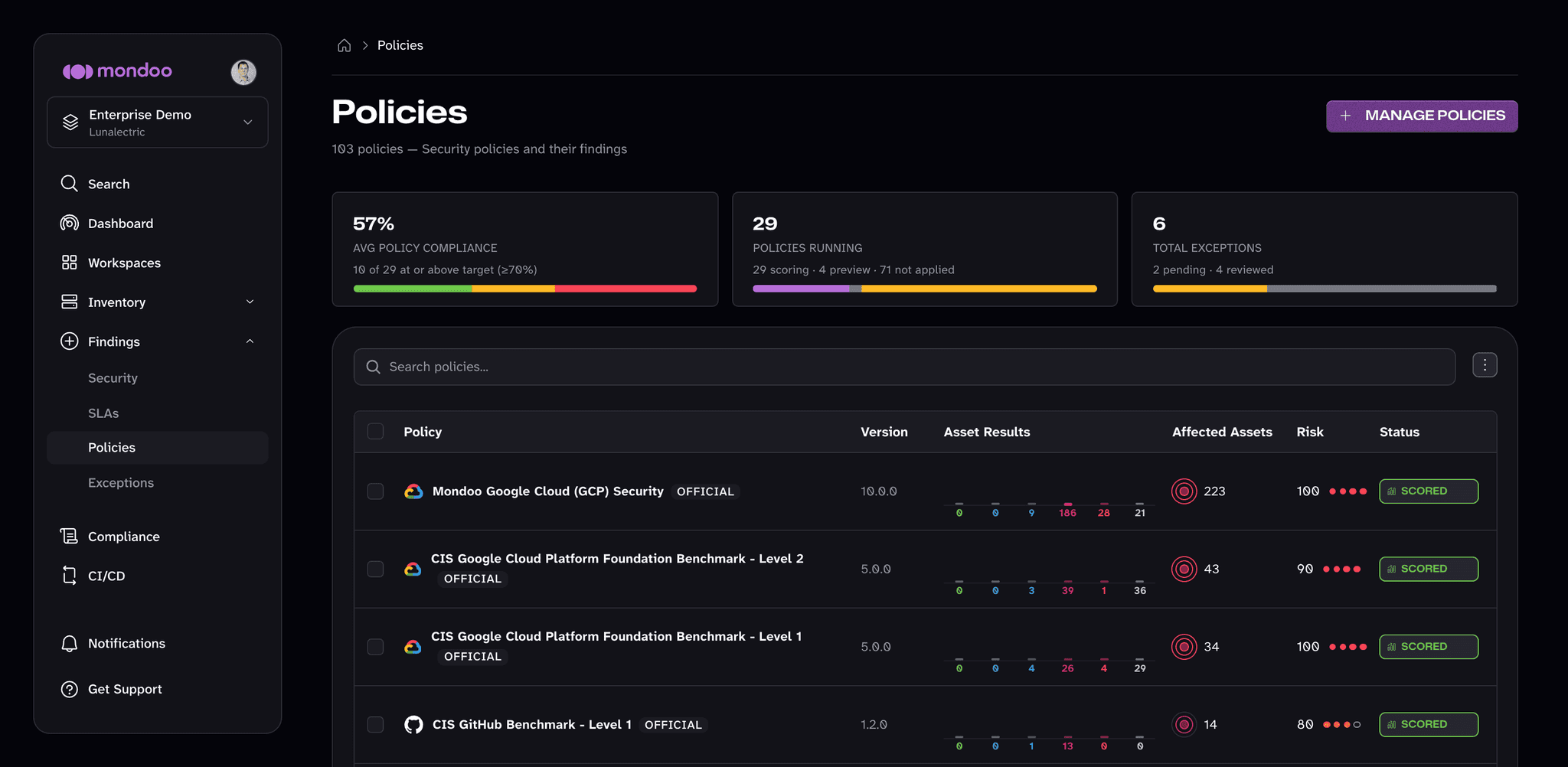
The Policies page lists every scored and previewed policy in the space. Across the top, summary cards show the average policy compliance, how many policies are scoring, previewing, or not applied, and how many exceptions exist. For each policy, the table shows its version, how its assets scored, how many assets it affects, its risk, and its status (SCORED or PREVIEW).
Select a policy to see its checks, the assets it evaluates, its exceptions, and its properties.
Enable or preview a new policy
-
On the Policies page, select MANAGE POLICIES.
-
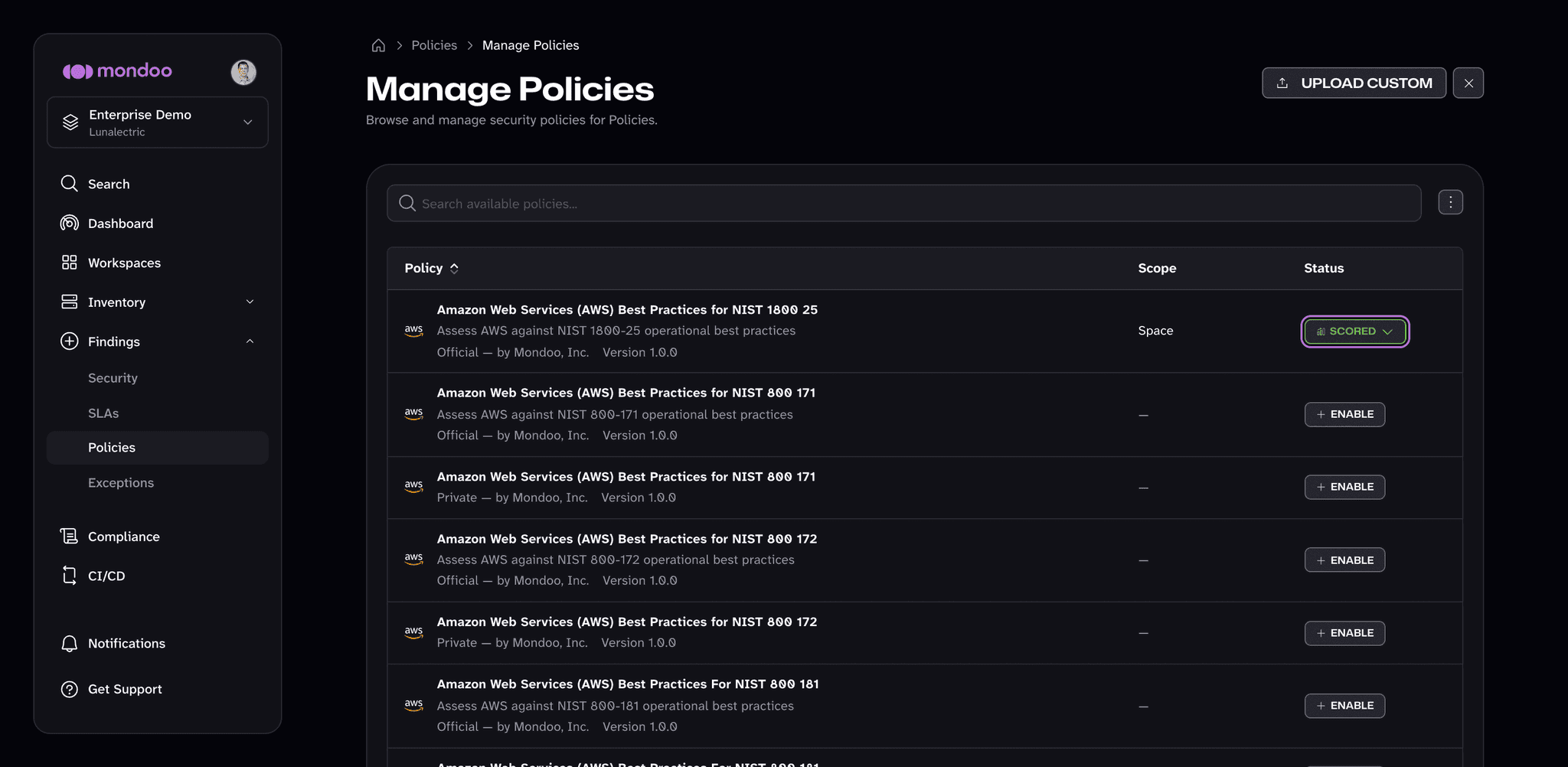
On the Manage Policies page, find the policy using the search box.
-
Next to the policy, select ENABLE.
The next scan uses the new policy. To add a policy you wrote yourself, select UPLOAD CUSTOM on the Manage Policies page. To learn how to write one, read the Policy Authoring Guide.
Switch a policy to Preview
Preview mode evaluates a policy without affecting scores. Use it to assess a new policy before formally adopting it.
-
On the Manage Policies page, find the policy.
-
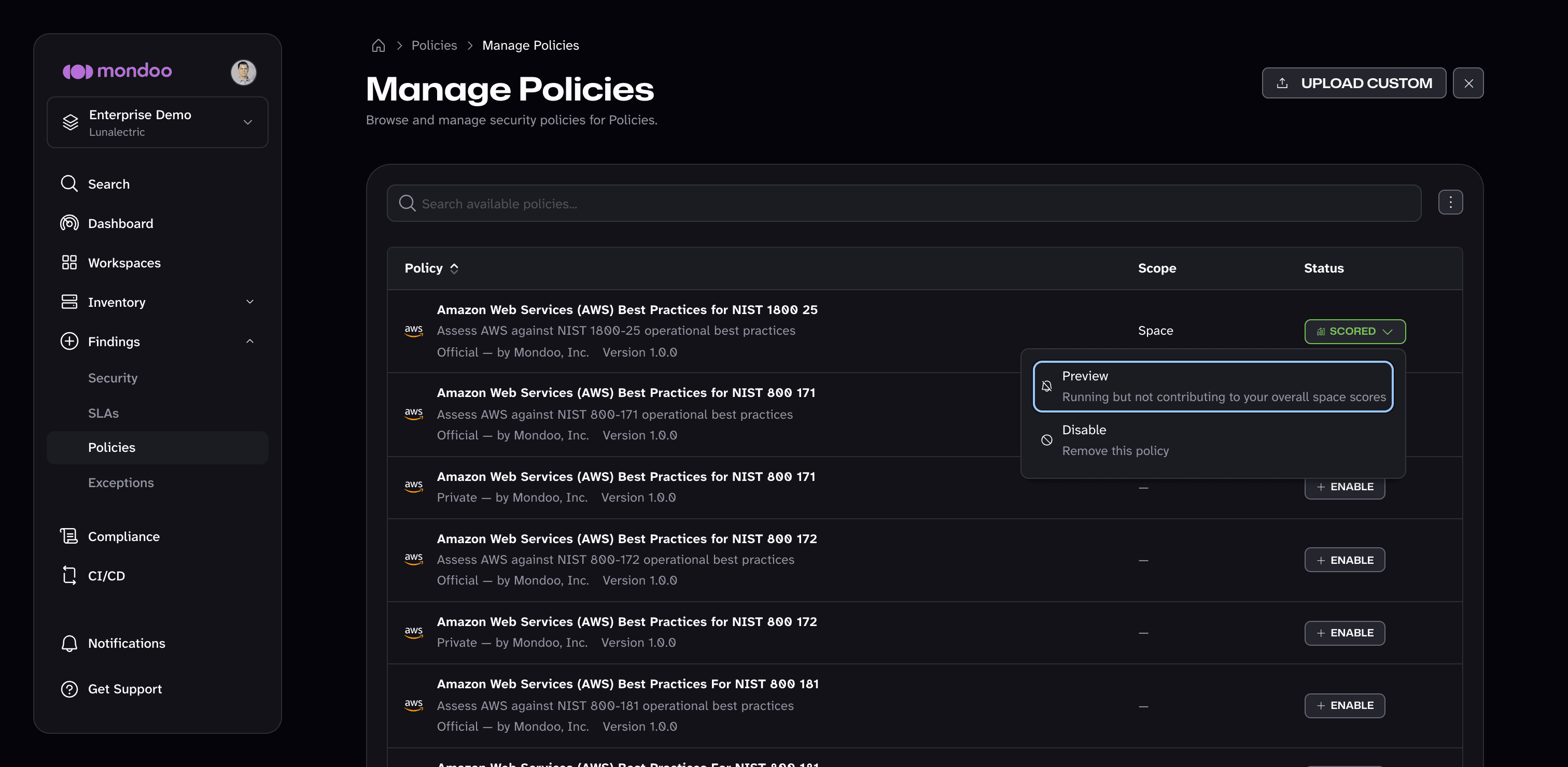
Select its status menu (the SCORED button) and choose Preview. The policy keeps running but no longer contributes to your space scores.
To preview several policies at once, select their check boxes on the Policies page and choose Preview.
Disable a policy
-
On the Manage Policies page, find the policy.
-
Select its status menu (the SCORED or PREVIEW button) and choose Disable.
To remove several policies at once, select their check boxes on the Policies page and choose Remove.