Find Critical Exposures and Exposed Assets
See the remotely exploitable vulnerabilities on internet-exposed assets and the assets carrying vulnerability risk, then act on them first.
Two views linked from the space dashboard help you decide where to start: Critical Exposures lists the vulnerabilities most likely to lead to a breach, and Exposed Assets lists the assets that carry vulnerability risk.
Critical Exposures
A critical exposure is a CVE finding that meets all of these conditions:
- Its risk rating is Critical.
- It's remotely exploitable.
- It affects an asset that's exposed to the internet.
These are the findings to fix first. An attacker can reach the asset from the internet and exploit the vulnerability without local access. To learn how Mondoo detects remote exploitability and internet exposure, read Risk factors and Attack surface.
Open Critical Exposures
-
Navigate to the space (or a workspace in the space) and select Dashboard in the side navigation.
-
At the top of the dashboard, the Critical Exposures banner shows how many critical exposures the space has. Select VIEW FINDINGS.
Each row is one CVE on one asset, so a CVE that affects several internet-exposed assets appears once per asset. The table has these columns:
| Column | Description |
|---|---|
| Finding | The CVE ID and title. |
| Asset | The affected asset. |
| First Detected | When Mondoo first found the CVE on the asset. |
| Risk | The finding's risk score and rating. |
| Status | The finding's current state, such as New, Ticketed, or Risk accepted. Select the status to open a menu of actions for the finding. |
The list opens sorted by risk, highest first. To sort by First Detected or Risk instead, select the column heading. To narrow the list, type a CVE ID in the search box.
Select Table options (next to the search box) to show or hide columns, change the sort, copy the rows, or export the list.
If the space has no critical exposures, the page says so. That means Mondoo scanned your inventory and found no remotely exploitable vulnerabilities on assets exposed to the internet.
Act on a critical exposure
- Investigate. Select a row to open the finding on the affected asset, with its risk profile, how it's scored, and remediation steps.
- Create a ticket. Select the finding's status, then Create ticket, to track the fix in your issue tracker. To learn more, read Ticketing.
- Set an exception. If you've mitigated the risk another way or accept it, select the finding's status, then Set exception. To learn more, read Set Exceptions on Asset Findings.
Exposed Assets
An exposed asset is an asset whose vulnerabilities give it a risk score greater than zero. The list shows every such asset in the space, whether or not it's reachable from the internet. CI/CD assets are excluded. Use this list to find the assets that need patching, then use the risk factors to decide which ones to patch first.
Open Exposed Assets
-
Navigate to the space and select Dashboard in the side navigation.
-
Select the Exposed Assets card, which breaks down exposed assets by severity.
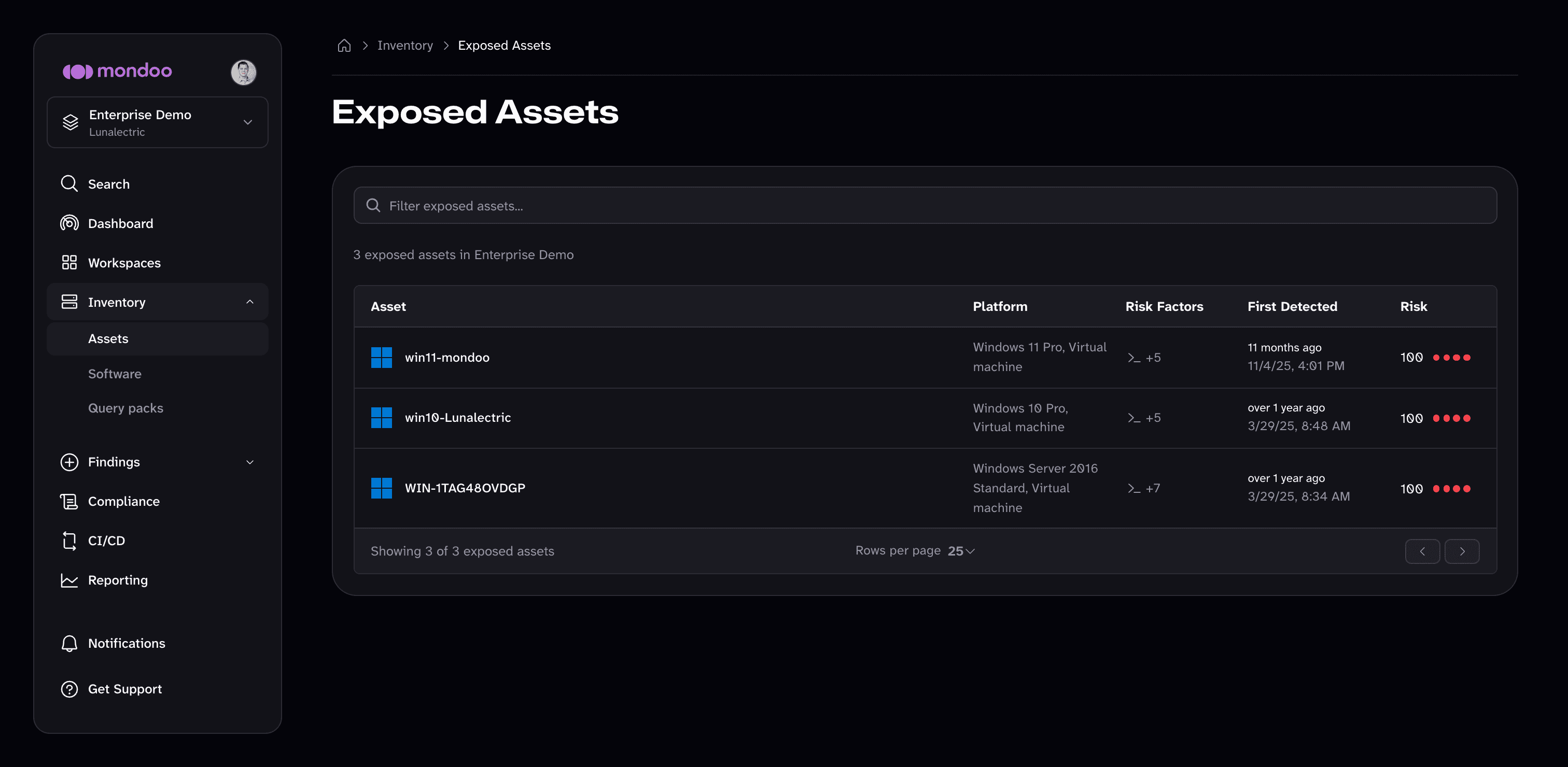
The table has these columns:
| Column | Description |
|---|---|
| Asset | The asset name. |
| Platform | The asset's platform, such as the operating system and whether it's a virtual machine. |
| Risk Factors | Icons for the risk factors that apply to the asset, such as internet exposure or remote exploitability. To learn what each icon means, read Risk factors. |
| First Detected | When Mondoo first found vulnerability risk on the asset. |
| Risk | The asset's vulnerability risk score and rating. |
The list opens with the riskiest assets first. To sort by Asset, First Detected, or Risk, select the column heading.
To filter the list, select the search box and choose a category:
- Risk Rating shows only assets with the ratings you choose, such as Critical or High.
- Risk Factors shows only assets with the risk factors you choose.
- Platform shows only assets on the platforms you choose.
You can also type a search term to match asset names. Filters appear as chips in the search box, and you can remove each one.
Act on an exposed asset
Select an asset to open its detail page. From there, review its vulnerabilities and other findings, and create tickets or set exceptions for individual findings. To learn more, read Asset Detail.