Set Exceptions on Asset Findings
Set exceptions on findings (checks, CVEs, or advisories) on a single asset.
An asset finding exception tells Mondoo to skip or stop scoring a finding on a single asset. Use it when a check or advisory matters for your space overall but doesn't apply to one particular asset, or when you want to defer fixing it until a later date.
For an overview of the four exception types, read Exceptions.
Note: Setting an exception requires Editor or Owner access. Approving, rejecting, and removing an exception requires Owner access or the Exception Reviewer or Exception Manager role.
Set an exception on an asset's advisories
-
In the Mondoo App, navigate to the space.
-
Use Search in the left navigation or the Inventory list to open the asset.
You can also select a workspace to view a subset of assets.
-
Open the Findings tab and select the Advisories filter.
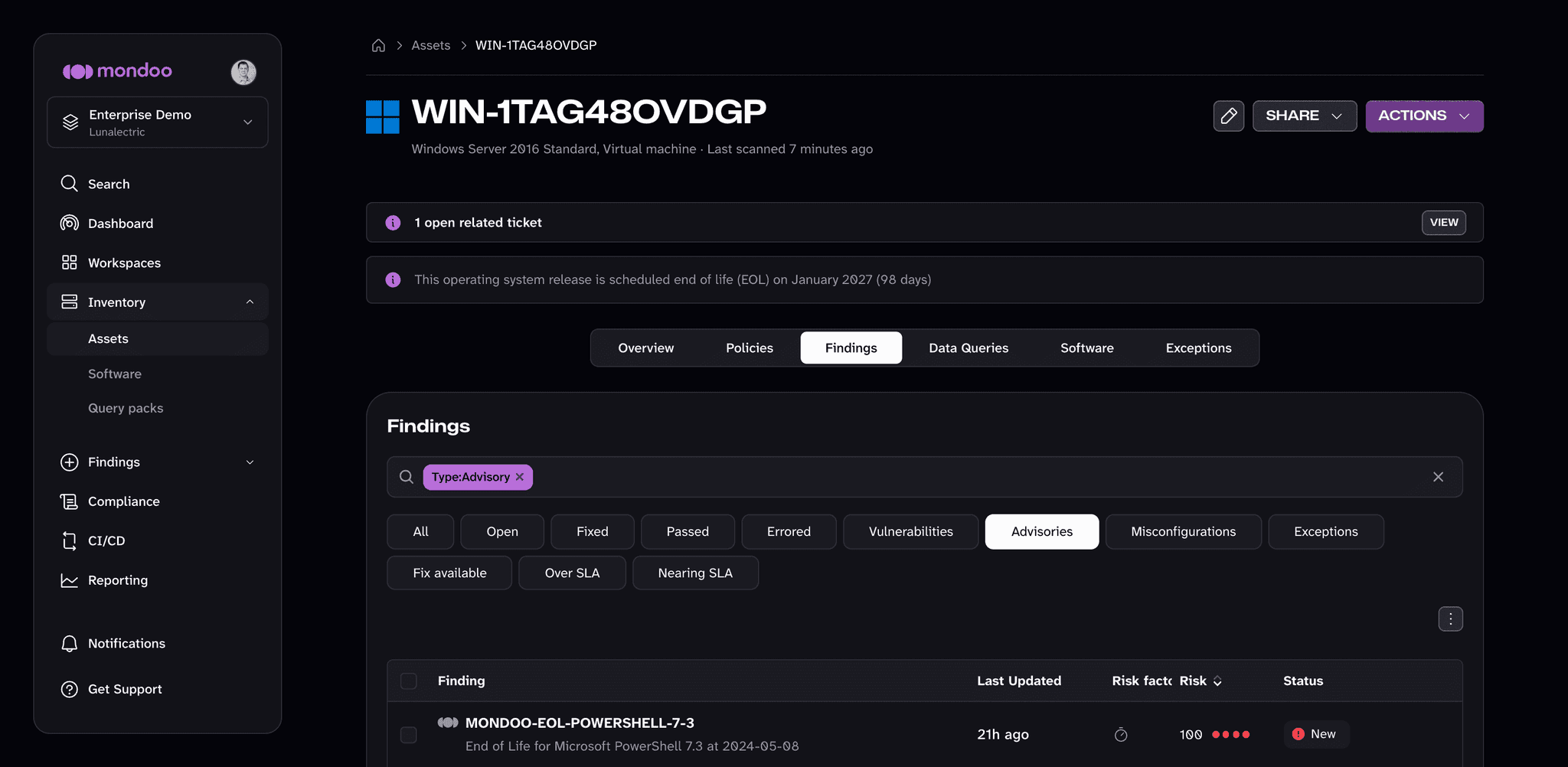
-
Check the boxes next to the advisories you want to set an exception on.
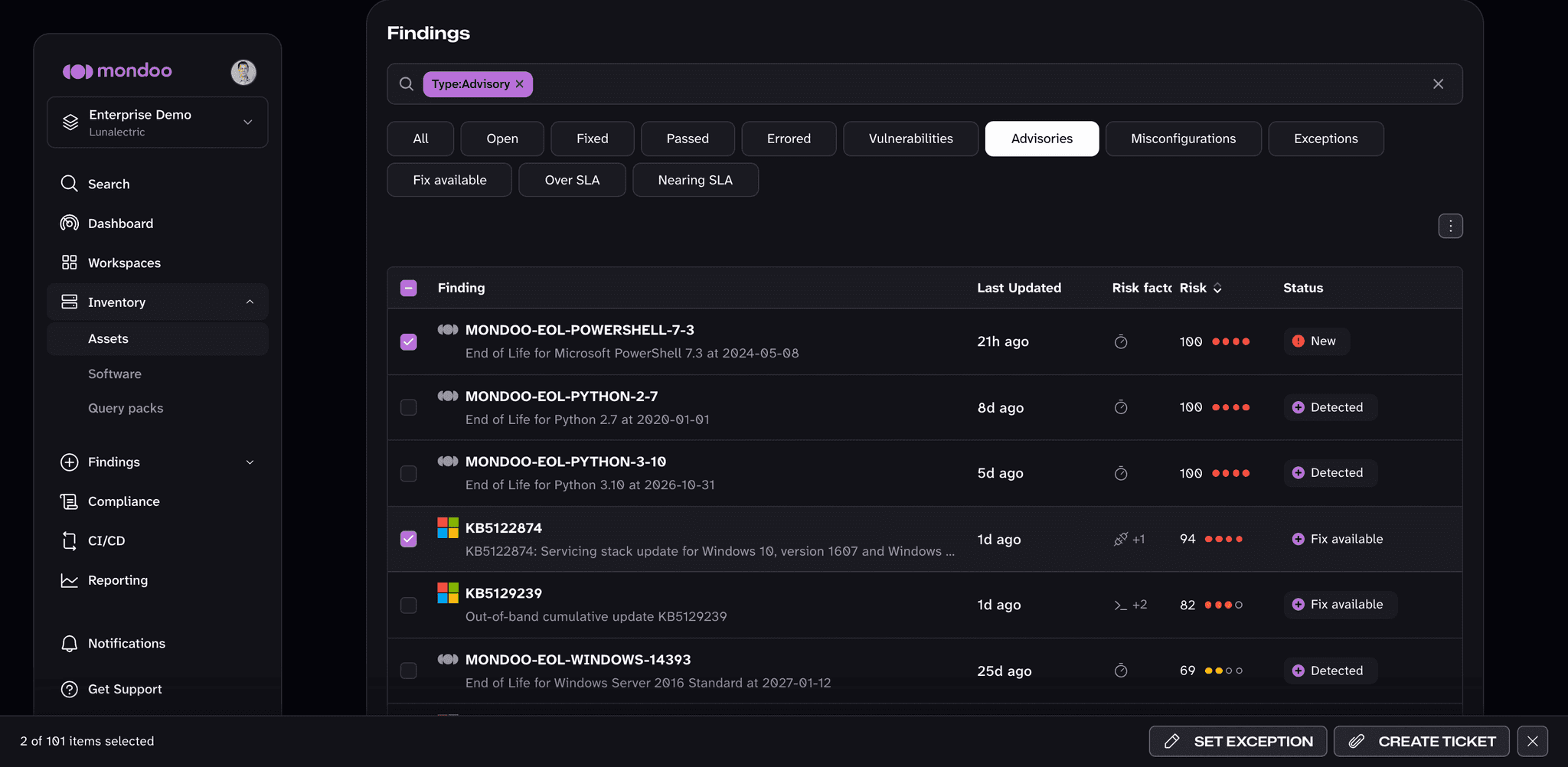
-
In the toolbar at the bottom of the page, select SET EXCEPTION.
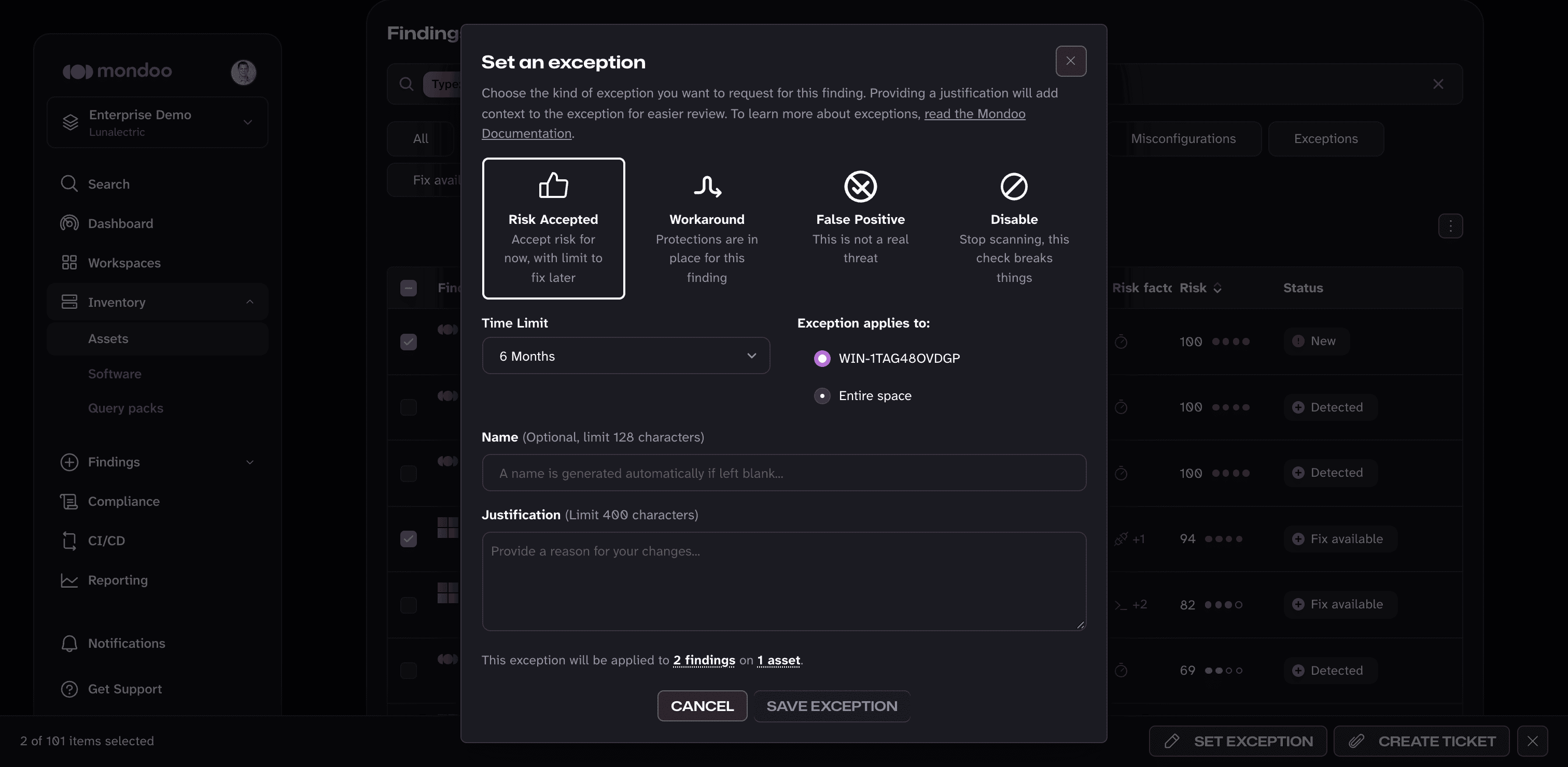
-
Choose the exception type and Time Limit.
-
Under Exception applies to, choose the asset to limit the exception to this asset, or Entire space to apply it to every asset in the space.
-
Optionally enter a Name, enter a Justification (reviewers see it when they approve or reject the exception), and select SAVE EXCEPTION.
The same flow works for checks and CVEs using the Misconfigurations and Vulnerabilities filters.
Approve or reject an exception
An exception's approval flow depends on your space's exception settings. In new spaces, an exception stays pending until a reviewer approves it. If a space owner turns off Require exception approvals, an exception applies as soon as it's created and a reviewer approves or rejects it afterward as an audit step. Approving keeps the exception. Rejecting ends it.
-
Open the asset (steps 1 and 2 above).
-
Select the Exceptions tab to see every exception that applies to the asset, then select an exception to open its detail.
-
Select APPROVE or REJECT.
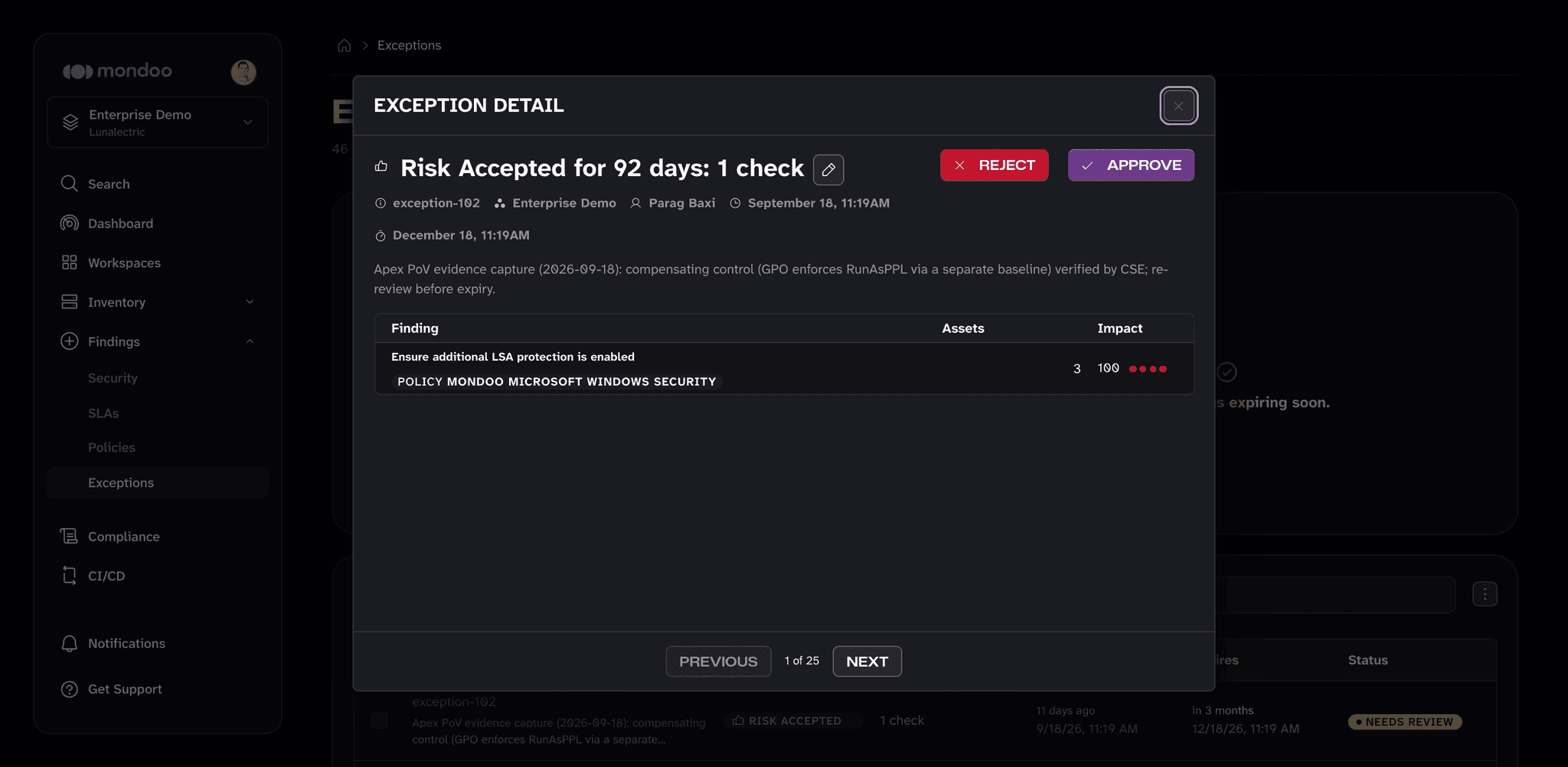
An exception that applies to the entire space shows a Manage in space exceptions link instead of the review buttons, because approving or rejecting it affects every asset. Follow the link to review it on the space's Exceptions page.
Remove an exception
To remove an approved exception and re-enable the finding, open the exception from the Exceptions tab, select the Modify exception (pencil) button, and choose Remove exception and enable. The finding counts toward scores again.