Set Exceptions on Policies
Add, approve, reject, and remove exceptions for checks across a whole space.
A policy exception tells Mondoo to skip or stop scoring one or more checks within a policy, space-wide. Use it when a check doesn't apply to your environment, or when you want to accept the risk for a tracked period.
For an overview of the four exception types, read Exceptions.
Note: Setting an exception requires Editor or Owner access. Approving, rejecting, and removing an exception requires Owner access or the Exception Reviewer or Exception Manager role.
Set an exception on policy checks
-
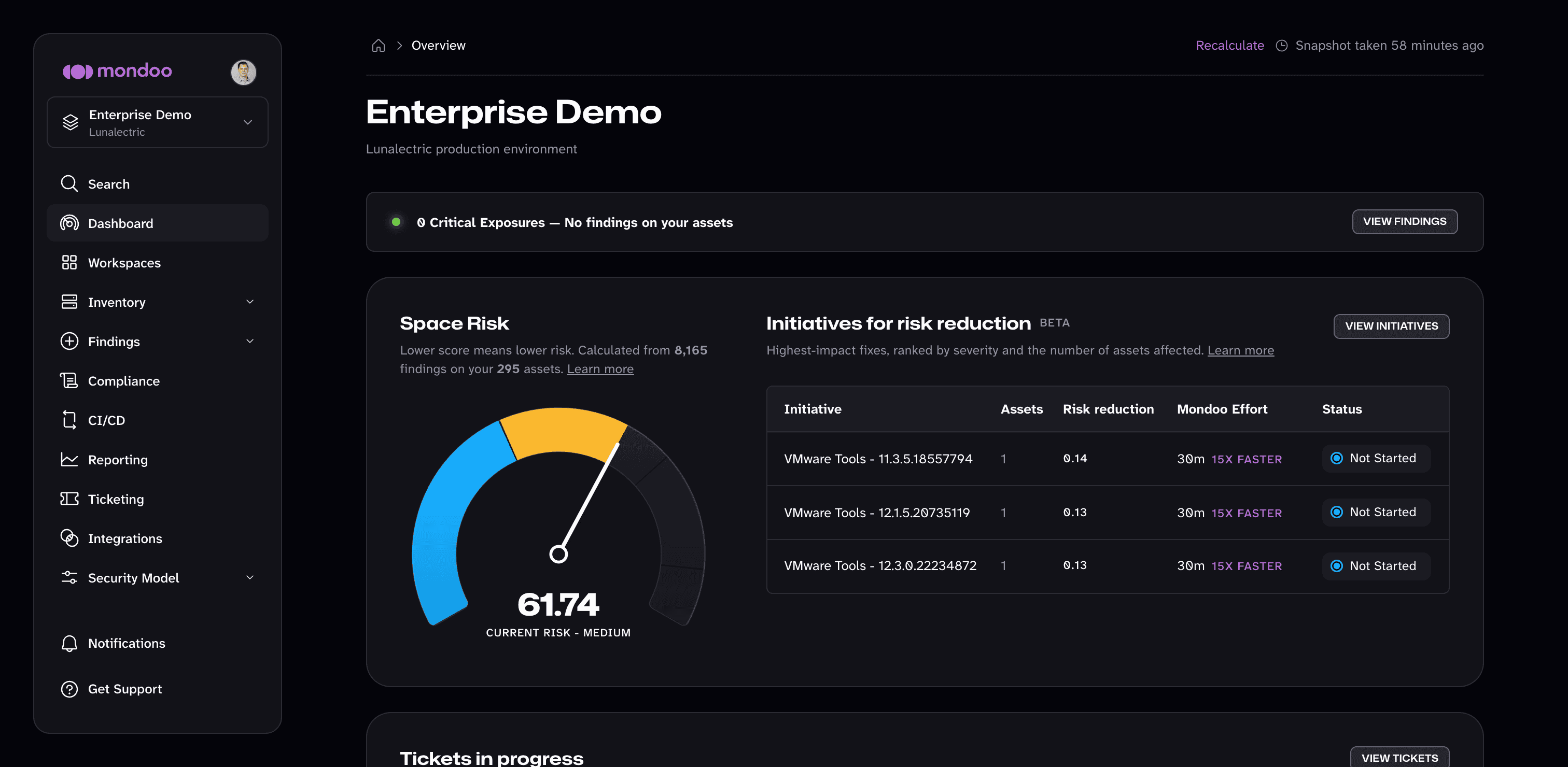
In the Mondoo App, navigate to the space.
-
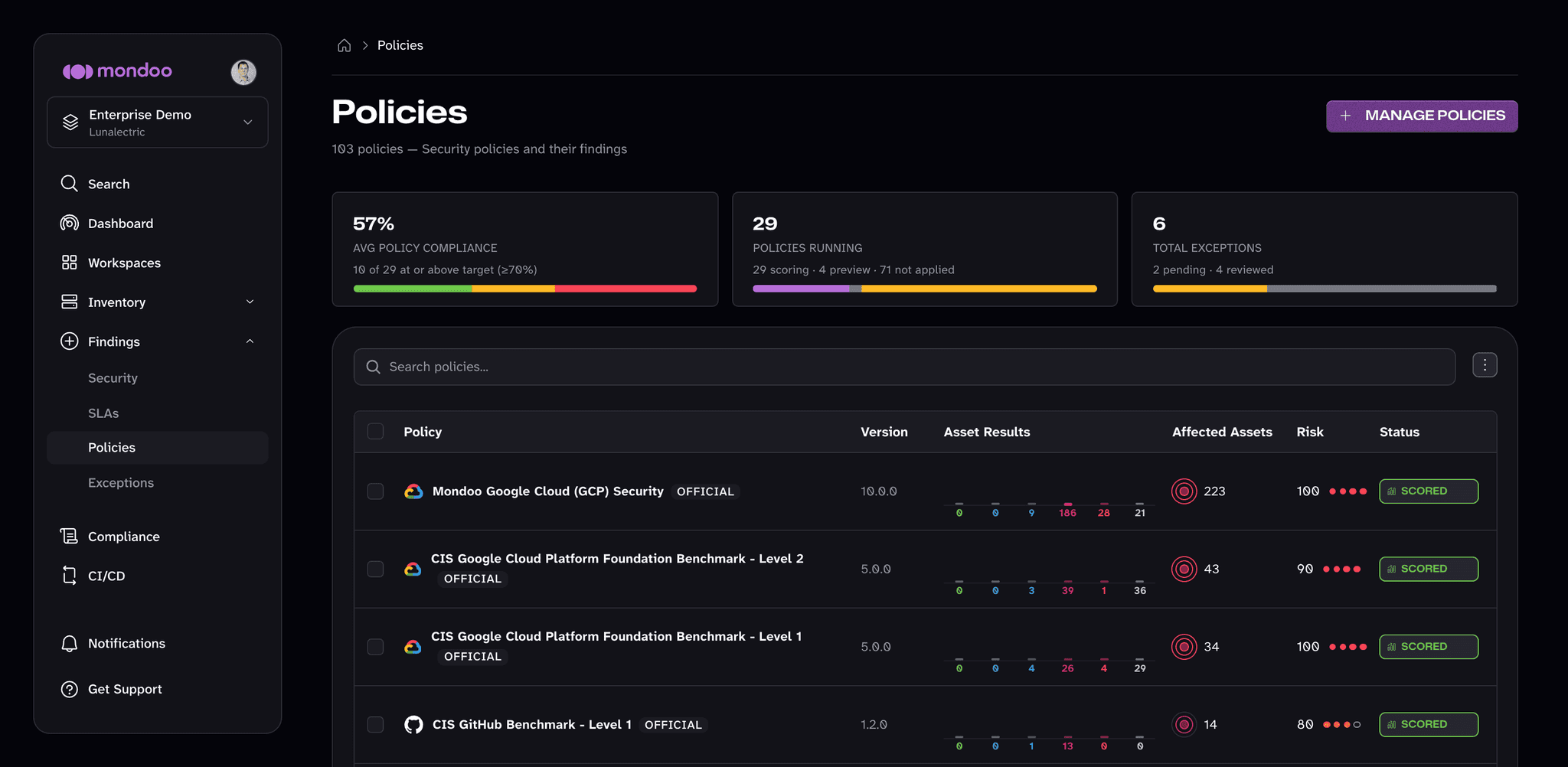
In the side navigation, under Findings, select Policies.
-
Select the policy. It opens on the Checks tab.
-
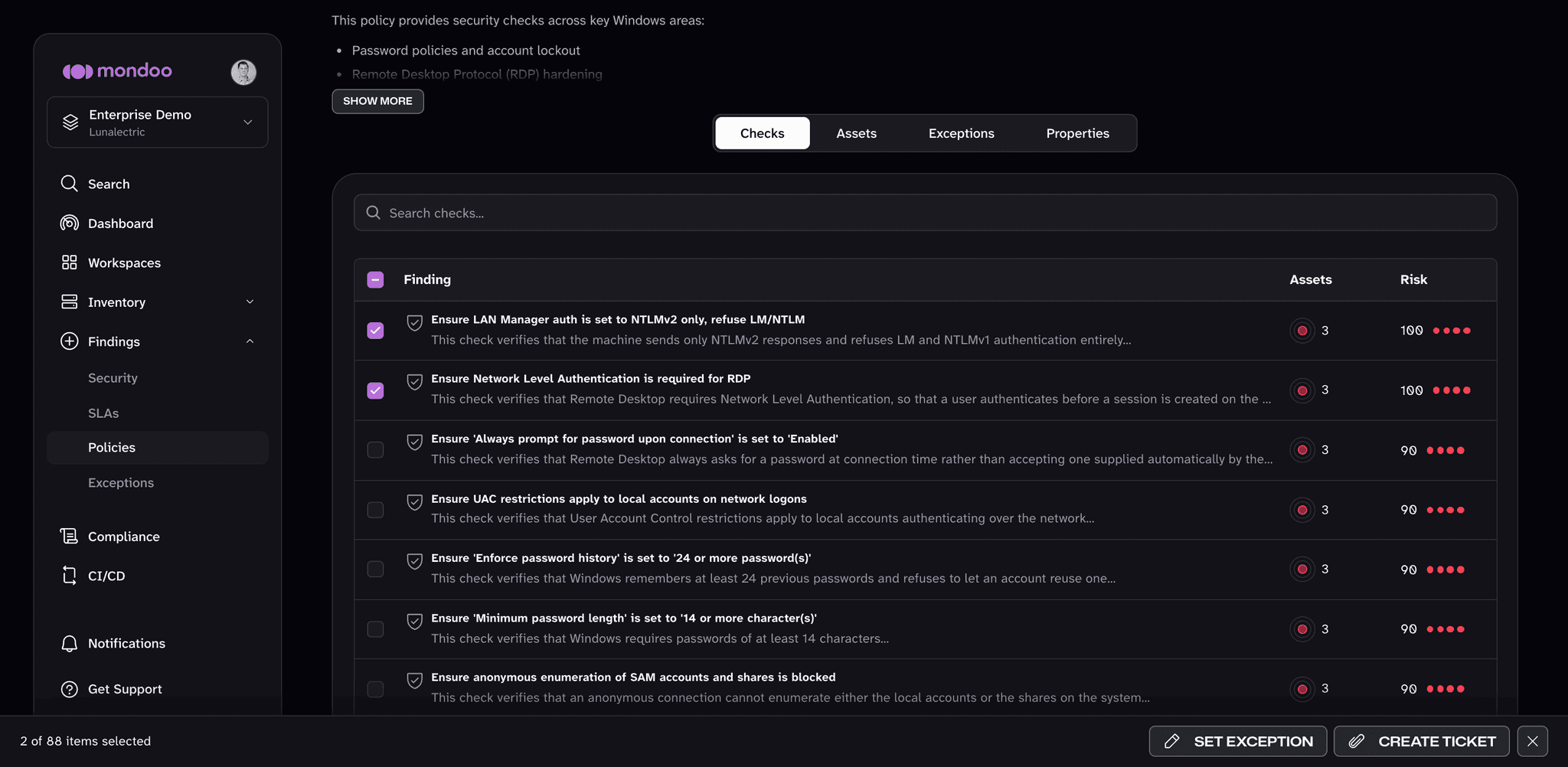
Check the boxes next to the checks you want to set an exception on.
-
In the toolbar at the bottom of the page, select SET EXCEPTION.
-
Choose the exception type and Time Limit, optionally enter a Name, enter a Justification, and select SAVE EXCEPTION.
Approve or reject an exception
An exception's approval flow depends on your space's exception settings. In new spaces, an exception stays pending until a reviewer approves it. If a space owner turns off Require exception approvals, an exception applies as soon as it's created and a reviewer approves or rejects it afterward as an audit step. Approving keeps the exception. Rejecting ends it.
-
Navigate to the space, then to Findings > Policies.
-
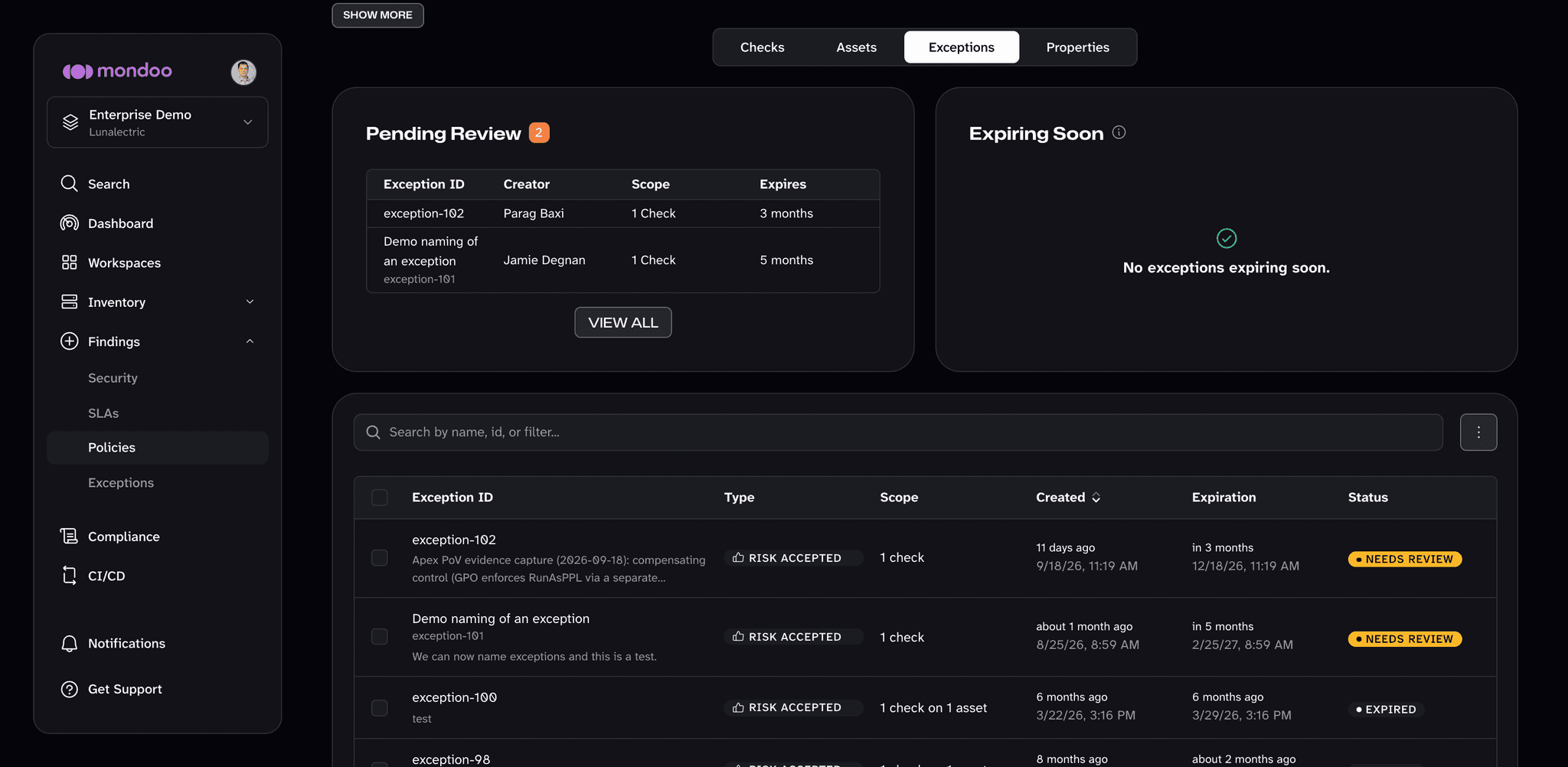
Select the policy and switch to the Exceptions tab.
-
Select an exception to open its detail, then select APPROVE to keep it or REJECT to end it.
You can also review exceptions from every policy in one place on the space's Exceptions page. To learn more, read Manage exceptions.
Remove an exception
To remove an approved exception and re-enable its checks, open the policy's Exceptions tab and select the exception to open its detail. Select the Modify exception (pencil) button and choose Remove exception and enable. The checks count toward scores again.
Set Exceptions on Asset Findings
Set exceptions on findings (checks, CVEs, or advisories) on a single asset.
Exceptions in Code Repositories
Request exceptions in a mondoo.yml file next to your infrastructure as code, route their review with CODEOWNERS, and let cnspec submit them to Mondoo Platform after merge.