Automatically Set Up Azure Continuous Scanning
Use the keyless automated setup to configure the Mondoo Azure integration to scan Azure subscriptions
The automated setup is keyless. You run a generated az script in Azure Cloud Shell that creates an app registration and a federated identity credential trusting Mondoo, then grants Mondoo read-only access once, on a management group. Every subscription under that management group inherits the access, including subscriptions you create later. No client secret or certificate is created, stored, or rotated. The whole process takes a few minutes.
Two other setup paths are available on the same page:
- Terraform setup runs
cnspec integrate azure, which drives a Terraform run. It creates an app registration with a self-signed certificate that you renew before it expires. - Manual setup is for when you want to create the app registration yourself, or for key vaults that use the legacy access policy permission model.
Before you start
You need:
- In Mondoo: Editor or Owner access in the space where you want to add the integration.
- In Azure: the Azure CLI installed and configured, plus permission to create App Registrations in Microsoft Entra ID. Most tenants allow this for any user.
- To assign roles: Owner or User Access Administrator on the management group you grant Mondoo access at (the tenant root management group, unless you choose a specific management group). Azure grants this to nobody by default, not even to a Global Administrator. A Global Administrator can elevate access to get it. The preflight check in Step 3 tells you whether you have it.
- To scan Microsoft Entra ID itself (optional): Privileged Role Administrator or Global Administrator, so the script can add Mondoo to Directory Readers. Subscription scanning works without it.
- Azure Cloud Shell access to run the scripts.
Check your Azure roles in the portal: Microsoft Entra ID > Users > (your account) > Assigned roles.
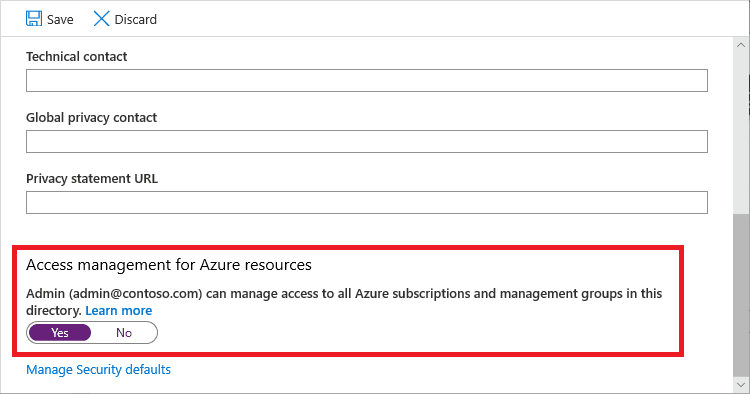
To elevate access, a Global Administrator opens Microsoft Entra ID > Manage > Properties, sets Access management for Azure resources to Yes, selects Save, then signs out and back in. Once setup is done, set the toggle back to No. The roles assigned to Mondoo stay in place.
What the setup creates
The provisioning script creates these resources in your tenant:
| Resource | Purpose |
|---|---|
| App registration | The Mondoo Security (<integration ID>) application and its service principal. |
| Federated identity credential | Trusts Mondoo as an OIDC identity provider so no secret is needed. |
| Directory Readers role | Lets Mondoo read Microsoft Entra ID without admin consent. If the script can't add it, everything else still works; only Entra ID scanning is affected. |
| Reader role | Read-only access, granted once at the management group you choose. Every subscription beneath it inherits the access. |
Mondoo VM Run Command - <app ID> role | A custom role limited to Azure Run Command, assigned at the same management group. The script always creates it, even if VM scanning is off, so you can turn VM scanning on later without re-running it. |
Set up the integration
Step 1: Open the Azure integration
In the Mondoo App, navigate to the space where you want to add the integration. In the side navigation bar, select Integrations, then select INSTALL in the top right. Find Azure and select it.
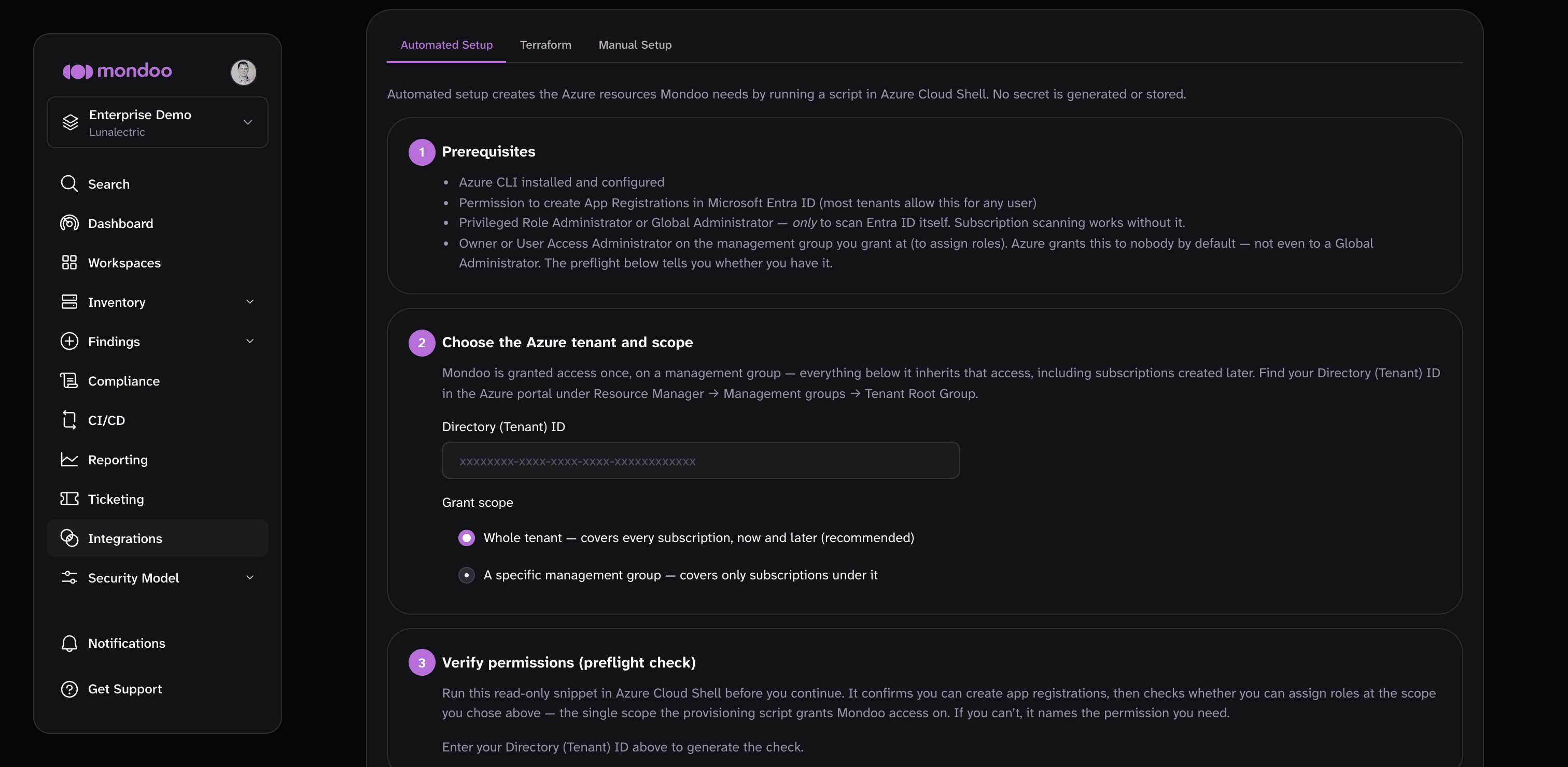
The Automated Setup tab is selected by default. Step 1 of the form lists the prerequisites from Before you start.
Step 2: Choose the Azure tenant and scope
-
In the Directory (Tenant) ID box, enter your Microsoft Entra tenant ID. Find it in the Azure portal under Microsoft Entra ID > Properties > Tenant ID, or under Management groups (the ID of the Tenant root group is your tenant ID).
-
Under Grant scope, choose where Mondoo gets its read-only access:
- Whole tenant (recommended): Mondoo is granted access at the tenant root management group, which covers every subscription, now and later.
- A specific management group: Mondoo is granted access only to the subscriptions under one management group. In the Management group ID box, enter the group's ID (not its display name). Find it in the Azure portal under Management groups.
You can't change the grant scope after you create the integration.
Step 3: Verify permissions (preflight check)
Once you enter the tenant ID, Mondoo generates a read-only snippet under Verify permissions (preflight check). Copy it, select AZURE CLOUD SHELL, and run it. It checks whether you can create app registrations, whether you can add Mondoo to Directory Readers, and whether you can assign roles at the scope you chose in Step 2.
Each check prints one of:
| Result | Meaning |
|---|---|
OK | You have the access this step needs. |
COULD NOT CONFIRM | Azure didn't let the check read the setting or your role and group memberships. You may still have the access. |
MISSING | You don't have the access. For app registrations or role assignments, get it before continuing. For Directory Readers, setup still works but Mondoo won't scan Entra ID. |
NO ACCESS | The management group isn't visible to you at all. This is normal for an administrator who has never elevated access. |
NOT AVAILABLE | The management group doesn't exist or isn't visible to you, or the tenant has no root management group yet. |
COULD NOT CHECK | Azure returned no decision for the role assignment check. |
The snippet only reads; it changes nothing in your tenant.
Step 4: Enable security policies (optional)
Under Enable security policies, choose the policies on which you want to base assessments of your Azure environment. To learn more, read Manage Policies.
Step 5: Choose scan targets
Mondoo has access to everything under the scope you chose in Step 2. These choices decide what it scans. Mondoo applies them at scan time, so you can change them later by editing the integration, without re-running any script.
-
To automatically discover and scan Linux and Windows virtual machines using Azure Run Command, enable Scan virtual machines.
-
Leave Scan all subscriptions connected to the Directory (tenant) ID enabled to scan every subscription in the tenant.
-
To scan only certain subscriptions, turn the toggle off, select Allow list, and enter one subscription ID per line (or comma-separated).
-
To scan everything except certain subscriptions, turn the toggle off, select Deny list, and enter the subscription IDs to exclude.
-
If you turn off Scan all subscriptions connected to the Directory (tenant) ID, list at least one subscription.
To find your subscription IDs, go to Subscriptions in the Azure portal.
Step 6: Create the integration
Select CREATE INTEGRATION.
Mondoo creates a keyless integration record and returns the federation details (issuer and subject) that the provisioning script needs. No token or secret is generated or stored.
Finish both remaining steps
The integration isn't usable until you complete Steps 7 and 8. If you leave the page now, you'll have an incomplete integration you need to delete and recreate.
Step 7: Run the provisioning script
-
Copy the script Mondoo generated.
-
Select AZURE CLOUD SHELL to open Cloud Shell in a new tab, then paste the script and press Enter. You can also run it from any shell with the Azure CLI installed and signed in to the target tenant.
-
When the script finishes, it prints a Client ID. Copy that value.
The script deletes nothing. If a step fails, it stops there, tells you what it already created, and gives you the commands to remove it.
Step 8: Finish
-
Back in Mondoo, paste the value into the Application (client) ID box.
-
Select FINISH.
Mondoo begins scanning your Azure resources. When the first scan completes, you can see results on the INVENTORY page. To learn more, read Monitor Your Infrastructure Security.
Troubleshoot
- The preflight check reports
MISSINGorNO ACCESSfor role assignments. Get Owner or User Access Administrator on the management group you chose (a Global Administrator can elevate access first), then run the check again.COULD NOT CONFIRMis not a failure; it means the check couldn't see the setting or your memberships, and you may still have the access. - The preflight check reports
NOT AVAILABLE. Check the management group ID, or choose Whole tenant instead. If the tenant has no root management group yet, open Management groups in the Azure portal once so Azure creates it, then run the check again. - The provisioning script fails partway through. Confirm you're signed in to Azure with an account that has the roles listed in Before you start, then run the script again.
- The script printed no Client ID. It didn't reach the end. Scroll back for the error, fix it, and re-run the script.
- Your new integration doesn't appear in the Mondoo App. Refresh the page.
- For deeper checks, including app registration and permission issues, see Test or Troubleshoot an Azure Integration.
Remove the integration
Deleting the integration in Mondoo stops the scans, but the app registration, its federated credential, and its role assignments stay in Azure. When you select the trash can icon on the integration page, the Remove Integration dialog shows the cleanup steps and a cleanup script for this integration's app registration and role assignments. Copy them before you select DELETE, because the IDs they name aren't shown anywhere once the integration is gone.