Secure VMware with Mondoo
Continuously assess VMware vSphere and ESXi hosts for security vulnerabilities and misconfigurations.
Mondoo continuously assesses VMware vSphere and ESXi hosts for vulnerabilities and misconfigurations. Because VMware often forms the foundation of on-premises infrastructure, keeping it secure protects every workload running on top of it.
The setup has three parts:
- Create a read-only vCenter user that Mondoo will scan with.
- Deploy a Linux host with cnspec to run the scans. Mondoo ships a pre-built VMware appliance, or you can install cnspec on your own hardened Linux instance.
- Register cnspec and run scans against vSphere and ESXi.
Step 1: Create a read-only vCenter user
Mondoo needs a read-only vCenter user. Create a role, then create a user assigned to it.
-
On the vSphere Client main menu, select Administration > Roles.
-
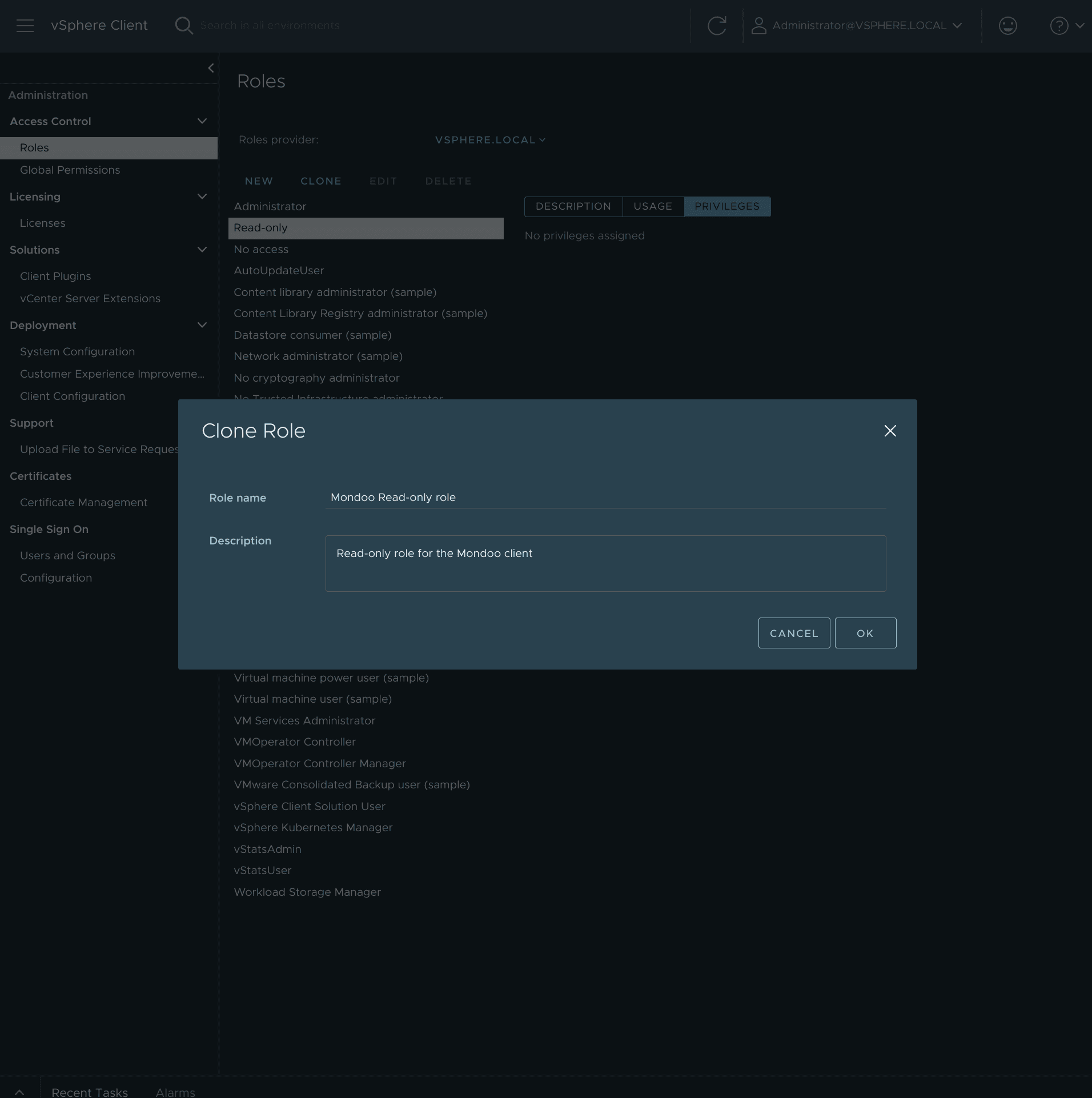
Select the Read-only role and select CLONE.
-
Name the clone Mondoo read-only role and select OK.
-
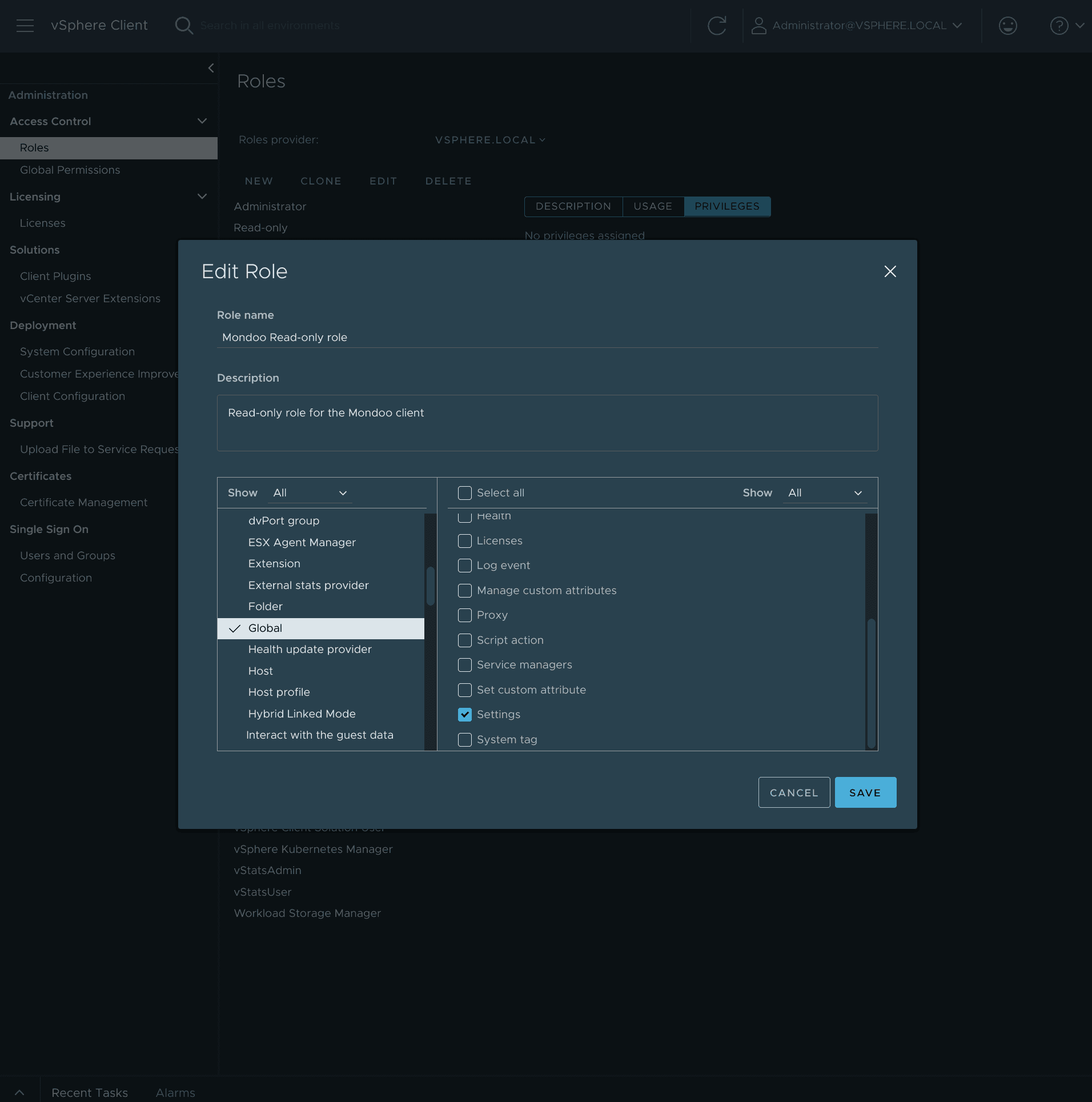
Select the new role and select EDIT. In the left list, select Global; in the right list, check Settings. Select SAVE.
-
On the Administration menu, select Users and Groups.
-
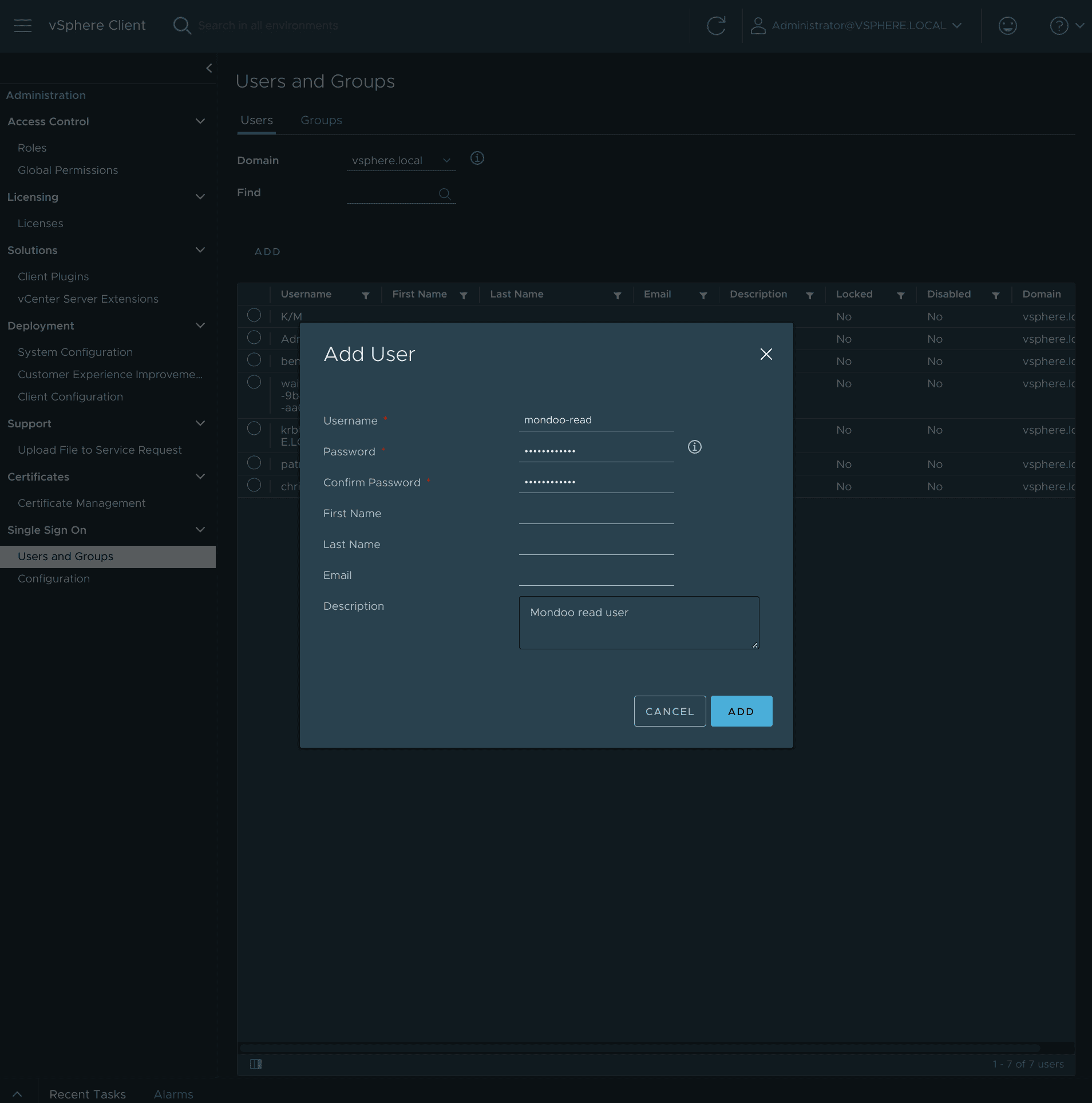
Under Users, select the vsphere.local domain and select ADD.
-
Name the user mondoo-read, set a password, and select ADD.
-
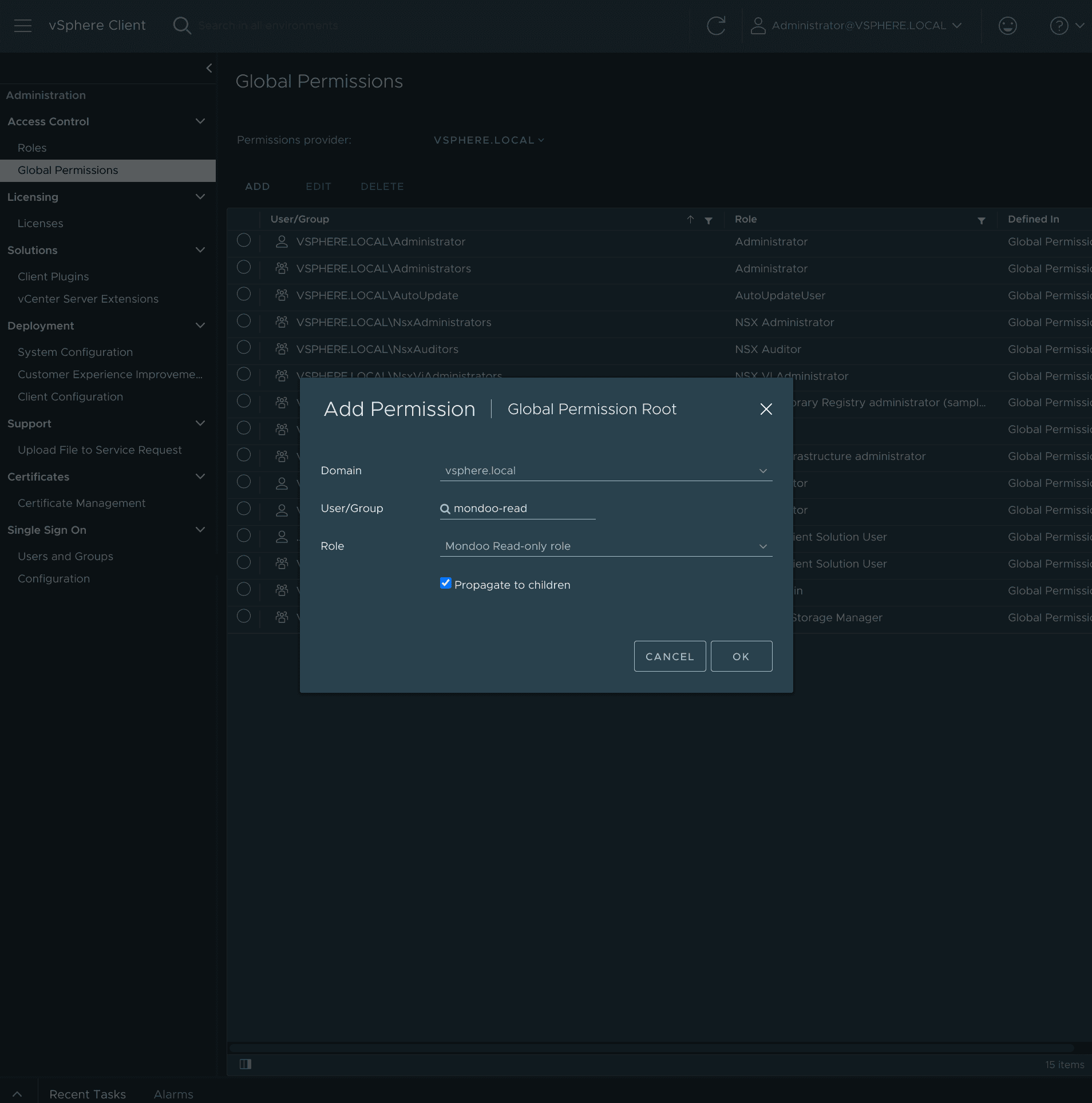
On the Administration menu, select Global Permissions > ADD, then assign the Mondoo Read-only role to the mondoo-read user. Check Propagate to children and select OK.
Step 2: Deploy a scan host
You can use the pre-built Mondoo VMware appliance or install cnspec on your own hardened Linux instance.
Option A: Mondoo VMware appliance
The appliance is a pre-configured Debian 12 VM with cnspec, VMware tools, cloud-init, and dev-sec hardening already in place.
-
Download the Mondoo OVA image.
-
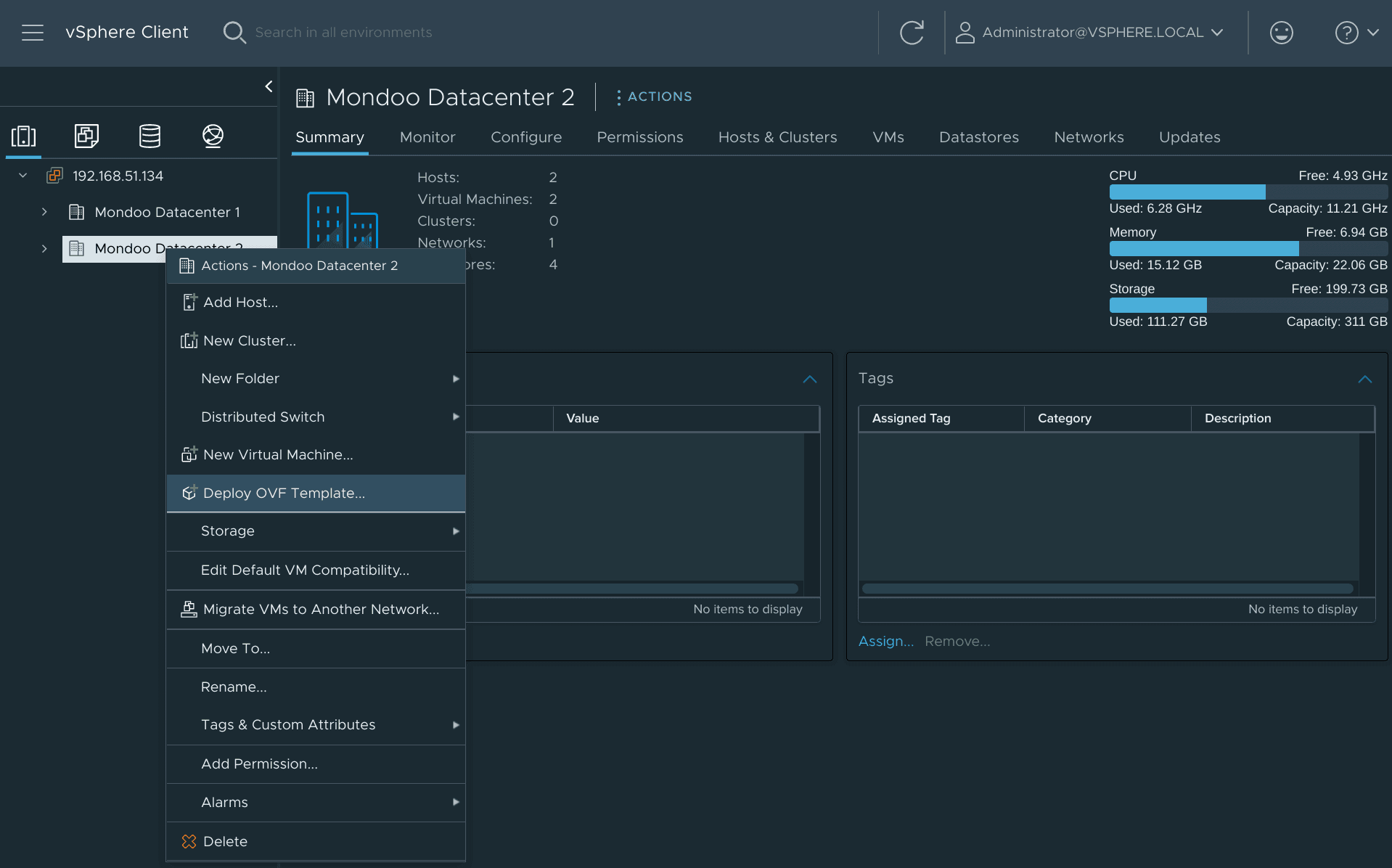
In vCenter, right-click your Datacenter and select Deploy OVF Template.
-
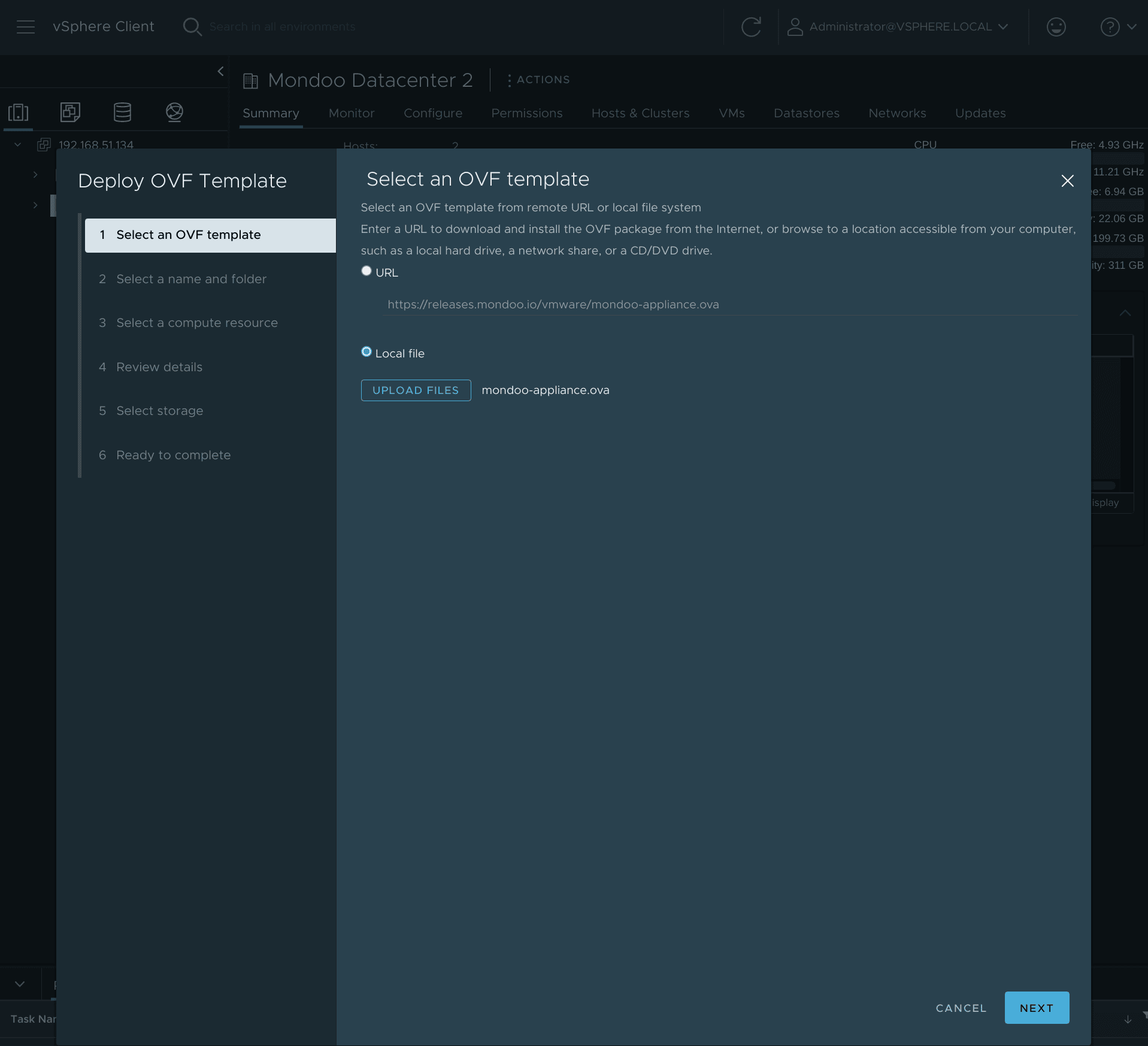
Select the OVF template by URL or local file, then step through the wizard (name, folder, compute, storage, network).
The appliance ships with default credentials mondoo / mondoo. Change the password on first login. Password login is disabled by default on the hardened image; add your SSH public key to /home/mondoo/.ssh/authorized_keys (or let cloud-init configure it at boot).
Optional: enable password authentication temporarily
If you can't transfer your SSH key first, enable password auth temporarily:
- In
/etc/ssh/sshd_config:AuthenticationMethods password PasswordAuthentication yes - Restart sshd:
systemctl restart sshd.service
Optional: configure a static IP address
Run as root.
- Edit
/etc/network/interfacesand replace the primary interface block. Example forens32:auto ens32 iface ens32 inet static address 192.168.1.100 netmask 255.255.255.0 gateway 192.168.1.1 dns-nameservers 192.168.1.1 8.8.8.8 - Comment out the matching block in
/etc/network/interfaces.d/50-cloud-init. - Create
/etc/cloud/cloud.cfg.d/99-disable-network-config.cfgwithnetwork: {config: disabled}. - Add name servers in
/etc/resolv.conf. - Restart networking:
systemctl restart networking.
If the new IP differs from the current one, your SSH session drops; reconnect to the new address.
Option B: Your own Linux host
Install cnspec on any hardened Linux instance. See the cnspec installation guide.
Step 3: Register cnspec with Mondoo
The Mondoo App's VMware page generates the registration command for you. In the side navigation
bar, select Integrations, then INSTALL, and under Cloud Security select VMware.
Under Log in and scan your VMware environment, the page shows a cnspec login command with a
fresh registration token (select REFRESH TOKEN if it expires) and a sample scan command. The
same page lets you enable security policies for vSphere and ESXi.
-
Register the host with a registration token:
sudo cnspec login -t <token> --config /etc/opt/mondoo/mondoo.yml -
Verify registration:
sudo cnspec statusThe first lines of the output summarize the result. A healthy registration reads:
  ● Client     registered   ✓ authenticated
  ● Platform   reachable · SERVING   ✓ healthy
The output ends with
✓ all systems healthy. If it doesn't, see What to do when status fails. -
Run a first test scan against vSphere using the default Platform End-of-Life and Platform Vulnerability policies:
cnspec scan vsphere mondoo-read@vsphere.local@host --ask-passAdd
--incognitoto skip sending results to the Mondoo App for the first test scan. -
In the Mondoo App, enable the policies you want to score against. VMware vSphere ESXi Security Baseline by Mondoo is a good starting point. See Manage Policies.
-
Run the scan again to send results to the Mondoo App:
cnspec scan vsphere mondoo-read@vsphere.local@host --ask-pass --discover auto--discover autofinds all ESXi hosts and the vCenter automatically. Use--discover allto also discover VMs.
Scan multiple assets with an inventory file
An inventory file lets cnspec scan multiple VMware assets on a schedule. The basic file looks like this:
apiVersion: v1
kind: Inventory
metadata:
  name: cnspec-inventory
  labels:
    environment: production
spec:
  assets:
    - name:
      connections:
        - type: vsphere
          host: <ip of the ESXi or vCenter>
          insecure: true
          credentials:
            - type: password
              user: <username>
              password: <password>
          discover:
            targets:
              - host-machines
Save the file at /etc/opt/mondoo/inventory.yml as root so cnspec picks it up automatically, then:
sudo cnspec scan --inventory-file /etc/opt/mondoo/inventory.yml
sudo systemctl restart cnspec
sudo systemctl enable cnspec
Confirm the inventory loaded with sudo journalctl -u cnspec.service.
Use an encrypted file vault for credentials
To avoid plaintext credentials in inventory.yml, use cnspec's encrypted file vault.
-
Configure the vault as the
mondoouser (notroot):cnspec vault configure mondoo-client-vault --type encrypted-file \ --option=password='changeme' \ --option path='/etc/opt/mondoo/vault.enc'cnspec prints a vault configuration block; add it to your inventory file.
-
Update the inventory to reference the vault by secret ID:
/etc/opt/mondoo/inventory.yml apiVersion: v1 kind: Inventory metadata: name: cnspec-inventory labels: environment: production spec: assets: - name: connections: - type: vsphere host: 192.168.51.134 insecure: true credentials: - secret_id: vcenter discover: targets: - host-machines vault: name: mondoo-client-vault options: password: changeme path: /etc/opt/mondoo/vault.enc type: encrypted-file -
Store the vSphere credentials in the vault:
cnspec vault add-secret vcenter \ '{ "type": "password", "user": "chris@vsphere.local", "password": "password" }' \ --inventory-file /etc/opt/mondoo/inventory.yml -
Scan using the vault (run as
root, since the vault lives in/etc/opt/mondoo/vault.enc):sudo cnspec scan --inventory-file /etc/opt/mondoo/inventory.yml systemctl restart cnspec