Continuously Scan AWS - Mondoo-Hosted Integration
Configure the Mondoo-hosted AWS integration to continuously scan your AWS accounts and EC2 instances using Workload Identity Federation or an AWS access key.
The Mondoo-hosted AWS integration provides continuous security and compliance scanning for a single AWS account, with no agent in your AWS environment and no additional AWS cost.
Need to scan an entire AWS Organization, or want all scan execution to stay inside your AWS account? See the serverless integration instead. To compare both options, read Continuously Scan with an AWS Integration.
Prerequisites
- Editor or Owner access in the Mondoo space where you want to add the integration
- An AWS account with permission to create IAM roles (and, for WIF, IAM identity providers)
Choose an authentication method
- Workload Identity Federation (WIF) (recommended, and selected by default): Keyless. You give Mondoo your AWS account ID, then use a one-click CloudFormation link to create an OIDC provider and a read-only IAM role Mondoo assumes with short-lived OIDC tokens. Nothing to rotate.
- Access key: A static IAM user access key and secret. Simpler to set up, but you're responsible for storing and rotating the key.
With WIF, Mondoo acts as an OIDC identity provider: at scan time it presents a short-lived OIDC token to AWS STS via AssumeRoleWithWebIdentity, and AWS issues temporary credentials for a read-only role that Mondoo assumes. You don't register the provider or edit trust policies by hand. Mondoo gives you a one-click AWS CloudFormation link that creates the OIDC provider and the role for you, pinned to this integration. No static keys are stored or rotated.
All you need is the AWS account ID you want to scan.
Step 1: Start the integration in Mondoo
-
In the Mondoo App, navigate to the space where you want to add the integration. In the side navigation bar, select Integrations. In the top right, select INSTALL. On the Install Integration page, find AWS by browsing or searching by name, then select it.
-
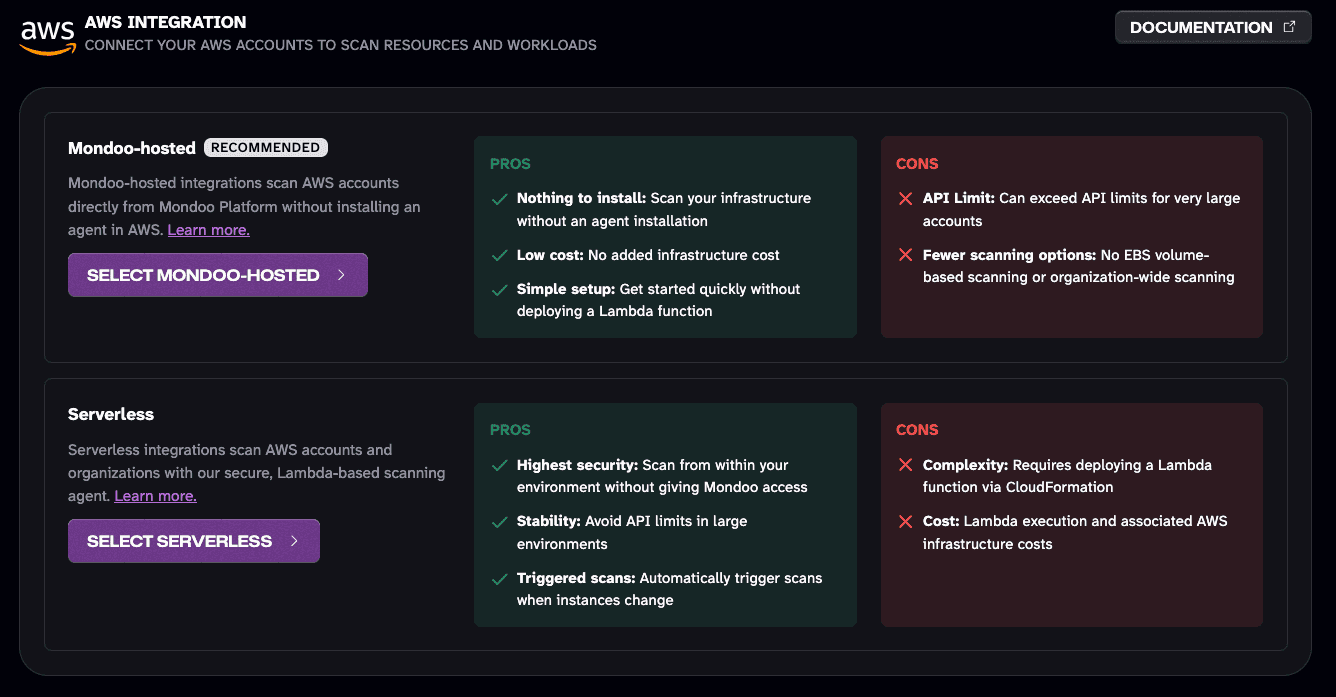
Under Mondoo-hosted, select SELECT MONDOO-HOSTED.
-
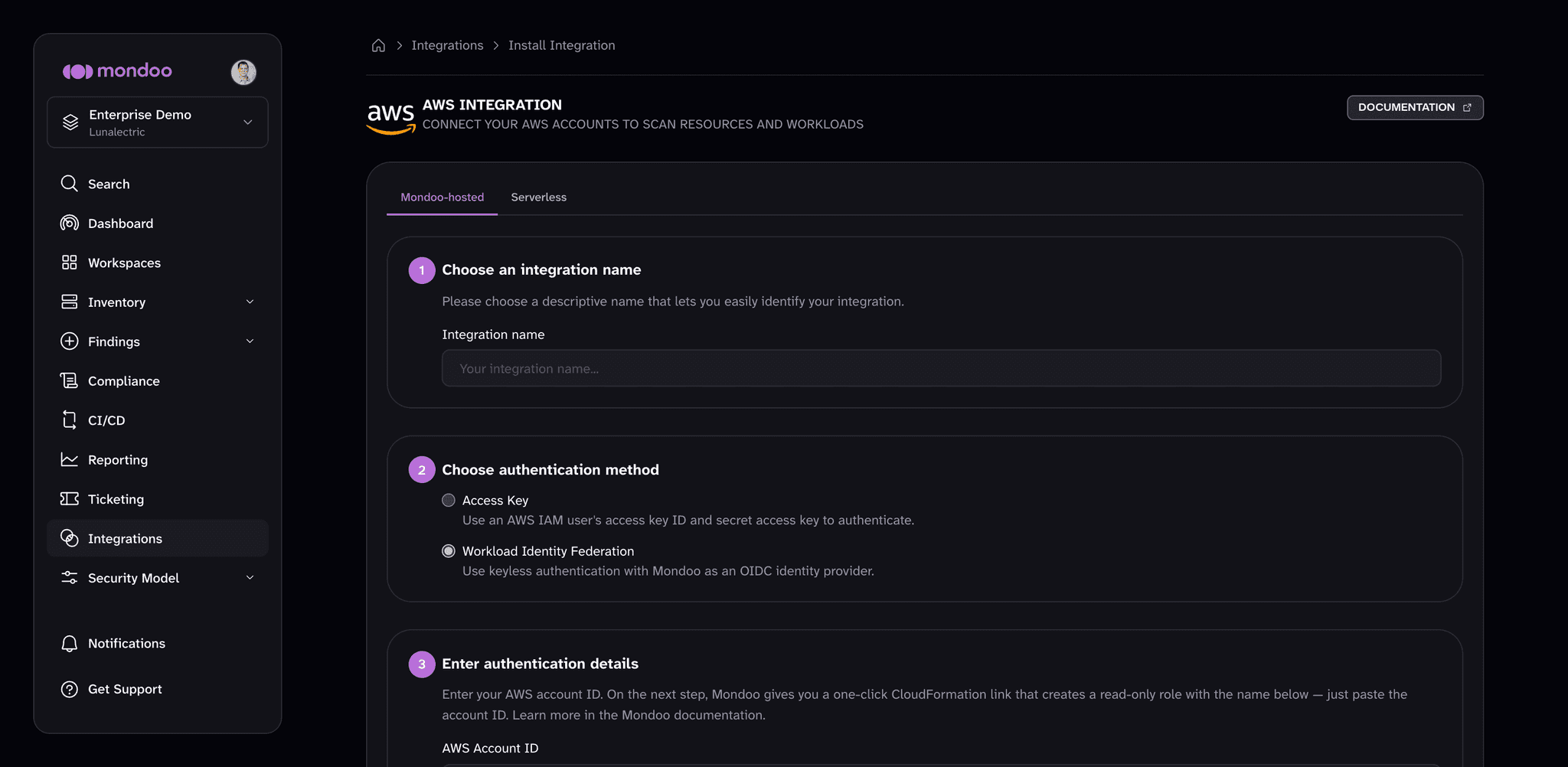
Under Choose an integration name, type a recognizable name for this AWS account in the Integration name box.
-
Under Choose authentication method, leave Workload Identity Federation selected. Mondoo selects it by default.
-
Under Enter authentication details, in the AWS Account ID box, enter the 12-digit ID of the AWS account you want to scan.
-
Leave the suggested Role name (
mondoo-hosted-scan-wif) as is, or change it if you prefer. Mondoo creates the role with this name.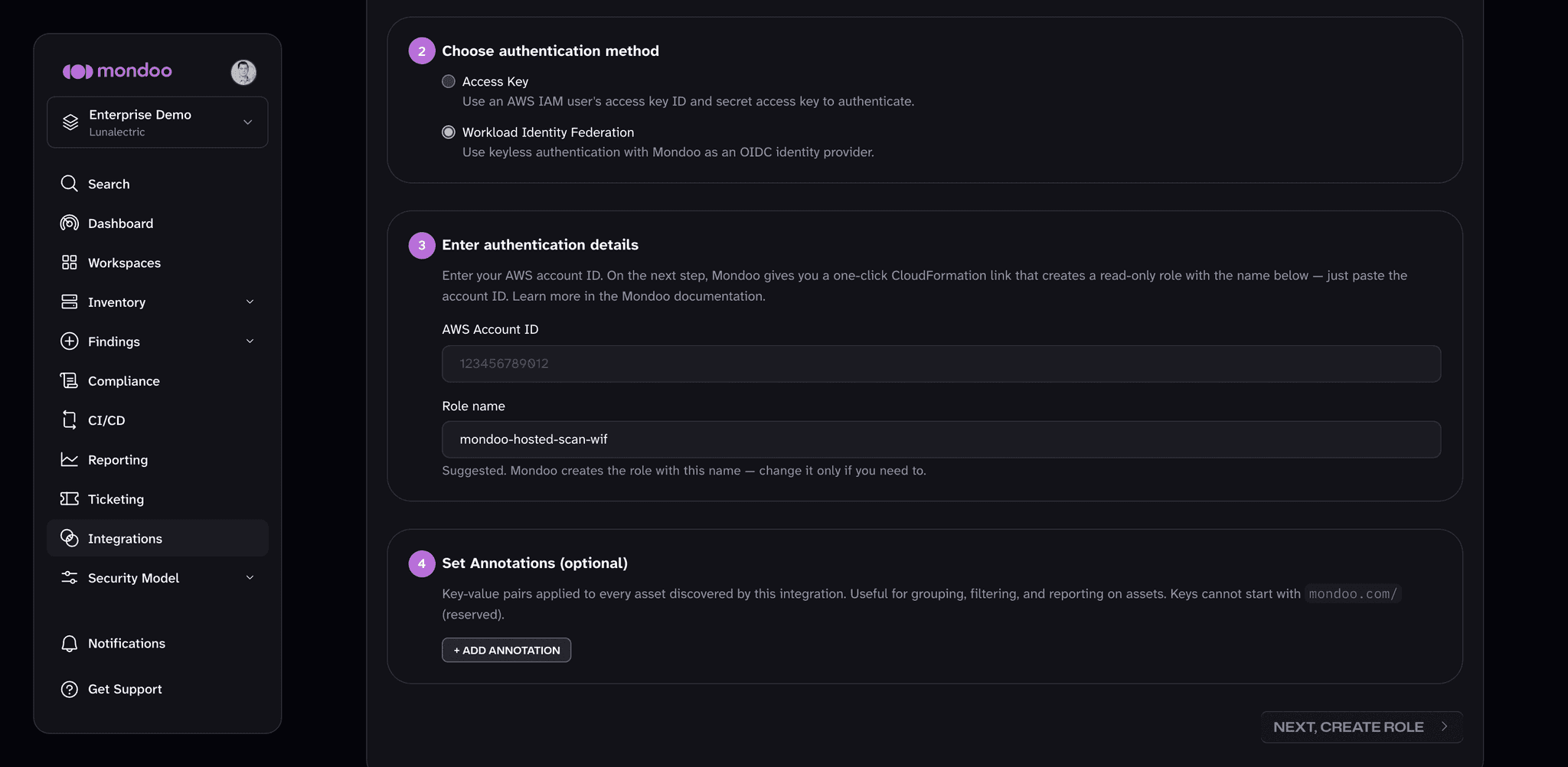
-
(Optional) Under Set Annotations (optional), select + ADD ANNOTATION to add key-value annotations that Mondoo applies to every asset this integration scans. Annotations make it easier to filter assets later or build workspaces that include only the assets from this integration.
-
Select NEXT, CREATE ROLE.
Step 2: Create the OIDC provider and role in your AWS account
Mondoo now shows a step with everything pre-filled for AWS CloudFormation.
-
Select Launch CloudFormation. This opens the AWS CloudFormation console in a new tab with the stack parameters already populated: the Mondoo OIDC issuer, the audience, this integration's subject, and the role name.
-
Review the stack, acknowledge that it creates IAM resources, and select Create stack. Wait for the stack status to reach CREATE_COMPLETE.
Make sure you're signed in to the same AWS account whose ID you entered in Step 1. The stack creates a (global) IAM OIDC provider and role, so any region works.
If the Mondoo OIDC provider already exists in this account (for example, from another integration), set the CreateOidcProvider parameter to No before creating the stack.
Step 3: Start scanning
Back in the Mondoo tab, under Start scanning, select START SCANNING. Mondoo assumes the new role via WIF and begins its first scan.
Step 4: Enable policies and verify the integration
-
On the Recommended Policies page, enable the policies on which you want to base assessments of your AWS environment. To learn more, read Manage Policies.
-
Return to the integration details page and wait for the first scan to complete. If the status changes to active, the setup is working correctly.
If the scan fails, double-check:
- The CloudFormation stack reached CREATE_COMPLETE in the same AWS account whose ID you entered in Mondoo.
- You selected START SCANNING after the stack finished creating the role.
- If the account already had the Mondoo OIDC provider, the stack was created with CreateOidcProvider set to No.
- The role has the
ReadOnlyAccesspolicy attached (the CloudFormation template adds it automatically).
Manage an AWS integration
To open an existing integration, navigate to the space and select Integrations in the side navigation bar. Select the Amazon Web Services card, then choose the integration from the list.
The integration page shows the integration's status, configuration, recent activity, and scan details. The buttons at the top of the page let you run a scan, pause or resume the integration, edit it, and remove it.
Integration status
| Status | Meaning |
|---|---|
| configuring | Mondoo is sending scan configuration to the integration and the integration is saving it. |
| active | The integration is active and healthy. |
| error | Mondoo detected an error during installation. |
| missing | Mondoo hasn't received a successful scan in over an hour. |
| deleted | The integration has been removed from Mondoo Platform. |
Request a fresh scan
Select RUN at the top of the integration page. Mondoo retrieves new results as soon as possible.
Pause or resume scanning
To stop scheduled scans without removing the integration, select the ... (more integration actions) button at the top of the integration page, then select Pause. To start scanning again, open the same menu and select Resume. While an integration is paused, you can't run a scan.
Edit an integration
Select the edit (pencil) icon at the top of the integration page to change the integration name, authentication details, or annotations.
Remove an integration
Select the trash can icon at the top of the integration page. In the Remove Integration dialog, select DELETE. Mondoo stops API-based scans of your AWS account. The IAM role you created for Mondoo stays in AWS; remove it manually if you no longer need it.
After you connect
Once the integration is scanning, explore your asset inventory, then assess and improve your security to review and prioritize your findings.
Learn more
- Continuously Scan with an AWS Integration (compare hosted and serverless)
- Mondoo as an OIDC identity provider