Continuously Scan AWS - Serverless Integration
Deploy the Mondoo serverless AWS integration for continuous scanning of your AWS accounts and EC2 instances.
The Mondoo serverless AWS integration deploys a Lambda function into your AWS account to continuously scan an account or an entire AWS Organization, on a schedule and in response to AWS change events. All scan execution stays in your AWS account; no AWS credentials leave it.
Prefer a faster, agentless setup that scans a single account? See the Mondoo-hosted integration. To compare both options, read Continuously Scan with an AWS Integration.
For background on how the integration runs and what permissions it needs, see the AWS Serverless Integration FAQ.
Choose an install scope
You can install the serverless integration in either of two scopes:
- Single account. Mondoo deploys a CloudFormation stack into one AWS account and scans that account.
- AWS Organization. Mondoo uses a CloudFormation StackSet to install the integration into every account in the organization. Every account is scanned with the same configuration.
Check your AWS Organization first
Before deploying at the organization level, confirm your organization meets the StackSet requirements.
An organization StackSet only deploys into target accounts, not the management account itself. If you want to scan the management account too, add a separate single-account integration for it.
Scan many accounts from one hub
To scan many AWS accounts from a single hub account using a read-only cross-account IAM role (without deploying the Mondoo Lambda into every account), see Cross-Account Scanning.
Set up a new AWS integration
-
In the Mondoo App, navigate to the space where you want to add the integration. In the side navigation bar, select Integrations. In the top right, select INSTALL. On the Install Integration page, find AWS by browsing or searching by name, then select it.
-
Under Serverless, select SELECT SERVERLESS. (If you're already on the AWS integration form, select the Serverless tab.)
-
Under Choose an integration name, type a name in the Integration name box that is easy to recognize as an AWS integration and differentiates it from any other AWS integrations.
-
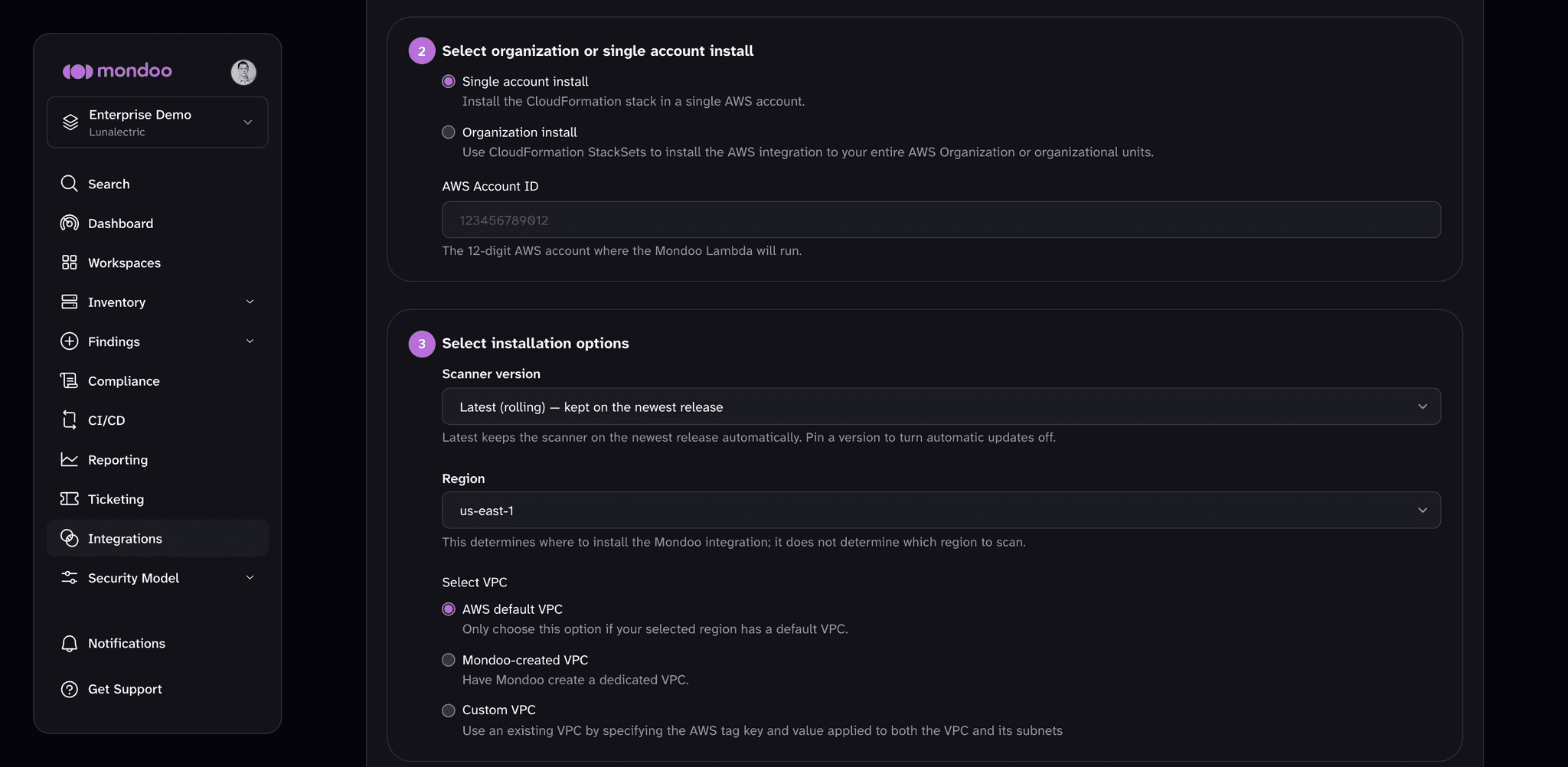
Under Select organization or single account install, select the type of integration. For a single account install, also enter the 12-digit AWS Account ID where the Mondoo Lambda will run.
Option Description Single account install Integrate Mondoo with a single AWS account. Organization install Use CloudFormation StackSets to install the AWS integration in your entire AWS Organization or organizational units. -
Under Select installation options, choose where and how to install the Mondoo integration:
-
In the Scanner version list, keep Latest (rolling) to keep the scanner on the newest release automatically, or pick a specific release to pin the scanner to it. Pinning a version turns automatic updates off: the scanner stays on that release until you change the stack's
FixedVersionparameter. -
In the Region list, select the region in which to deploy the Mondoo Lambda. This determines where to install the Mondoo integration; it does not determine which region to scan.
-
Under Select VPC, choose the VPC option Mondoo should use:
Option Description AWS default VPC Use the selected region's default VPC. Every AWS region has a default VPC unless it's been deleted. Mondoo-created VPC Have Mondoo create a dedicated VPC with either an Internet Gateway or a NAT Gateway. In the Configure CIDR box, specify an IPv4 address range (default 10.0.0.0/24). See VPC CIDR blocks in the AWS documentation.Custom VPC Use an existing VPC by specifying the AWS tag key and value applied to both the VPC and its subnets.
-
-
Under Select scan options, choose what to scan and how often:
-
Scan the Lambda AWS Account (on by default) discovers and scans account-level AWS resources, such as S3 buckets, IAM, and security groups, in the account where the Lambda runs. Turn it off to scan only the targets you select in the following steps (for example, EC2 instances or cross-account targets).
-
Under Schedule full scan, set how often Mondoo runs a full scan of the AWS account resources and EC2 instances across all regions, independent of change events:
- Fixed interval: In the Hours between scans box, enter a whole number of hours (at least 1). The default is 12 hours.
- Cron schedule: In the Cron expression box, enter a standard five-field cron expression (minute, hour, day of month, month, day of week) in UTC. For example,
0 3 * * 1-5runs at 03:00 on weekdays.
-
-
(Optional) Under Configure cross-account scanning, turn on Enable cross-account scanning to scan additional AWS accounts from this hub by assuming an IAM role in each target account. Enter the IAM role name and, optionally, Target account IDs and Account tags.
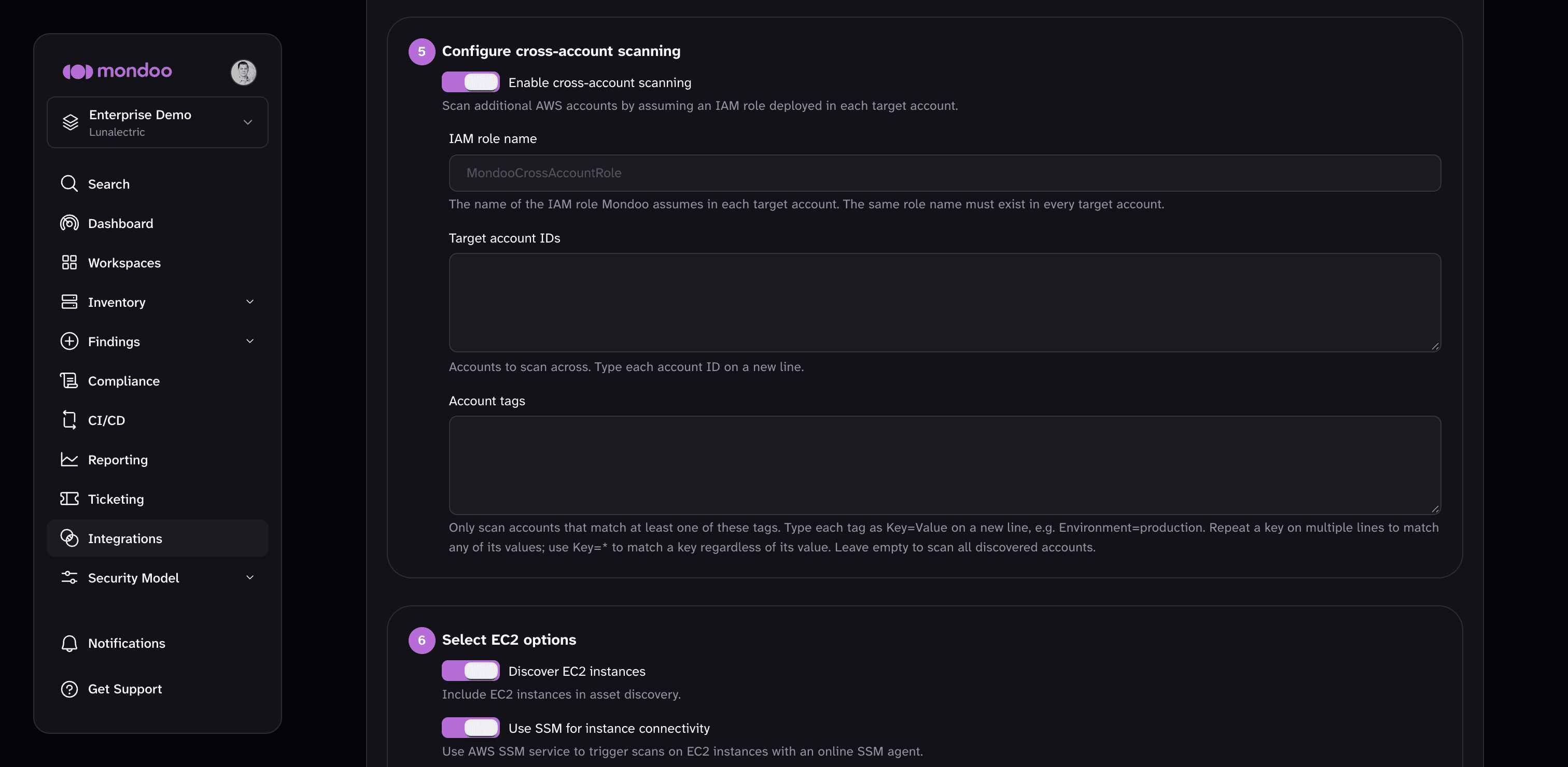
For full setup, including the IAM role you must deploy in every target account, see Cross-Account Scanning.
-
Under Select EC2 options, set the EC2 options:
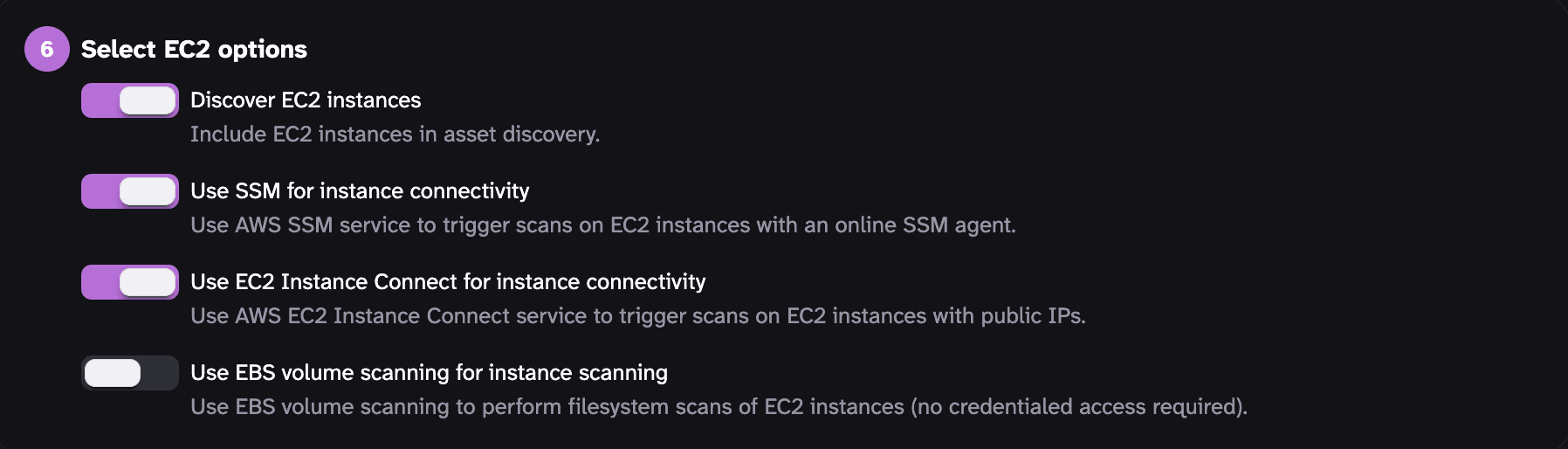
Option Description Discover EC2 instances Include EC2 instances in asset discovery. Use SSM for instance connectivity Use the AWS SSM service to trigger scans on EC2 instances with an online SSM agent. Use EC2 Instance Connect for instance connectivity Use the AWS EC2 Instance Connect service to trigger scans on EC2 instances with public IPs. Use EBS volume scanning for instance scanning Use EBS volume scanning to perform filesystem scans of EC2 instances. No credentialed access required. -
Under Select EC2 filtering options, choose any filters:
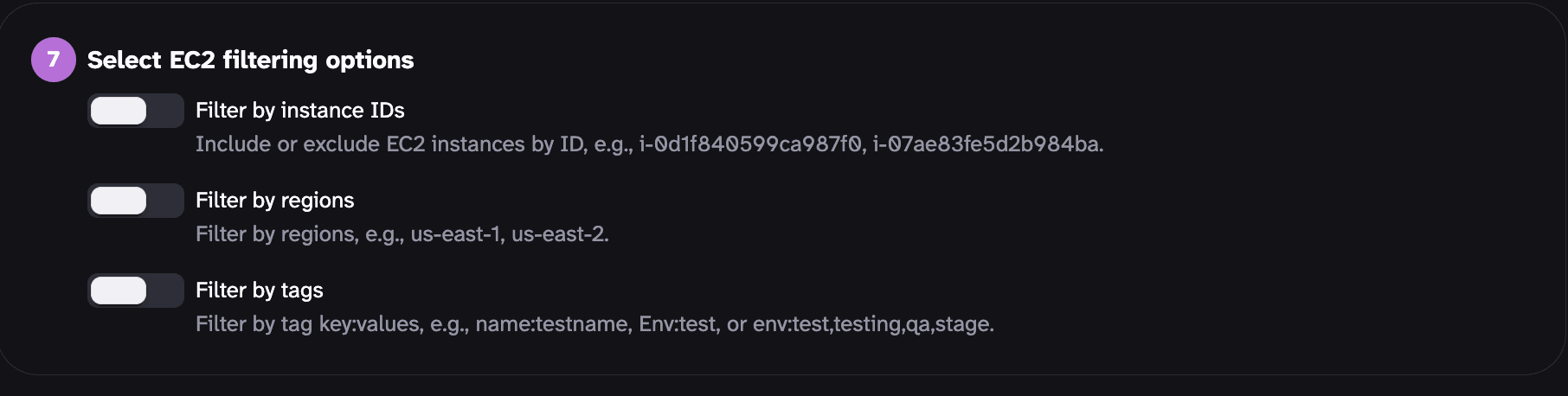
For each filtering option, you can either:
- Scan only the resources that match your allow list
OR
- Scan all resources except those that match your deny list
Choose any combination of filters:
-
Enable Filter by instance IDs to limit EC2 instance scanning to a subset of IDs or to scan all EC2 instances except specified IDs. This setting does not affect scanning of other types of resources. Enter each ID on a new line. For example:
i-0d1f840578ca82600 i-07ae83fe5d22600a -
Enable Filter by regions to limit scanning to a subset of regions or to scan all resources except those in the regions specified. Enter each region on a new line. For example:
eu-west-1 us-east-2 -
Enable Filter by tags to limit scanning to resources that have a subset of tags or to scan all resources except those with the specified tags. Enter tags using the format
key:value. To allow or deny multiple values of the same tag key, separate them with commas. Enter each tag on a new line. When you turn on this filter, Mondoo pre-fills the deny list withCreated By:Mondooso that the scanner's own instances aren't scanned. For example:Name:test Env:test env:test,testing,qa,stage
-
Under Select ECR options, choose whether to scan container images:
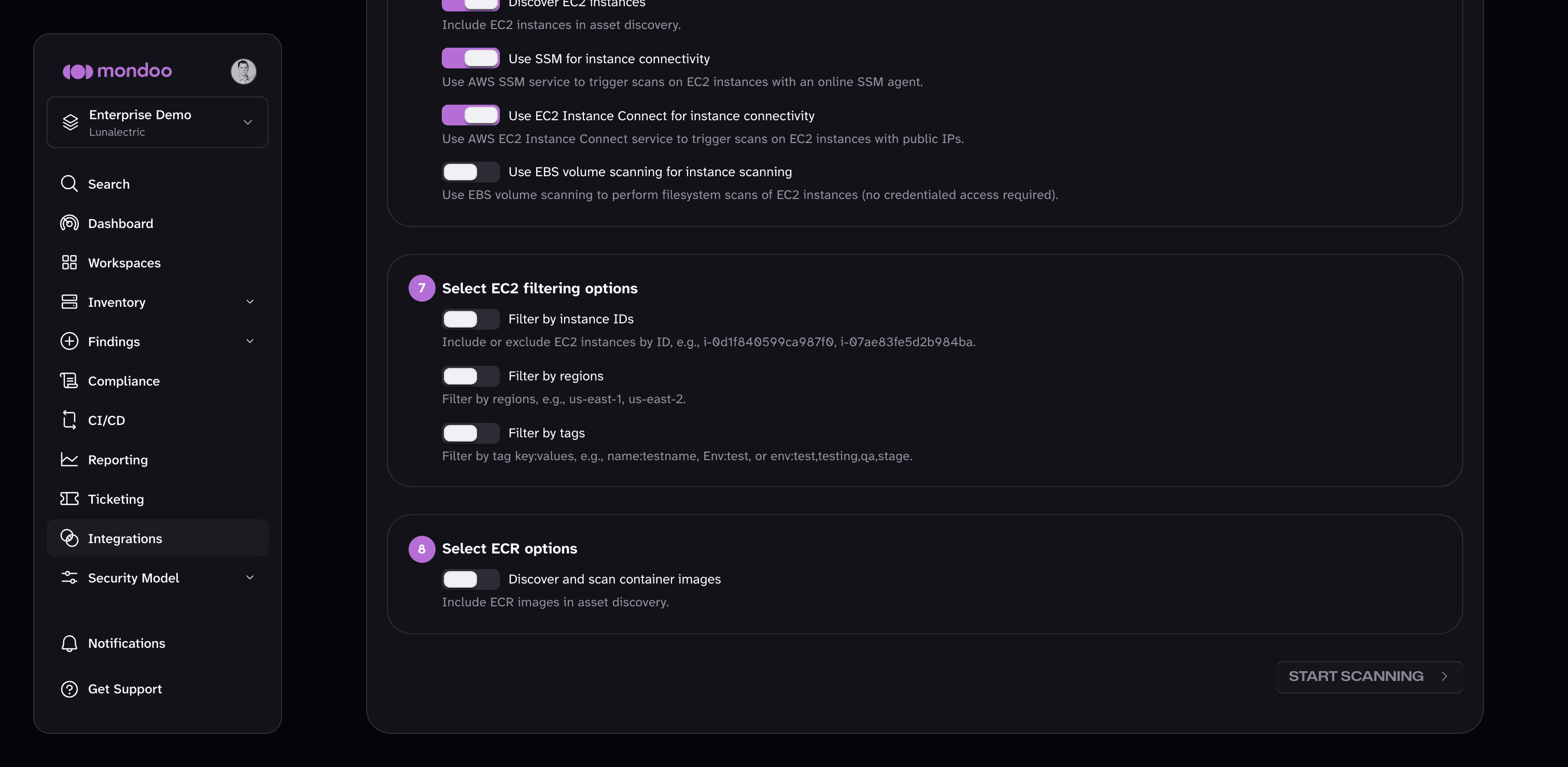
Option Description Discover and scan container images Include ECR images in asset discovery. -
Select START SCANNING.
Deploy the CloudFormation stack
Creating the integration in Mondoo does not finish the setup. Mondoo now shows a dedicated step for deploying the scanner in your AWS account. The step differs by install scope.
Single account install:
-
Select LAUNCH CLOUDFORMATION. The AWS CloudFormation console opens in a new tab with the stack parameters already populated.
-
Review the stack, acknowledge that it creates IAM resources, and create it. Wait for the status to reach CREATE_COMPLETE.
-
Return to the Mondoo tab and select GO TO INTEGRATION.
Organization install:
A one-click link can only create a single stack in a single account, so Mondoo instead walks you through the AWS CloudFormation Create StackSet wizard and lists every value it asks for, each with a copy button.
-
Make sure trusted access for CloudFormation StackSets is enabled on your AWS Organization. Sign in to the organization's management account (or a delegated StackSets administrator account), then select OPEN CLOUDFORMATION STACKSETS in Mondoo to open the wizard.
-
Under Choose a template, select Service-managed permissions. For the template source, choose Amazon S3 URL and paste the URL Mondoo shows.
-
Under Specify StackSet details, enter the StackSet name and the parameters Mondoo lists:
MondooIntegrationMrn,MondooSourceBucket, and aMondooTokenthat you generate in Mondoo right before you submit (it's short-lived). If you enabled cross-account scanning or pinned a scanner version, also copyCrossAccountScanRoleNameandFixedVersion. -
Under Set deployment options, deploy to your organization or to specific organizational units, set Automatic deployment to Activated, and set Account removal behavior to Delete stacks. Deploy to exactly the region Mondoo shows, because the scanner code bucket only exists there.
-
Under Review, acknowledge that CloudFormation might create IAM resources with custom names and submit the StackSet. Then return to the Mondoo tab and select GO TO INTEGRATION. As each account's stack instance reaches CREATE_COMPLETE, that account's scanner starts running on a schedule. Track progress and any per-account failures on the StackSet's Stack instances tab in AWS.
IMPORTANT
Until the CloudFormation stack reaches CREATE_COMPLETE, the in-account scanner doesn't exist and the integration stays in a not-ready state. There's no first scan to trigger from Mondoo: once the stack is deployed, the Lambda scans your account on the schedule you set. If you leave the flow before deploying a single-account stack, open the integration page and select LAUNCH AWS CLOUDFORMATION in the Waiting for CloudFormation banner.
Manage an AWS integration
To open an existing integration, navigate to the space and select Integrations in the side navigation bar. Select the Amazon Web Services card, then choose the integration from the list.
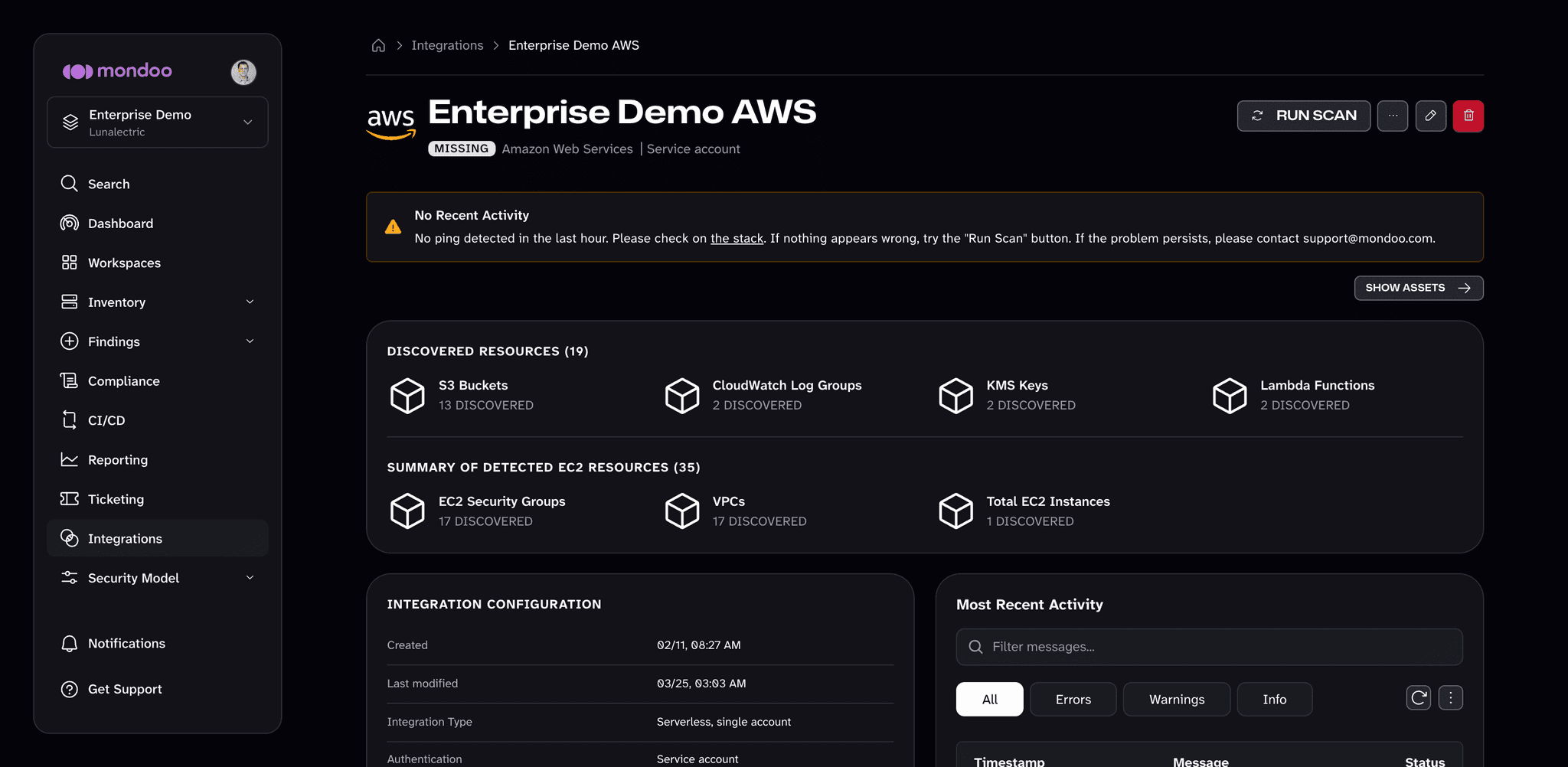
Mondoo shows the integration status, the authentication type, the AWS account ID, and the deployed scanner version beside the integration name at the top of the page. If the scanner is pinned to a fixed version and a newer release is available, select the version to see how to update the stack's FixedVersion parameter in AWS CloudFormation.
For an organization install, the page has two tabs: Overview and Individual Accounts, which lists each AWS account the StackSet deployed into.
Request a fresh scan
Select RUN SCAN at the top of the integration page.
Pause, resume, and other actions
Select the ... (more integration actions) button at the top of the integration page for these actions:
| Action | Description |
|---|---|
| Send ping | Check that Mondoo can reach the Lambda in your account. |
| Send metrics | Ask the Lambda to send its metrics to Mondoo. Useful when working with Mondoo support. |
| Send diagnostics data | Ask the Lambda to send diagnostics data to Mondoo. Useful when working with Mondoo support. |
| Pause / Resume | Stop scheduled scans without removing the integration, or start them again. |
| Copy MRN | Copy the integration's Mondoo Resource Name (MRN) to the clipboard. |
Reconfigure an integration
The INTEGRATION CONFIGURATION section of the integration page shows the current settings.
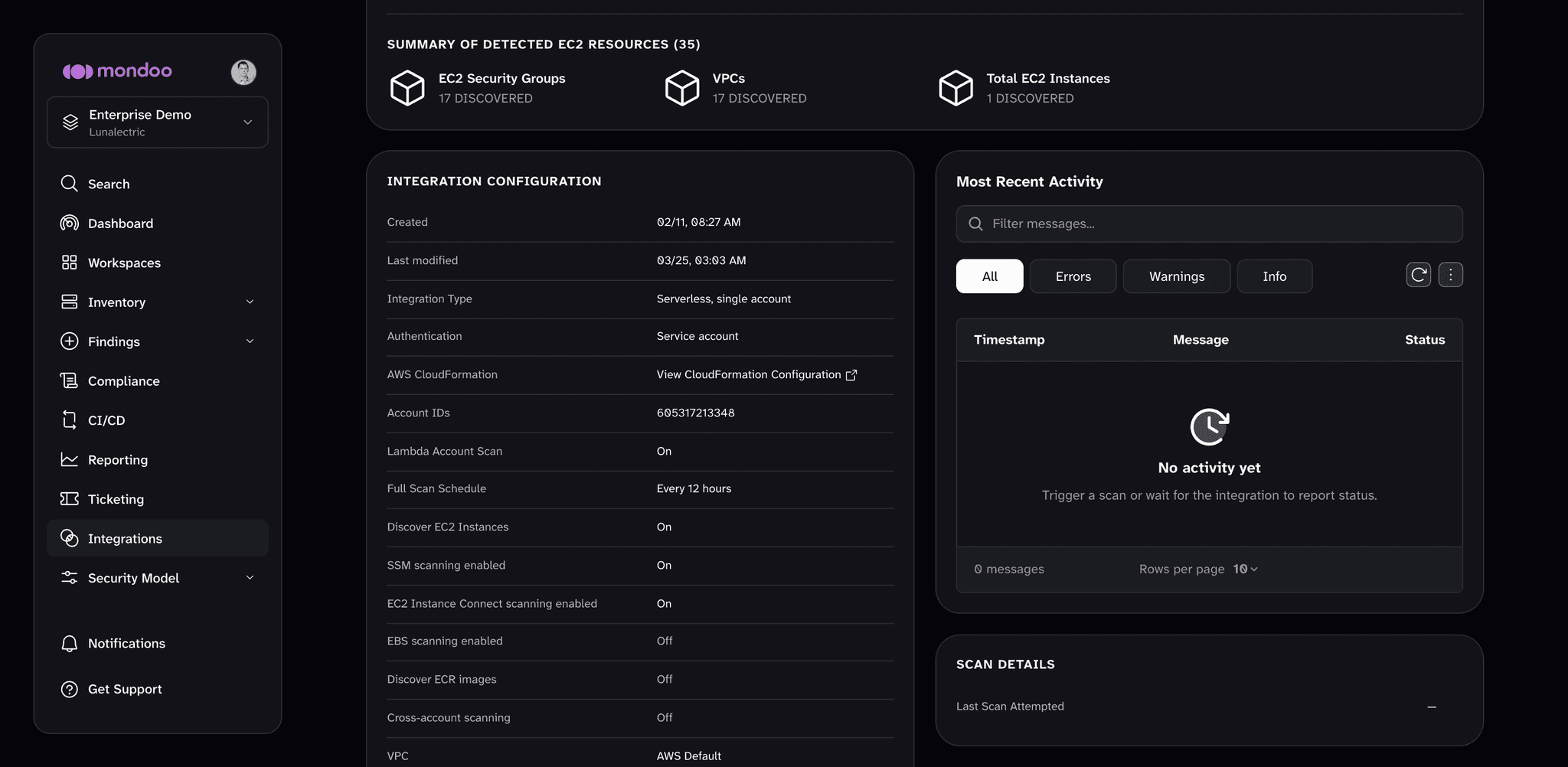
To change settings, select the edit (pencil) icon at the top of the integration page. Setting descriptions are in Set up a new AWS integration above.
Remove an integration
-
Select the trash can icon at the top of the integration page. In the Remove Integration dialog, select DELETE. This removes the integration from Mondoo Platform.
-
In the AWS CloudFormation console, delete the Mondoo stack (or, for an organization install, the Mondoo StackSet and its stack instances). This removes the Lambda and the EventBridge rule that allows Mondoo to communicate with the account.
After you connect
Once the integration is scanning, explore your asset inventory, then assess and improve your security to review and prioritize your findings.
Learn more
Scan Continuously (Hosted)
Configure the Mondoo-hosted AWS integration to continuously scan your AWS accounts and EC2 instances using Workload Identity Federation or an AWS access key.
Cross-Account Scanning
Configure the Mondoo serverless AWS integration to scan many AWS accounts from a single hub account using a read-only cross-account IAM role.