Scan Multiple AWS Accounts from One Hub
Configure the Mondoo serverless AWS integration to scan many AWS accounts from a single hub account using a read-only cross-account IAM role.
Cross-account scanning lets you run the Mondoo serverless scanner in a single AWS hub account and have it inventory and assess resources across many other AWS accounts in your AWS Organization. You control which accounts are scanned and how often, all from one integration.
The typical shape: one hub account (often the AWS Organizations management account) hosts the Mondoo CloudFormation stack. Every other target account hosts only a small, read-only IAM role that the hub scanner assumes. No Mondoo software runs in the target accounts.
Cross-account scanning differs from the organization install, which deploys the Mondoo Lambda into every account via a CloudFormation StackSet. With cross-account scanning, the Mondoo Lambda runs in one hub account only and assumes a read-only role in each target account.
How it works
- You create a read-only cross-account IAM role in every account you want scanned. Its trust policy allows only Mondoo's hub-side scanner role to assume it.
- You enable cross-account scanning on a Mondoo AWS integration and provide the cross-account role name and the list of target accounts (or let Mondoo auto-discover them via AWS Organizations).
- You deploy the Mondoo CloudFormation stack in the hub account.
- On each scan cycle (default: every 12 hours), the Mondoo Lambda in the hub assumes the cross-account role in each target account, inventories resources read-only, and reports findings back to Mondoo Platform.
The security boundary is the cross-account IAM role's trust policy. Mondoo configures it so that only its specific scanner role in your hub account can assume the cross-account role. Not the hub account root, and not any other principal in the hub account.
Prerequisites
Before you start, confirm:
-
An AWS Organization. The cross-account role's trust policy requires an AWS Organization ID. If you don't have one, contact Mondoo support to discuss alternatives.
-
A chosen hub account. Typically your AWS Organizations management account, but any account you own will do. The Mondoo CloudFormation stack is deployed in this account and only this account. You cannot have two hubs in the same organization using the same integration.
-
CloudFormation StackSets trusted access enabled (for the recommended StackSets deployment path). This is a one-time toggle in the management account. See Enabling trusted access with AWS Organizations in the AWS documentation. Equivalent CLI:
aws organizations enable-aws-service-access \ --service-principal stacksets.cloudformation.amazonaws.com -
Admin access to target accounts (for the script-based fallback path). The script needs a role it can assume in each target account with
iam:CreateRole,iam:AttachRolePolicy, andiam:TagRolepermissions. TheOrganizationAccountAccessRolerole (created automatically in every account added via AWS Organizations) is the typical choice. -
Your AWS Organization ID. Find it with:
aws organizations describe-organization --query 'Organization.Id' --output text
Step 1: Create the cross-account role in every target account
You have two options. StackSets is the recommended path for any customer using AWS Organizations.
Pick one role name and use it everywhere
Choose one cross-account role name now and use it both when creating the role and when configuring
the Mondoo integration in Step 2. The default is MondooCrossAccountScan. If you change it, you
must use the same string in both places. See Role name must match
everywhere.
Option A (recommended): CloudFormation StackSets
Mondoo ships a CloudFormation template for the cross-account role. Deploy it as a service-managed StackSet from your management account, targeting either your entire organization or a specific organizational unit (OU).
The template accepts these parameters:
| Parameter | Description | Default |
|---|---|---|
HubAccountId | The AWS account ID where the Mondoo CloudFormation stack will be deployed. | (required) |
OrganizationId | Your AWS Organization ID (for example, o-abcdefghij). | (required) |
RoleName | Name of the cross-account role to create. | MondooCrossAccountScan |
ScannerRoleName | Name of the hub-side Mondoo scanner role. Almost never needs to change. | mondoo-account-scanner-role |
PermissionsPolicy | AWS-managed policy to attach: SecurityAudit or ReadOnlyAccess. See Choose the permissions policy. | SecurityAudit |
MaxSessionDuration | Maximum assume-role session length, in seconds. Range: 3600 (1h) to 43200 (12h). | 43200 |
A typical CLI deployment:
aws cloudformation create-stack-set \
  --stack-set-name mondoo-cross-account-scan \
  --template-body file://cross-account-target-role.yaml \
  --permission-model SERVICE_MANAGED \
  --auto-deployment Enabled=true,RetainStacksOnAccountRemoval=false \
  --capabilities CAPABILITY_NAMED_IAM \
  --parameters \
      ParameterKey=HubAccountId,ParameterValue=123456789012 \
      ParameterKey=OrganizationId,ParameterValue=o-abcdefghij

aws cloudformation create-stack-instances \
  --stack-set-name mondoo-cross-account-scan \
  --deployment-targets OrganizationalUnitIds=ou-xxxx-xxxxxxxx \
  --regions us-east-1
After the StackSet finishes deploying, the cross-account role exists in every targeted account with the same name, trust policy, and permissions. New accounts that join the targeted OU are auto-provisioned with the role.
Option B (fallback): the setup script
For ad-hoc account lists or iterative testing, Mondoo ships a setup-cross-account-roles.sh script that produces the same role, trust policy, and managed-policy attachment as the StackSets template.
A typical invocation:
./setup-cross-account-roles.sh \
  --hub-account-id 123456789012 \
  --organization-id o-abcdefghij \
  --accounts-file ./target-accounts.txt \
  --role-name MondooCrossAccountScan \
  --permissions-policy SecurityAudit \
  --max-session-duration 43200 \
  --admin-role-name OrganizationAccountAccessRole
./target-accounts.txt is a plain-text file with one account ID per line. You can also omit --accounts-file and pass --from-organizations to enumerate every ACTIVE account in your organization (excluding the hub). One of the two is required.
The script is idempotent. Re-running it reconciles the trust policy, max session duration, tags, and attached managed policy in place, so it's safe to re-run whenever you change policy or add accounts. Pass --dry-run to preview changes without calling AWS. At the end of the run, the script prints a per-account summary showing which accounts succeeded and which need attention.
Step 2: Enable cross-account scan on the Mondoo integration
When you create a serverless AWS integration, go to Configure cross-account scanning, turn on Enable cross-account scanning, and provide the matching role name and target accounts.
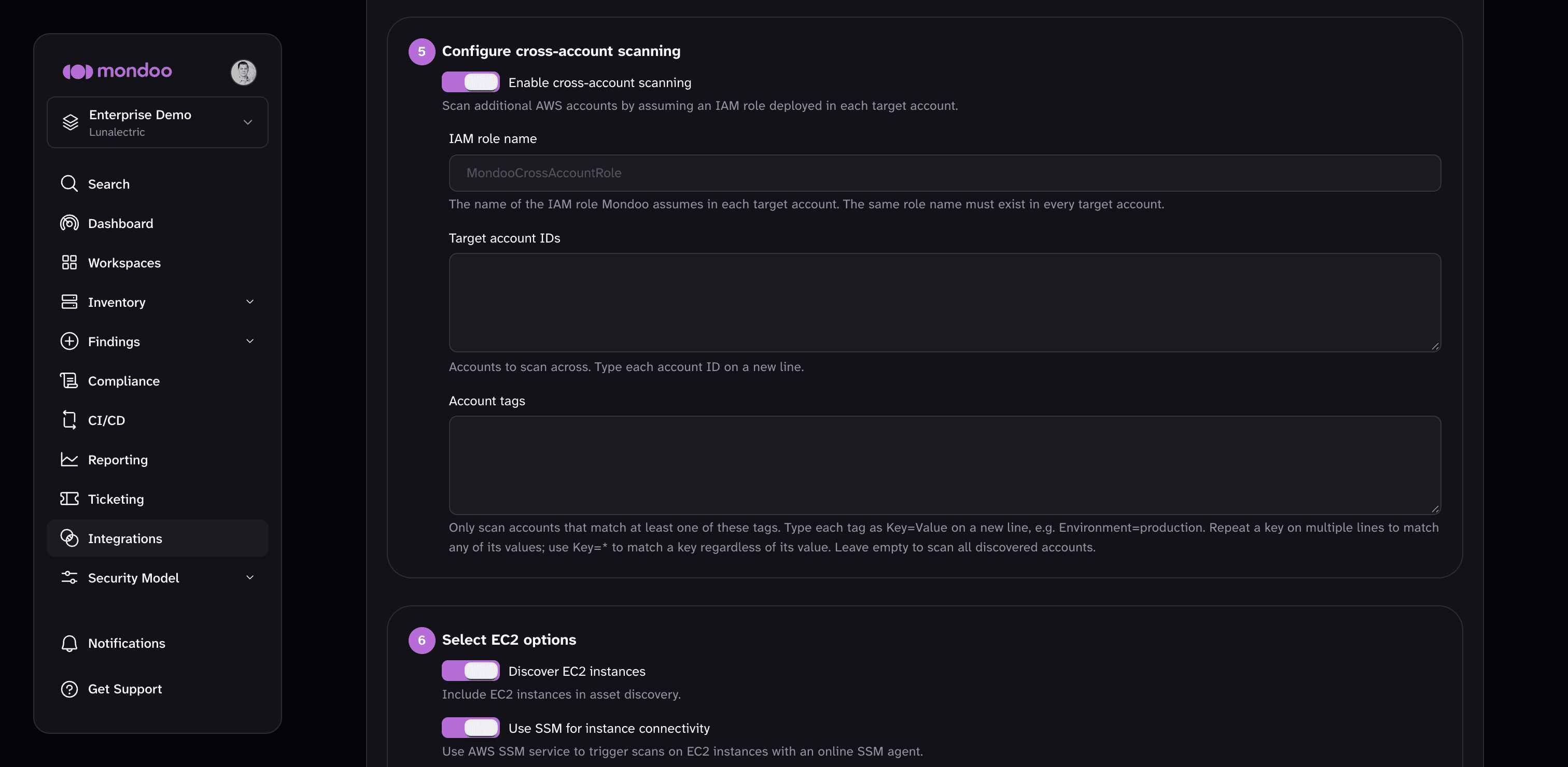
Configure these settings:
| Setting | Description |
|---|---|
| Enable cross-account scanning | Turn on to scan additional AWS accounts from this hub. |
| IAM role name | Required. The exact name of the role you created in Step 1. The field starts empty, so type the name you chose (the template default is MondooCrossAccountScan). Must match the role name in every target account, character-for-character. |
| Target account IDs | The explicit list of accounts to scan, one account ID per line. Leave empty to let Mondoo auto-discover accounts via AWS Organizations on every scan cycle. |
| Account tags | Optional. Only scan discovered accounts that match at least one of these AWS account tags. Enter each tag as Key=Value on a new line. Repeat a key on multiple lines to match any of its values, or use Key=* to match a key regardless of its value. |
The role name is used verbatim to build the IAM role ARN
Mondoo builds the cross-account role ARN as arn:aws:iam::<target-account>:role/<RoleName> for
every target account. Any mismatch, even a one-character typo, causes every AssumeRole call for
the affected account to be rejected with AccessDenied. The error is reported on the integration
in the Mondoo App and includes the AWS error message and the target account ID, so you can
see which account is misconfigured. But scans for that account do not complete until you correct
the mismatch.
After you select START SCANNING, Mondoo shows a LAUNCH CLOUDFORMATION button that opens a pre-filled CloudFormation quick-create page. Open it while signed into the hub account, review the pre-populated parameters, acknowledge the IAM capabilities, and create the stack. Stack creation takes 3 to 5 minutes.
When the stack finishes, the hub account contains:
- The Mondoo Lambda, which enumerates target accounts and launches scans.
- An EC2 scanner role named
mondoo-account-scanner-role. This is the role whose ARN the target-account trust policies allow. - An SQS queue, an S3 bucket for scan results, and supporting IAM roles.
Within 30 minutes of stack creation, the integration's status in the Mondoo App should transition to active, and assets for each target account should appear in Mondoo.
Critical constraints
These rules, if violated, prevent scans from completing.
Role name must match everywhere
The cross-account role name must be identical in two places:
- The
RoleNameparameter of the StackSets template (or the--role-nameflag of the setup script). - The IAM role name field of the Mondoo AWS integration.
The template default (MondooCrossAccountScan) is fine for most customers. The Mondoo field has no default, so copy the name and paste it in both places.
If the names drift apart, Mondoo builds an ARN for a role that doesn't exist. AWS returns AccessDenied (or NoSuchEntity) for every target account, and the integration status in the Mondoo App shows the AWS error along with the target account ID.
The hub account must match the trust policy
The StackSets template's HubAccountId parameter (and the script's --hub-account-id flag) is written into every target-account trust policy as the allowed principal. If you later move the Mondoo CloudFormation stack to a different hub account, you must re-deploy the StackSets template (or re-run the script) with the new HubAccountId before scans from the new hub will succeed.
Only one Mondoo hub per organization
Target-account trust policies allow a single hub account. If you deploy the Mondoo CloudFormation stack in two accounts and expect both to scan the same targets, only the account that matches the trust policy will succeed. The other gets AccessDenied.
Choose the permissions policy
The cross-account role is granted exactly one AWS-managed policy. You have two choices:
SecurityAudit (default) | ReadOnlyAccess | |
|---|---|---|
| Scope | Describe*, List*, Get*Policy, and other configuration-plane reads across AWS services. | All reads. Includes s3:GetObject, dynamodb:Scan, secretsmanager:GetSecretValue, kms:Decrypt, sqs:ReceiveMessage, and other data-plane reads. |
| Blast radius | Smaller. Reads metadata, configuration, and policies. Does not read data-plane contents. | Larger. Includes data-plane reads that a security scanner does not need. |
| Recommended for | Production. | Rare cases where SecurityAudit turns out to be missing permissions for a specific service. |
Mondoo's scanner is designed around configuration-plane reads. SecurityAudit is the right default and matches least-privilege best practice for this use case.
To switch policies, re-run the StackSets deployment (or the script) with PermissionsPolicy=ReadOnlyAccess (or --permissions-policy ReadOnlyAccess). Both are idempotent, so the only change is swapping the managed policy on the existing role.
Add and remove accounts
With StackSets:
- Adding an account to your AWS Organization (or to the targeted OU) auto-provisions the role in that account. StackSets reconciles on account join.
- Removing an account from the organization automatically removes the role (assuming
RetainStacksOnAccountRemoval=falsein the recommended deployment). - In the Mondoo integration, if you left Target account IDs empty (auto-discovery), the new account is picked up on the next scan cycle. If you provided an explicit list, add or remove the account ID in the integration configuration.
With the setup script:
- Add or remove account IDs in
target-accounts.txt, then re-run the script. Existing roles are updated in place, new ones are created, and removed accounts' roles remain (the script does not delete). To delete a cross-account role in an offboarded account, do it manually or by scripting a teardown in that account. - Update the Mondoo integration's Target account IDs field the same way.
Mondoo discovers new accounts on the next scheduled scan (default: within 12 hours). You do not need to manually re-trigger anything.
Troubleshoot cross-account scanning
The first place to look is the integration status in the Mondoo App. The Mondoo Lambda reports every AWS error it encounters, including the target account ID that was being scanned, so you can diagnose per-account without reading logs.
An account is missing from Mondoo after a full scan cycle
Open the integration's status view in the Mondoo App and look for errors referencing that account ID.
AccessDeniedonsts:AssumeRolenaming a specific role ARN. The role name in the target account does not match the IAM role name in the Mondoo integration. Check that both sides use the exact same string, character-for-character. See Role name must match everywhere.AccessDeniedonsts:AssumeRolebut the role ARN looks correct. Either the trust policy'saws:PrincipalArncondition doesn't match the hub's scanner role ARN (verify theHubAccountIdandScannerRoleNameparameters you deployed with), or the trust policy'saws:PrincipalOrgIDcondition doesn't match your organization (verifyOrganizationId). Re-deploy the StackSets template or re-run the script with corrected values.NoSuchEntity. The role doesn't exist in that account. The StackSets deployment or script run did not complete for that specific account. Re-deploy or re-run.
Every account is missing
If no accounts are scanning, the problem is almost certainly at the hub, not in the target accounts.
- Confirm the Mondoo CloudFormation stack was deployed in the account whose ID you specified as
HubAccountIdwhen setting up the target-account roles. - Confirm the hub-side scanner role
mondoo-account-scanner-roleexists in the hub account. It's created by the Mondoo CloudFormation stack. - Check the integration status for an AWS Organizations error. If Mondoo is auto-discovering accounts and the hub Lambda can't reach AWS Organizations, discovery returns empty and no cross-account scans run.
An account scans but its findings are empty or partial
This is usually a permissions gap. If you chose SecurityAudit and a specific check is failing, switch the affected accounts to ReadOnlyAccess. See Choose the permissions policy. ReadOnlyAccess is guaranteed to cover all reads the scanner needs, at the cost of a broader policy.
Offboard cross-account scanning
To remove cross-account scanning:
- Edit the Mondoo integration and turn off Enable cross-account scanning (or delete the integration entirely).
- Delete the Mondoo CloudFormation stack in the hub account.
- Delete the StackSet that created the cross-account roles. This removes the role from every target account. If you used the setup script, delete the cross-account roles manually or by scripting a teardown.