Scan Devices Managed by Microsoft Intune
Run agentless cnspec fleet scans on the Windows and macOS devices that Microsoft Intune manages.
The Microsoft Intune integration scans the Windows and macOS devices that Intune manages, without installing anything on them yourself. Mondoo uses the Microsoft Graph API to hand Intune a script for the Entra ID device group you choose. The Intune management extension runs the script on each device in the group, the script runs cnspec, and cnspec reports the results to Mondoo. To learn how fleet scans work, read Scan Endpoints Through Your Endpoint Management Tool.
Before you begin
You need the Editor or Owner role, or another role with this permission. To see every role, read Roles and permissions.
- Windows or macOS devices enrolled in Intune, in an Entra ID device group
- An Intune license in the Microsoft Entra tenant
- A Microsoft Entra app registration with the permissions below, or the rights to create one and grant admin consent for it (Global Administrator or Privileged Role Administrator)
App registration permissions
Mondoo authenticates as an Entra app registration. It needs these Microsoft Graph application permissions, with admin consent:
| Permission | Need | Why Mondoo needs it |
|---|---|---|
Group.Read.All | Required | List the device groups you can scan and resolve their members |
Device.Read.All | Required | Read each group member's host name, OS, and ID |
DeviceManagementManagedDevices.ReadWrite.All | Required | List the managed devices |
DeviceManagementConfiguration.ReadWrite.All | Required | Read and manage device configuration |
DeviceManagementScripts.ReadWrite.All | Required | Create the scan script that Intune runs on the devices |
Organization.Read.All | Recommended | Check license seats and expiry; without it, those health checks show "could not evaluate" |
DeviceManagementServiceConfig.Read.All | Recommended | Check enrollment restrictions and the Intune connector for Microsoft Defender; without it, those health checks show "could not evaluate" |
DeviceManagementApps.ReadWrite.All | Optional | Stage cnspec on devices as an Intune app, so scans run faster |
The setup script in the add form also grants DeviceManagementManagedDevices.PrivilegedOperations.All, WindowsUpdates.Read.All, and WindowsUpdates.ReadWrite.All. Features that aren't required for scanning use them, so scans work without them. The two WindowsUpdates permissions need a Windows Autopatch or Windows Update for Business deployment service license.
You don't have to set these up by hand: the add form has a script that creates the app registration, grants admin consent, and prints the values to paste into Mondoo.
Add an Intune integration
In the Mondoo App, navigate to the space where you want to add the integration. In the side navigation bar, select Integrations. In the top right, select INSTALL. On the Install Integration page, find the integration you want by browsing a category or searching by name:
-
Under Endpoint Management / UEM, select Microsoft Intune.
-
In Choose an integration name, enter a name that helps you identify the integration.
-
In Create an Azure app registration, skip ahead to the next step if you already have an app registration with the permissions above. Otherwise, select Show and create one:
- Choose the script format: Bash or PowerShell (to run in Azure Cloud Shell), or Bicep. A Bicep deployment needs an Azure subscription and Contributor access on a resource group, which Entra-only tenants usually don't have.
- In Permissions, choose which permissions the app registration gets. All (Intune + Defender), the default, also grants the permissions the Microsoft Defender integration uses, so you can reuse the app registration for it. Intune grants only what this integration uses.
- Copy the script and run it. When it finishes, it prints the tenant ID, client ID, and client secret.
To see each permission the script grants, expand the permission list below the script.
-
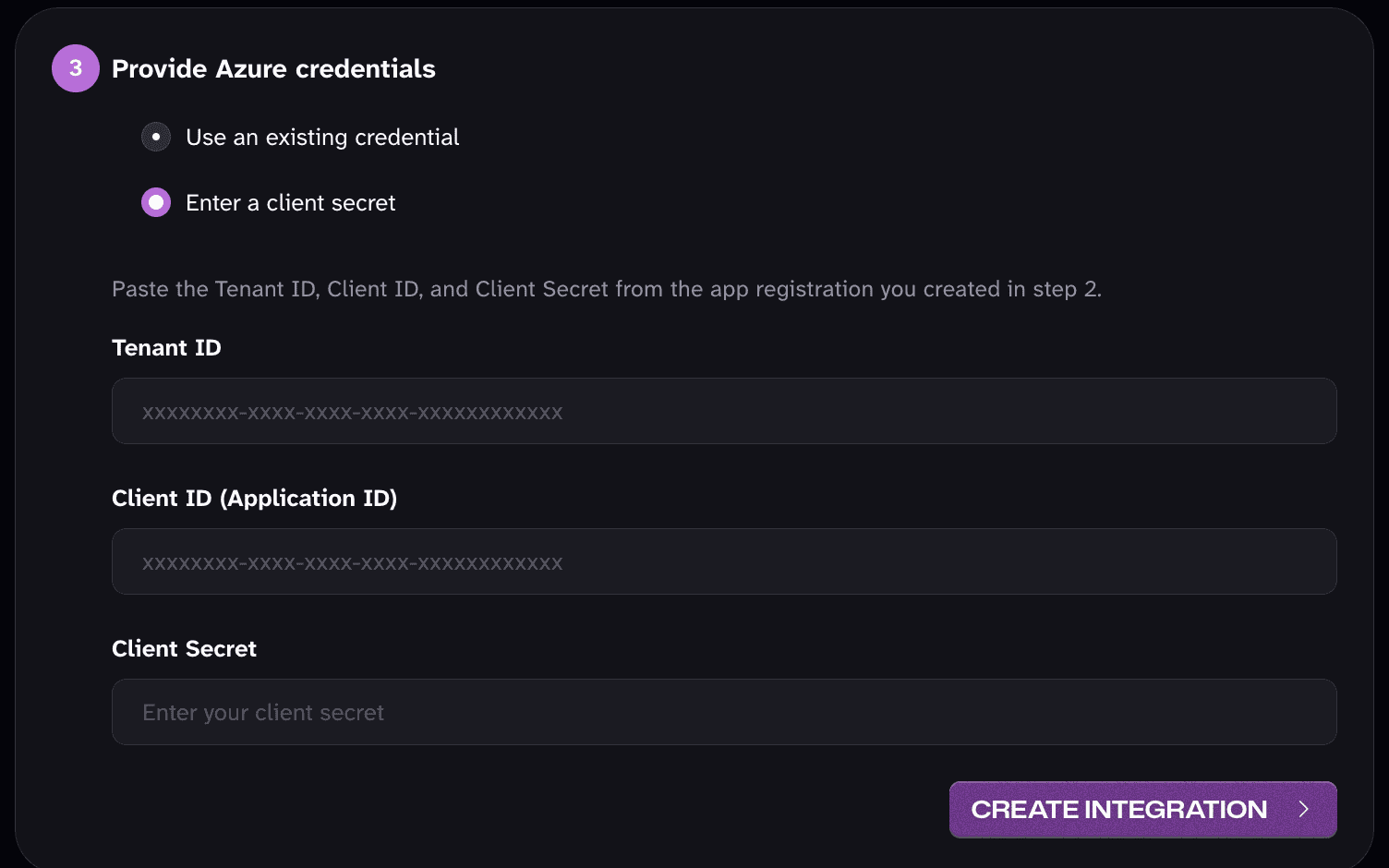
In Provide Azure credentials, choose where the credentials come from:
- To reuse an app registration stored in the space's credentials, select Use an existing credential and choose it under Credential. This is also how you authenticate with a certificate instead of a client secret.
- Otherwise, select Enter a client secret and fill in the Tenant ID, Client ID (Application ID), and Client Secret of the app registration. Mondoo stores them as a new credential in the space.
-
Select Create Integration.
-
On the Finish setting up Intune page, choose what to scan and how often:
- Under Target host group, select the Entra ID device group to scan. The Devices in this group table lists its devices.
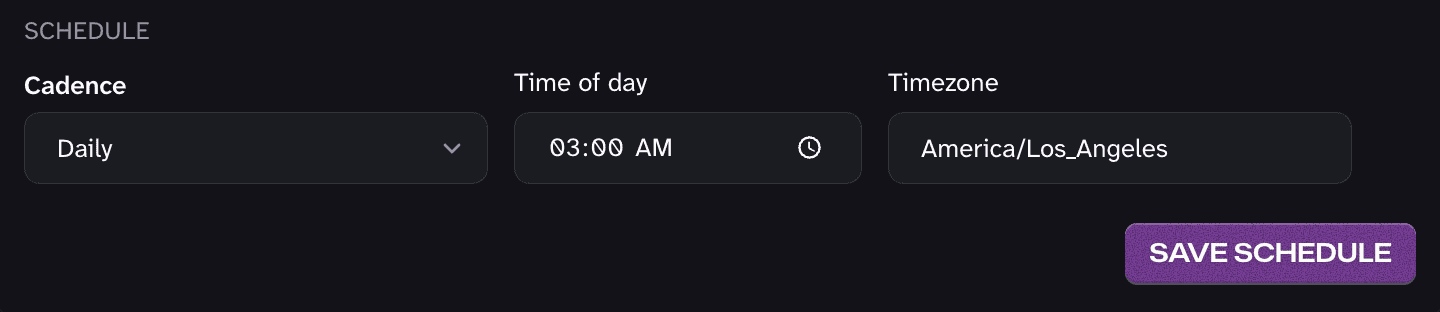
- Under Schedule, choose a Cadence: Daily (the default), Hourly, or Manual only. For Daily, also set the Time of day and Timezone.
- Select Complete. Mondoo saves the schedule and starts the first scan. With Manual only, it runs the scan once and saves no schedule.
If you select Set up later instead, the integration waits and scans nothing. To finish later, open the integration and select Finish setup.
If Mondoo can't list your device groups, the app registration is missing the Group.Read.All
permission or its admin consent.
How Intune runs scheduled scans
Intune runs a saved schedule itself: Mondoo hands the scan script to Intune once, and Intune runs it on each device at the cadence you chose. A new or changed schedule can take up to 8 hours to reach the devices. With an Hourly schedule, Intune runs the scan on each device about once an hour on its own timing, so the Saved schedules list shows Hourly, set by Microsoft Intune instead of a next run time.
Because Intune starts these runs, they don't appear in Recent scan jobs. Instead, the Saved schedules list shows how many devices failed their last run. Scans you start yourself with Run now appear in Recent scan jobs as usual.
To ask the devices that the latest scan is still waiting for to check in with Intune now, select Sync on the integration's page. Sync also checks the Entra app registration.
Run and schedule fleet scans
To open the integration, navigate to the space, select Integrations in the side navigation, choose the integration type, then select the integration. Then select the Scan Jobs tab.
In the Run a fleet scan card:
-
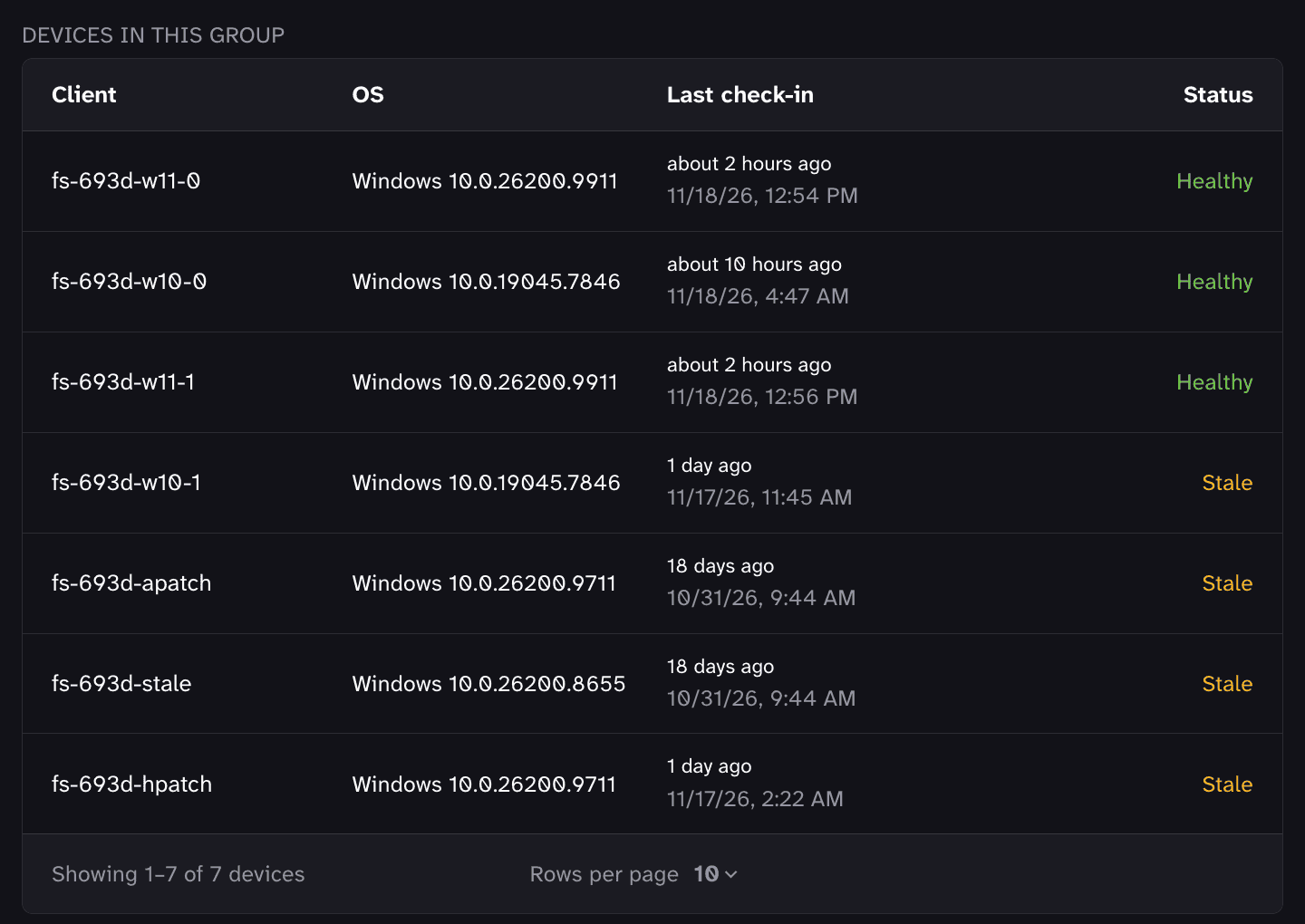
Under Target host group, search for the host group to scan and select it. The Devices in this group table lists the group's devices with their OS, last check-in, and readiness. A readiness badge marks a device that probably won't run the scan. Hover over a badge for details. Not every tool reports every badge.
- Stale check-in: The device hasn't checked in with the tool within its normal cadence, or the tool reports it offline.
- Not answering recent scans: The device didn't answer at least two of the group's last three fleet scans and hasn't answered since. Mondoo still includes it in scans.
- Membership pending: The device's record still names the group, but the group's membership no longer includes it, because a dynamic group rule now excludes it or it was removed from the group. The device hasn't checked in since. Fleet scans of the group don't target it.
- Not reporting: An earlier fleet scan of the group targeted the device, but the tool no longer lists it in the group. Fleet scans of the group don't target it.
-
Under Schedule, choose a Cadence. Daily is the default. The cadences offered depend on the tool. Choose Manual only to scan the group once without saving a schedule.
-
For a recurring cadence, set when it runs:
- Day of week (for Weekly) or Day of month (for Monthly, days 1 through 28)
- Time of day (03:00 by default)
- Timezone (your browser's time zone by default)
-
Select Save schedule to save a recurring scan, or Run now if you chose Manual only.
The Saved schedules card lists each schedule with its host group, cadence, time zone, last run, next run, and status. To stop a schedule for a while, select Pause, and select Resume to start it again. To delete it, select Cancel. To change a schedule, save a new one for the same host group: it replaces the old one.
To scan right away without opening the Scan Jobs tab, select RUN at the top of the integration's page. It starts a scan of every host group with an active schedule and leaves the schedules as they are. If the integration has no active schedule, the Mondoo App asks you to turn one on or to start a scan on the Scan Jobs tab. Microsoft Intune integrations have a SYNC button instead of RUN.
Review scan results
The Recent scan jobs card on the Scan Jobs tab lists the scans Mondoo started, with their host group, number of hosts, duration, and status. A scan job's status is Pending, Running, Succeeded, Partial, Failed, Timed out, or Cancelled.
Select a scan job to open its details. The Hosts table shows the outcome on each device, including the reason a device wasn't scanned or its scan failed (for example, the device was offline or didn't check in with the tool in time). If Mondoo retried the hosts a scan couldn't reach in a follow-up scan, the scan detail links to it.
Each device a fleet scan reaches becomes an asset in the space, and its results appear in your inventory like those of any other asset. To open a scanned device's asset page, select Open asset in its row of the Hosts table. If a device's latest fleet scan didn't scan it or failed, the asset page says so and links to the scan.
Check the integration's health
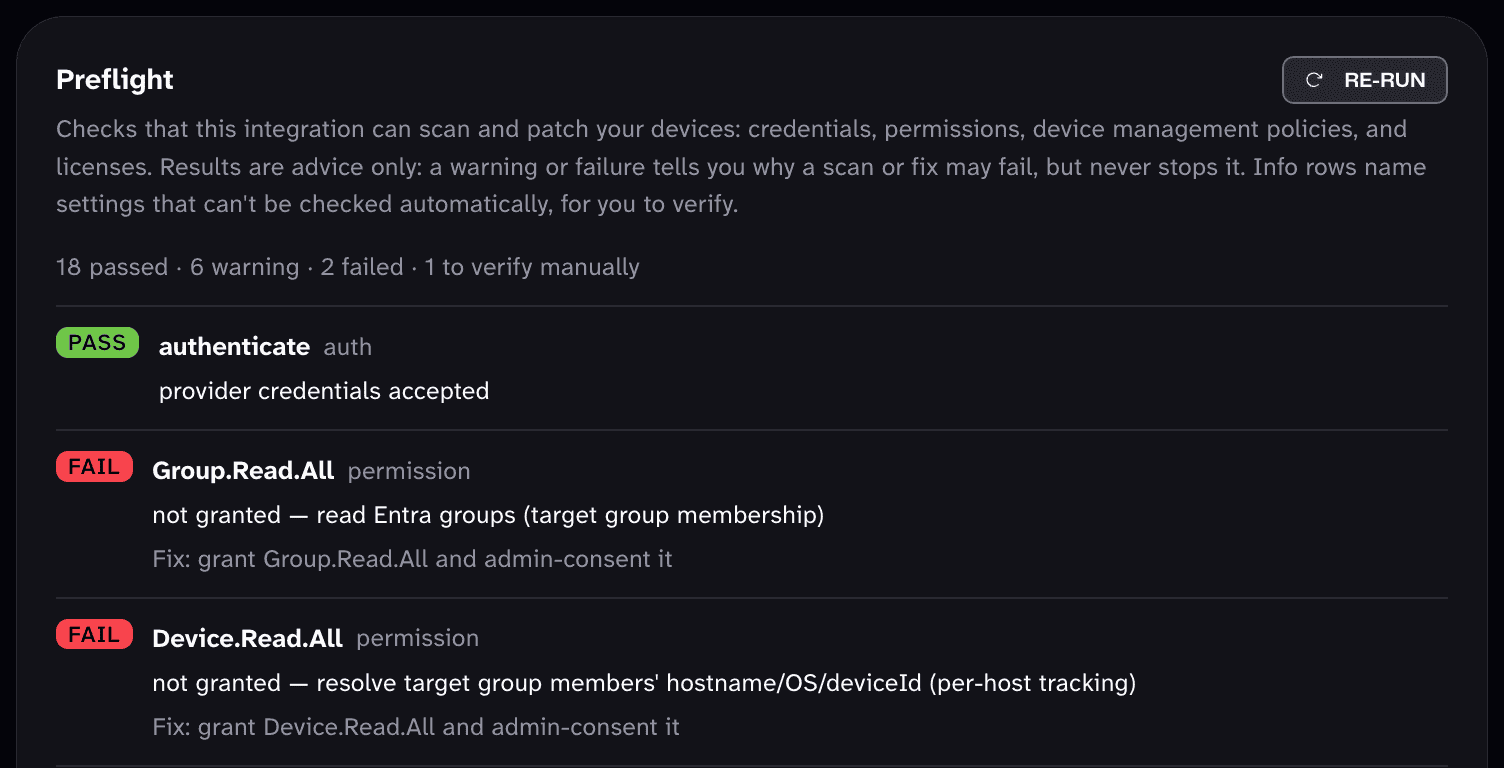
The Diagnosis tab runs preflight checks on the integration: its credentials, permissions, device management policies, and licenses. Each check passes, warns, fails, or lists a setting to verify yourself. The results are advice only: a warning or failure explains why a scan may fail, but never stops a scan. To check again after you fix something, select Re-run.
Set maintenance windows
The Maintenance Windows tab shows the maintenance windows that apply to the integration's devices. A maintenance window says when Mondoo may remediate devices. It never delays a scan. On the tab, you can see the windows imported from the integration or assigned to it, check the effective window for a host group, and, for Microsoft Intune, CrowdStrike Falcon, and opsi, import the windows the tool already defines. To learn more, read Define Maintenance Windows.
Edit or remove the integration
On the integration's page, select the edit (pencil) icon to change its settings, then select Save Changes. To remove the integration, select the trash can icon and confirm.
If the integration authenticates with a stored credential, such as an API client secret or a password, rotate the credential to replace a secret that is expiring or was revoked. In the left navigation, select Settings, then Credentials. Find the credential, open the menu in its Status column, and select Rotate. Every integration that uses the credential switches to the new secret right away. To learn more, read Manage Integration Credentials.
When you edit an Intune integration, you can change its name and these Fleet-scan options:
- Stage cnspec on devices (Intune app): Mondoo uploads cnspec as an Intune Win32 app assigned to the scan group, so devices don't download it on every scan. This requires the
DeviceManagementApps.ReadWrite.Allpermission on the app registration. Without it, scans still run and devices download cnspec instead. - Keep provider artifacts after a fleet scan: Keeps the delivered Intune script and cnspec output on the device after a scan, so you can troubleshoot a failing scan. Leave it off for normal operation.
- Discover AI tools and MCP servers during fleet scans: Fleet scans also discover the MCP servers configured on each device, as their own assets. Turning this on enables the Mondoo AI Security policy for the space.
Discovering an MCP server that runs locally starts the command written in that user's MCP configuration, and fleet scans run as SYSTEM on Windows and as root on macOS. Any user who can edit an MCP configuration on a device can therefore get a command run with those privileges during a scan. Only turn on MCP discovery for fleets where that is acceptable.
The app registration's tenant ID, client ID, and secret belong to the integration's credential. To rotate the client secret, update the credential on the credentials page.
Verify the integration
After you complete setup:
- Check the status. On the Integrations page, the integration's status becomes Active once a scan succeeds. To learn what each status means, read Integration Status and Troubleshooting.
- Follow the scan. Scans that Intune runs on a schedule don't appear in Recent scan jobs, and a new schedule can take up to 8 hours to reach the devices. Instead, the Saved schedules card shows how many devices failed their last run. To check sooner, start a scan with Run now and follow it in Recent scan jobs.
- Open a scanned device. Select a scan job, then select Open asset in a device's row of the Hosts table to see the device's first results. To learn more, read Review scan results.
- Find devices that weren't scanned. The Hosts table gives the reason for each device the scan skipped or failed on. The Diagnosis tab checks the integration's credentials, permissions, and licenses. To learn more, read Check the integration's health.
Troubleshoot
For errors that all integrations share, read Integration Status and Troubleshooting. The Diagnosis tab also checks the integration's setup.
Mondoo can't list your device groups
The app registration is missing the Group.Read.All permission or its admin consent.
Fix: Grant Group.Read.All to the app registration, with admin consent. Read App registration permissions.
A new or changed schedule hasn't run on the devices
Intune runs saved schedules itself, and a new or changed schedule can take up to 8 hours to reach the devices. The runs Intune starts don't appear in Recent scan jobs.
Fix: Wait up to 8 hours. The Saved schedules list shows how many devices failed their last scheduled run. To ask the devices that the latest scan is still waiting for to check in with Intune now, select Sync. Read How Intune runs scheduled scans.
Next steps
- Inventory your assets: find the scanned devices and the vulnerable software on them.
- Define Maintenance Windows: set when Mondoo may remediate the devices.
- Assess and improve your security: review and prioritize the devices' findings.
Last updated on