Define Maintenance Windows
Define when Mondoo may remediate the devices your fleet integrations manage, and import the maintenance windows already set in Microsoft Intune, CrowdStrike Falcon, and opsi.
A maintenance window says when Mondoo may remediate, that is, make changes on, the devices that a space's fleet integrations manage. Fleet integrations are the endpoint management integrations that run fleet scans, such as Microsoft Intune, CrowdStrike Falcon, opsi, and Action1.
A window has one of two effects:
- An Allow window opens time for remediation: work may start while the window is open.
- A Blackout window stops remediation: no work starts while it's open, whatever else allows it.
When several windows apply to a device, a blackout always wins, and the openings of the allow windows add up. A device with no window that applies to it has no restriction.
Maintenance windows govern remediation only. A scan changes nothing on a device, so scans never wait for a window: Mondoo runs fleet scans on their schedule whether or not a window is open.
You can define windows in Mondoo, and you can import the windows that Intune, CrowdStrike Falcon, or opsi already define. Imported windows are read-only in Mondoo.
Who can view and manage windows
To see a space's maintenance windows, you need the Viewer role or higher.
To create, edit, or delete windows, or to turn on an integration's window import, you need the Editor or Owner role, or another role with this permission. To see every role, read Roles and permissions.
A change that could let remediation start at a time a window now holds it back needs the Owner role, or another role with the maintenance window override permission. These changes include:
- Creating, enabling, or assigning more devices to an enabled Allow window
- Editing, deleting, or removing an assignment from an enabled window that applies to devices
- Turning off an integration's window import, or changing its default time zone, while the import is on
Without that permission, Mondoo refuses the change. Creating a Blackout window, or a window that's disabled, only needs the Editor role. Mondoo records every change to a window or an import in the space's audit log.
View a space's maintenance windows
-
Navigate to the space.
-
In the side navigation, select Settings, and then select Maintenance Windows.
The list shows each window in the space:
| Column | What it shows |
|---|---|
| Window | The window's name and description. A Disabled badge marks a window Mondoo ignores. |
| Effect | Allow or Blackout, and what the window governs (Remediation). |
| When | Each opening in the window's time zone, how long it stays open, and when it next opens. If you're in a different time zone, the next opening also shows in your time. |
| Applies to | Whole space, All devices of an integration, or one Host group of an integration. Nothing means the window isn't assigned to any devices, so it's not in effect. |
| Source | Mondoo for a window defined in Mondoo. For an imported window, the integration it came from, what it governs in that system, and its sync status: Synced, Unsupported, Sync failed, or Not synced yet. |
The list shows 50 windows at a time. To see more, select SHOW MORE below the list.
Create a maintenance window
-
On the space's Maintenance Windows settings page, select NEW WINDOW.
-
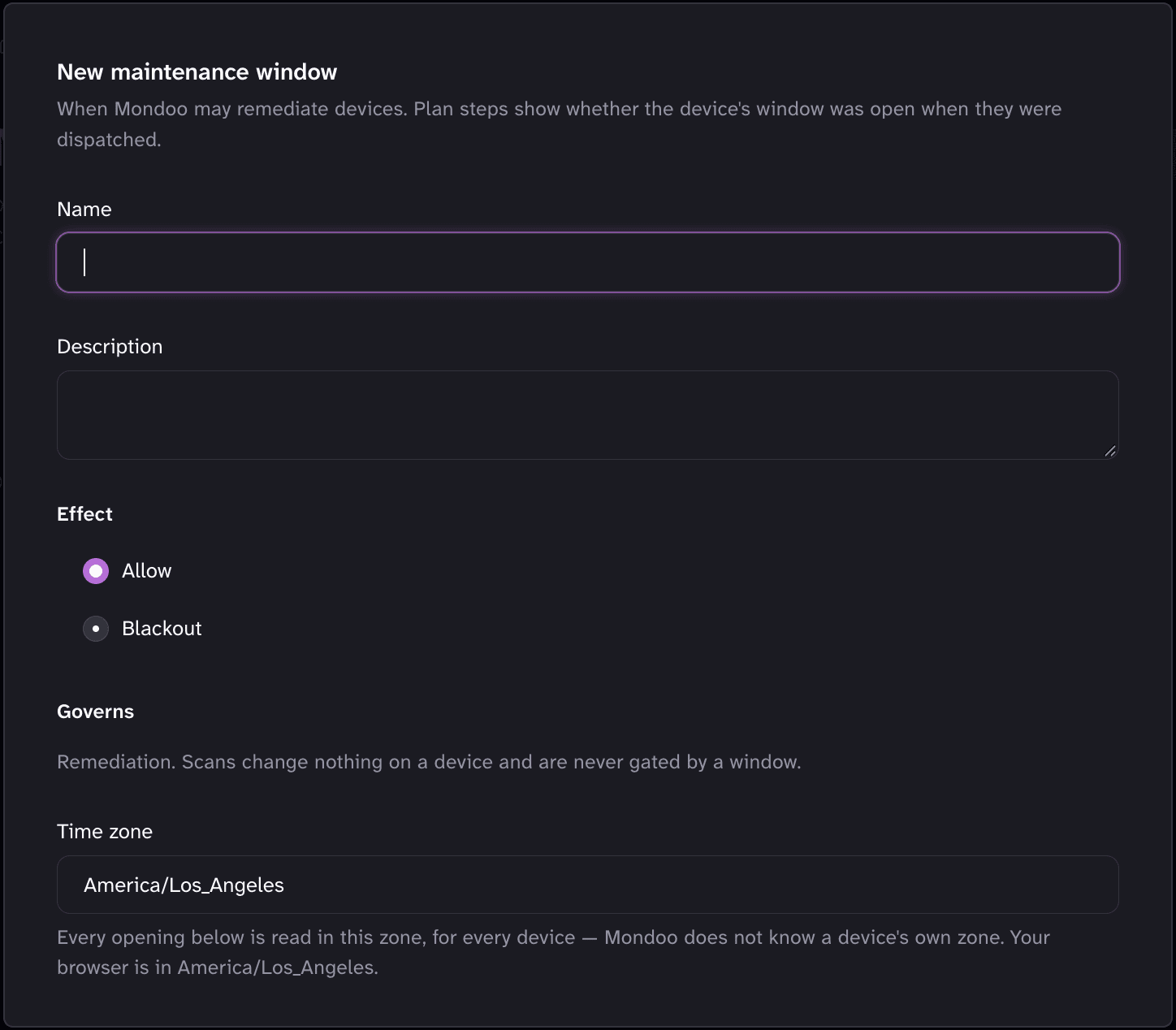
In the Name box, name the window. Optionally, describe it in the Description box.
-
Under Effect, choose Allow or Blackout.
-
In the Time zone box, enter or choose an IANA time zone, such as
Europe/BerlinorUTC. It defaults to your browser's time zone. Every opening is read in this zone for every device, because Mondoo doesn't know each device's own time zone. -
Under Openings, define when the window opens. In the Repeats box, choose one of:
- Every week: Under Days, select one or more days. Weekends are selected by default.
- Every month: Choose the Week (First through Fourth, or Last) and the Day of the week. To shift the opening later, enter a number of days from 0 to 27 in Plus days. For example, the second Tuesday plus 8 days opens on the Wednesday of the week after Patch Tuesday.
- Once: Enter when the window Opens and when it Closes. It must close after it opens.
For a weekly or monthly opening, enter the time it Opens at (22:00 by default), and how long it's open for in Open for (hours) and and minutes (4 hours by default). An opening lasts from 1 minute to 7 days.
To give the window more openings, select ADD OPENING. To remove one, select REMOVE OPENING.
-
In the Start cutoff (minutes) box, enter how many minutes before an opening closes no new work may start, from 0 to 1440 (30 by default). Work that already started isn't stopped.
-
Under Applies to, choose the devices the window covers:
- Keep Every device of every fleet integration in this space checked to apply the window to the whole space. It's checked by default.
- To apply the window to one integration, select ADD INTEGRATION OR HOST GROUP, choose the Integration, and choose All its devices under Devices. To apply it to one of the integration's host groups instead, choose One host group and pick the group.
You can add several integrations and host groups. To remove one, select REMOVE in its row.
A blackout on a host group covers only the devices Mondoo saw in that group's latest scan. For a freeze that must cover every device, apply the blackout to the whole space or to the integration.
-
Leave Enabled on to put the window in effect. Mondoo ignores a disabled window.
-
Select CREATE WINDOW.
A space can have up to 500 windows defined in Mondoo.
Edit or delete a maintenance window
You can edit or delete only windows defined in Mondoo. Imported windows show Read-only and change only when their source system changes.
- To edit a window, select EDIT in its row, make your changes, and select SAVE.
- To delete a window, select DELETE in its row, then select DELETE again to confirm. Deleting a window also removes its assignments, and you can't undo it.
To read which changes need the Owner role, see Who can view and manage windows.
Import windows from Intune, CrowdStrike Falcon, or opsi
Some management systems already define their own windows. A fleet integration can import them, so Mondoo knows the same restrictions:
| Integration | What Mondoo imports |
|---|---|
| Microsoft Intune | The Windows Update maintenance window of each settings catalog policy or custom OMA-URI profile, as an Allow window for Windows Update installs. Update ring active hours aren't imported. |
| CrowdStrike Falcon | The schedule of each sensor update policy, as a Blackout window for Falcon sensor updates. The Falcon API client needs Read access to the Sensor update policies scope. |
| opsi | The working window of the opsi client agent's on-demand event, as an Allow window. |
Imported windows are read-only. They keep the name and meaning they have in the source system, and Mondoo assigns them to the host groups they target there.
To turn on the import:
-
Navigate to the space, select Integrations in the side navigation, choose the integration type, then select the integration.
-
Select the Maintenance Windows tab.
-
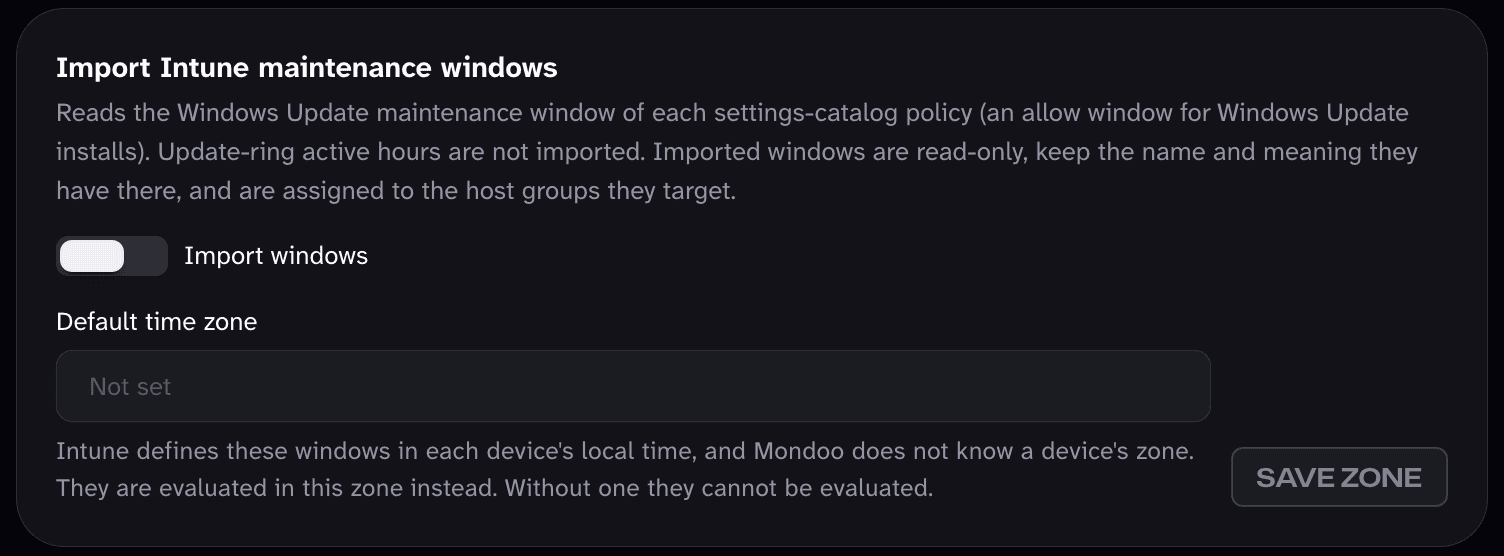
In the import card, such as Import Intune maintenance windows, turn on Import windows.
-
If the card shows a Default time zone box, enter or choose the IANA time zone to read the imported windows in, and select SAVE ZONE. Intune and opsi define their windows in each device's local time, and Mondoo doesn't know a device's time zone. Until you set a default time zone, those windows show as Unsupported and can't be evaluated.
Mondoo syncs the imported windows once a day. To sync right away, select SYNC NOW. The card shows the sync status, how many windows were imported, and when the last sync ran. If a sync fails, the card explains why, and the windows stay as the last successful sync left them.
Mondoo imports a window as Unsupported, with the reason, when it can't read the window exactly, rather than guessing. For example, Mondoo marks an Intune window unsupported when two policies give the same group different windows.
Check an integration's windows
The Maintenance Windows tab on a fleet integration's page shows what applies to that integration's devices:
- The window import card, for an integration that can import its system's windows (see Import windows)
- This integration's windows: the windows imported from the integration or assigned to it or one of its host groups. Windows assigned to the whole space apply too.
- Effective remediation window: Choose a host group to see every window that applies to its devices, combined into one answer. Open now means new work may start, and says until when. Closed now says when the window next opens. No window means no window applies, so remediation isn't restricted. If an integration that imports its windows hasn't synced in the last 24 hours, a Windows may be missing warning appears.
To manage the space's windows from the tab, select Manage the space's windows.
Next steps
- Scan Endpoints Through Your Endpoint Management Tool: connect the fleet integrations whose devices the windows cover.
- Define Your Team's Service-Level Agreement: set how quickly your team commits to remediating findings.
Last updated on