Space and Organization Settings
Configure a Mondoo space or organization's general settings, see your plan and usage, and review legal agreements.
Every Mondoo space and organization has a Settings section in the side navigation. This page covers the settings that describe and configure the space or organization itself: General for both, plus Usage and Legal & Compliance for organizations.
Other settings pages have their own guides:
- Identity & Access: Manage access to Mondoo
- API Tokens: API tokens
- Workload Identity: Workload identity federation
- Audit Log: View audit logs
Space general settings
To open them, navigate to the space, select Settings in the side navigation, and then select General. Changes save automatically when you leave a field or pick a new value. To change these settings, you need the Owner, Editor, or Space Manager role.
Space information
| Setting | What it does |
|---|---|
| Space Name | The display name for the space. |
| Description | A brief description of the space, up to 256 characters. |
| Space ID | The unique identifier for the space. It can't be changed. Select the copy button to copy it. |
| Space MRN | The Mondoo Resource Name for the space, which API calls and automation use to refer to it. Copy it with the copy button. |
Annotations
Annotations are key-value metadata you attach to the space itself, for example to record an owner or a cost center. Select Add a key-value annotation to add one.
Asset settings
Remove terminated assets and Remove inactive assets control how Mondoo cleans up assets that no longer exist or no longer report. To learn how they work, read Remove obsolete assets.
Vulnerability & EOL settings
These settings control how Mondoo finds and scores vulnerabilities and end-of-life software for the assets in the space.
Extended support subscriptions such as Ubuntu Pro, Red Hat ELS, or SUSE LTSS aren't set here. Mondoo detects them on each asset during the scan. To learn more, read Extended support subscriptions.
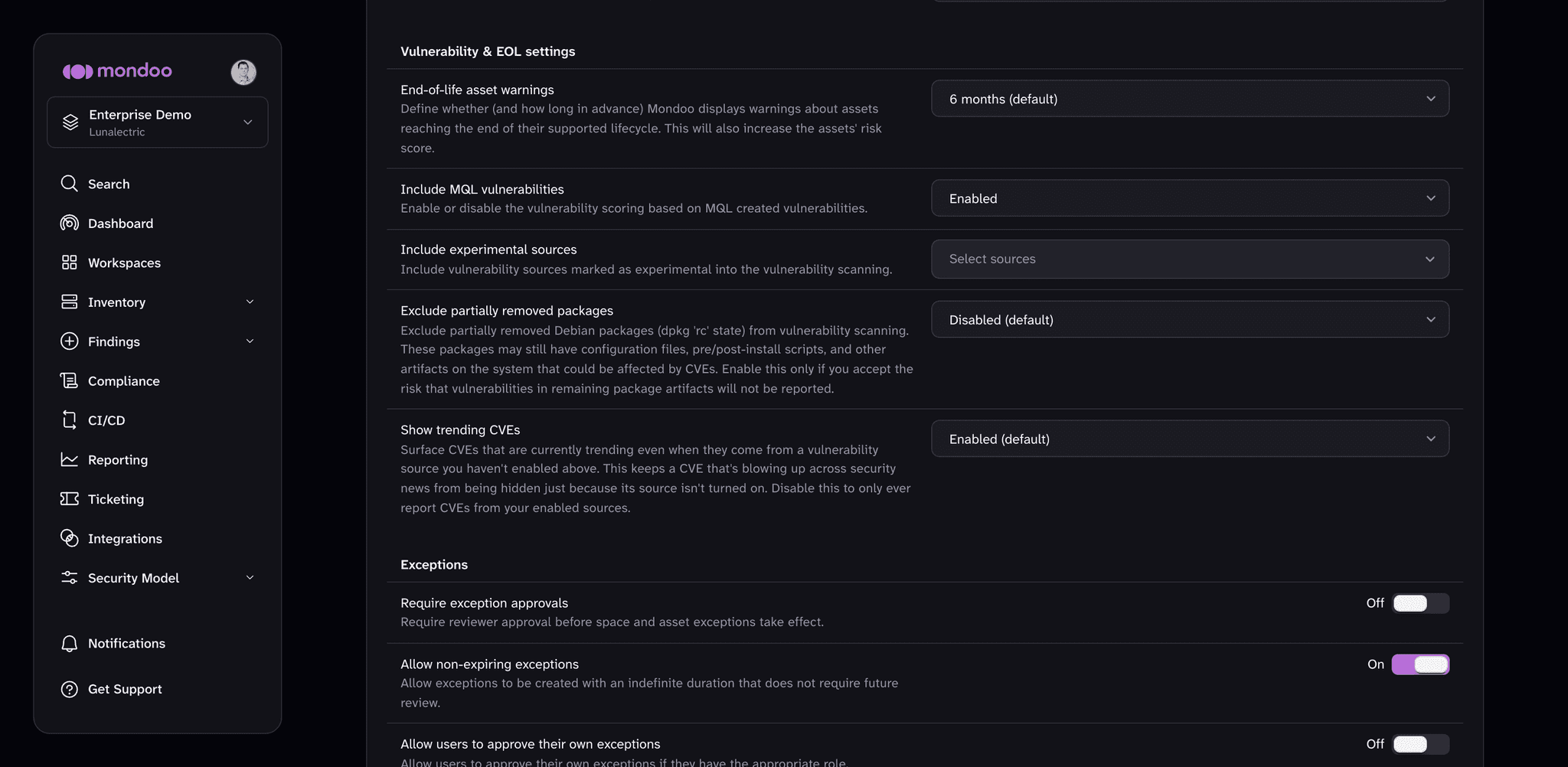
| Setting | Options (default in bold) | What it does |
|---|---|---|
| End-of-life asset warnings | Disable, 1 year, 6 months, 3 months, 1 month | How far in advance Mondoo warns that an asset is reaching the end of its supported lifecycle. The warning also increases the asset's risk score. Choose Disable to turn off the warnings. |
| Include MQL vulnerabilities | Enabled, Disabled | Whether vulnerabilities that MQL checks detect count toward vulnerability scoring. |
| Include experimental sources | None selected by default | Vulnerability data sources that Mondoo marks as experimental. Select the sources you want to include in vulnerability scanning. |
| Exclude partially removed packages | Disabled, Enabled | Whether to skip Debian packages in the dpkg rc state (removed, but with configuration files left behind) during vulnerability scanning. Those leftover files, scripts, and other artifacts can still be affected by CVEs, so enable this only if you accept the risk of not seeing those vulnerabilities. |
| Show trending CVEs | Enabled, Disabled | Whether to report CVEs that are currently trending even when they come from a vulnerability source you haven't enabled. Disable it to only report CVEs from your enabled sources. |
Exceptions
The Exceptions settings control whether exceptions need approval, whether they can be non-expiring, and whether people can approve their own. To learn about them, read Space-level exception settings.
Danger zone
The Danger zone at the bottom of the page is where you leave the space, delete all of its assets, or delete the space. To learn more, read Remove a space or organization.
Organization general settings
To open them, navigate to the organization, select Settings in the side navigation, and then select General. Changes save automatically. To change these settings, you need the Owner, Editor, or Organization Manager role.
| Setting | What it does |
|---|---|
| Organization Name | The display name for the organization. |
| Organization ID | The unique identifier for the organization. It can't be changed. Select the copy button to copy it. |
| Organization MRN | The Mondoo Resource Name for the organization, which API calls and automation use to refer to it. Copy it with the copy button. |
| Company | An optional company name for the organization. |
| Description | A brief description of the organization, up to 256 characters. |
| Annotations | Key-value metadata for the organization. |
The organization's Danger zone is where you leave or delete the organization. To learn more, read Remove a space or organization.
Usage
The Usage page shows your organization's Mondoo plan and how much of it you're using. To open it, navigate to the organization, select Settings, and then select Usage. You need the Owner or Billing Manager role to see it.
- Plan shows the name of your current plan. If your plan is self-service, select Open billing portal to change your plan, update your payment method, or get invoices. Otherwise, select Contact sales to change your plan. If a cancellation is pending, the plan shows Cancellation pending and your subscription ends at the close of the current billing period.
- Usage lists each metric your plan measures, such as the number of assets in the organization, with how much you've used and how much is left. A metric with no cap shows No limit. When you reach or exceed a limit, the metric shows At limit or how far over the limit you are.
- Add-ons lists any add-ons on your subscription and their quantity.
- Upgrade options lists plans you can move to, with their price where one applies. Select Upgrade to change a self-service plan in the billing portal, or Contact sales for other plans.
Legal & Compliance
The Legal & Compliance page shows the legal agreements that apply to your organization: the Mondoo Privacy Policy and Terms & Conditions. To open it, navigate to the organization, select Settings, and then select Legal & Compliance.
For each agreement, the page shows when it was last updated and whether your organization has accepted it. After someone accepts an agreement, the page shows the date it was accepted and the email address of the person who accepted it. If an agreement hasn't been accepted yet, an organization Owner can select Accept.
Owners and Editors can view this page.