Import Data from Microsoft Defender for Cloud
Import Microsoft Defender for Cloud findings into Mondoo alongside your own scan results.
Mondoo can import data from Microsoft Defender for Cloud and combine it with your Mondoo findings. The unified view gives you Mondoo's security visualization, prioritization, and ticketing on top of Defender vulnerability data.
Prerequisites
- Editor or Owner access to the Mondoo space
- An Azure account with these services enabled:
- A Microsoft Defender for Endpoint license
- Permission to manage applications in Microsoft Entra ID. Any of these Entra roles qualify:
Check your roles in the Azure portal: Microsoft Entra ID > Users > (your account) > Assigned roles.
Step A: Register and grant permissions to an Azure app
Mondoo needs a Microsoft Entra ID app registration with read-only access to Defender data. To learn more, see App registration, app objects, and service principals in the Azure documentation.
Use the generated script instead
The Microsoft Defender add-integration form in Mondoo starts with a Create an Azure app
registration step that generates an Azure CLI, PowerShell, or Bicep script. The script creates
the app registration, grants admin consent, and creates a client secret, then prints the tenant
ID, client ID, and client secret to paste into the form. If you use it, skip to Step
C. The script also requests response permissions
(such as Machine.LiveResponse and Machine.Isolate) that the vulnerability import doesn't use.
To grant only the read permissions the import needs, follow the manual steps below.
-
Log into the Azure portal with one of the required roles.
-
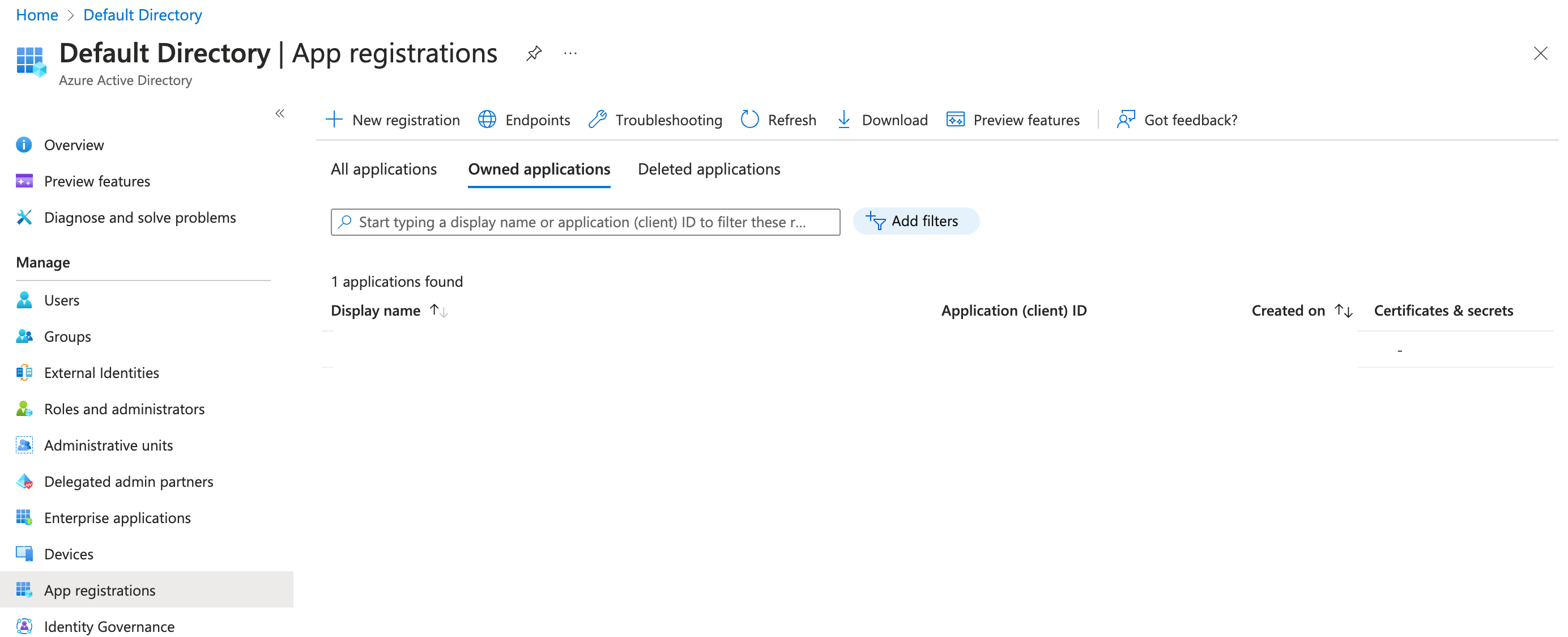
Open Microsoft Entra ID > App registrations.
-
Select + New registration.
-
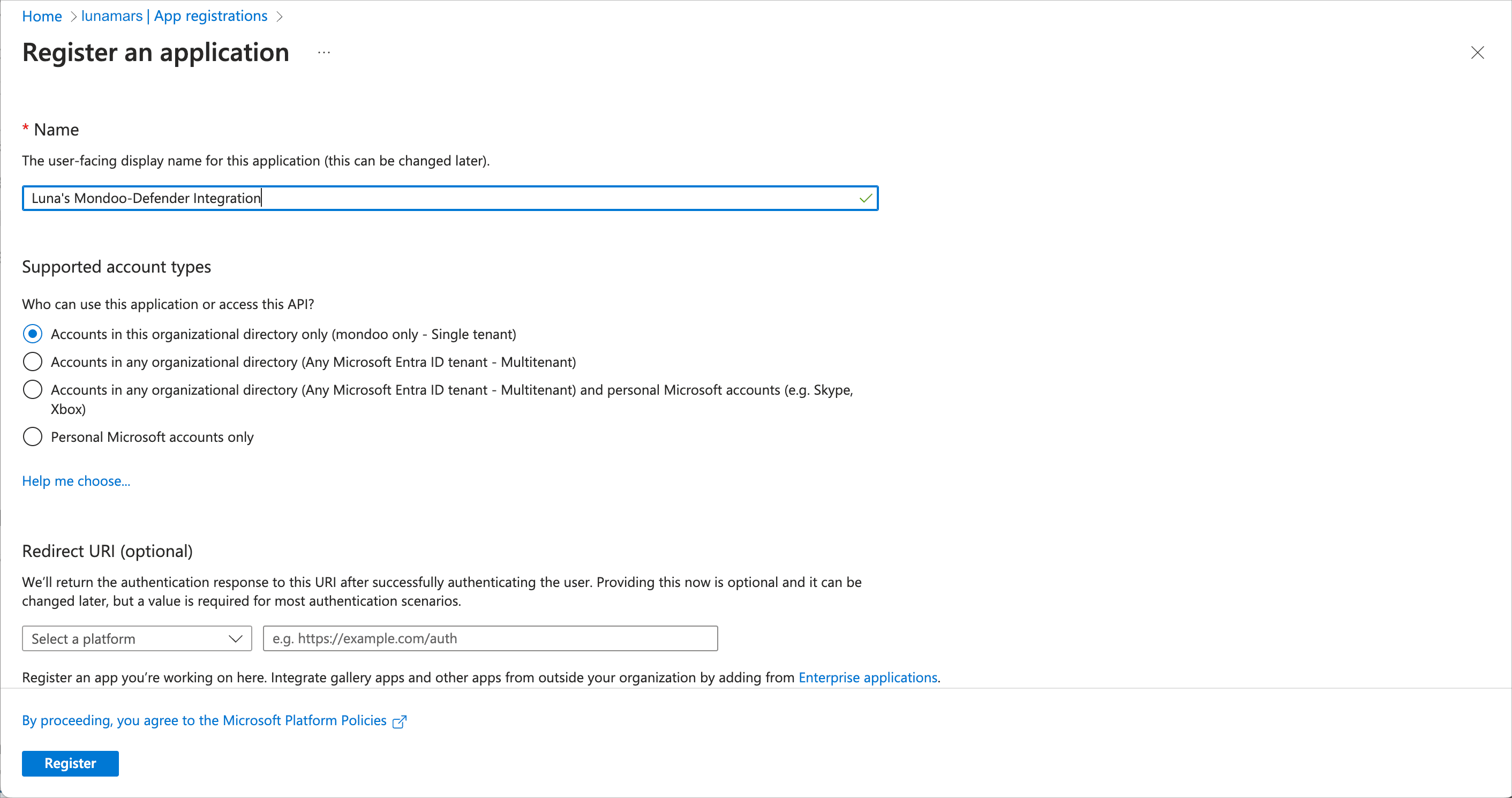
Name the app (for example,
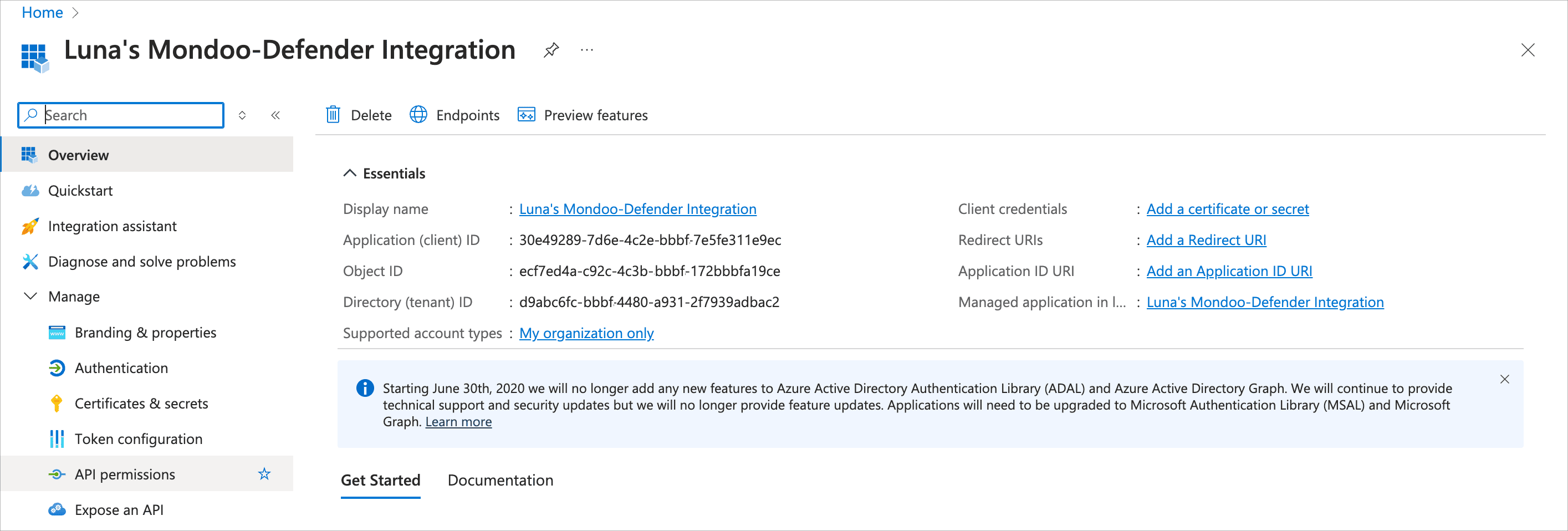
mondoo-defender), select Accounts in this organizational directory only, and select Register. No redirect URI is needed.Azure creates the application and shows its ID.
-
In the left navigation, select API permissions.
-
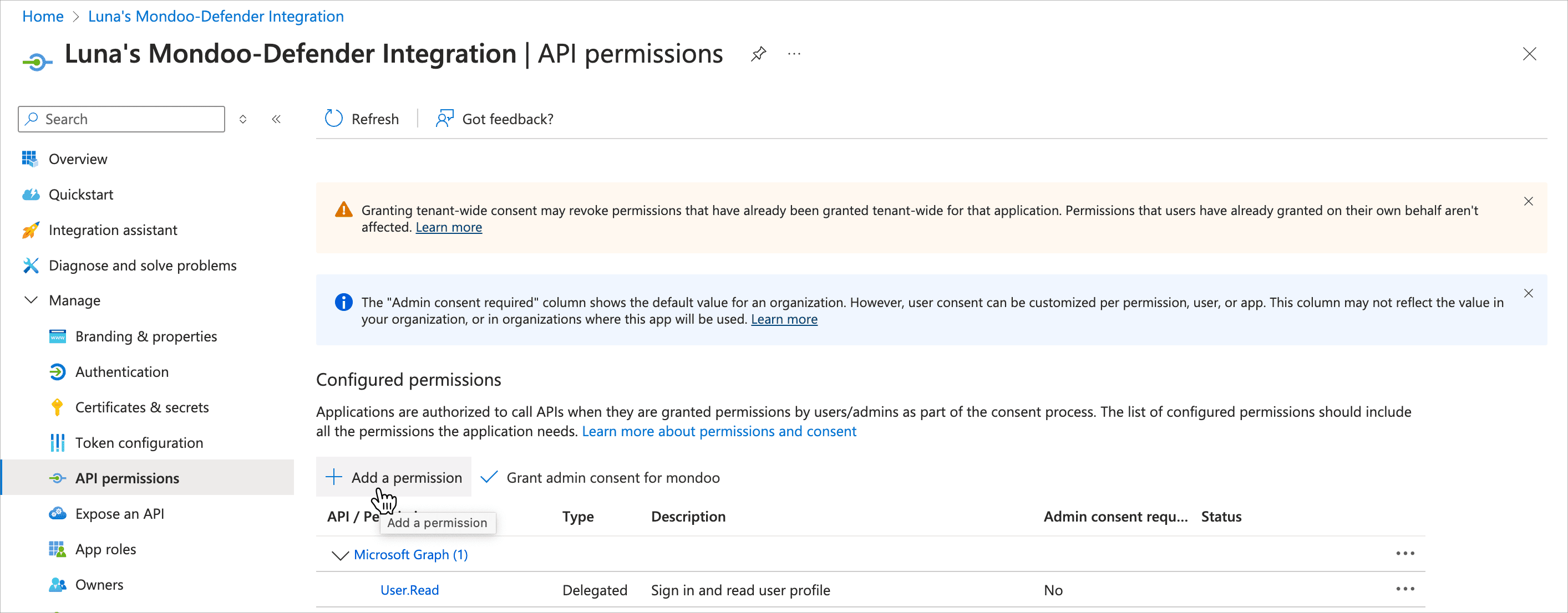
Select + Add a permission > APIs my organization uses, search for
WindowsDefenderATP, and select it.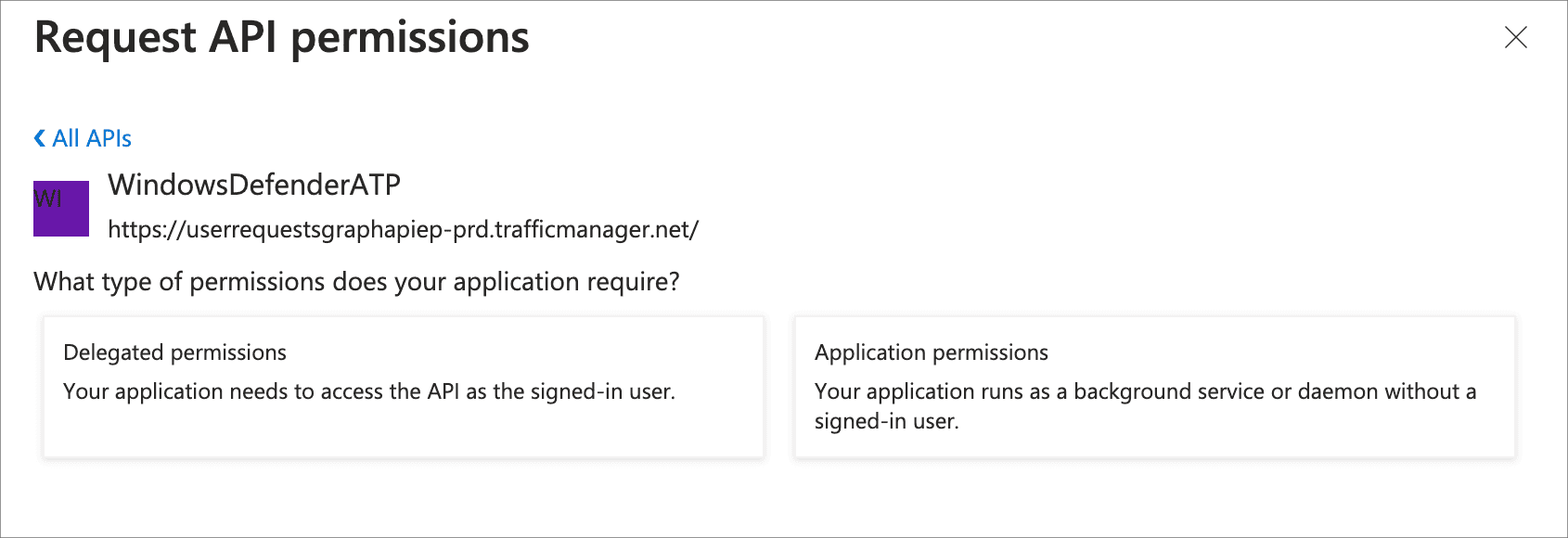
-
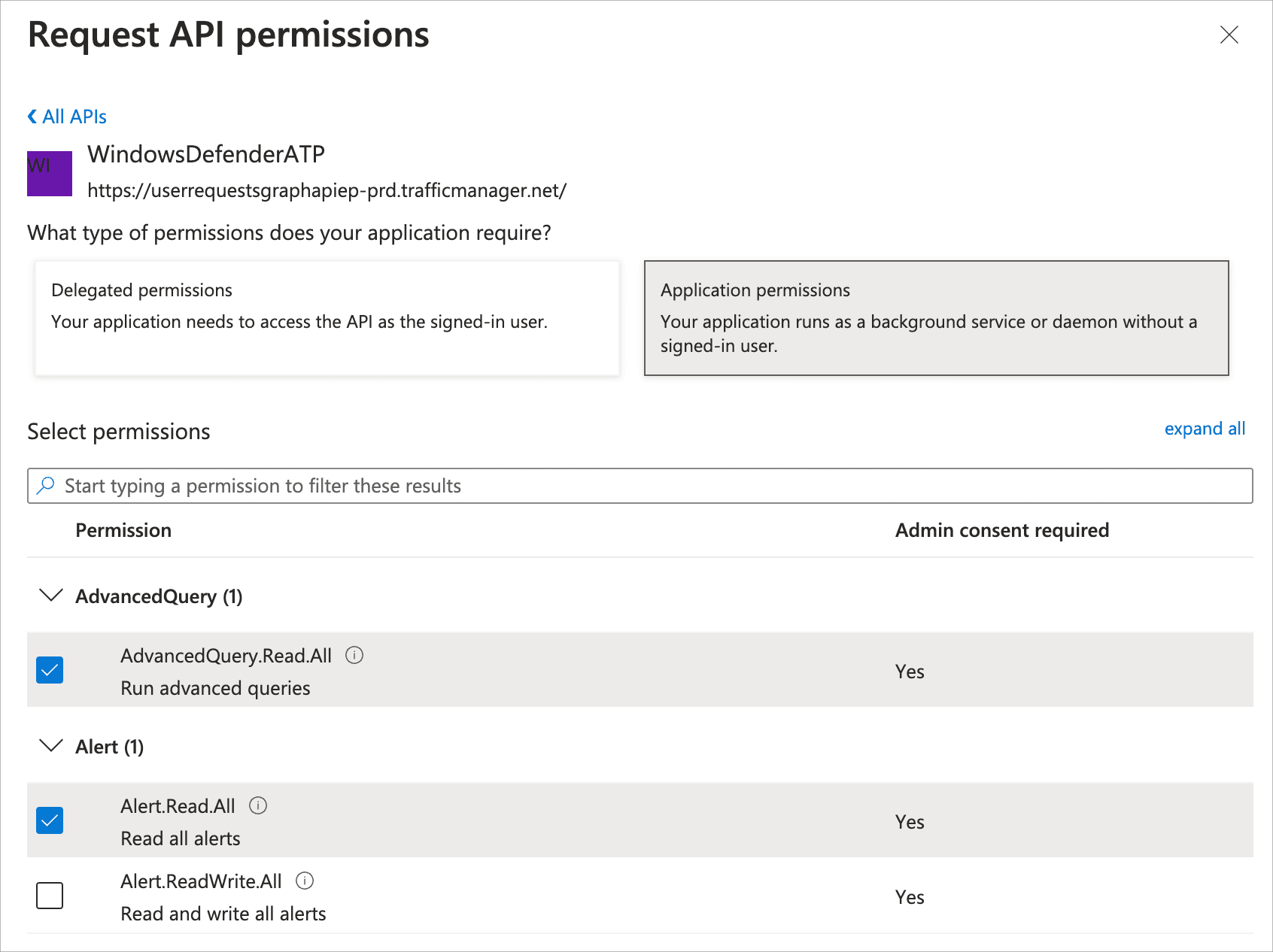
Select Application permissions, then expand all, and check:
AdvancedQuery.Read.AllAlert.Read.AllFile.Read.AllIp.Read.AllMachine.Read.AllRemediationTasks.Read.AllScore.Read.AllSecurityBaselinesAssessment.Read.AllSecurityConfiguration.Read.AllSecurityRecommendation.Read.AllSoftware.Read.AllUrl.Read.AllUser.Read.AllVulnerability.Read.All
-
Select Add permissions.
-
In the permissions list, check the Status column. If you see warnings about consent, select Grant admin consent for [your directory name] above the table. If the option is disabled, ask a Global Administrator to grant consent.
Keep the app registration page open for the next step.
Step B: Set up authentication
Mondoo can authenticate with a client secret (easier) or a PEM certificate (required by some security policies).
Option 1: Client secret
-
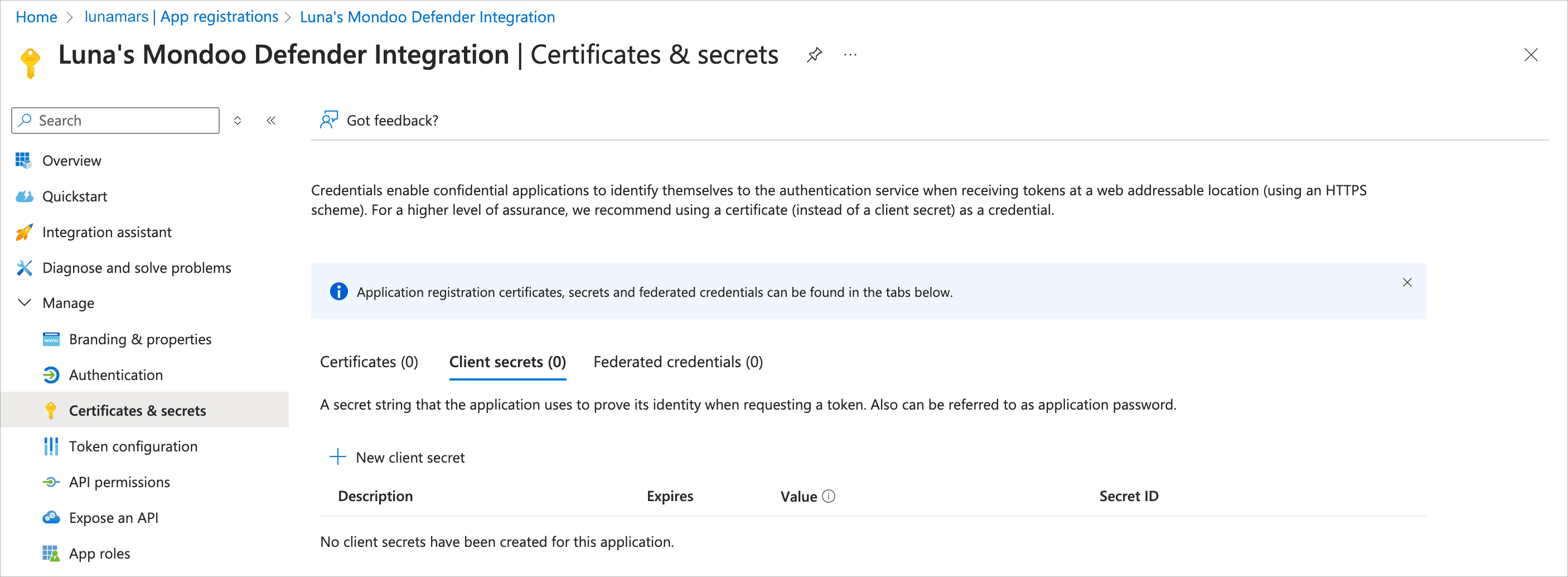
In your app registration, select Certificates and secrets.
-
Select New client secret.
-
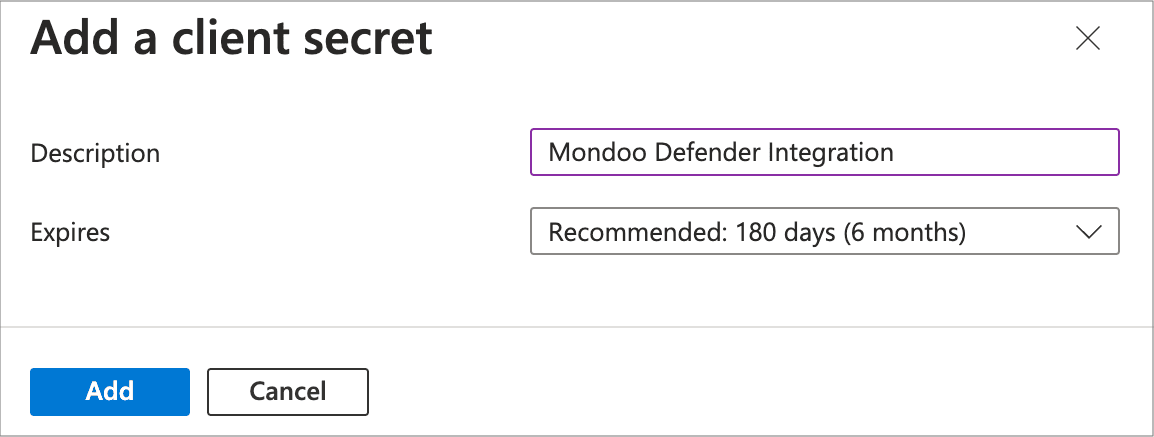
Name the secret (for example,
mondoo defender secret), choose an expiration, and select Add. Note the expiration; the integration stops working when the secret expires.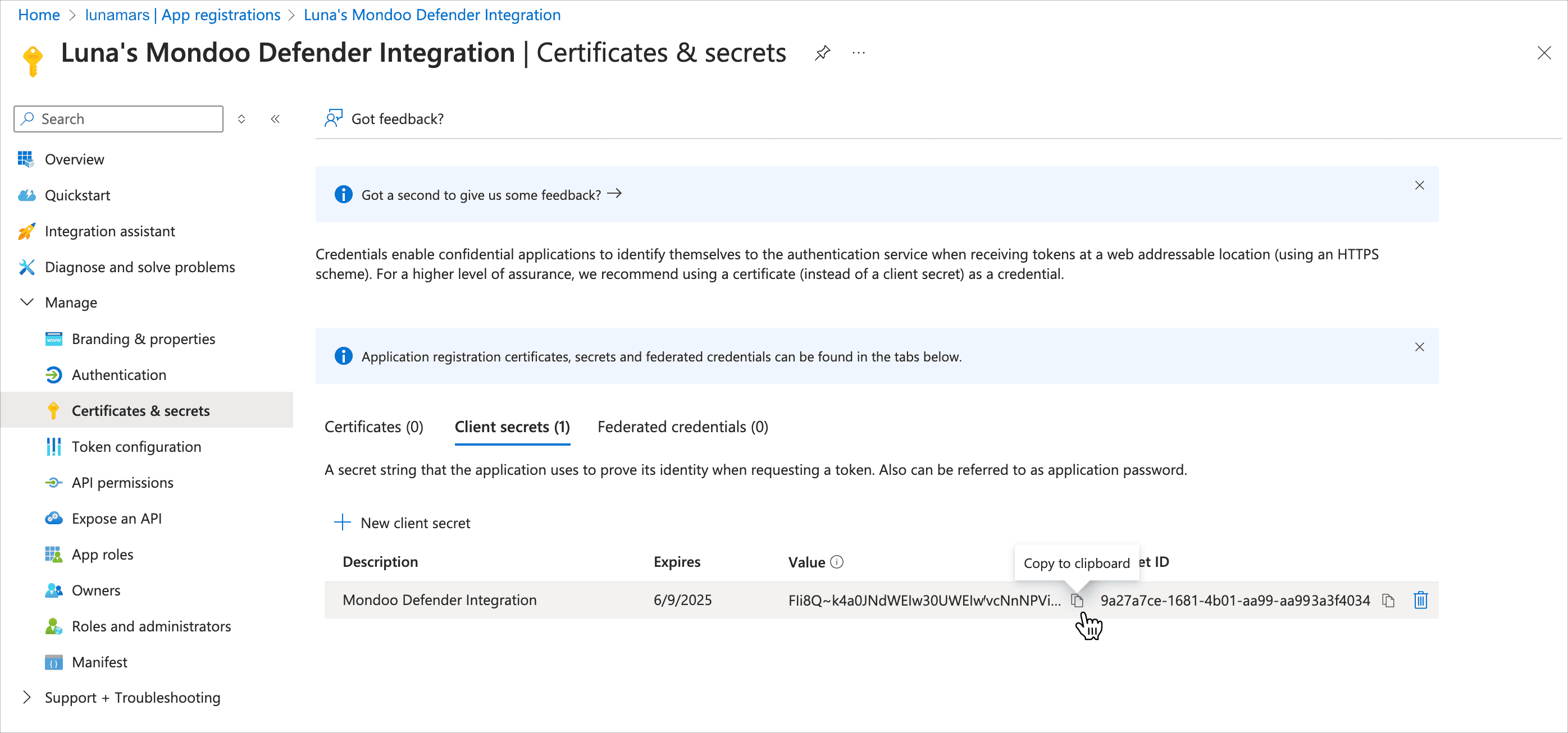
Copy the secret's Value immediately; it disappears after you leave the page.
Option 2: PEM certificate
The app registration and your Mondoo integration must share a PEM certificate with no password protection.
You need two PEM files:
-
For Azure: certificate only, no private key.
-
For Mondoo: certificate plus private key. Must have
.pemextension and use this format and order:-----BEGIN PRIVATE KEY----- key goes here -----END PRIVATE KEY----- -----BEGIN CERTIFICATE----- certificate goes here -----END CERTIFICATE-----
Generate a self-signed certificate for testing
For testing only, generate a certificate with OpenSSL. Run in a Linux shell, macOS shell, or Azure Cloud Shell:
openssl req -newkey rsa:4096 -x509 -sha512 -days 365 -nodes -out certificate.pem -keyout privatekey.keyCombine the key and certificate:
cat privatekey.key certificate.pem > certificate.combo.pemFor Windows, see this simple OpenSSL installer.
Upload the certificate (only) to Azure:
-
In your app registration, select Certificates and secrets > Certificates.
-
Select Upload certificate, choose the file with only the certificate, enter a description such as
Mondoo certificate, and select Add.
Step C: Add the Defender integration in Mondoo
You need these values from the Azure app registration:
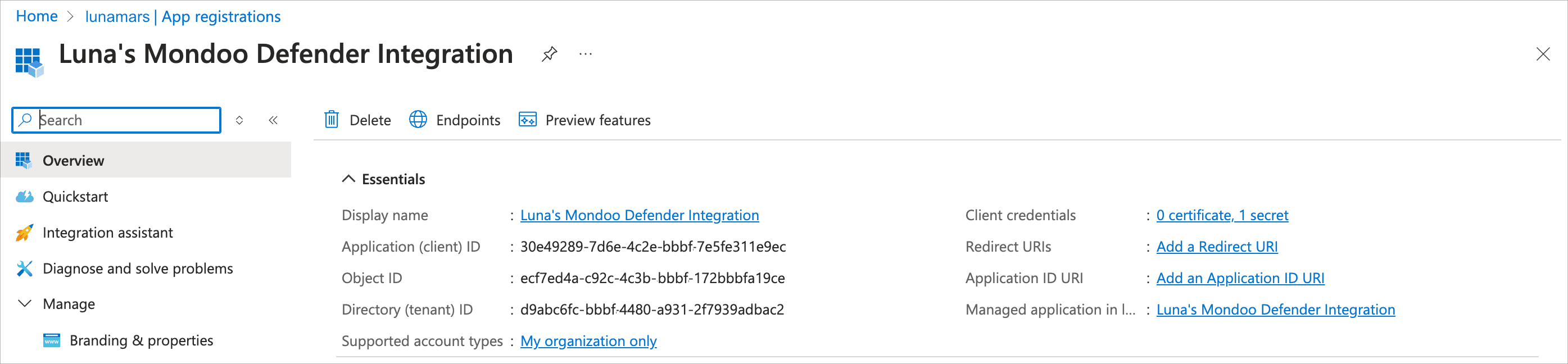
- Application (client) ID (from the app registration's Overview page)
- Directory (tenant) ID (from the same page)
- Either the client secret value or the combined PEM file from Step B
In the Mondoo App, navigate to the space where you want to add the integration. In the side navigation bar, select Integrations. In the top right, select INSTALL. On the Install Integration page, find the integration you want by browsing a category or searching by name:
-
Under Third-Party Data, select Microsoft Defender for Cloud.
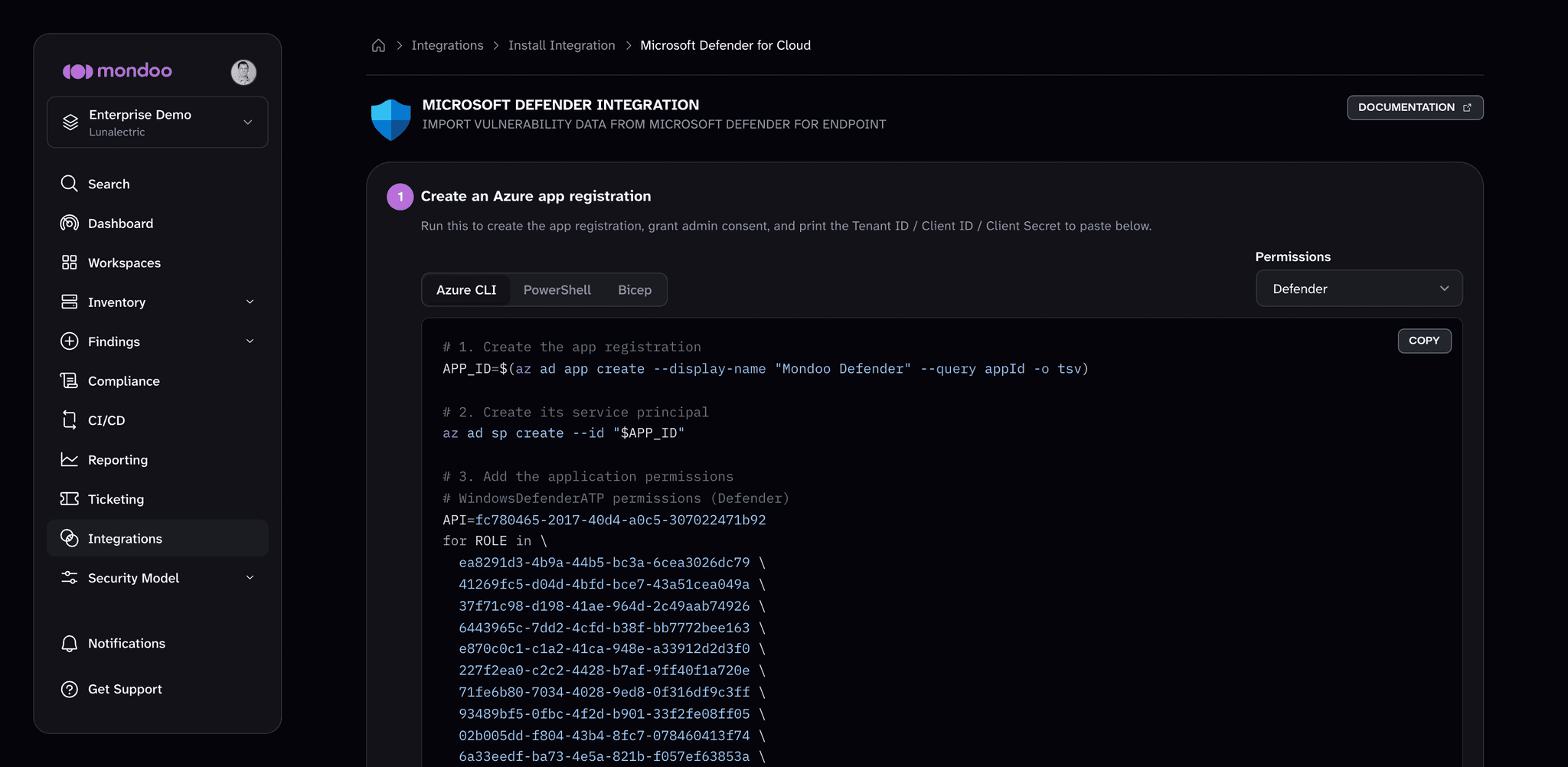
If you registered the app manually in Steps A and B, skip the Create an Azure app registration step at the top of the form.
-
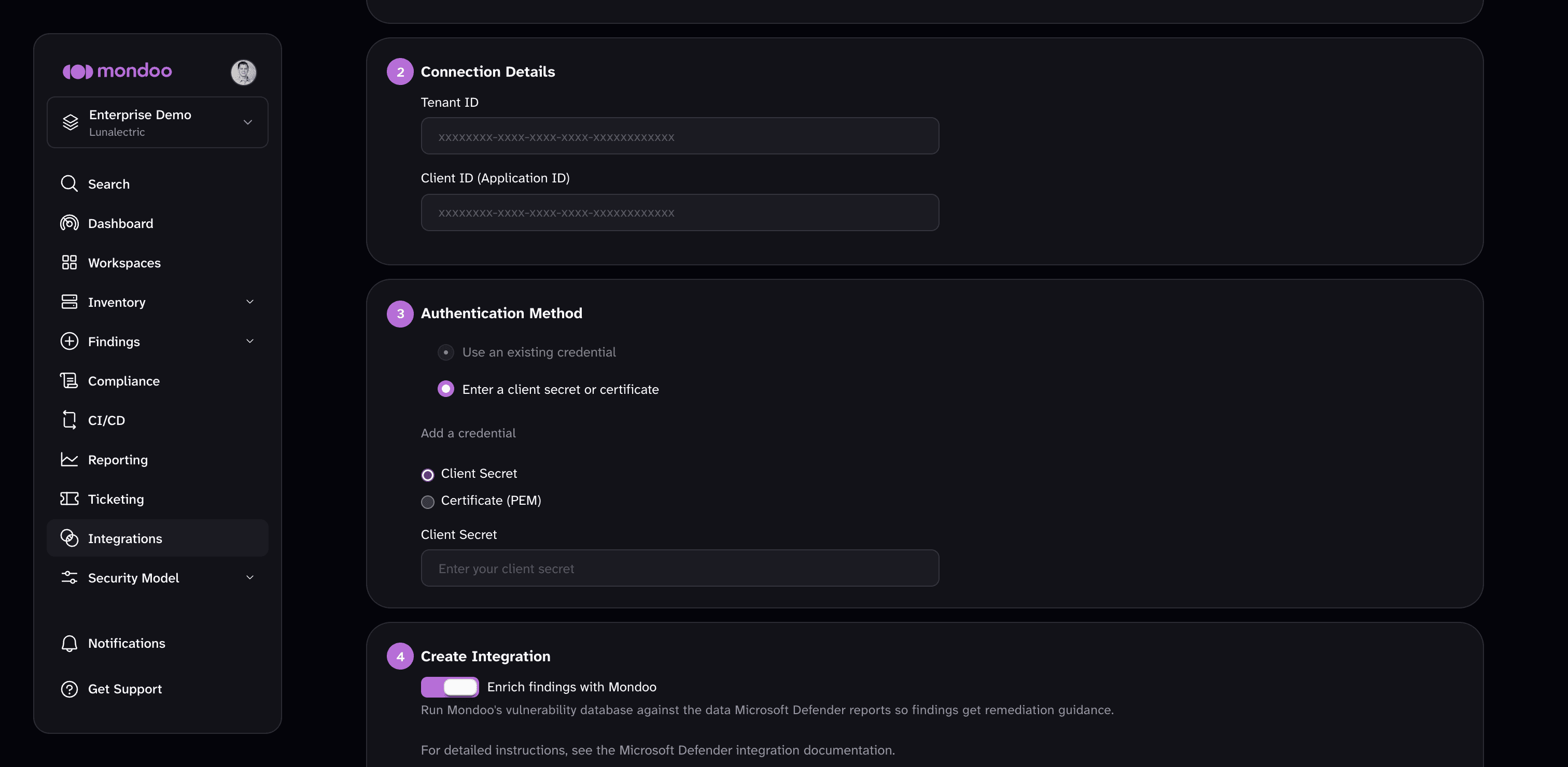
Under Connection Details, paste the Directory (tenant) ID into Tenant ID and the Application (client) ID into Client ID (Application ID).
-
Under Authentication Method, select Enter a client secret or certificate, then choose how Mondoo authenticates:
- Client Secret. Select Client Secret and paste the secret value.
- Certificate (PEM). Select Certificate (PEM) and upload the combined PEM file (key + certificate).
If your space already holds a credential for this app registration, select Use an existing credential instead. To learn more, read Manage Integration Credentials.
-
(Optional) Leave Enrich findings with Mondoo enabled so Mondoo runs its vulnerability database against the Defender data and findings include remediation guidance.
-
Select CREATE INTEGRATION.
Manage this integration
To open an existing integration, navigate to the space, select Integrations in the side navigation, choose the integration type, then select the integration.
The integration detail page shows the integration's status, configuration, import details, and recent activity. From there, you can:
- Trigger an immediate import. Select RUN.
- Edit settings. Select the edit (pencil) icon.
- Remove the integration. Select the trash can icon and confirm.
After you connect
Once the import is running, your Microsoft Defender findings appear in Mondoo alongside its own. Assess and improve your security to review and prioritize them.