Inventory Your Assets
Browse the assets and software Mondoo has discovered and enable query packs to collect extra configuration data.
When you connect an integration, Mondoo discovers the assets behind it and adds them to your inventory automatically. This page shows you how to browse what's been discovered, find vulnerable software across your assets, and turn on additional data collection with query packs.
Looking for the cnspec inventory file, the YAML file you author to tell cnspec what to scan? See Remote Scanning with Inventory Files instead.
Browse your asset inventory
-
In the Mondoo App, navigate to the space you want to look at. (If you want to scope to a subset of assets, navigate to a workspace instead.)
-
In the left navigation under Inventory, select Assets.
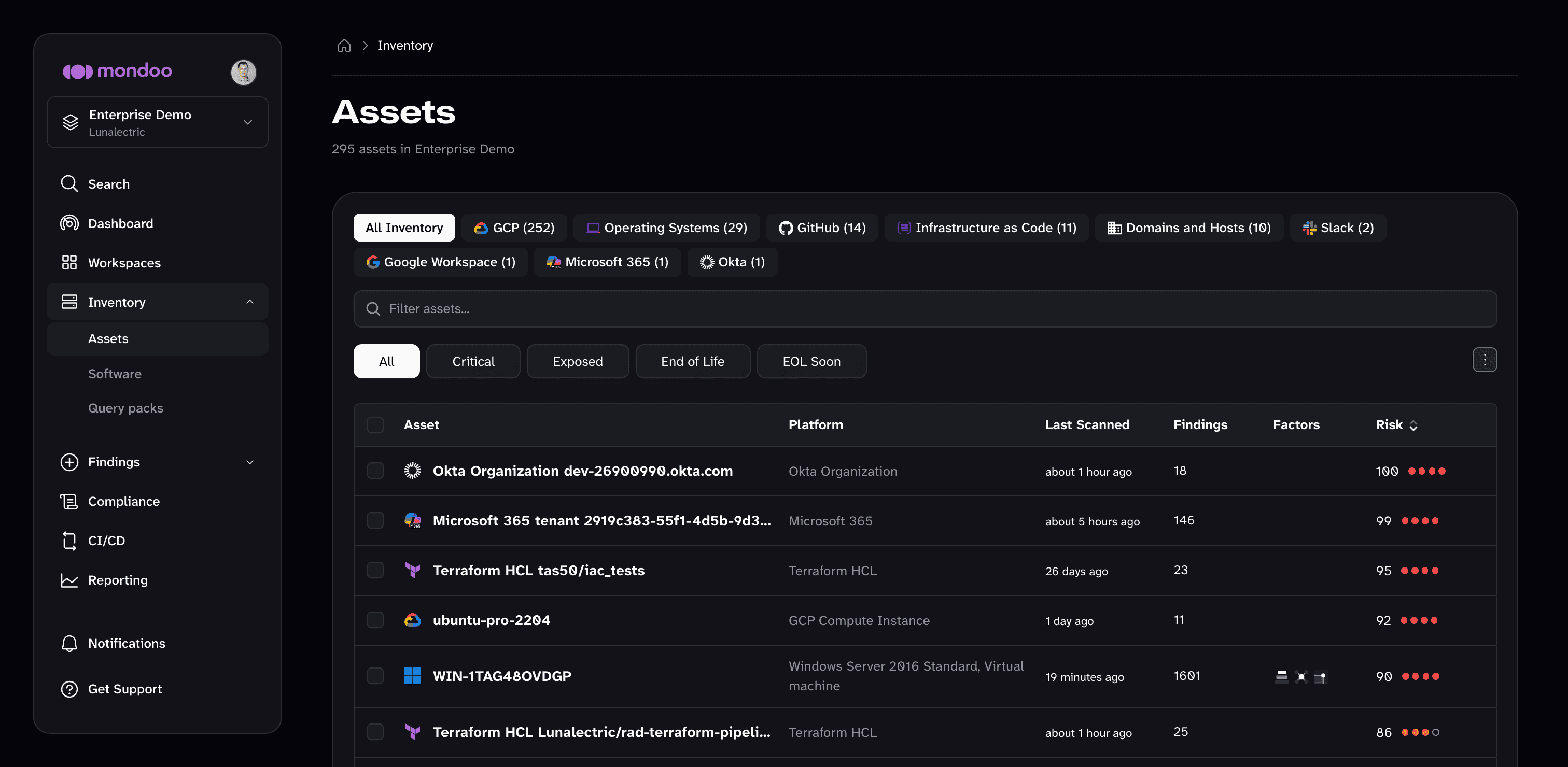
The Assets page lists every asset in the space, riskiest first, with its platform, when it was last scanned, its number of findings, the risk factors that apply to it, and its risk score.
-
Narrow the list:
- Select an integration type above the list (such as GCP, Operating Systems, or GitHub) to show only those assets, grouped by asset type. Select All Inventory to return to the full list.
- Type in the Filter assets box to search by asset name, or pick a filter category: Risk Rating, Platform, Asset Name, Label, Detection Source, or Risk Dimension.
- In the full list, use the quick filters to show only Critical assets, Exposed assets, or assets whose operating system has reached End of Life or reaches it soon (EOL Soon).
-
To sort the list, choose which columns to show, or export the list as CSV, JSON, or XLSX, open the ⋮ menu at the right of the list.
-
Select an asset to open its details.
Explore an asset
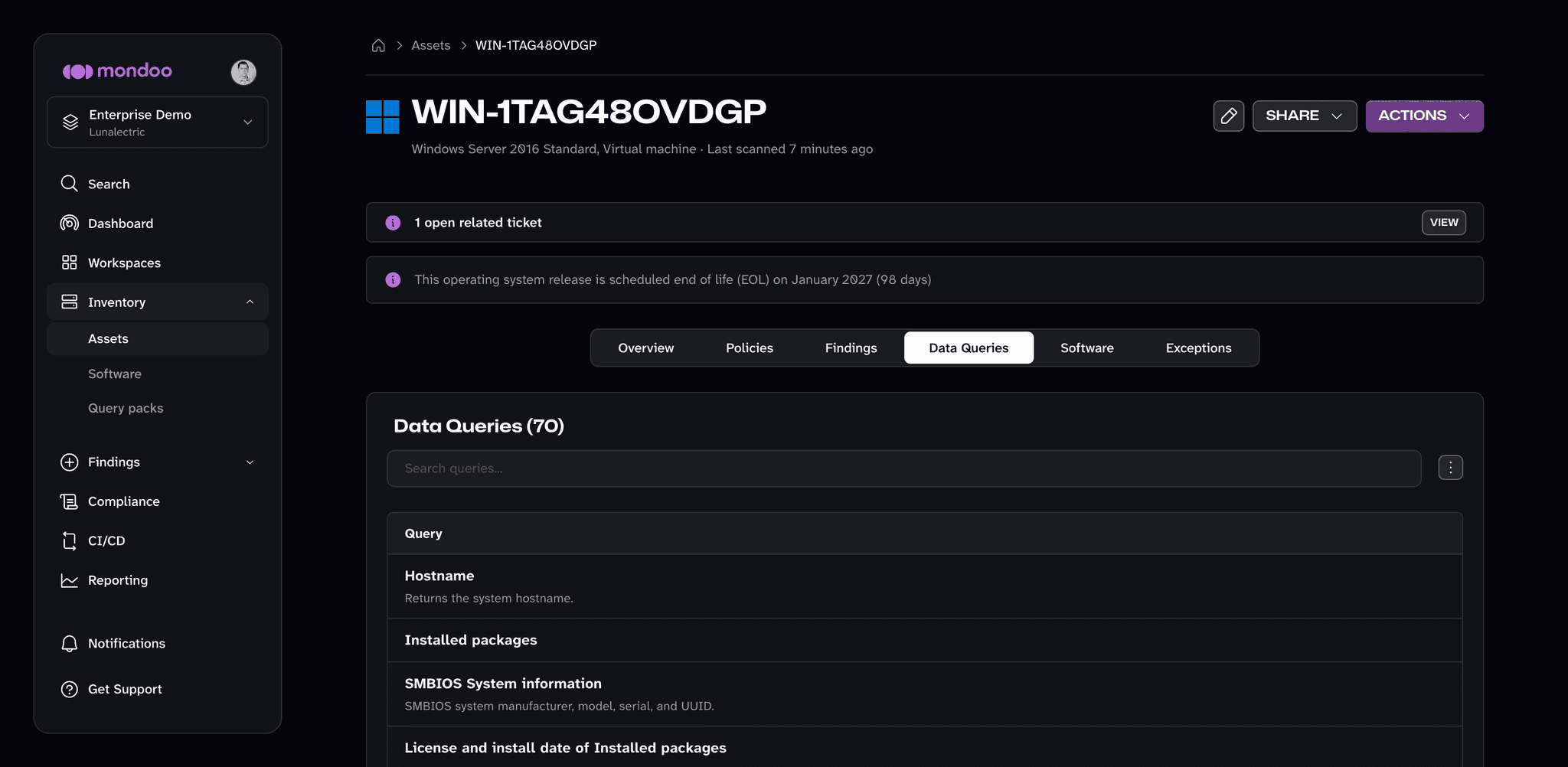
The top of each asset page shows the asset's platform and when it was last scanned, plus banners for open tickets on the asset and upcoming or past operating system end of life. Use SHARE to copy a link to the asset or email it, and ACTIONS to download remediations or delete the asset.
The asset page is organized into tabs:
| Tab | What it shows |
|---|---|
| Overview | A summary of the asset's findings, its risk profile, and its configuration: platform details, scan details, tags collected from the asset, and annotations. |
| Policies | The policies that apply to the asset, with the number of passed, failed, and errored checks for each. |
| Findings | The asset's open findings: failed checks, vulnerabilities, and advisories. |
| Data Queries | The results of every query in the query packs enabled for the space. |
| Software | The packages installed on the asset, with their vulnerabilities and risk. This tab appears for assets that report installed software. |
| Exceptions | The exceptions that apply to the asset. |
The Data Queries tab is where you browse the configuration data query packs collect, such as installed packages, running services, network configuration, and cloud resource metadata. Use the search box to find a query, then select it to see its results.
Find vulnerable software
The Software page shows the vulnerable software installed across the space, so you can see which packages put the most assets at risk.
-
In the Mondoo App, navigate to the space.
-
In the left navigation under Inventory, select Software.
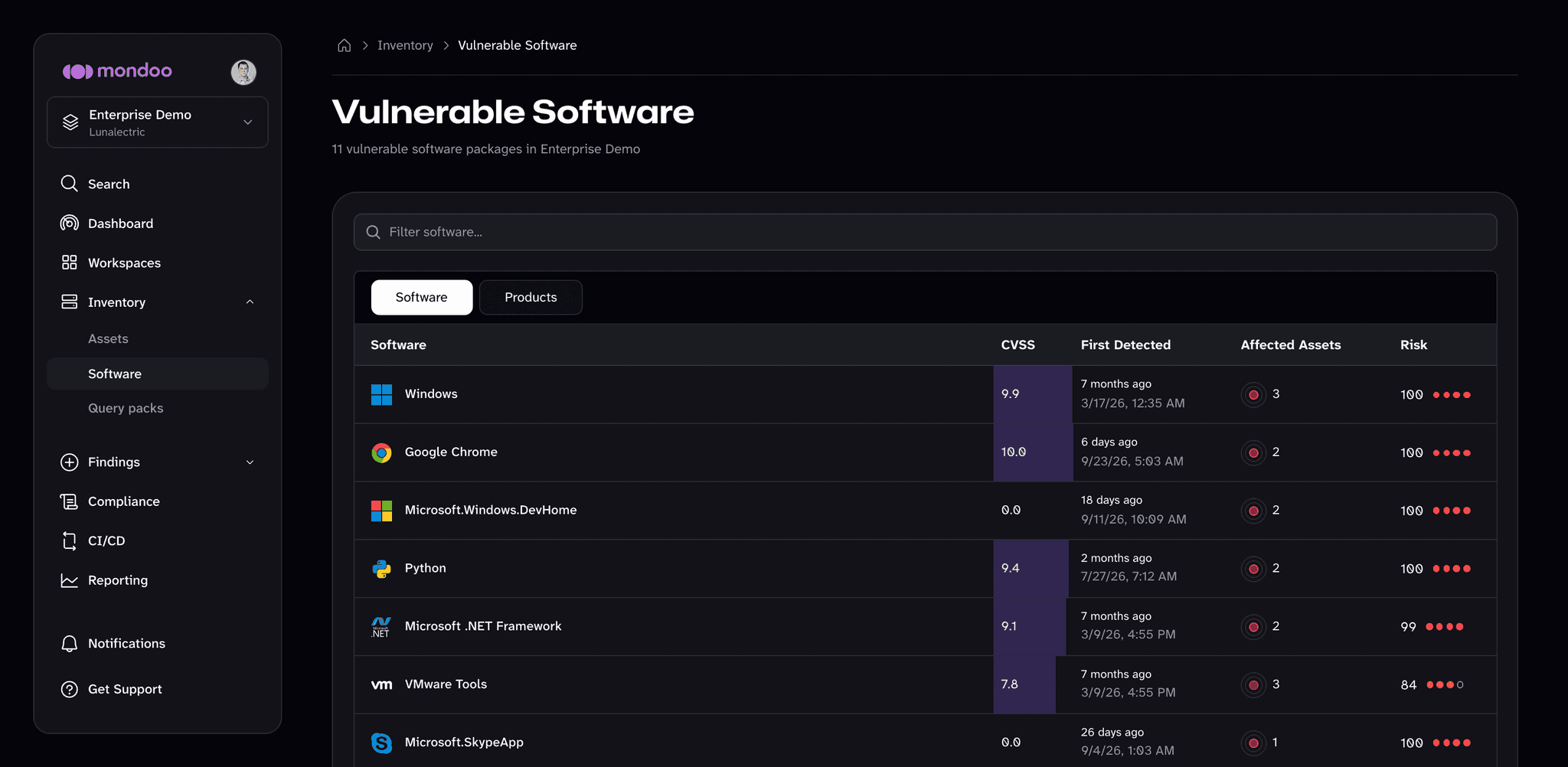
The Vulnerable Software page lists each vulnerable package with its highest CVSS score, when Mondoo first detected it, how many assets have it installed, and its risk score.
-
To roll up individual packages into the products they belong to, select Products. Select Software to return to the package view.
-
Select a package to see its risk profile, the vulnerable versions installed in the space, and every asset that has it installed.
Collect extra data with query packs
By default, Mondoo collects the data its security and compliance policies need to score an asset. To collect more detail (full package lists, running processes, cloud resource metadata, and so on), enable a query pack. A query pack is a named collection of MQL queries that runs against your assets and stores the results so you can browse them in the Mondoo App.
-
In the Mondoo App, navigate to the space where you want to collect the extra data.
-
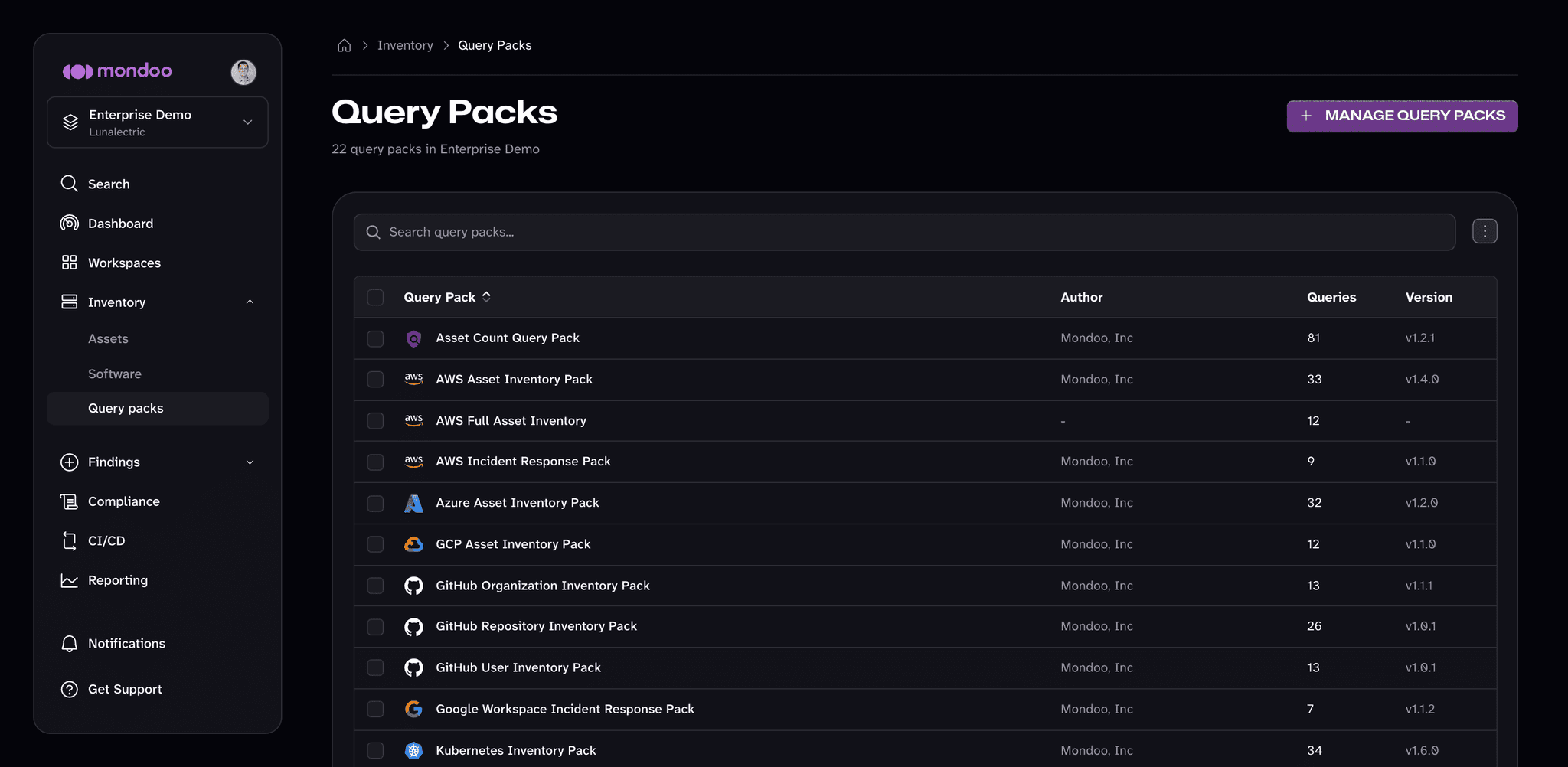
In the left navigation under Inventory, select Query packs. This page lists the query packs enabled in the space, with each pack's author, number of queries, and version. Select a pack to see its queries.
-
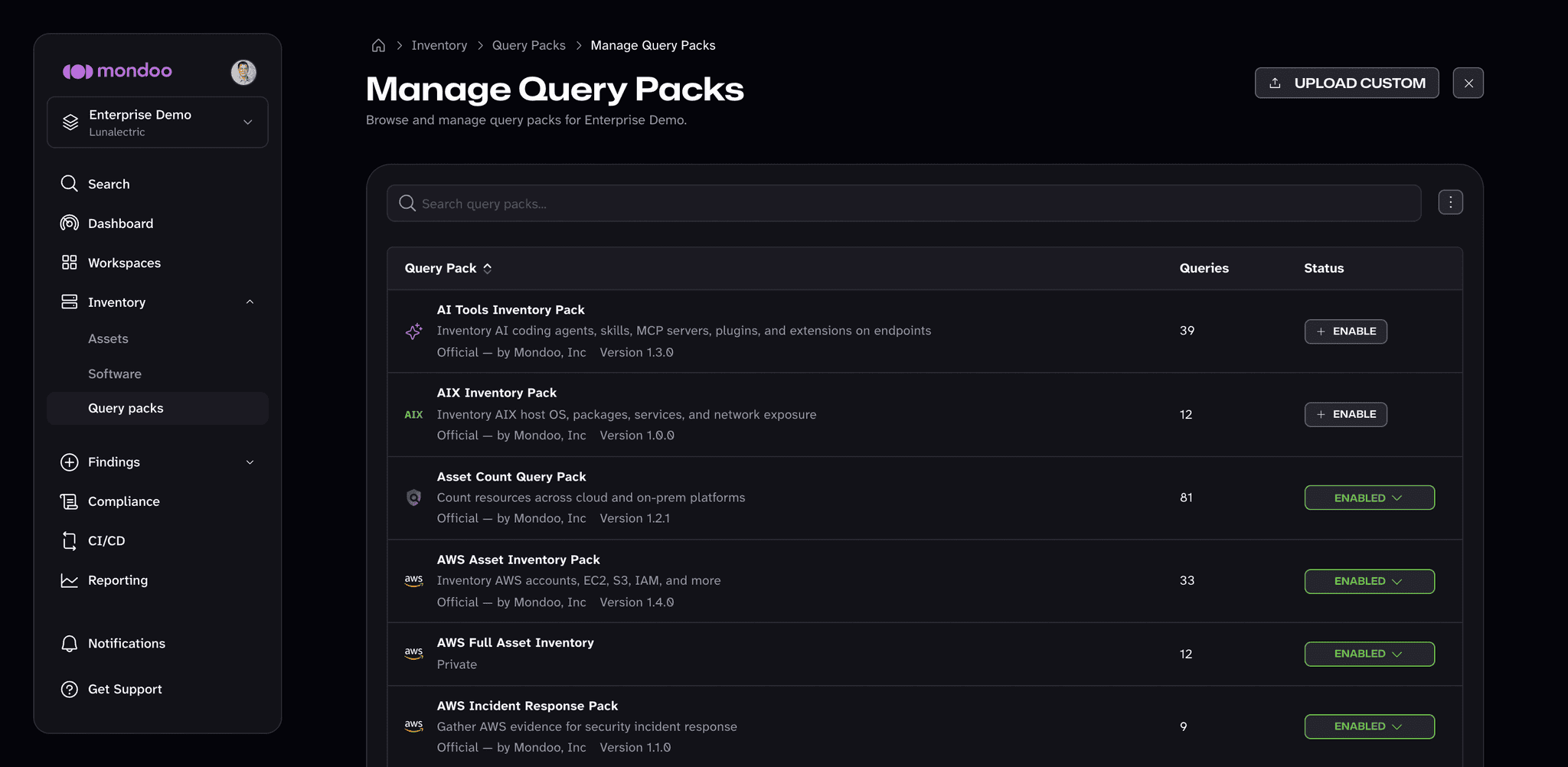
Select MANAGE QUERY PACKS to open the catalog of available query packs.
-
Find the query pack you want and select ENABLE.
To add a query pack you wrote yourself, select UPLOAD CUSTOM and choose the query pack YAML file. Mondoo enables it as soon as the upload finishes. To learn how to write one, read Query Packs.
Mondoo starts running the pack against matching assets in the space and surfaces the results on each asset's Data Queries tab.
To turn a query pack off later, open MANAGE QUERY PACKS, select ENABLED next to the pack, and choose Disable. You can also disable several packs at once: on the Query packs page, select the checkboxes next to the packs and select Disable.
Related
- Annotate assets: tag assets with custom metadata and set their risk dimensions.
- Search your inventory: find a specific asset, CVE, package, check, or advisory.