Create Tickets from Checks
Generate remediation tickets directly from failed security checks to track fixes in your workflow.
Use Mondoo ticketing to track the work of fixing failed checks in your existing workflow. When a Mondoo space has a ticketing integration, you can create a ticket from a check. Creating a ticket can either:
-
Directly create a new issue, ticket, work item, or incident in Jira, GitHub, GitLab, Azure DevOps, Zendesk, or ServiceNow, or send it to your own endpoint through a webhook
-
Send an email message to the recipient of your choice, such as a listener for your external issue tracking, ticketing, or project management software
For an overview of ticketing, read Track and Fix Findings with Ticketing.
Only team members with Editor or Owner access can perform this task.
-
In the Mondoo App, navigate to a space that is set up to use ticketing.
-
In the side navigation bar, under Findings, select Security. To show only failed checks, select the Misconfigurations filter.
-
Select the check you want to track to open its finding page.
-
Near the top-right corner, select ACTIONS > Create ticket.
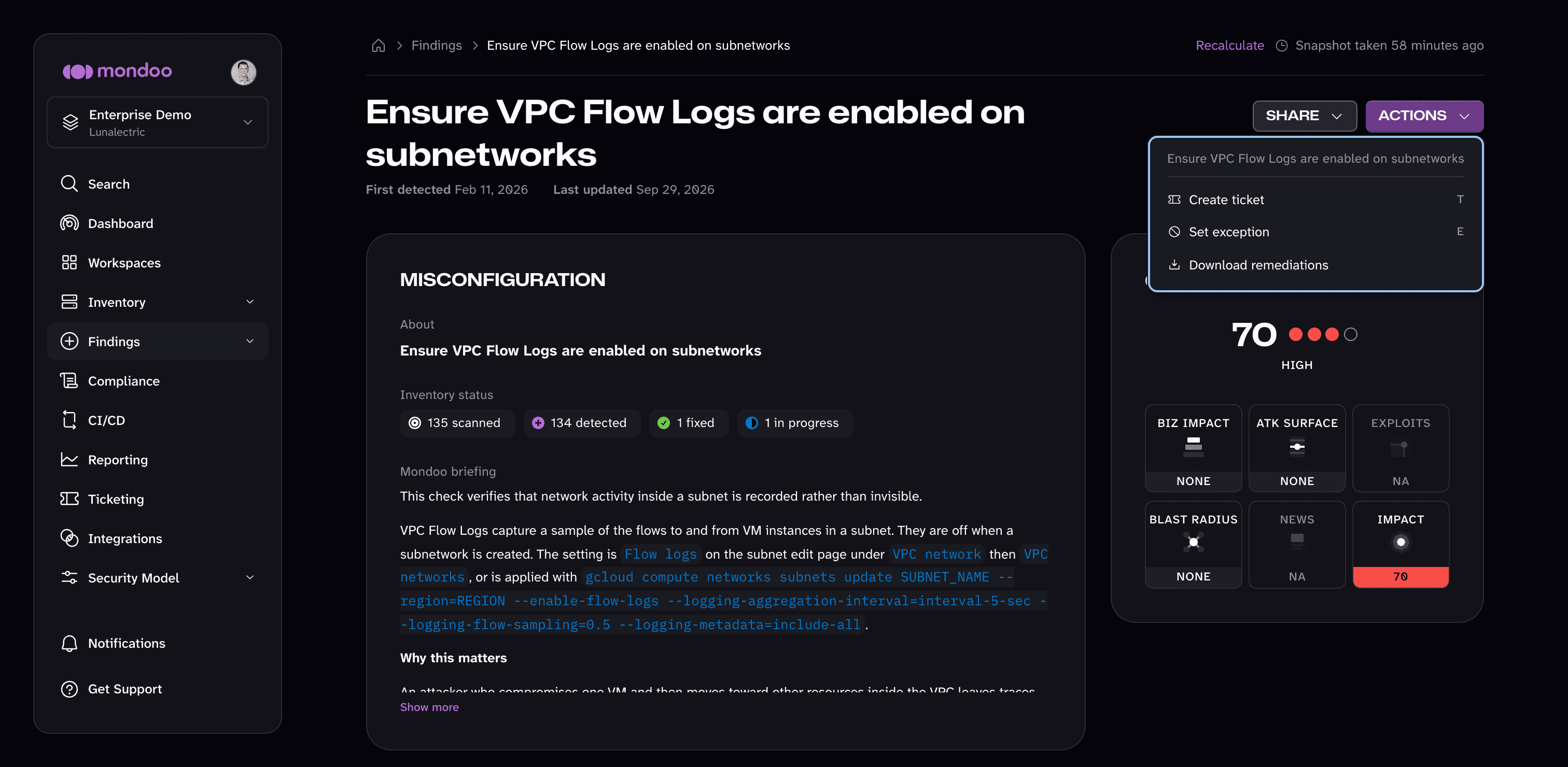
-
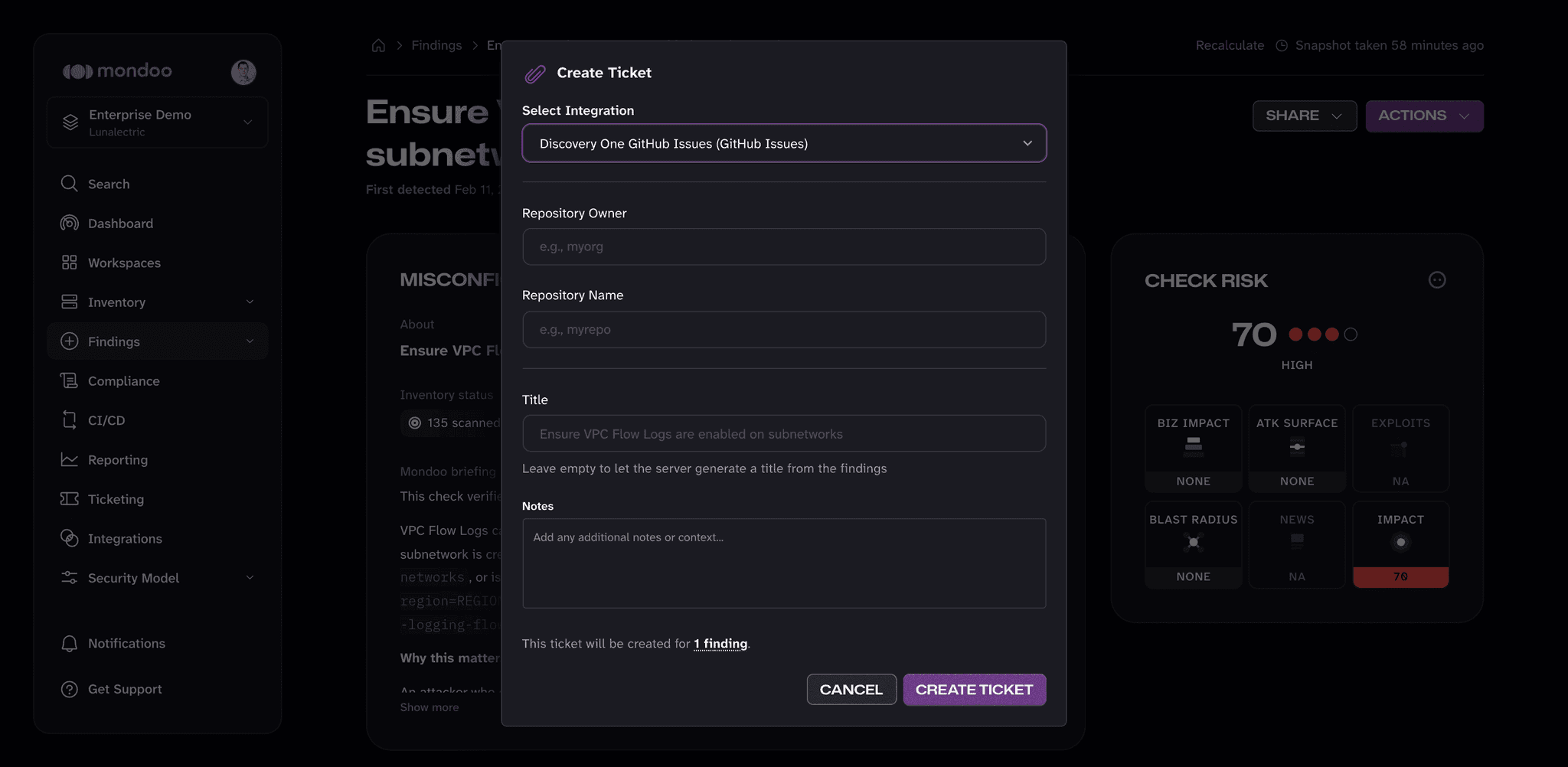
In the Create Ticket dialog, define the ticket:
-
In Select Integration, choose where Mondoo creates or sends the ticket.
-
Provide the fields the selected integration needs. They depend on the ticket system:
Ticket system Fields in the Create Ticket dialog Jira Jira Project and Issue Type GitHub Issues Repository Owner and Repository Name GitLab Issues GitLab Project Path, such as group/projectAzure DevOps Azure DevOps Project Zendesk Priority and Type ServiceNow Impact, Urgency, and Priority (default: 3 - Low, 3 - Low, 5 - Planning) Email Recipient Webhook No extra fields. Mondoo sends the ticket to the webhook URL. -
Optionally set a Title and add Notes. Leave the title empty to let Mondoo generate one from the finding.
The bottom of the dialog confirms how many findings the ticket covers.
-
-
Select CREATE TICKET.
Mondoo creates a new ticket in the space and then either creates a corresponding issue or ticket in your external ticket system or sends email to the selected recipient.
Create one ticket for several findings
To track several findings in a single ticket, go to Findings > Security, select the checkbox beside each finding, and then select Create Ticket in the toolbar that appears. The Create Ticket dialog works the same way as for a single check.
Learn more
- Track and Fix Findings with Ticketing
- Set up Ticketing and Azure DevOps
- Set up Ticketing and GitHub
- Set up Ticketing and GitLab
- Set up Ticketing and Jira
- Set up Ticketing and ServiceNow
- Set up Ticketing and Zendesk
- Set up Ticketing with a Webhook
- Set up Ticketing to Email Your External Ticket System
- Create Tickets from Advisories
- Manage Ticketing