Set up Ticketing and Jira
Connect Mondoo to Atlassian Jira to create security remediation issues directly from the Mondoo App.
Set up ticketing in a space to allow users in the space to keep track of security tasks and add Jira issues directly from within the Mondoo App. Ticketing setup involves configuring Mondoo to integrate with Jira.
For an overview of ticketing, read Track and Fix Findings with Ticketing.
Mondoo offers an alternative method for sharing tickets with Jira: an email integration. This approach lets you tap into the automation features of Jira's incoming mail handler. To learn how to create an email integration for ticketing, read Set up Ticketing to Email Your External Ticket System.
Prerequisites
-
Owner or Editor access to the Mondoo space
-
A Jira account with access to the project where you want Mondoo to add issues
-
An API token for Jira account access
To learn how to create and copy an API token, read Manage API tokens for your Atlassian account in the Atlassian documentation.
Add a Jira integration
-
In the Mondoo App, navigate to the space where you want to set up ticketing and, in the side navigation bar, select Integrations.
-
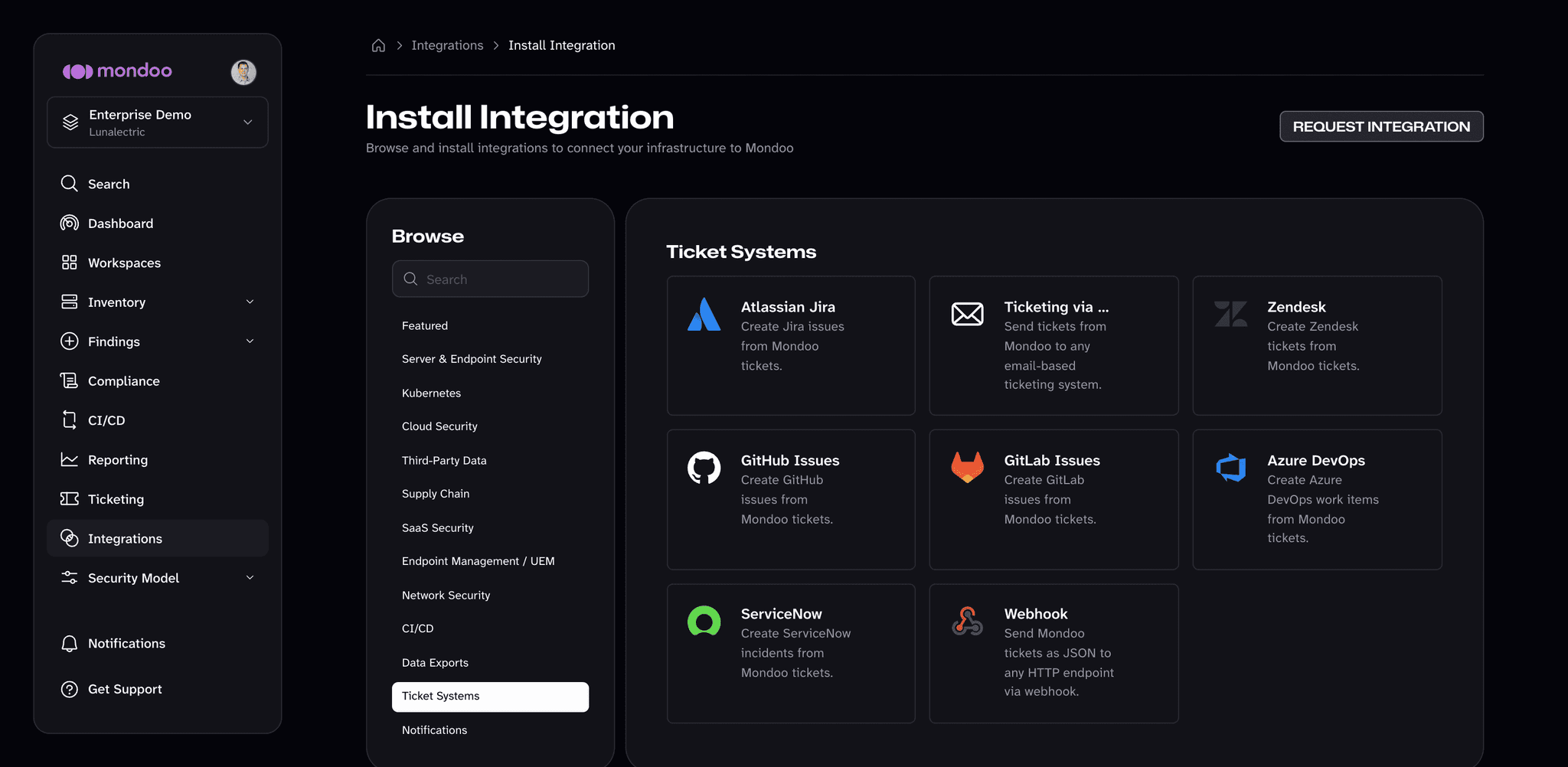
Select INSTALL, then choose the Ticket Systems category.
-
Select Atlassian Jira.
-
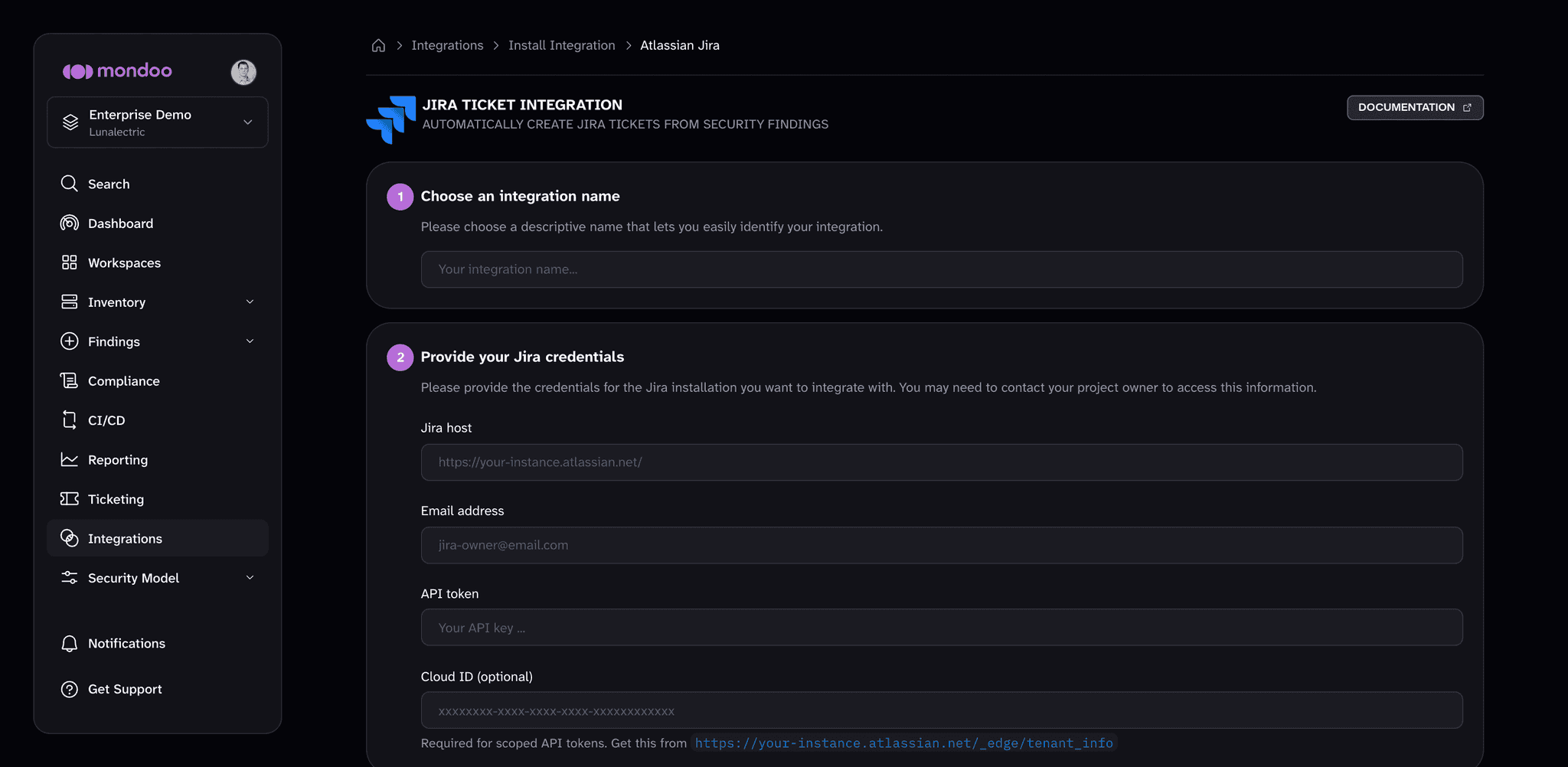
In the Choose an integration name box, enter a name for the integration. Make it a name that clearly shows this is a Jira integration.
-
In the Jira host box, type the URL of your Jira instance. Example:
https://lunalectric-workspace.atlassian.net -
In the Email address box, enter the email address you use to log into your Jira instance.
-
In the API token box, paste your API token for access to your Jira account. To learn how to create and copy an API token, read Manage API tokens for your Atlassian account in the Atlassian documentation.
-
If you use a scoped API token, enter your Atlassian cloud ID in the Cloud ID (optional) box. To find it, open
https://<your-instance>.atlassian.net/_edge/tenant_infoin your browser. Leave the box empty for an unscoped API token. -
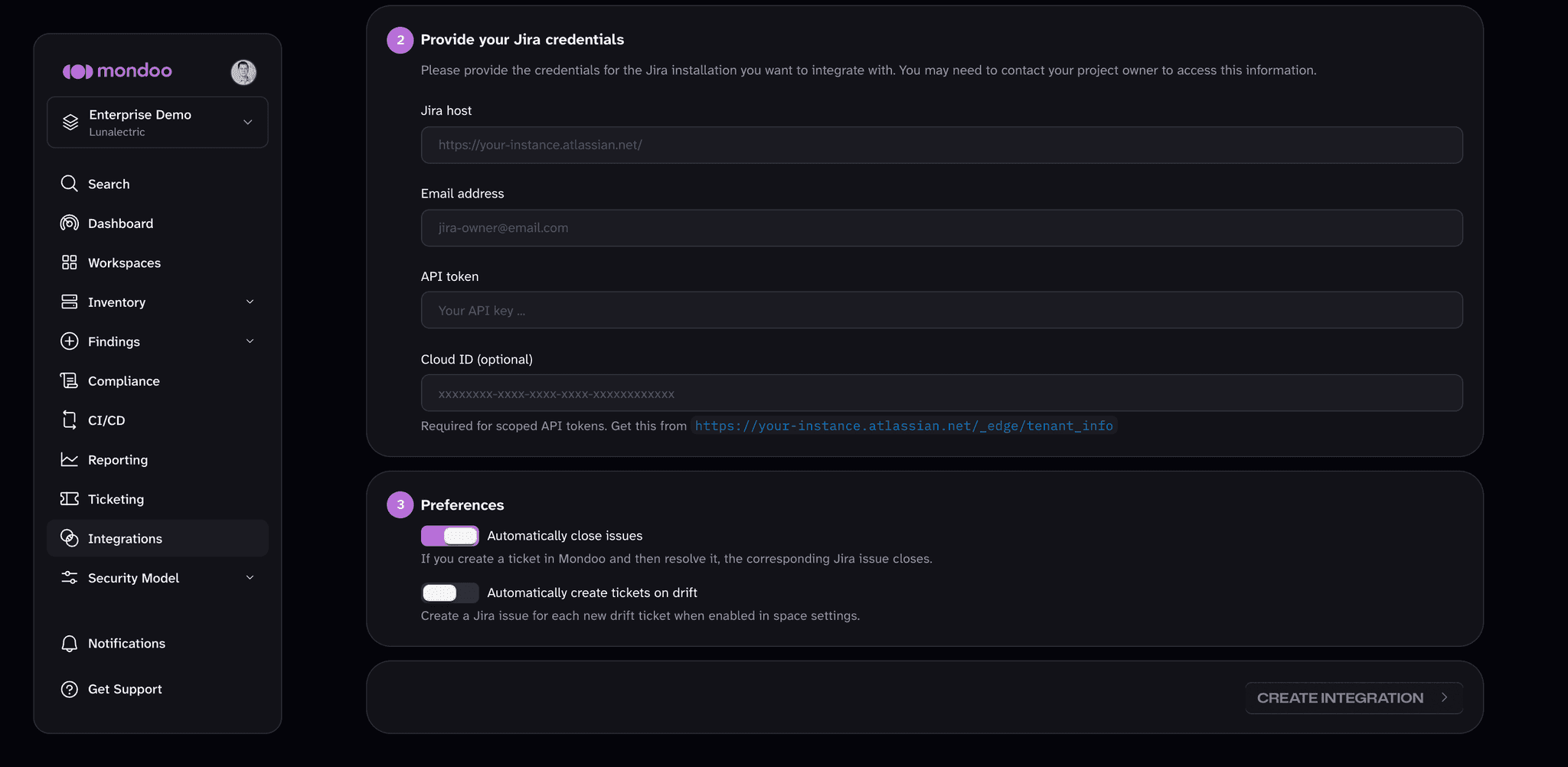
Under Preferences, choose how the integration behaves:
- Automatically close issues is on by default for new integrations: closing a ticket in Mondoo also closes the corresponding Jira issue.
- To create a Jira issue for each drift ticket when an asset becomes more exposed to attack, turn on Automatically create tickets on drift. Drift tickets also require the space's Regression setting. To learn more, read Automatically create tickets on drift.
-
Select the CREATE INTEGRATION button.
Mondoo creates the integration and opens its page. To change these settings later, select the pencil icon (Edit integration) on that page.