Set up Ticketing with a Webhook
Send Mondoo tickets as JSON to your own HTTPS endpoint, and verify that every delivery comes from Mondoo.
Set up a webhook integration in a space to send the tickets users create in Mondoo to an HTTPS endpoint you run. Use it when Mondoo has no dedicated integration for your ticketing system, or when a service of your own, such as middleware that forwards tickets into an internal system, needs to receive them first.
For an overview of ticketing, read Track and Fix Findings with Ticketing.
Prerequisites
-
Owner or Editor access to the Mondoo space
-
An HTTPS endpoint that accepts
POSTrequests with a JSON body and responds with a2xxstatus code
Add a webhook integration
-
In the Mondoo App, navigate to the space where you want to set up ticketing and, in the side navigation bar, select Integrations.
-
Select INSTALL, then choose the Ticket Systems category.
-
Select Webhook.
-
In the Integration Name box, enter a name that clearly shows where the webhook delivers tickets.
-
In the Webhook URL box, enter the HTTPS URL of your endpoint.
-
Under Authentication, choose how your endpoint confirms that a delivery comes from Mondoo. You can turn on either method, or both. To learn how each method works, read Authenticate deliveries.
-
To sign deliveries, enable Sign deliveries, select GENERATE SECRET, then select COPY SECRET and store the secret in your endpoint's configuration. You can also paste a secret you generated yourself.
-
To send a static credential, enable Send an authentication header, then enter the Header name (for example,
Authorization) and the Header value (for example,Bearerfollowed by your token).
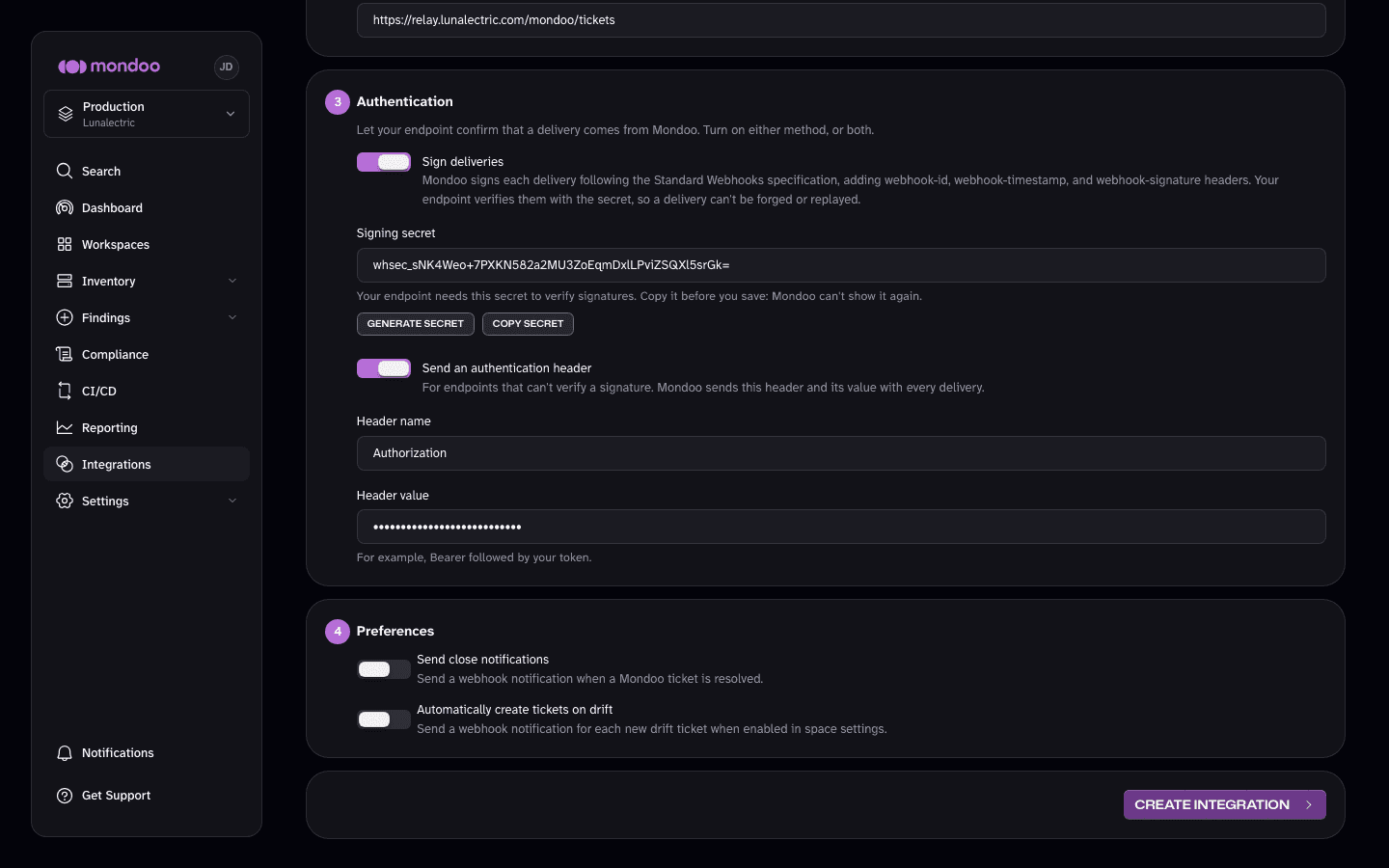
Mondoo never shows a signing secret or a header value again after you save the integration. Copy the secret before you select CREATE INTEGRATION.
-
-
Send close notifications is on by default for new integrations: closing a ticket in Mondoo sends a delivery to your endpoint. You can turn this off now, or later on the integration's settings page.
-
To create a Mondoo ticket and send a delivery when an asset becomes more exposed to attack, enable Automatically create tickets on drift. To learn more, read Automatically create tickets on drift.
-
Select the CREATE INTEGRATION button.
Authenticate deliveries
Anyone who learns your webhook URL can send requests to it. Authentication lets your endpoint reject every request that doesn't come from Mondoo.
Sign deliveries
This is the recommended method. Mondoo signs each delivery with HMAC-SHA256, following the Standard Webhooks specification, and adds three headers:
| Header | Value |
|---|---|
webhook-id | A unique ID for the delivery. It matches the delivery's Idempotency-Key header. |
webhook-timestamp | The time Mondoo sent the delivery, in seconds since the Unix epoch. |
webhook-signature | v1, followed by the base64-encoded signature. The specification allows several space-separated signatures, so check each one. |
The secret never leaves Mondoo or your endpoint, so a signature proves both that Mondoo sent the delivery and that nobody changed it on the way. Checking the timestamp also stops an attacker from replaying a delivery they captured.
A signing secret is whsec_ followed by the base64 encoding of 24 to 64 random bytes. The secret Mondoo generates uses 32 bytes.
Send an authentication header
Choose this method when your endpoint, or a gateway in front of it, can check a static credential but can't compute a signature. Mondoo sends the header and its value with every delivery, so the value protects your endpoint only as long as it stays secret. Prefer signing when you can.
Mondoo sets Content-Type, Idempotency-Key, and the webhook-* headers itself, so you can't use those names.
Verify a signed delivery
To verify a delivery, your endpoint must:
-
Read the raw request body. Verify the exact bytes Mondoo sent, before you parse the JSON.
-
Reject the delivery if
webhook-timestampis more than five minutes away from the current time. -
Decode the part of the secret after
whsec_from base64. Use the result as the HMAC-SHA256 key to sign the string{webhook-id}.{webhook-timestamp}.{body}. -
Encode the result as base64 and compare it, in constant time, with the value after
v1,in each signature inwebhook-signature. Accept the delivery if any signature matches.
Any Standard Webhooks library performs these steps for you. If you prefer to verify without a dependency, these examples do the same:
import base64
import hashlib
import hmac
import time

TOLERANCE_SECONDS = 5 * 60


def verify_mondoo_webhook(secret: str, headers: dict, body: bytes) -> bool:
    """Return True when a delivery is signed with secret and is recent."""
    msg_id = headers["webhook-id"]
    timestamp = headers["webhook-timestamp"]
    signatures = headers["webhook-signature"]

    if abs(time.time() - int(timestamp)) > TOLERANCE_SECONDS:
        return False

    key = base64.b64decode(secret.removeprefix("whsec_"))
    signed = f"{msg_id}.{timestamp}.".encode() + body
    expected = base64.b64encode(hmac.new(key, signed, hashlib.sha256).digest()).decode()

    for signature in signatures.split(" "):
        version, _, value = signature.partition(",")
        if version == "v1" and hmac.compare_digest(value, expected):
            return True
    return False
Header names are case-insensitive. If your framework doesn't lowercase them, look them up accordingly.
What Mondoo sends
Each delivery is a POST request with a JSON body:
-
typeisTYPE_CREATEDwhen Mondoo creates a ticket,TYPE_UPDATEDwhen Mondoo updates the ticket, andTYPE_CLOSEDwhen it's closed. -
caseholds the Mondoo ticket. -
contentholds the ticket's description and comment as Markdown: the finding details, remediation, and affected assets. Mondoo includes it with created and updated tickets.
Mondoo treats a 2xx response as a successful delivery. Any other status code fails the delivery.
Change or rotate authentication
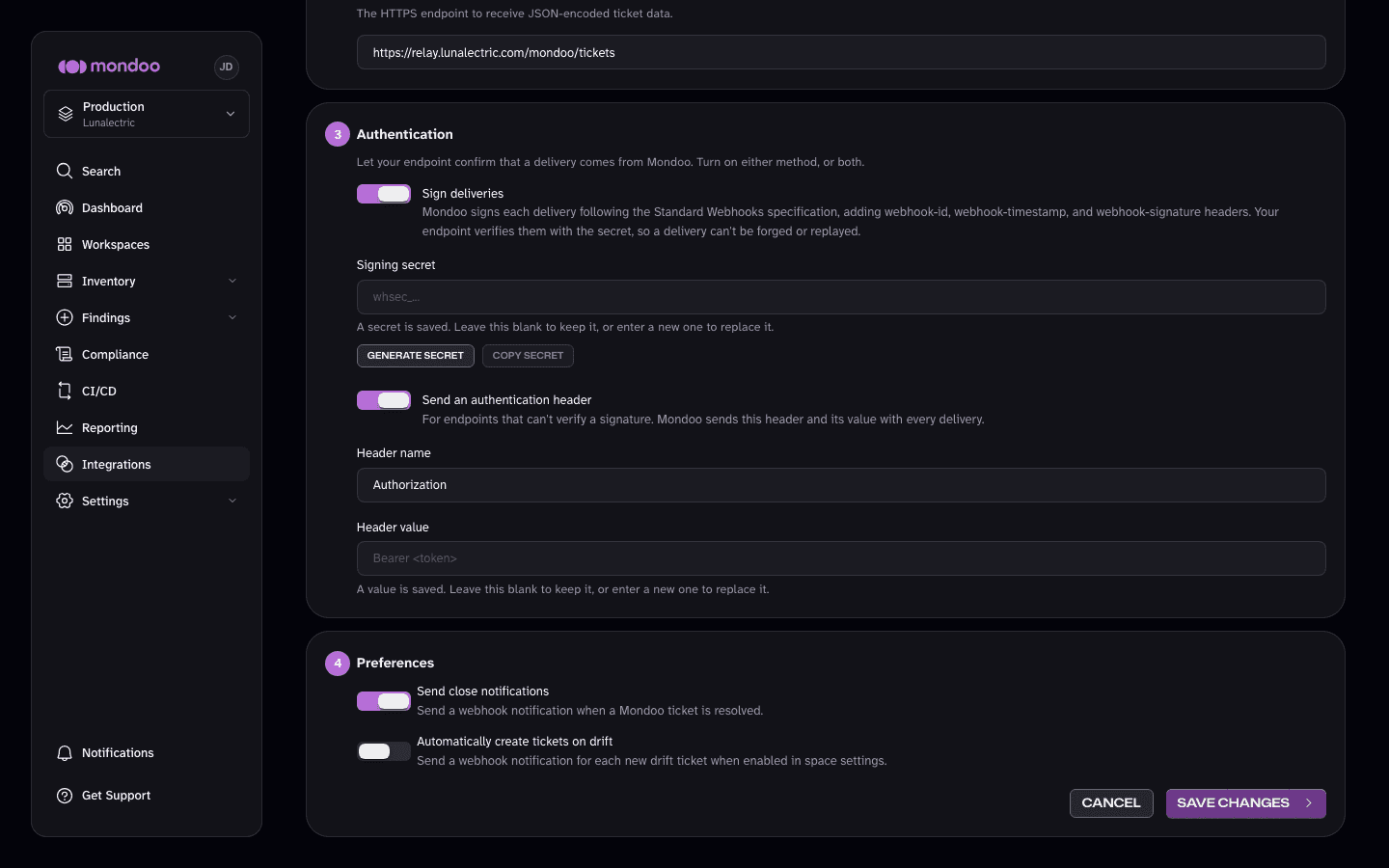
To change authentication, open the integration, select the pencil icon (Edit integration), and go to Authentication. Mondoo shows which methods are on, but never the saved secret or header value.
-
To keep a saved secret or header value, leave its box blank.
-
To replace one, enter the new value. Mondoo signs with a single secret, so update your endpoint to accept both the old and the new secret, save the new secret in Mondoo, and then remove the old one from your endpoint.
-
To stop using a method, turn it off. Mondoo deletes the saved secret or header value.
If you change the webhook URL or the header name, you must enter the header value again. Mondoo never sends a saved header value to an address or header it wasn't entered for. A signing secret is never sent, so it stays in place when the URL changes.