Set up Ticketing to Email Your External Ticket System
Configure email-based ticketing to automatically create issues in your existing project management workflow.
Set up ticketing in a space to allow users in the space to keep track of security tasks from within the Mondoo App. Create an email integration to automatically send email to your ticket, issue tracking, or project management system when you create a new ticket. Your external tracking system's email listener or service receives the email and generates a ticket using the information Mondoo includes in the email.
For an overview of ticketing, read Track and Fix Findings with Ticketing.
You can set up multiple recipients for ticket email messages. When you create a new ticket, a drop-down lets you choose the recipient for that ticket. This is helpful for teams with different methods for tracking different types of tasks.
Prerequisites
- Owner or Editor access to the Mondoo space
- A listener or similar service set up in your ticket system, such as the Zendesk email channel, ServiceNow inbound email, or the Jira incoming mail handler.
Add an email integration for tickets
-
In the Mondoo App, navigate to the space where you want to set up ticketing and, in the side navigation bar, select Integrations.
-
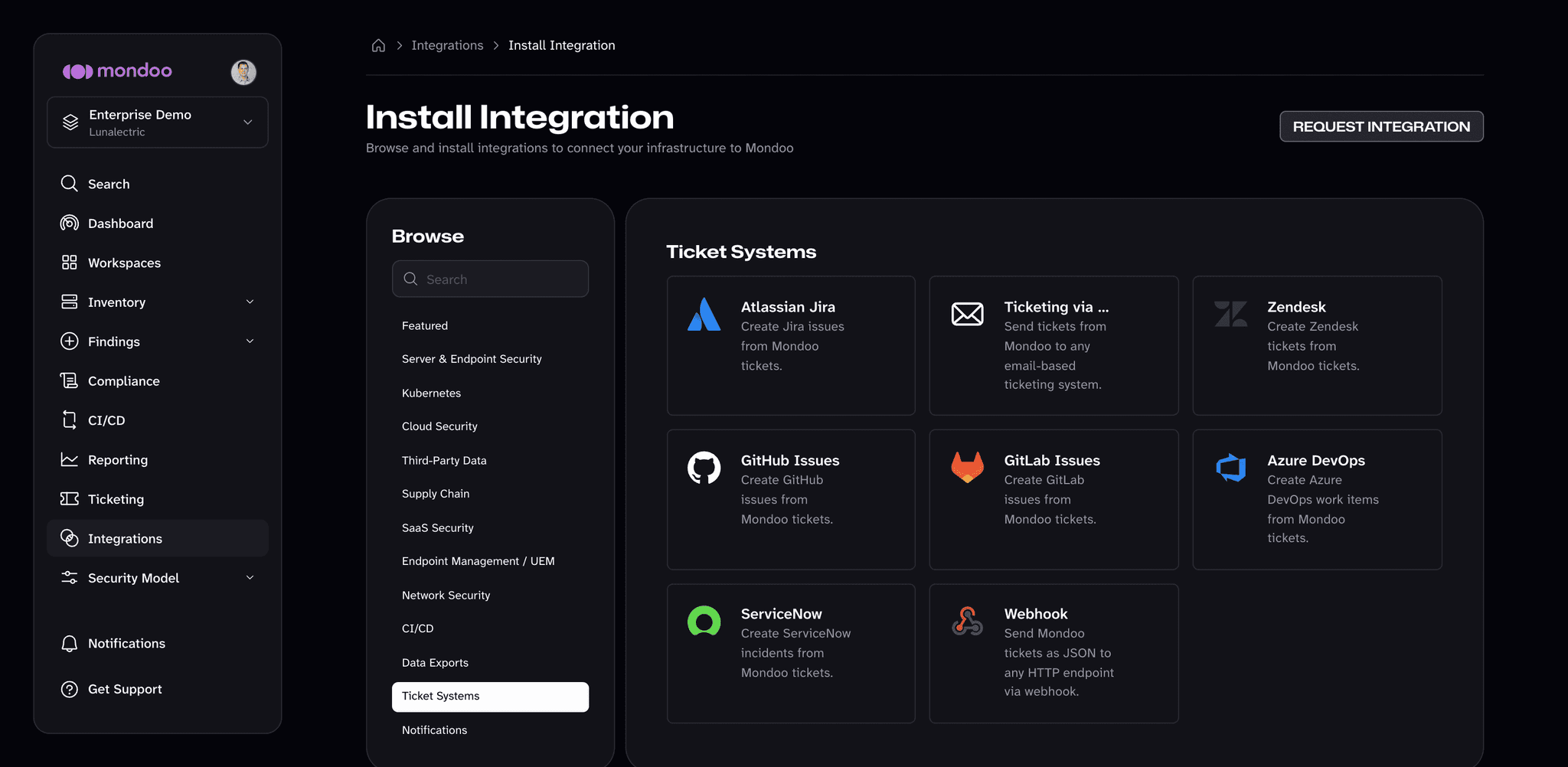
Select INSTALL, then choose the Ticket Systems category.
-
Select Ticketing via Email.
-
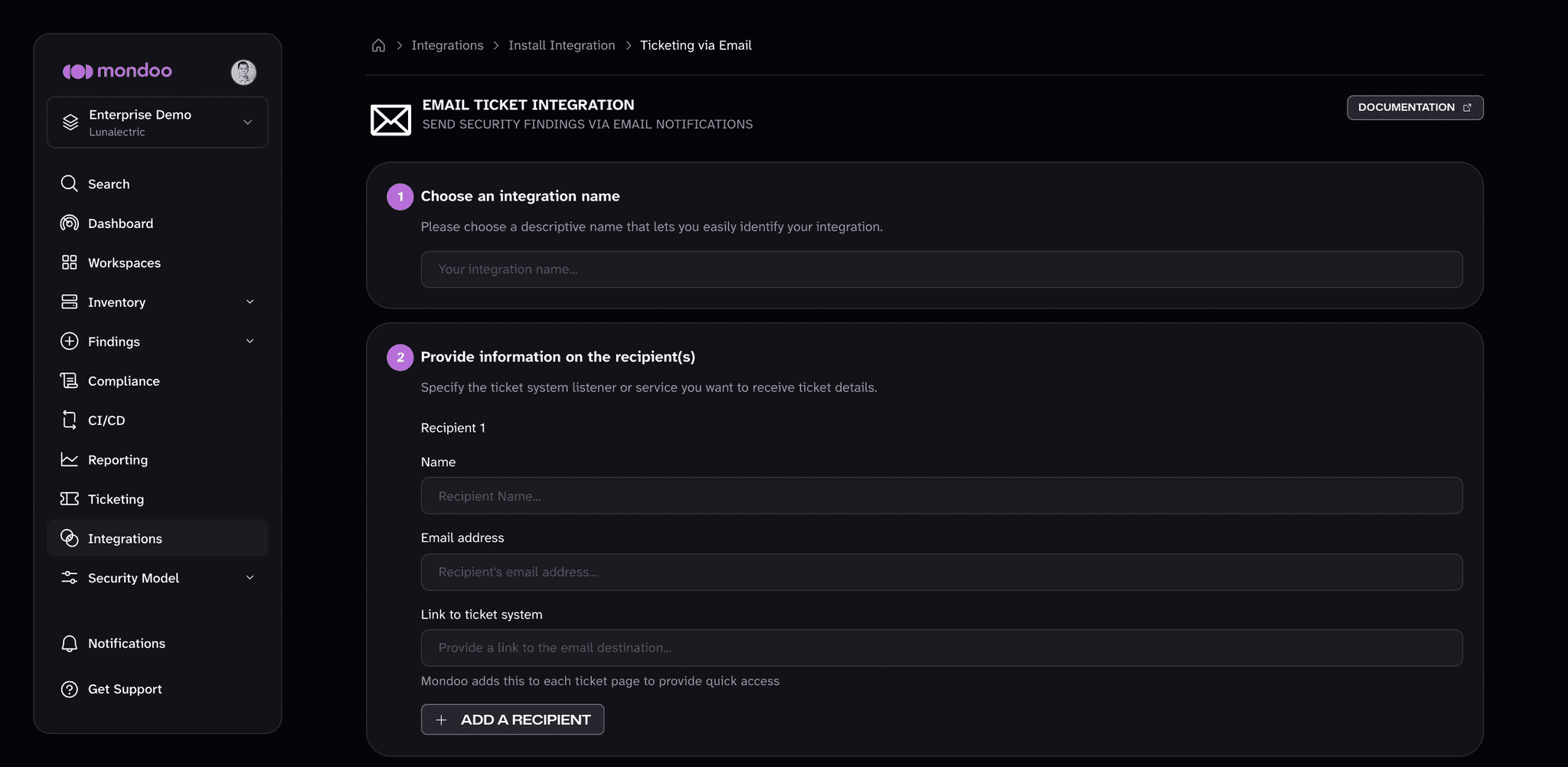
In the Choose an integration name box, enter a name for the integration. Make it a name that clearly shows the purpose of the integration.
-
Under Provide information on the recipient(s), provide information about where to send ticket email messages for Recipient 1:
- The Name identifies the recipient. This displays in the recipients drop-down list when you add a new ticket.
- The Email address is where Mondoo directs the email message.
- You can include a Link to ticket system. Mondoo adds it to each ticket page to provide quick access to your ticket system.
-
To add another option for where to send ticket email messages, select ADD A RECIPIENT and provide the details for Recipient 2, 3, and so on.
-
To create a ticket and send email when an asset becomes more exposed to attack, under Configure preferences, turn on Send drift email to this recipient and select the drift destination. Drift tickets also require the space's Regression setting. To learn more, read Automatically create tickets on drift.
-
Select the CREATE INTEGRATION button.
Mondoo creates the integration and opens its page. To change these settings later, select the pencil icon (Edit integration) on that page.