Manage Your User Settings - Overview
Change your name and color mode, sign-in methods and two-factor authentication, email notifications, and memberships in Mondoo.
These pages cover your personal account settings, the ones that apply to you as a single Mondoo user, not to your organization or space.
To open your settings, select the account menu (your avatar at the top of the left navigation) and then select User Settings. The User Settings page has four tabs:
- General settings: your name and color mode. See General settings below.
- Authentication: manage your login: connect Google, GitHub, or Microsoft accounts, change the email address and password you sign in with, and set up two-factor authentication.
- Email preferences: manage your email notifications: weekly risk reports, exception reminders, and Mondoo newsletters.
- Memberships: manage your memberships: see every organization and space you belong to and leave the ones you no longer need.
General settings
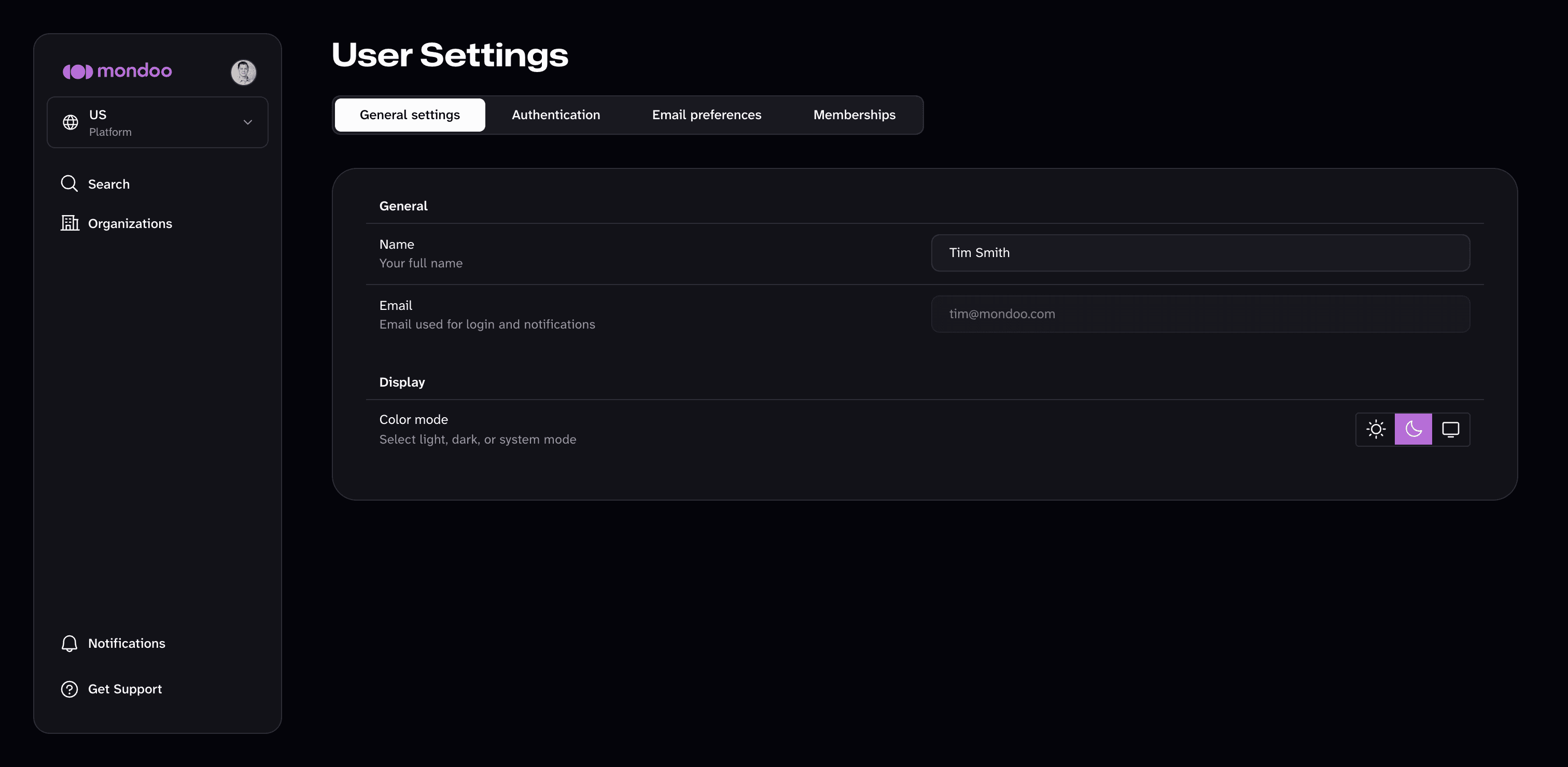
- Name: your full name, as other team members see it.
- Email: the email address you use to sign in and receive notifications. You can't change it here. To change the email address you sign in with, see Manage your login.
- Color mode: choose light mode, dark mode, or system mode (follow your operating system's setting).
You can also switch the color mode without opening your settings: in the account menu, under Theme, select System, Light, or Dark.
Notifications
The Notifications bell in the left navigation shows in-app notifications. Today, Mondoo notifies you when someone adds you to an organization, a space, or a team. Each notification shows where you were added, the roles you received, and who added you. A badge on the bell counts unread notifications. Opening the list marks them as seen, and selecting a notification takes you to that organization, space, or team. To see earlier notifications, select Load older at the bottom of the list.
To learn how to find your way around the Mondoo App, read Navigate the Mondoo App.