Secure Databricks with Mondoo
Continuously scan your Databricks account and workspaces for misconfigurations and security issues.
Mondoo continuously scans your Databricks account and its workspaces for misconfigurations and security issues. Create a Databricks integration to give Mondoo access through an OAuth service principal.
Mondoo adds the account and every workspace in it to your space as assets:
- The Databricks Account asset covers account-level identity and access and network configuration.
- Each Databricks Workspace asset covers the workspace's security settings, compute clusters, tokens and secrets, network access controls, and data sharing and AI features.
Mondoo supports Databricks accounts on AWS, Azure, and Google Cloud.
Prerequisites
- Editor or Owner access to the Mondoo space
- A Databricks account
- Account admin access in the Databricks account console, to create a service principal
Create a Databricks service principal
Mondoo authenticates to Databricks with an account-level service principal that uses OAuth machine-to-machine (M2M) authentication. To learn more, see Manage service principals and Authorize service principal access to Databricks with OAuth in the Databricks documentation.
-
Log in to the Databricks account console as an account admin.
-
Note your account ID. It's in the profile menu at the top of the account console. You need it in the next section.
-
Select User management. On the Service principals tab, select Add service principal, enter a name that identifies it as Mondoo's, and select Add.
-
Open the service principal, go to the Roles tab, and give it the Account admin role so Mondoo can read account-level identity and network settings.
-
On the service principal's Credentials & secrets tab, select Generate secret. Choose a lifetime, then generate the secret.
-
Copy the client ID and the secret. Databricks shows the secret only once.
-
Give the service principal access to each workspace you want Mondoo to scan: select Workspaces, choose a workspace, and on the Permissions tab select Add permissions. Add the service principal and save. Some workspace settings, such as the token list and workspace configuration, are visible only to workspace admins, so assign Admin permission if you want Mondoo to evaluate every workspace check.
Treat the OAuth secret like a password. Don't commit it to source control, and generate a new one before it expires.
Add a Databricks integration
In the Mondoo App, navigate to the space where you want to add the integration. In the side navigation bar, select Integrations. In the top right, select INSTALL. On the Install Integration page, find the integration you want by browsing a category or searching by name:
-
Under SaaS Security, select Databricks.
-
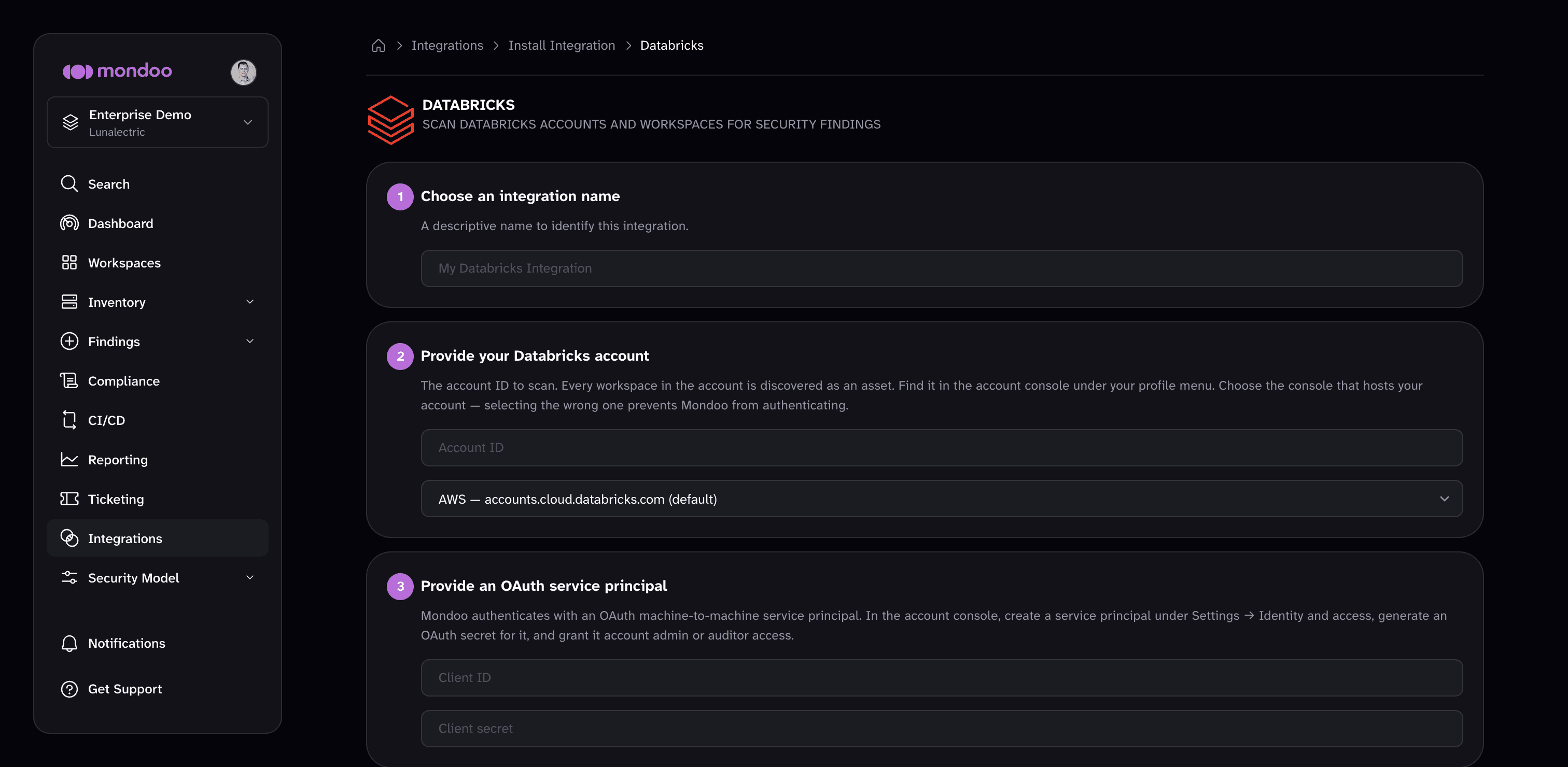
In the Choose an integration name box, enter a name that identifies the Databricks account.
-
Under Provide your Databricks account, enter the Account ID. Then select the account console that hosts your account:
Option Use for AWS — accounts.cloud.databricks.com (default) Databricks on AWS Azure — accounts.azuredatabricks.net Azure Databricks GCP — accounts.gcp.databricks.com Databricks on Google Cloud Choose the console that matches your account. If you choose the wrong one, Mondoo can't authenticate.
-
Under Provide an OAuth service principal, enter the Client ID and Client secret of the service principal.
-
(Optional) Under Enable security policies, review the policies that apply to Databricks. The Mondoo Databricks Security policy checks accounts, workspaces, clusters, and access controls. If a policy isn't enabled in the space yet, select ENABLE. A policy you enable here applies to the whole space, not only this integration.
-
Select CREATE INTEGRATION.
Mondoo starts the first scan as soon as the integration is created. To learn how policies work, read Manage Policies.
View results
Mondoo adds the account and workspace assets to the space inventory. To review them, navigate to the space and select Inventory > Assets. To see how the assets score against the policy, select Findings > Policies and choose Mondoo Databricks Security.
Manage your integration
To open the integration, navigate to the space, select Integrations > Databricks, and choose the integration.
From the integration detail page, you can:
- Scan now. Select RUN.
- Pause or resume scanning. Select the more actions menu, then Pause or Resume.
- Edit settings. Select the pencil icon to rename the integration or rotate the service principal's client ID and secret. The account ID and account console are read-only.
- Remove the integration. Select the trash can icon and confirm. Mondoo stops scanning the Databricks account.
Scan Databricks from the command line
The integration scans continuously from the Mondoo Platform. To scan Databricks from your workstation or a CI pipeline instead, see Secure Databricks with cnspec.