Secure Google Workspace with Mondoo
Continuously scan Google Workspace for security misconfigurations using a GCP service account with domain-wide delegation.
Mondoo continuously scans your Google Workspace for misconfigurations and security issues across users, applications, and configuration. Deploy the integration once and assessments stay current as new accounts and resources are added.
Prerequisites
- Super administrator access to the Google Workspace Admin Console
- Administrator access to the Google Cloud Console
- Editor or Owner access to the Mondoo space
Create a Google Cloud service account
These steps configure Admin SDK API access using Google Cloud, even if you aren't otherwise using GCP.
Step A: Create a Google Cloud project
-
In Google Cloud, sign in as a super administrator. Accept the terms of service if prompted.
-
From the menu, select IAM & Admin > Manage Resources.
-
Select Create Project and name it (for example,
Mondoo Security Scan). -
Select Create.
Step B: Enable required APIs
-
From the menu, select APIs & Services > Library.
-
Enable each of these APIs:
- Admin SDK API
- Google Calendar API
- Cloud Identity API
- Groups Settings API
Step C: Set up the OAuth consent screen
-
From the menu, select APIs & Services > OAuth consent screen.
-
For User Type, select Internal and select Create.
-
Set App name to
Mondoo Security Scanner(or your preference). -
Under Authorized Domains, select + ADD DOMAIN and add your Google Workspace domain.
-
Add a User support email and Developer contact information.
-
Select Save and Continue > Save > Continue > Back to Dashboard.
Step D: Create the service account
-
From the menu, select APIs & Services > Credentials.
-
Select Create Credentials > Service account.
-
Name the account (for example,
mondoo-security-scanner) and select Create, then Continue > Done > Save. -
At the top, select Key > Add Key > Create new key. Choose JSON and select Create. The JSON key file downloads. Save it; you need it later.
-
Select Close, then record the OAuth 2 / Client ID from the list of service accounts. You need it for the next section.

Configure domain-wide delegation
In the Google Workspace Admin Console, grant the service account the OAuth scopes it needs.
-
Log into the Google Workspace Admin Console.
-
In the left navigation, select Security > Access and data control > API controls.
-
Select Domain-wide Delegation, then Add new.
-
For Client ID, enter the Client ID you recorded in Step D.
-
For OAuth Scopes, paste this comma-delimited list:
https://www.googleapis.com/auth/admin.directory.customer.readonly,https://www.googleapis.com/auth/admin.directory.device.chromeos.readonly,https://www.googleapis.com/auth/admin.directory.device.mobile.readonly,https://www.googleapis.com/auth/admin.directory.domain.readonly,https://www.googleapis.com/auth/admin.directory.group.member.readonly,https://www.googleapis.com/auth/admin.directory.group.readonly,https://www.googleapis.com/auth/admin.directory.orgunit.readonly,https://www.googleapis.com/auth/admin.directory.rolemanagement.readonly,https://www.googleapis.com/auth/admin.directory.user.readonly,https://www.googleapis.com/auth/admin.directory.user.security,https://www.googleapis.com/auth/admin.reports.audit.readonly,https://www.googleapis.com/auth/admin.reports.usage.readonly,https://www.googleapis.com/auth/calendar.readonly,https://www.googleapis.com/auth/calendar.settings.readonly,https://www.googleapis.com/auth/calendar.acls.readonly,https://www.googleapis.com/auth/apps.groups.settings,https://www.googleapis.com/auth/cloud-identity.groups.readonly,https://www.googleapis.com/auth/cloud-identity.devices.readonly,https://www.googleapis.com/auth/cloud-identity.policies.readonly -
Select Authorize.
Record a super admin email and your customer ID
Mondoo authenticates by impersonating a super admin. You also need the Workspace customer ID.
-
In the Admin Console, navigate to Account > Admin Roles > Super Admins and record an email address for one of the super admins. To learn more, see Prebuilt administrator roles in the Google Workspace documentation.
-
Navigate to Account > Account Settings and record the Customer ID.

Add a Google Workspace integration
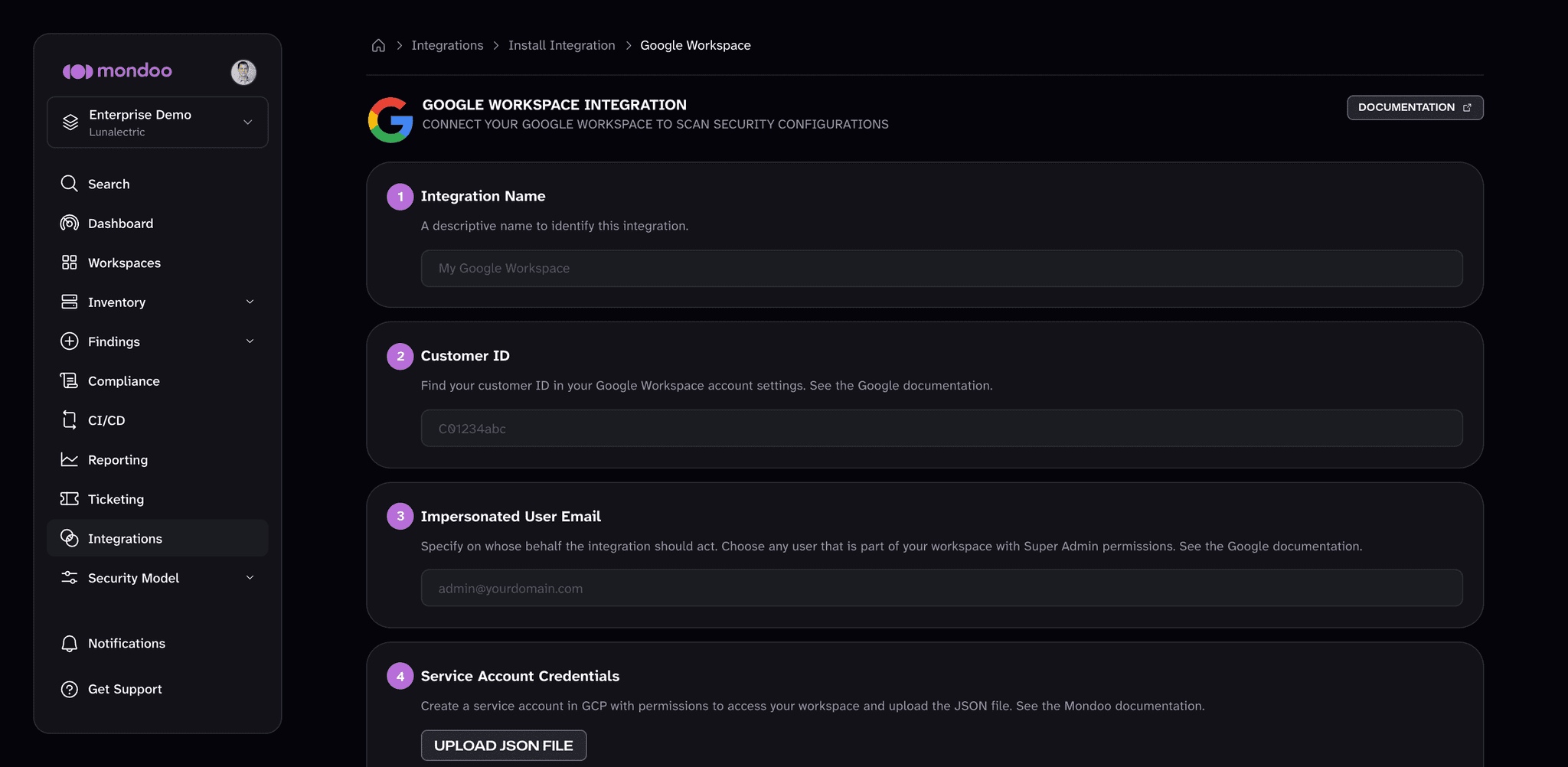
In the Mondoo App, navigate to the space where you want to add the integration. In the side navigation bar, select Integrations. In the top right, select INSTALL. On the Install Integration page, find the integration you want by browsing a category or searching by name:
-
Under SaaS Security, select Google Workspace.
-
In Integration Name, enter a name that identifies the Workspace account.
-
In Customer ID, enter the customer ID you recorded above.
-
In Impersonated User Email, enter the super admin email you recorded above.
-
Under Service Account Credentials, select UPLOAD JSON FILE and choose the JSON key file you downloaded earlier, or paste the file's contents into the box.
-
(Optional) Under Enable security policies (optional), enable the policies you want Mondoo to score your Google Workspace against.
-
(Optional) Under Set Annotations (optional), select + ADD ANNOTATION to add key-value pairs that Mondoo applies to every asset this integration discovers. To learn more, read Annotate assets.
-
Select START SCANNING.
After you connect
Once Google Workspace scanning is enabled, explore your asset inventory, then assess and improve your security to review and prioritize your findings.