Create and Manage Service Accounts
Set up service account credentials to authenticate CI pipelines and external services with Mondoo APIs.
Service accounts let external services (such as CI pipelines) authenticate with Mondoo Platform APIs. Unlike team member accounts, service accounts are designed for programmatic access by scripts, automation tools, and applications. Each service account has specific permissions that control what actions it can perform.
Service accounts can access either a single space or all spaces within an organization. Space service accounts are scoped to the space where you create them and can't access any other space in the organization. Organization service accounts are scoped to the organization where you create them and can access all spaces in that organization but not any other organization.
For example, in a CI/CD workflow where worker nodes test builds of infrastructure and applications, you can create a service account that accesses the policies in a space and executes them on builds to assess security risks.
To create service accounts, you need the Editor or Admin role, or the Service Account Creator permission. To delete them, you need the Service Account Manager permission, which Editor and Admin include.
Service account permissions
When you create a service account, check one or more of these roles:
| Role | What programs using the service account can do |
|---|---|
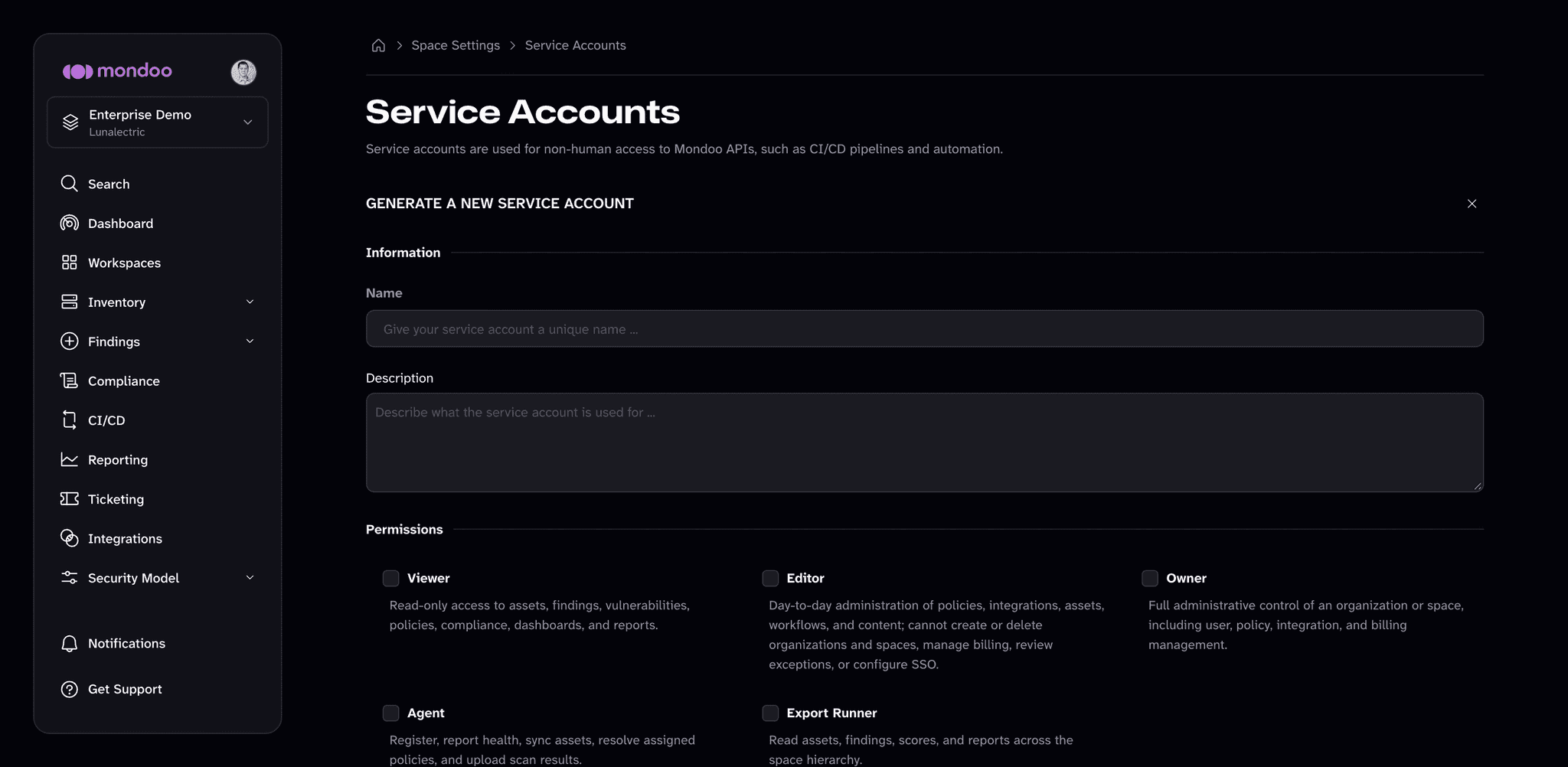
| Viewer | Read-only access to assets, findings, vulnerabilities, policies, compliance, dashboards, and reports. |
| Editor | Day-to-day administration of policies, integrations, assets, workflows, and content. Cannot create or delete organizations and spaces, manage billing, review exceptions, or configure SSO. |
| Owner | Full administrative control of the organization or space, including user, policy, integration, and billing management. |
| Agent | Register, report health, sync assets, resolve assigned policies, and upload scan results. Use this for cnspec agents and for registering cnspec in a pipeline. |
| Export Runner | Read assets, findings, scores, and reports across the space hierarchy. Use this for tools that export Mondoo data. |
Neither Viewer, Editor, nor Owner lets a program report scan results. Check Agent for that.
Create a service account
The procedure is the same for space and organization service accounts. Start from the scope you want the service account to access.
-
Navigate to the space or organization in which you want to create a service account.
-
In the left navigation, select Settings, then Identity & Access.
-
Select the Service accounts group, then select CREATE SERVICE ACCOUNT.
-
Enter a unique Name and a Description that help you recognize the service account's purpose.
-
Under Permissions, check the roles you want to grant. See Service account permissions for what each one allows.
-
Select GENERATE SERVICE ACCOUNT.
-
Save the credentials. You won't be able to see them again.
-
To download the credentials as a .json file, select DOWNLOAD CREDENTIALS.
-
To copy the credentials, select the copy icon in the Plain .JSON box.
-
If you plan to pass the credentials to a CI/CD service as an environment variable, select the copy icon in the Base64 box instead.
-
-
Select FINALIZE.
Decrypt base64 service account to use with cnspec
echo <base64_credentials> | base64 -d > mondoo.jsonConfigure cnspec to use the mondoo.json file by either passing the --config /path/to/mondoo.json flag or by setting the MONDOO_CONFIG_PATH environment variable.
Change a service account's permissions
-
Navigate to the organization or space containing the service account.
-
In the left navigation, select Settings, then Identity & Access.
-
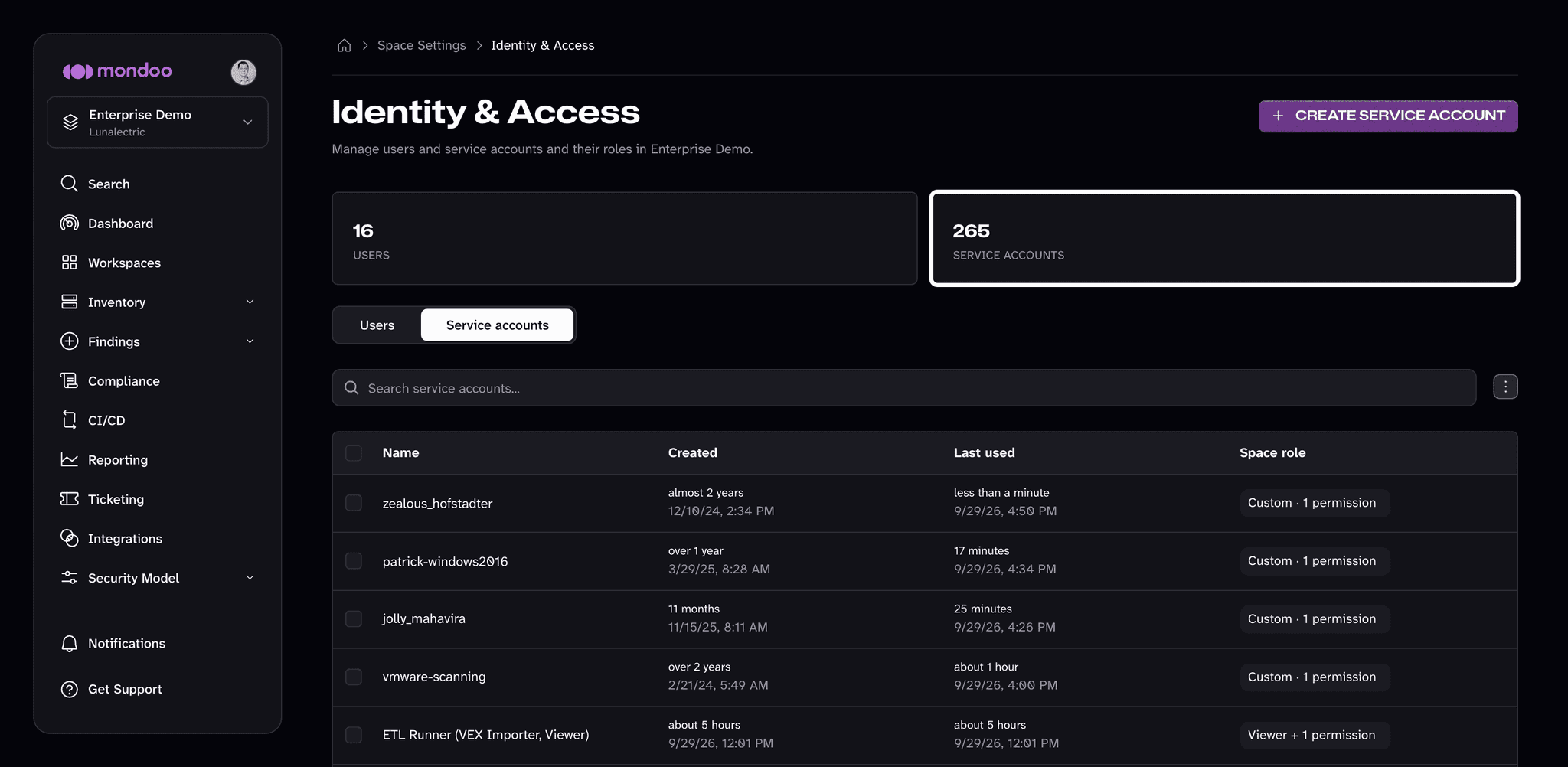
Select the Service accounts group.
-
In the service account's row, select its current role in the Space role or Organization role column. To switch roles, select Viewer, Editor, or Admin and confirm. To pick individual permissions, select Customize, make your changes, and select SAVE CHANGES.
Service accounts with the Agent or Export Runner role show Custom in the role column. Changing the role or permissions of such a service account from the Identity & Access page replaces all of its roles, and the console can't add Agent or Export Runner back. To give an agent or export service account different permissions, create a new service account with the roles you need.
To see when a service account was created and last used, select its name.
Delete a service account
-
Navigate to the organization or space containing the service account.
-
In the left navigation, select Settings, then Identity & Access.
-
Select the Service accounts group.
-
Select the checkbox next to each service account you want to delete.
-
In the bar at the bottom of the page, select DELETE, then confirm. Deleting a service account is permanent, and programs using its credentials can no longer authenticate.