Review Your Attack Surface
Read the attack surface risk score, work the domains table, and fix findings with copy-paste remediations.
Once a scan has run, the Attack surface page in a space shows everything Mondoo found behind your domains, scored by risk. This page walks through the dashboard, the domains table, and a single host's findings.
The dashboard
In the side navigation, select Attack surface.
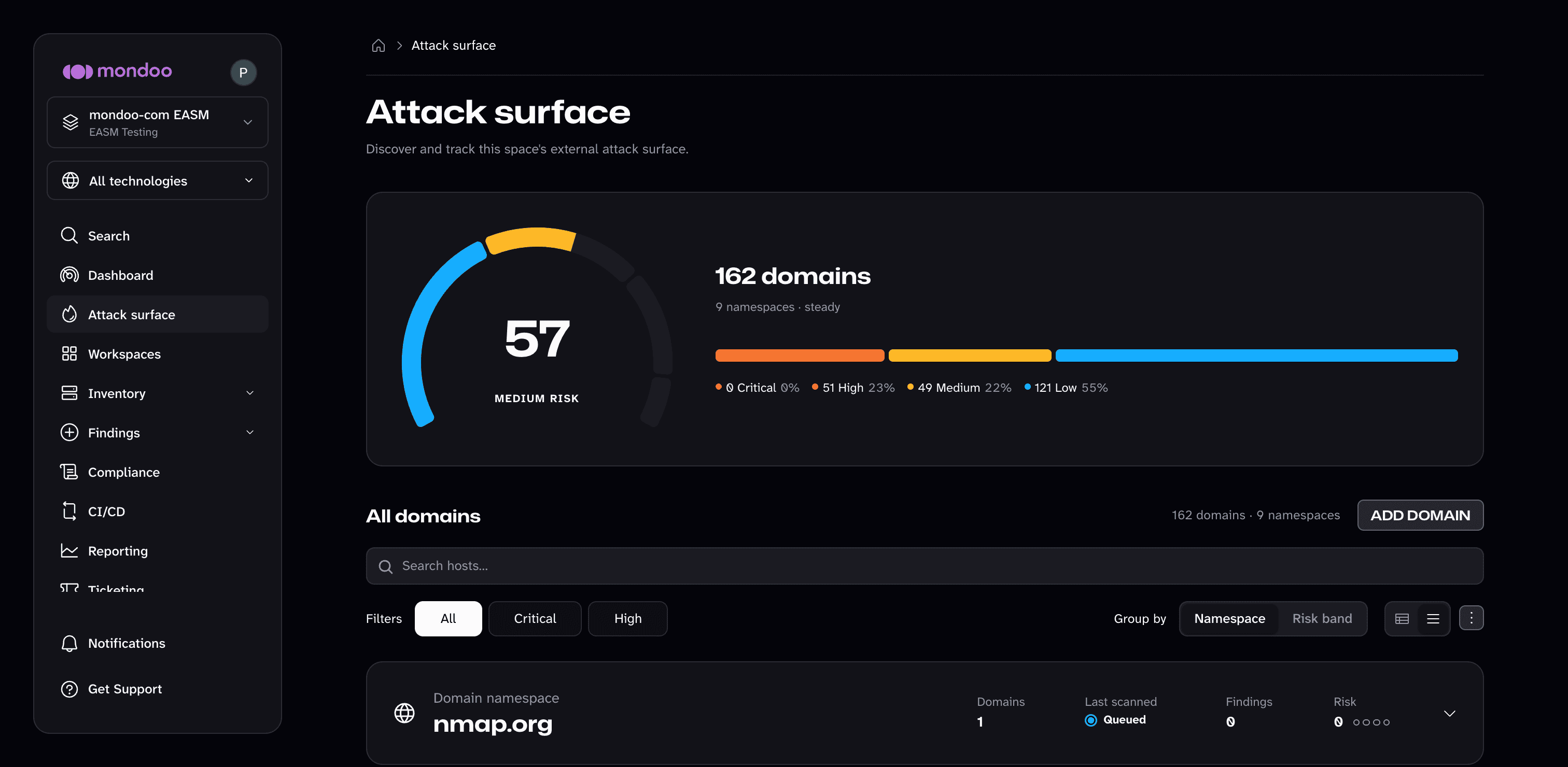
- Risk score. One score for the space's whole attack surface, with its band, for example
MEDIUM RISK. Higher means more risk, the same scale as asset and space scores elsewhere in Mondoo. Domains that haven't been scored yet don't count toward it. - Domains. The headline counts every domain discovered in the space: each domain you added and every subdomain found under it.
- Namespaces. Below the headline, how many domain namespaces the space covers.
- Risk bands. A bar that breaks the attack surface down into Critical, High, Medium, and Low, with a count and a percentage for each band.
The numbers update as scans complete; you don't need to reload the page. While the first scan is still running, the page shows Discovering your attack surface, then Discovering domains in place of the score, so an unfinished scan never reads as a clean one.
The domains table
Below the score, All domains lists every discovered domain, grouped under its domain namespace: the domain you added. The line above the table counts both, for example 162 domains · 9 namespaces.
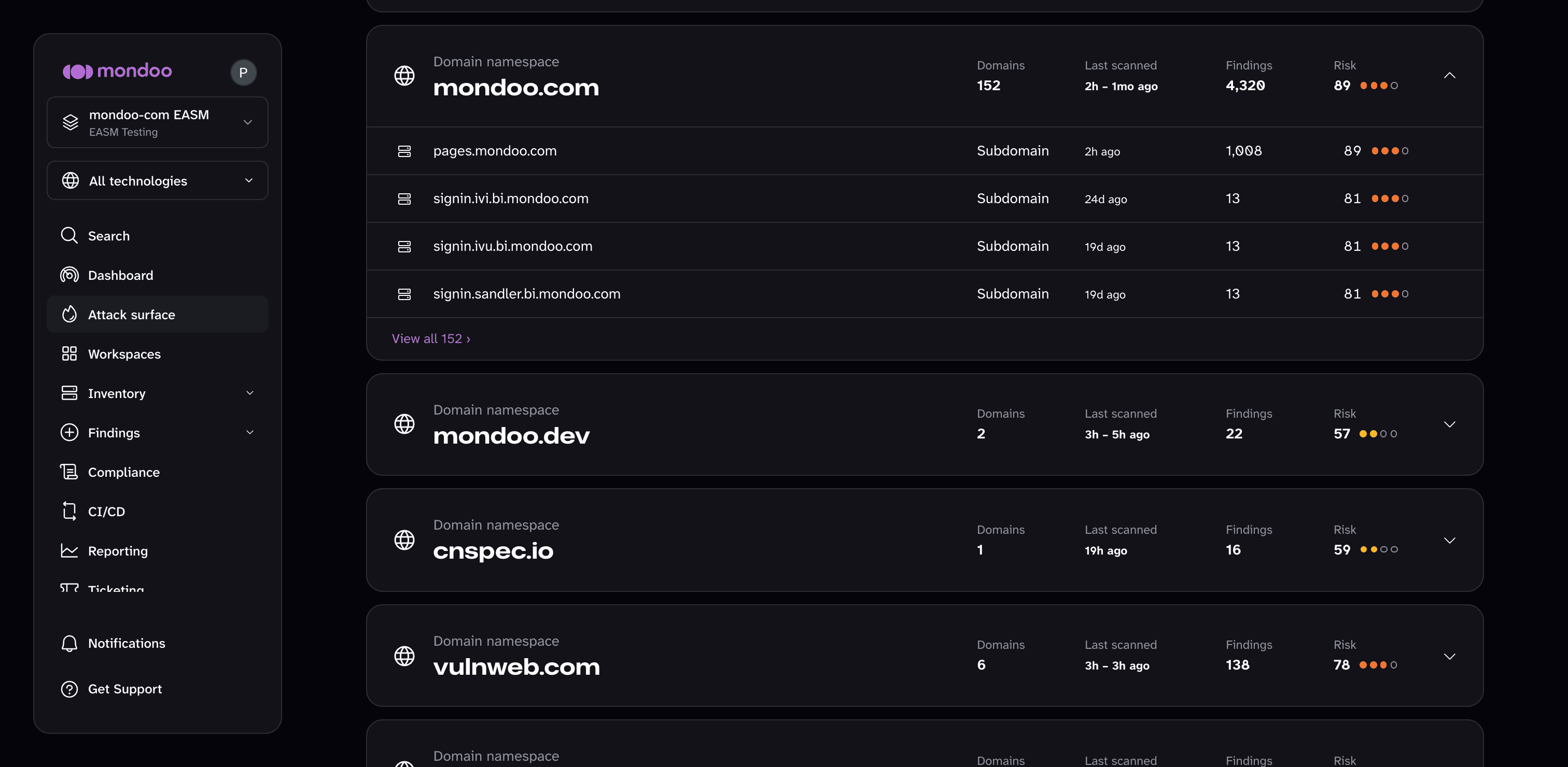
| Control | What it does |
|---|---|
| Search hosts | Filters by host name across every domain in the space, not only the rows on screen. |
| All, Critical, High | Show every domain, or only the domains in that risk band. |
| Group by | Namespace (the default) or Risk band. |
| View toggle | Switch between List view and Table view. |
| Options menu | Export the domains as CSV, JSON, or XLSX. In table view, it also sorts and chooses columns. |
Each namespace row shows how many domains it holds, when they were last scanned, its finding count, and its risk. Expand a namespace to see its domains. Each domain row shows the host name, its type (Root domain or Subdomain), when it was last scanned, its findings, and its risk.
Until a namespace has its first result, Last scanned shows Queued or Scanning instead of a time, and Findings and Risk show Waiting or Calculating. Scan failed means the namespace's first scan didn't complete; see Troubleshooting.
An expanded namespace shows a preview of its domains. The Domains count is still the full total; select View all to see every domain in Inventory, pre-filtered to that namespace and to any risk band or search you have active.
Open a host
Select a domain row. Discovered domains are ordinary assets, so the row opens the host's asset detail page in Inventory, with the same tabs as any other asset, such as Overview, Policies, Findings, and Exceptions. Namespace rows expand in place; they don't open a page.
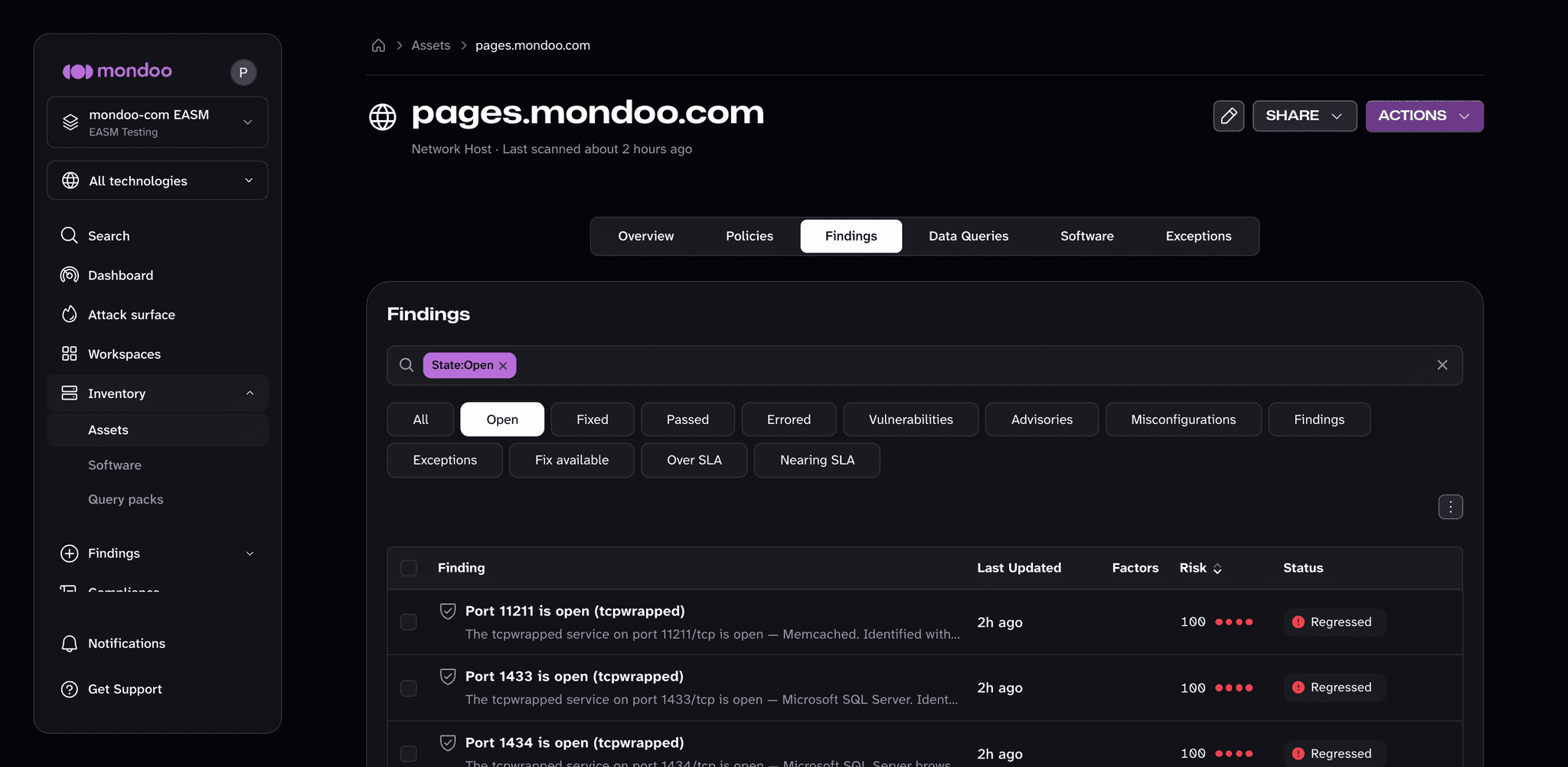
On the Findings tab, each finding explains what Mondoo saw and what to change.
- Failed TLS, HTTP, DNS, and email checks carry step-by-step remediation with copy-paste configuration: a command or configuration block you can copy into a terminal or config file as written. Where the fix depends on your web server, the remediation has a tab for each (NGINX, Apache HTTPD, Microsoft IIS). An Audit section shows how to confirm the fix. Select Copy on a block to copy it.
- Findings about exposed services, such as an open database port, carry written guidance: confirm the exposure is intended, and if it isn't, restrict the port to trusted networks or take the service off the internet.
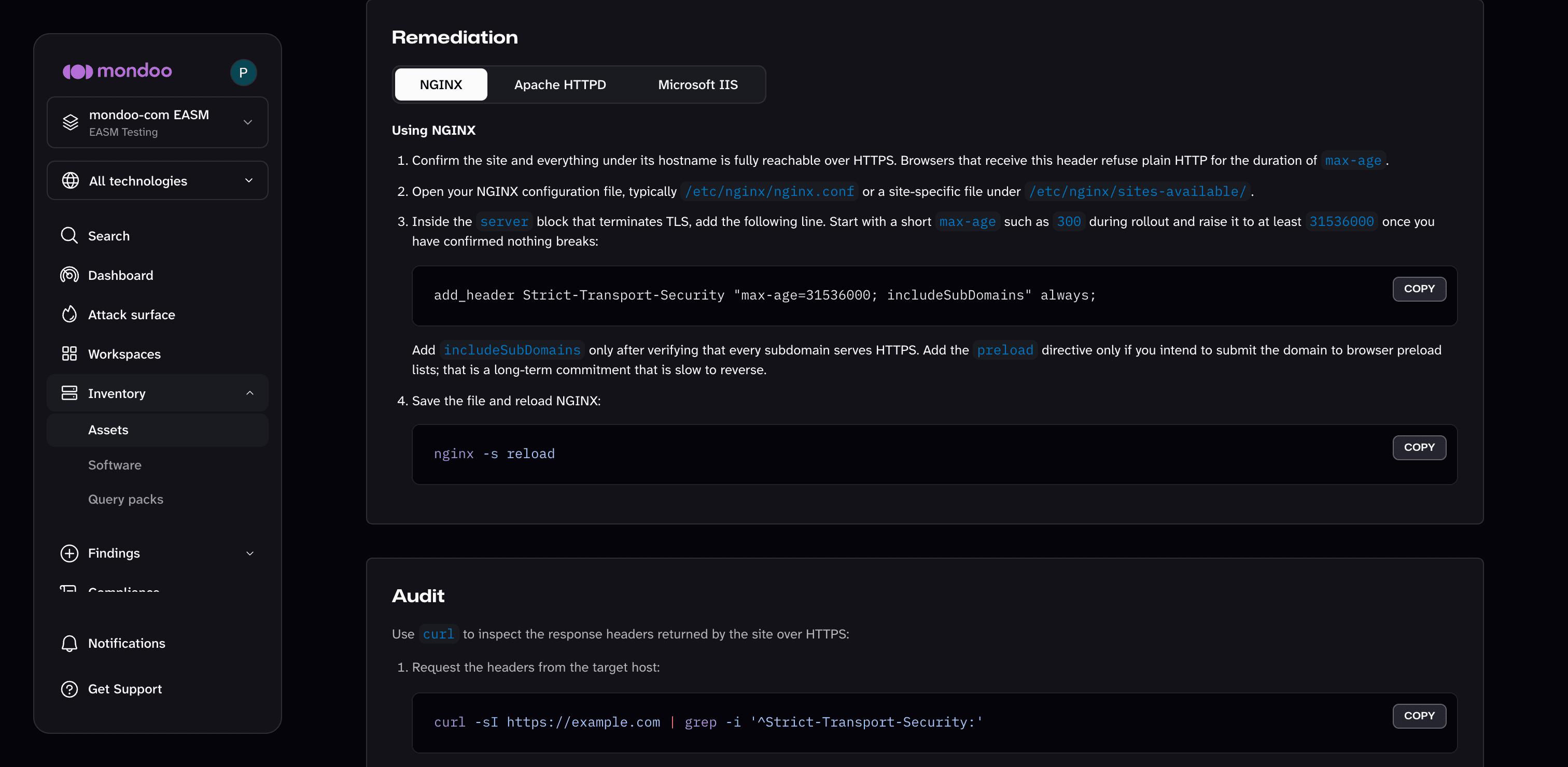
Typical checks and their remediations:
| Area | Example check | Example remediation |
|---|---|---|
| TLS | Avoid weak SSL and TLS versions | A server configuration snippet that restricts protocols to TLS 1.2 and later |
| Certificate | Certificate is not near expiration or expired | The command to renew the certificate and reload the web server |
| HTTP headers | Set Strict-Transport-Security (HSTS) HTTP header | The header line to add to your web server |
| DNS | Ensure DNSSEC is enabled | The steps to sign the zone and publish the DS record at your registrar |
| Ensure DMARC policy is set to quarantine or reject | The _dmarc TXT record to publish, with p=quarantine or p=reject |
Not every finding is a security weakness. The scanner also reports what it observed, such as an open port on a device you expect to be reachable from the internet. Read each finding in the context of the host before you act. For findings you accept, set an exception.
Findings from discovered hosts count toward the space's risk score and appear in the space's findings pages, Initiatives, and ticketing like any other finding.
Permissions
| Action | Required role |
|---|---|
| View the Attack surface page and open hosts | Viewer or higher on the space |
| Add, edit, or remove a domain | Editor, Owner, or Integrations Manager on the space |
Viewers see the Add domain button disabled; hovering it shows Adding integrations is managed by your administrator. For how roles combine, see Manage team members.
Troubleshooting
A namespace shows 0 domains after its scan finished. The domain resolved but no live hosts answered. Check that the domain has public DNS records and that Subdomain discovery is on for the integration. A domain that only hosts email, for example, may legitimately have no web hosts.
A host I expect is missing. Confirm the host is a subdomain of a domain you've added; the scanner doesn't follow links to other domains. Check that Subdomain discovery is on for the integration. To look for new subdomains now, open the integration in Integrations and select Run.
A namespace shows Scan failed. The first scan of that domain didn't complete. Open the integration in Integrations and select Run to try again. If it fails again, open a support case.
Numbers on the dashboard don't match the table. The table respects the active search and filters; the dashboard doesn't. Select All and clear the search to compare like with like.
A finding is fixed but still shows. Findings update when the host is rescanned. To rescan now, open the integration in Integrations and select Run. A manual run rescans the domain and every subdomain under it.
FAQ
Does the scanner touch my systems? Yes, in the way any internet client does: DNS lookups, TLS handshakes, HTTP requests, and connection attempts to common ports. It does not exploit anything. The optional Dynamic web application scan (DAST) module goes further and actively crawls web applications, which is why it's off by default. See Modules.
How often is my attack surface rescanned? On the cadence you set per domain: daily by default, or weekly, every two weeks, or only when you start a scan. To rescan right away, select Run on the integration. See Scan cadence.
Can I add many domains at once? Each integration covers one domain. Add them one at a time from the Attack surface page; you don't have to wait for a scan to finish between additions.
Can I see the attack surface across all my spaces? Not yet. The Attack surface page is per space. Open each space to see its domains and hosts.
What's next
Questions or feedback? Email support@mondoo.com or open a support case.