Add Domains to Your Attack Surface
Add a domain you own, choose how often Mondoo rescans it, and pick the scanner modules to run.
Each domain you add becomes one Attack Surface integration in the space. Mondoo scans it right away, then rescans on the cadence you choose. This page covers adding, editing, and removing domains. To read the results, see Review your attack surface.
Before you begin
- Editor, Owner, or Integrations Manager access to the space. Viewers see the Add domain button disabled; hovering it shows
Adding integrations is managed by your administrator. - A domain you own or are authorized to scan. The scanner probes the domain's hosts from the internet, including port scans and, if you enable it, an active web application crawl. Only add domains you are permitted to test.
- One domain per integration. To cover several domains, add each one; they all appear together on the space's Attack surface page.
Enter a registered domain such as example.com. On the Attack surface page, the Domain
field also accepts a full URL and strips the scheme, path, port, credentials, a leading www.,
and a trailing dot for you, so https://www.example.com/login becomes example.com. It rejects
bare IP addresses and single-label names such as intranet. The setup page in Integrations
keeps a leading www., so enter the bare domain there.
Add a domain from the Attack surface page
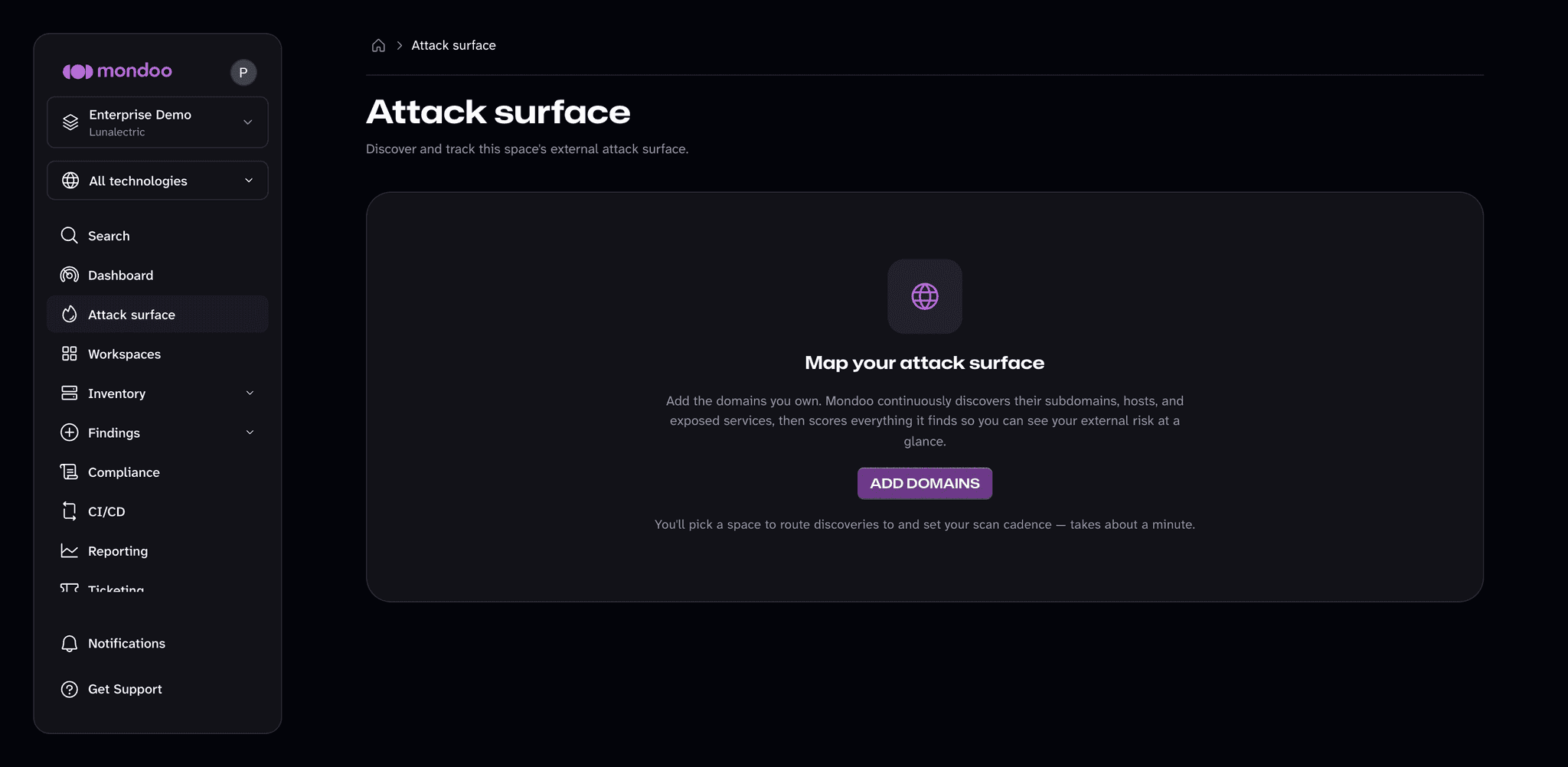
This is the quickest path. The first time you open the page in a space with no domains, it invites you to add one.
-
In the side navigation, select Attack surface.
-
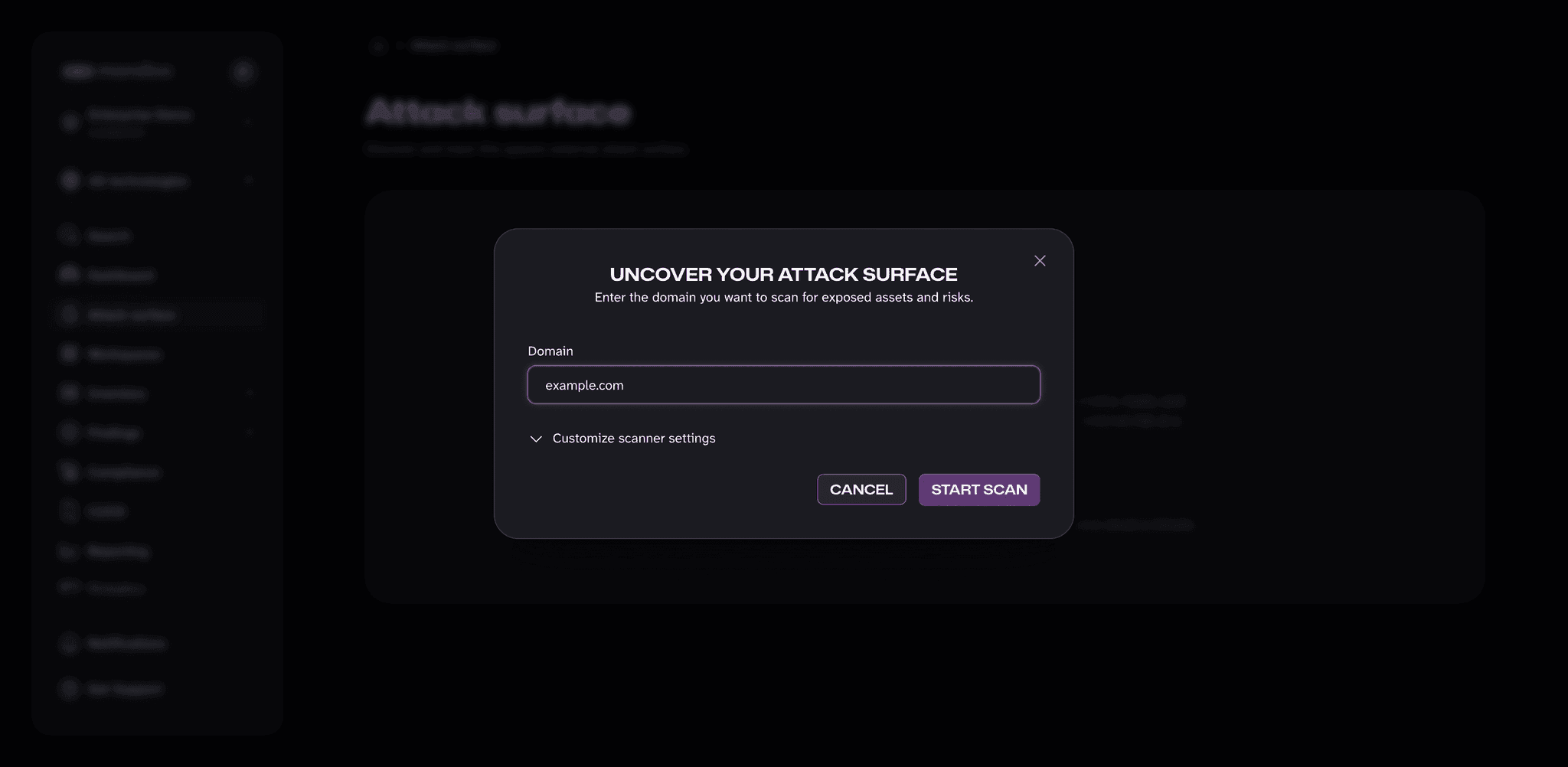
Select Add domains (or Add domain once the space already has one). The Uncover your attack surface dialog opens.
-
In Domain, enter the domain (for example,
example.com).If the domain is already part of the space's attack surface, the dialog says so and Start scan stays disabled.
-
(Optional) Expand Customize scanner settings to change the scan cadence or turn modules on or off. The defaults suit most domains.
-
Select Start scan.
Mondoo starts the first scan and confirms with Scanning example.com. The page switches to Discovering your attack surface and fills in as hosts are found and scored. The first results usually appear within a few minutes; a domain with many subdomains takes longer.
Behind the scenes, each domain is stored as an Attack Surface integration in the space. That's where you go later to edit or remove it.
You don't have to wait for one scan to finish before adding the next domain. Select Add more domains while the first scan is still running.
Add a domain from Integrations
Use this path when you want to name the integration or when you're setting up integrations in bulk.
-
In the side navigation, select Integrations. In the top right, select Install.
-
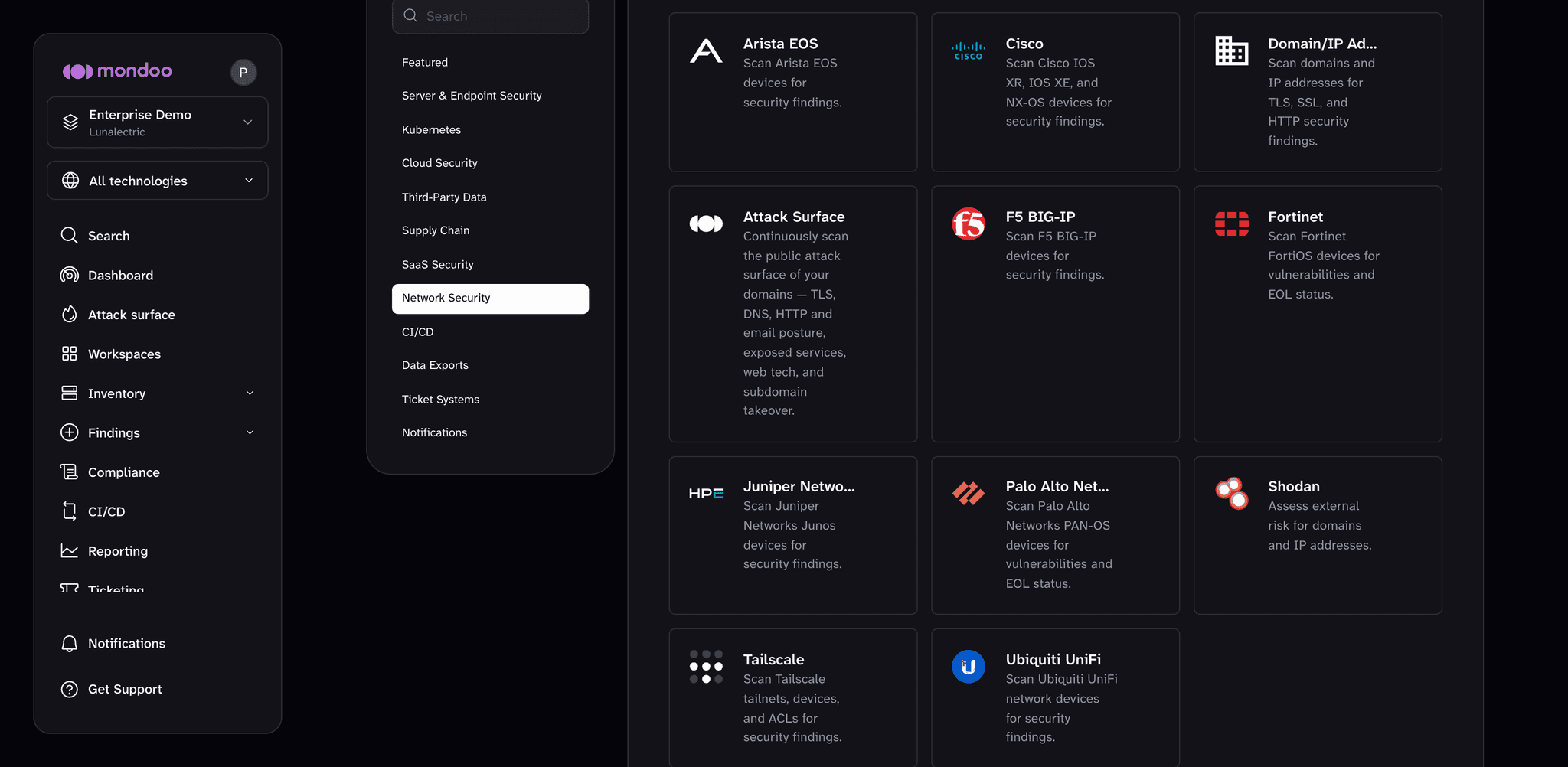
Under Network Security, select Attack Surface.
-
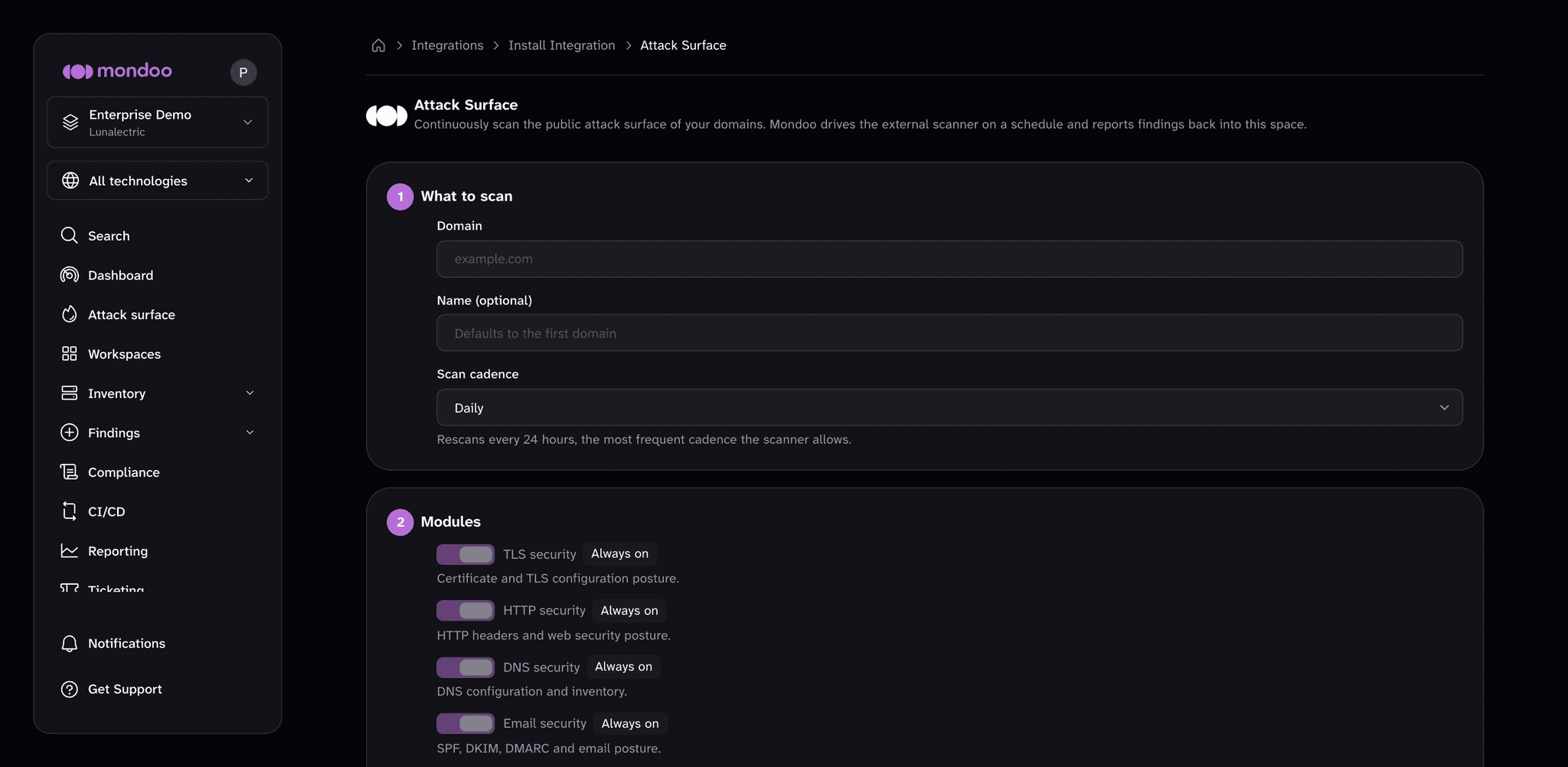
Under What to scan:
- In Domain, enter the domain.
- (Optional) In Name, enter a name for the integration. It defaults to the domain.
- In Scan cadence, choose how often to rescan. See Scan cadence.
-
Under Modules, turn modules on or off. See Modules.
-
Select Create integration.
Mondoo confirms with Attack Surface integration created., returns you to the Integrations list, and starts the first scan. To watch it, open Attack surface in the side navigation.
Scan cadence
| Cadence | What it does |
|---|---|
| Daily | Rescans every 24 hours. This is the default and the most frequent cadence the scanner allows. |
| Weekly | Rescans every 7 days. |
| Every 2 weeks | Rescans every 14 days. |
| Manual only | No recurring scan. The domain is scanned only when you start one. |
With Manual only, start a scan from the integration's page in Integrations by selecting Run. Run works with any cadence: use it to rescan the domain and every subdomain under it right away, for example after you fix a finding or add a subdomain.
Modules
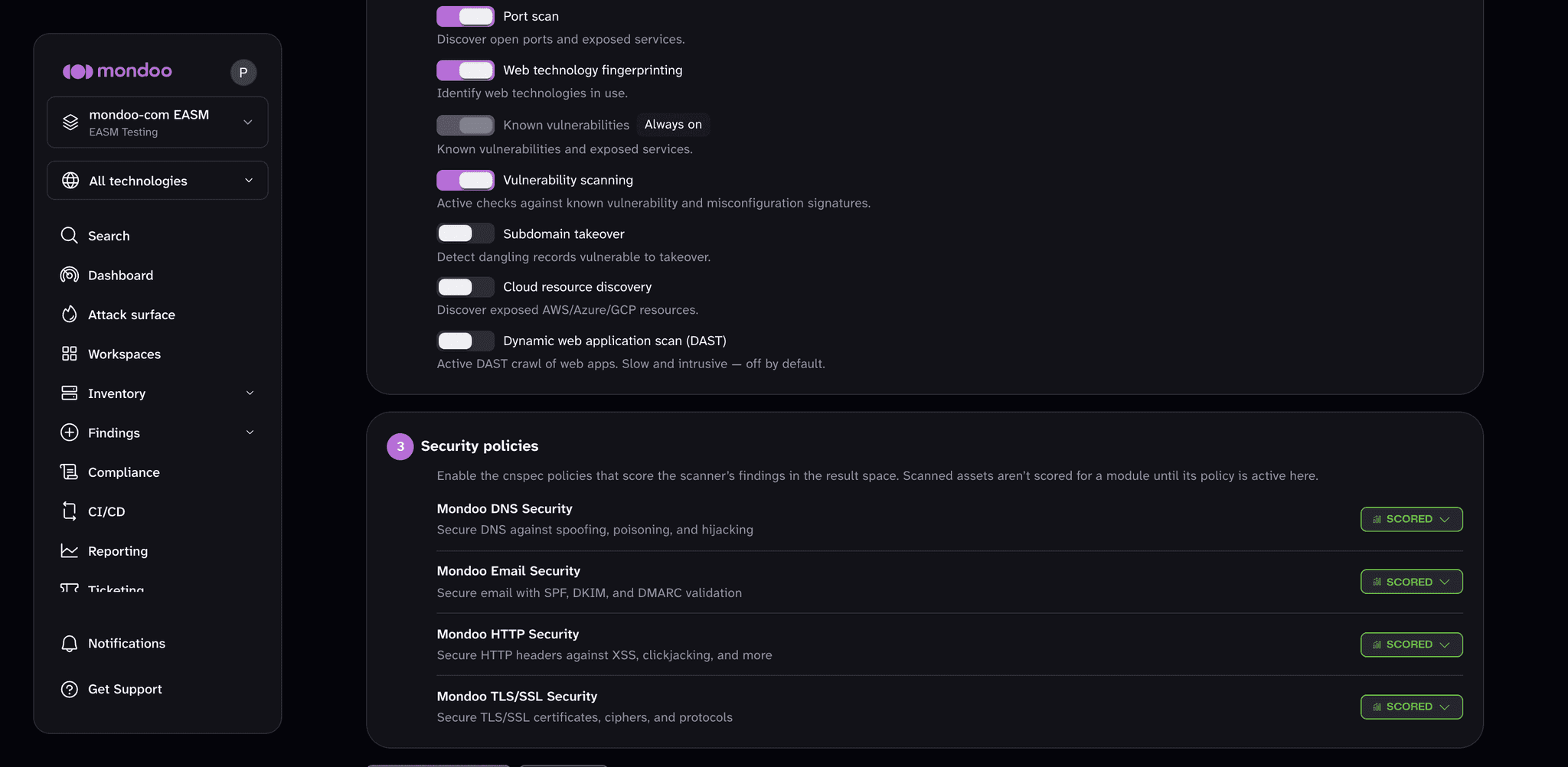
Modules control what the scanner does for this domain. Five are always on and can't be turned off. The rest you can toggle when you add the domain or later on the integration's edit page.
| Module | Default | Notes |
|---|---|---|
| TLS security | Always on | |
| HTTP security | Always on | |
| DNS security | Always on | |
| Email security | Always on | SPF, DKIM, and DMARC |
| Known vulnerabilities | Always on | |
| Subdomain discovery | On | Turn off to scan only the hosts you name, not the subdomains under them. |
| Port scan | On | |
| Web technology fingerprinting | On | |
| Vulnerability scanning | On | Active checks against known vulnerability and misconfiguration signatures |
| Subdomain takeover | Off | Detects dangling DNS records that point at services you no longer control. |
| Cloud resource discovery | Off | Looks for exposed AWS, Azure, and GCP resources tied to the domain. |
| Dynamic web application scan (DAST) | Off | Actively crawls web applications. Slow and intrusive; enable it only on applications you own and can afford to load. |
DAST sends real requests to your web applications, including form submissions. Enable it only for applications you own, and consider a longer cadence for domains that have it on.
Edit a domain
You can change the domain, its name, its cadence, its modules, and the security policies that score its findings.
- In the side navigation, select Integrations.
- Open the Attack Surface integration and select the edit (pencil) icon.
- Under What to scan and Modules, make your changes.
- Under Security policies, confirm the policies that score the scanner's findings are enabled. Scanned assets aren't scored for a module until its policy is active.
- Select Save changes. Mondoo confirms with
Attack Surface integration updated.
Changes apply from the next scan.
Remove a domain
Removing the integration stops scanning the domain. Hosts already discovered stay in the space's inventory until you delete them there.
- In the side navigation, select Integrations.
- Open the Attack Surface integration and select the delete (trash) icon.
- Confirm by selecting Delete.
Troubleshooting
Enter a valid domain, like example.com. The value isn't a valid hostname. Remove spaces and characters other than letters, digits, hyphens, and dots.
Include a top-level domain, like example.com. You entered a bare IP address or a single-label name. Attack Surface scans domains only. To monitor a single IP address, use the Domain/IP Address integration.
invalid domain "…": expected a hostname like example.com. The setup page in Integrations couldn't read the value as a domain. Enter the bare domain, such as example.com.
… is already in your attack surface. The domain, or a URL that normalizes to the same domain, is already covered by an integration in this space. Open Integrations to find it.
The domain was added, but the first scan did not start. The message Added example.com, but the first scan did not start. (from the Attack surface page) or Attack Surface integration created, but the first scan did not start. (from Integrations) means the integration was saved but the immediate run failed. Open the integration in Integrations and select Run. If it fails again, open a support case.
The Add domain button is disabled. Your role doesn't include managing integrations; hovering the button shows Adding integrations is managed by your administrator. Ask a space Editor or Owner to add the domain, or to grant you Editor access. See Manage team members.