Workspaces
Group the assets you want to monitor together using simple rules like platform, risk rating, tags, and more. Mondoo keeps the view up to date as your inventory changes.
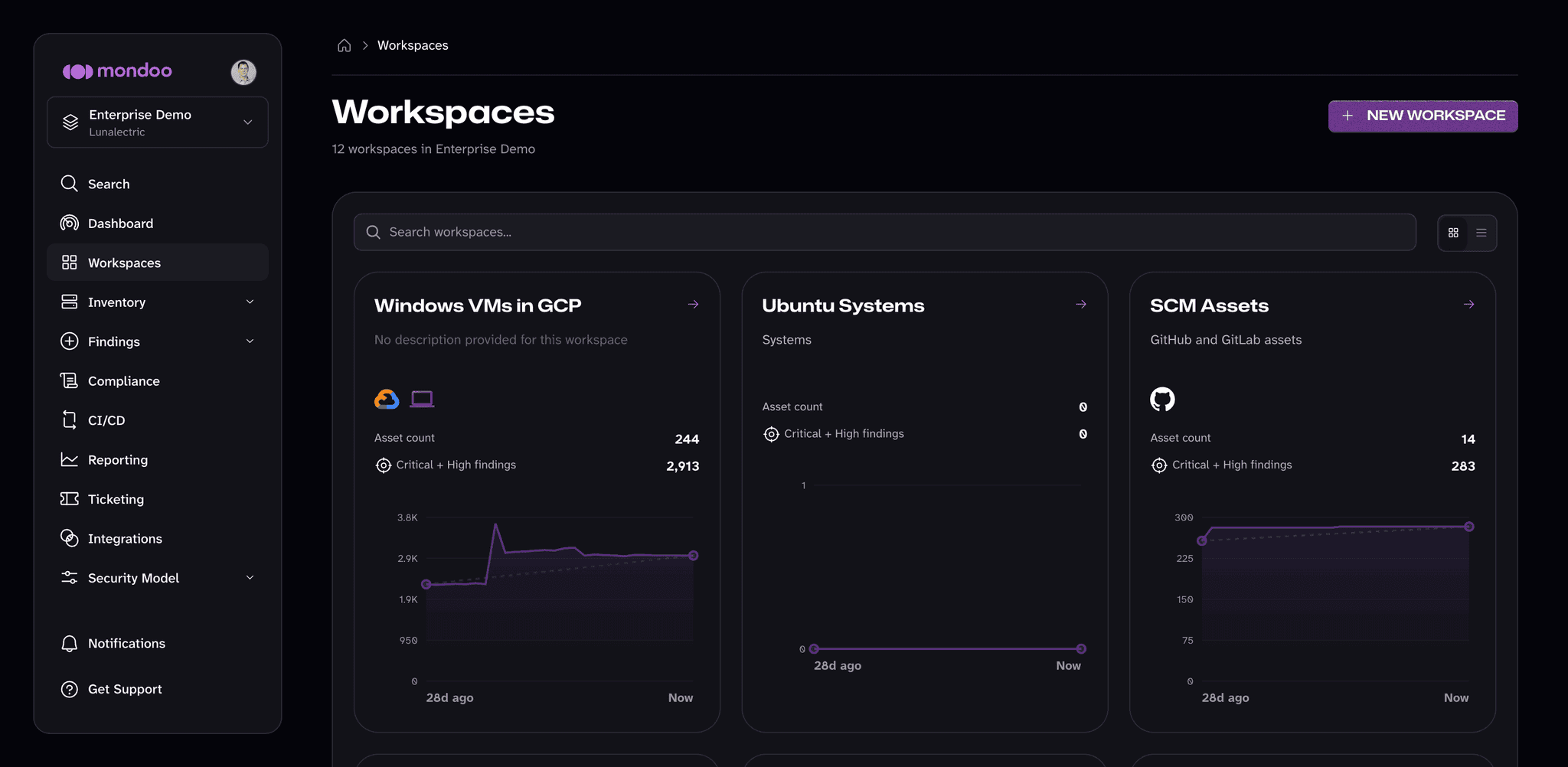
A workspace is a saved, filtered view of the assets you want to look at together. Think of it as a smart group: you describe the assets you care about (for example, all Linux servers, or every asset with a critical risk rating) and Mondoo builds the view for you. As your inventory changes, the workspace updates on its own.
Workspaces are one of the easiest ways to make a large inventory feel manageable. Instead of scrolling through everything, you can jump straight to the assets that matter for the task in front of you.
When to use a workspace
New users often create workspaces to:
- Focus on a project, team, or business unit
- Track urgent issues, like every asset with a critical or high risk rating
- Group assets by platform (macOS workstations, AWS S3 buckets, GitHub repositories, and so on)
- Give a teammate access to a focused slice of a space without sharing the whole space
A single asset can appear in as many workspaces as you like. Adding an asset to a workspace doesn't change its security policies or configuration; those still come from the space the asset lives in.
How workspaces differ from spaces
Spaces are the structural containers in Mondoo. Every asset belongs to exactly one space, and the space sets the asset's security policies.
Workspaces sit on top of that structure. They don't move assets or change configuration. They simply group assets so you can view and report on them together.
For example, an employee's macOS workstation with a critical risk rating belongs to a single space, which belongs to a single organization. The space decides which policies apply. The same workstation can still show up in a "macOS devices" workspace, a "Critical assets" workspace, a workspace for the employee's team, and any other workspace whose criteria it matches.
Each workspace also has its own role-based access control (RBAC), so you can give a teammate access to a single workspace without granting them access to everything in the space.
For a side-by-side comparison of spaces and workspaces, read Plan Your Mondoo Organization.
Example workspaces
To make this concrete, here are two examples from our sample business, Lunalectric.
Lunalectric's Rover business group has its own space that contains everything the team owns: Azure and SaaS infrastructure, deployment pipelines, and employee workstations. That's a lot to look at all at once, so the team uses workspaces to focus on one thing at a time.
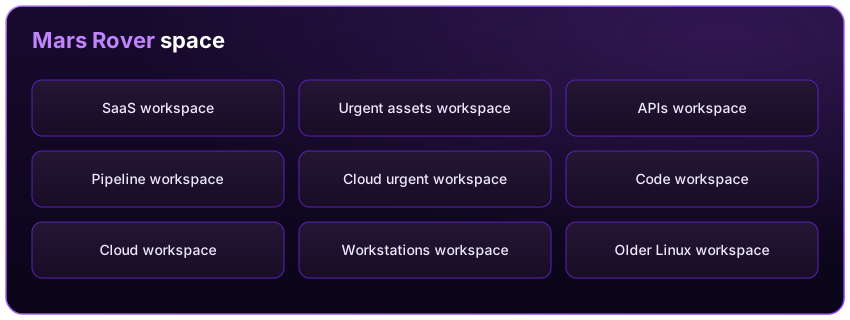
The Rover team created workspaces to:
- View smaller, more manageable portions of their infrastructure
- Assess the security of each type of infrastructure on its own
- Highlight the assets that need urgent fixes
- Show Linux assets that need patching
- Review all infrastructure used by the Finance department
Lunalectric also has a separate space for all of its AWS cloud infrastructure. With hundreds of AWS assets in one place, the team needs quick ways to slice it down and see where they're strong or exposed.
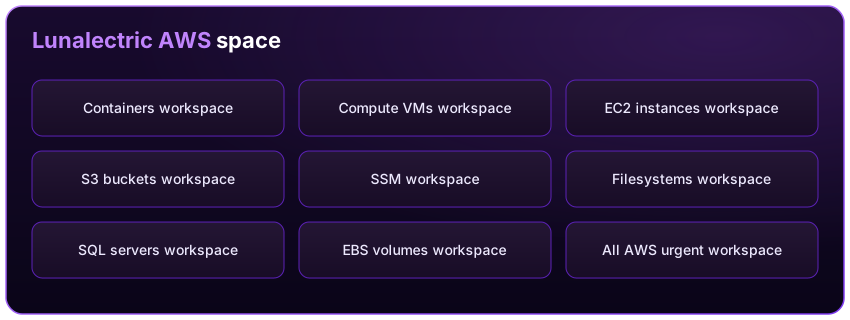
They created a workspace for each type of AWS asset, plus an "All AWS urgent" workspace that surfaces the AWS assets that pose the greatest risk.
Set up workspaces
You create a workspace by describing the assets you want to include. Each rule (Mondoo calls these conditions) sets one attribute that an asset must, or must not, have. Mondoo rebuilds the workspace each time you open it, so it always reflects the current state of your space.
Mondoo supports these conditions for including or excluding assets:
| Condition | Operators | Values |
|---|---|---|
| Platform | IS, IS NOT, CONTAINS | One or more platforms, such as Ubuntu, macOS, AWS S3 bucket, GitHub repository, or Kubernetes pod |
| Technology | IS, IS NOT, CONTAINS | One or more technologies, such as os, saas, or gcp |
| Platform version | IS, IS NOT, CONTAINS | One or more versions, such as 3, 4.5, or 12.75.9 |
| Kind | IS, IS NOT, CONTAINS | One or more asset kinds found in your space |
| Risk rating | IS, IS NOT | One or more ratings: Critical, High, Medium, Low, or None |
| Risk value | IS, IS NOT, IS GREATER THAN, IS LESS THAN | A risk score from 0 to 100 |
| Name | IS, IS NOT, CONTAINS | A full or partial asset name, such as test, 2024, win, us-east-1, or docker- |
| Tags/Labels | CONTAINS, DOES NOT CONTAIN | One or more key-value pairs. This metadata defined and stored in the asset's platform can include AWS, Azure, VMware, Google Cloud, and other tags as well as Kubernetes and Google Cloud labels. |
| Annotations | CONTAINS, DOES NOT CONTAIN | One or more key-value pairs. Annotations are Mondoo-specific metadata. |
For Platform, Technology, Platform version, Kind, and Name, Mondoo suggests values from the assets in your space as you type.
Tags/labels vs. annotations
Annotations are metadata generated with and stored in Mondoo. Labels and tags are metadata that Mondoo collects when scanning assets.
Example conditions
A workspace can be as simple as a single rule:
- Is a Google Cloud compute image
- Risk rating is not Low or None
- Name contains
eu-central - Is a GitHub repository or a GitLab project
You can also combine rules to narrow the focus:
- Is a Debian device and version is not 12
- Name contains
dodand risk rating is Critical or High - Is a macOS device and version is 15.1.0 and name contains
home - Is an operating system and risk value is greater than 80
For more advanced needs, workspaces support compound queries. For example, this query gathers older versions of three popular Linux distributions in one view:
- (Is a Debian device and version is not 12) or
- (Is a Fedora device and version is not 40 or 41) or
- (Is a Red Hat (RHEL) device and is not version 9.5)
Workspaces are dynamic
A workspace stores its name, description, and rules. It doesn't store a fixed list of assets. Each time you open it, Mondoo runs the rules again and shows the assets that currently match.
For example, suppose you create a workspace named Urgent AlmaLinux with this rule: AlmaLinux devices with Critical or High risk ratings.
- The first time you open it, the workspace shows 25 assets, all older versions of AlmaLinux with other risk factors.
- You patch 12 of them and clear additional risk factors on two more. The next time you open the workspace, it shows 11 assets.
- AlmaLinux later publishes an advisory about a vulnerability in its newest release. Devices that were healthy yesterday now have Critical or High risk ratings, so the workspace might show 40 assets.
You never have to maintain the list of assets in a workspace. Mondoo keeps it accurate for you.
Workspace query builder
You don't have to write any queries by hand. The workspace query builder is a visual tool that lets you point and click to choose which assets Mondoo includes.
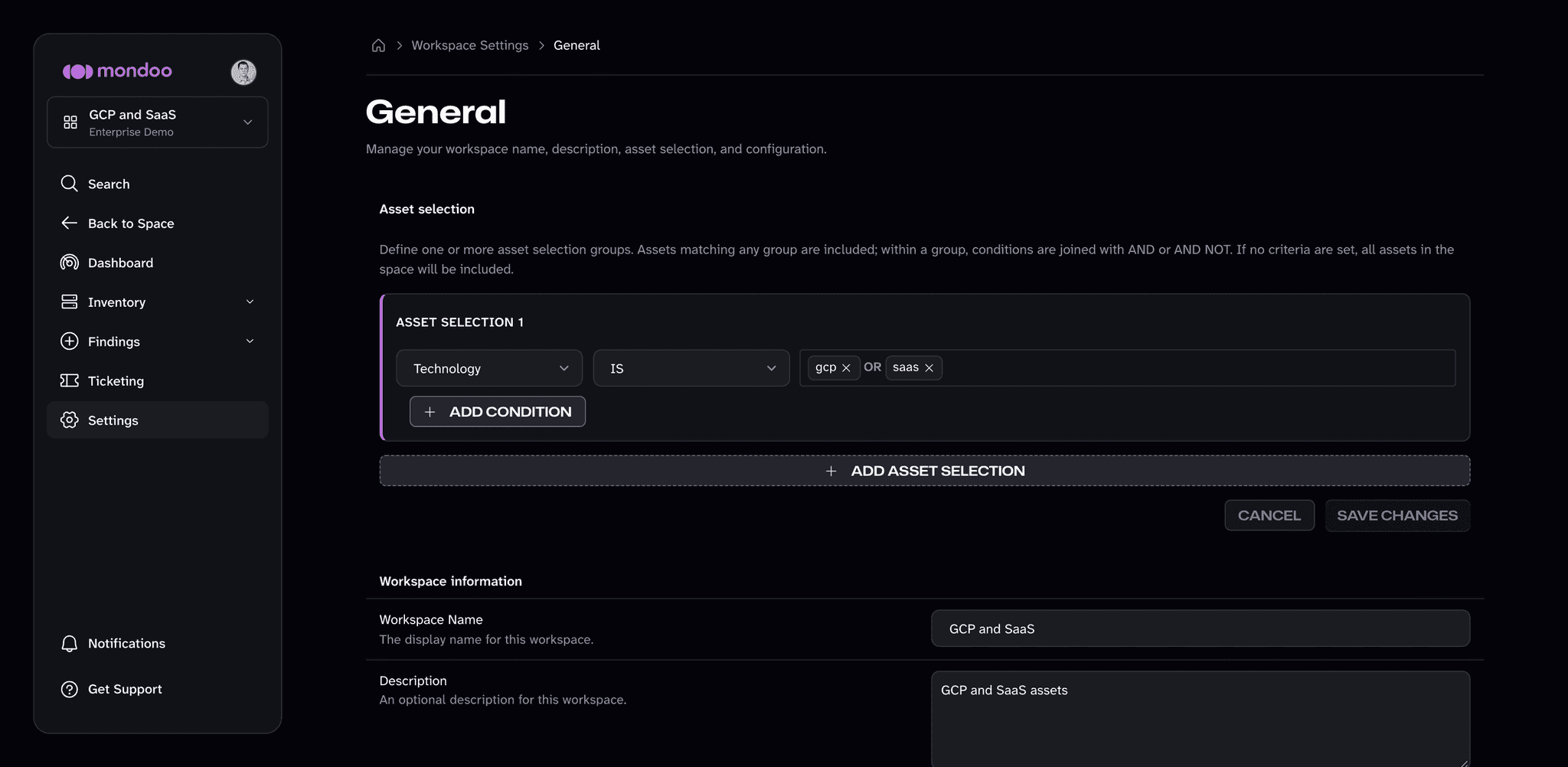
Each condition has three parts: a criterion (like Platform or Risk rating), an operator (such as IS, IS NOT, or CONTAINS), and one or more values. If you pick more than one value for the same criterion, the query builder treats them as an OR. For example, this query says the asset technology must be gcp OR saas:

If you add more than one condition to an asset selection (using the ADD CONDITION button), you choose how to combine them: AND or AND NOT. For example, this query says the asset must be an operating system AND its risk rating must be Critical or High:

Use AND NOT to exclude assets. For example, Platform IS Azure storage container AND NOT Name CONTAINS eu includes every Azure storage container except the ones whose names contain eu.
When you need to combine two different groups of assets, add another asset selection (using the ADD ASSET SELECTION button). The query builder combines asset selections with OR: the workspace includes an asset that matches any asset selection. For example, asset selection 1 could cover Debian devices that are not version 12, and asset selection 2 could cover Fedora devices that are not version 40 or 41.
If you don't set any conditions, the workspace includes every asset in the space.
Add a new workspace
-
Navigate to the space where you want to add the workspace.
-
In the left navigation bar, select Workspaces.
-
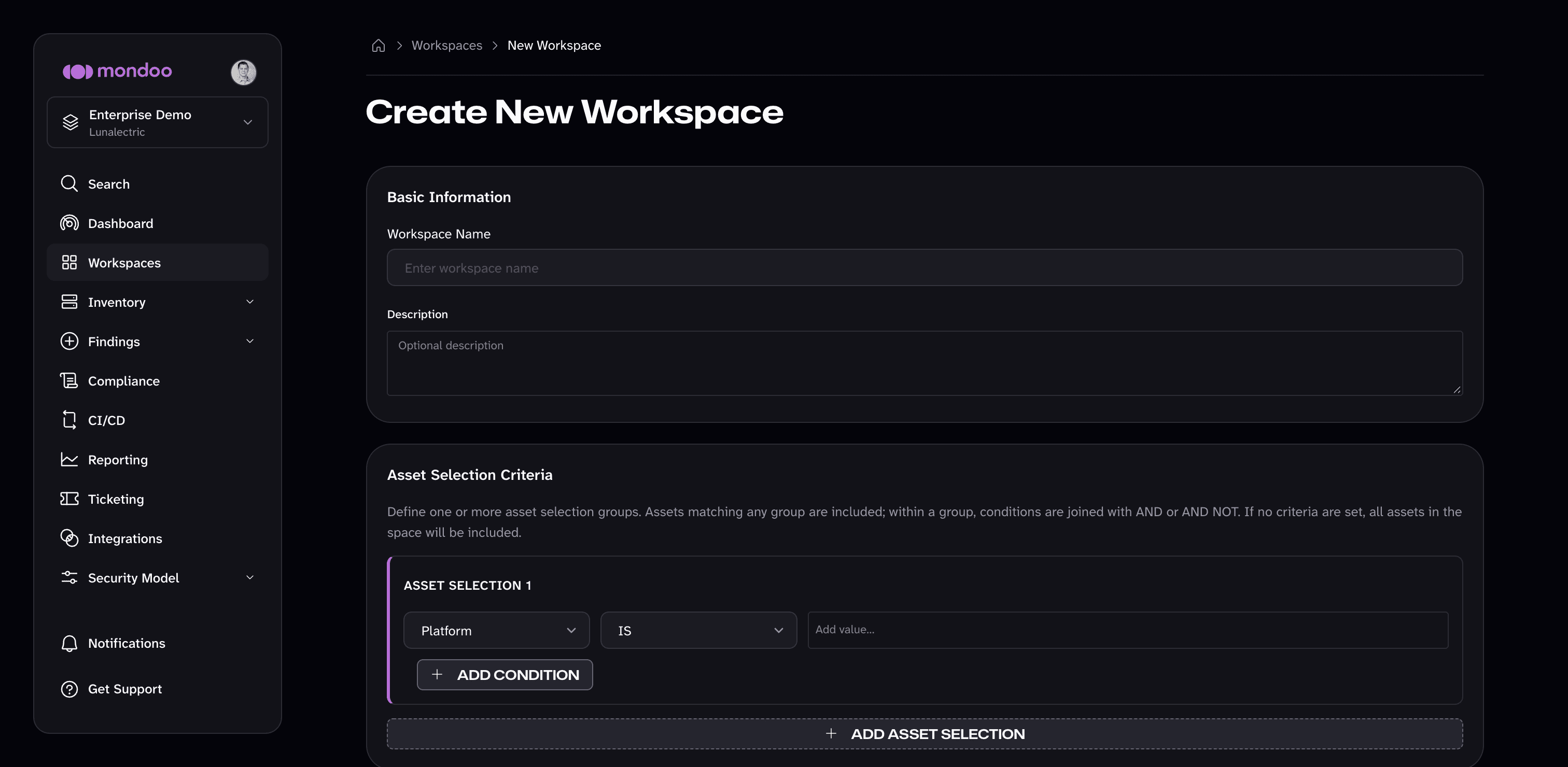
Select the NEW WORKSPACE button. The Create New Workspace page opens.
-
Under Basic Information, give the workspace a clear name and description so teammates know what it's for.
-
Under Asset Selection Criteria, build a query to describe the assets you want in the workspace. (If you'd like a refresher on how the query builder works, read the sections above.)
a. Open the Platform drop-down and pick a criterion.
b. Choose the operator, such as IS, IS NOT, or CONTAINS.
c. Choose the value(s).
d. To narrow the selection further, select ADD CONDITION, choose AND or AND NOT, and set up the new condition the same way.
e. To include another group of assets, select ADD ASSET SELECTION and build that selection the same way.
-
Select the CREATE WORKSPACE button.
Mondoo creates the workspace and returns you to the Workspaces page, where the new workspace appears with the rest.
View workspaces
To see all the workspaces in a space, select Workspaces in the space's left navigation bar. Each card shows the workspace's asset count and critical and high findings, with a trend for the last 28 days. Type in the Search workspaces box to filter the list, and use the buttons to the right of it to switch between the cards view and the list view. Select a workspace to open it.
You can also jump to any workspace from anywhere in the Mondoo App. Select the scope switcher at the top of the left navigation bar. The Workspaces group lists the workspaces in the current space. If the list is long, type a name in the search box at the top of the scope switcher.
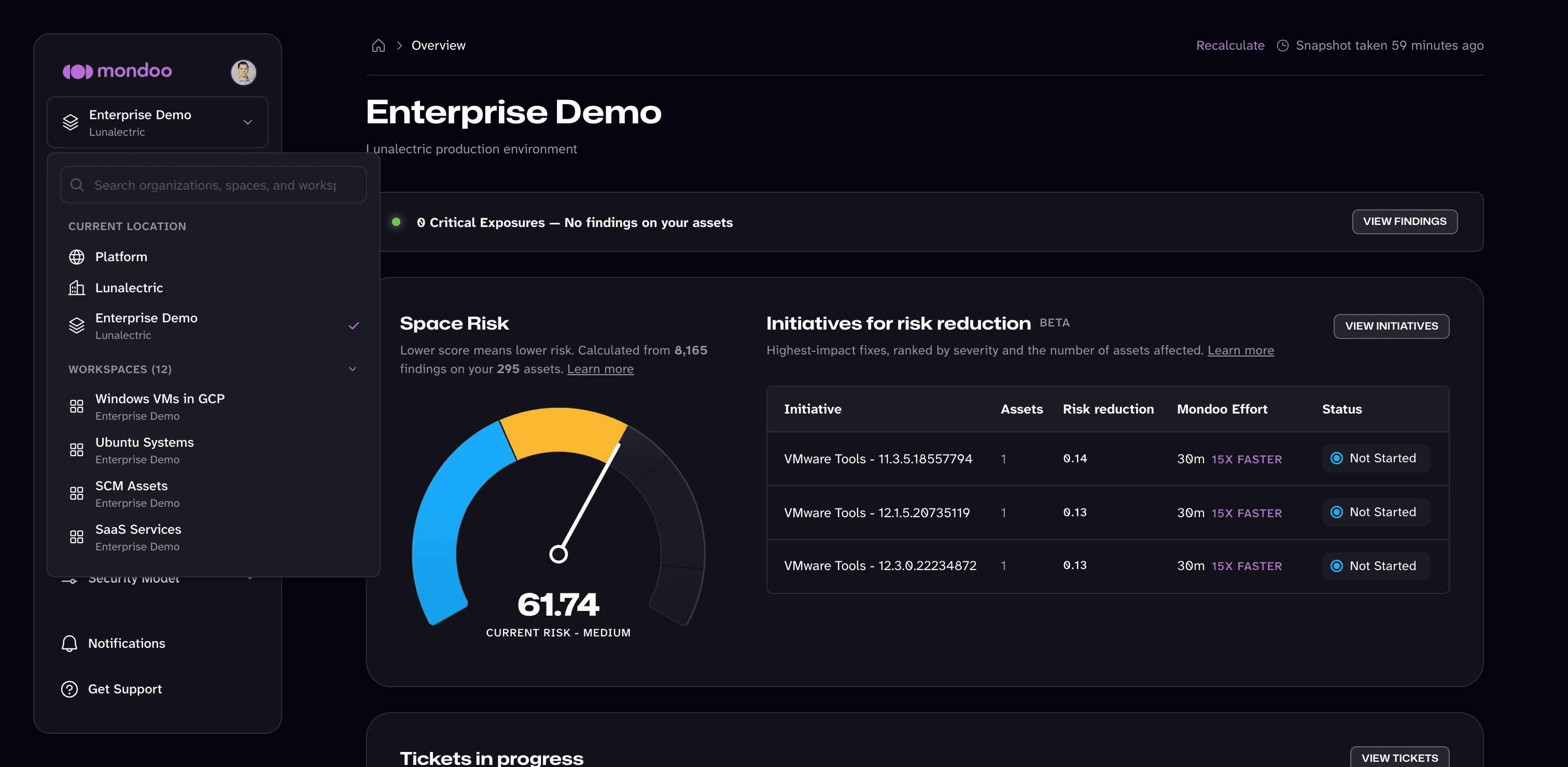
When you open a workspace, you see its dashboard: the same risk, findings, and SLA views as a space dashboard, limited to the assets in the workspace.
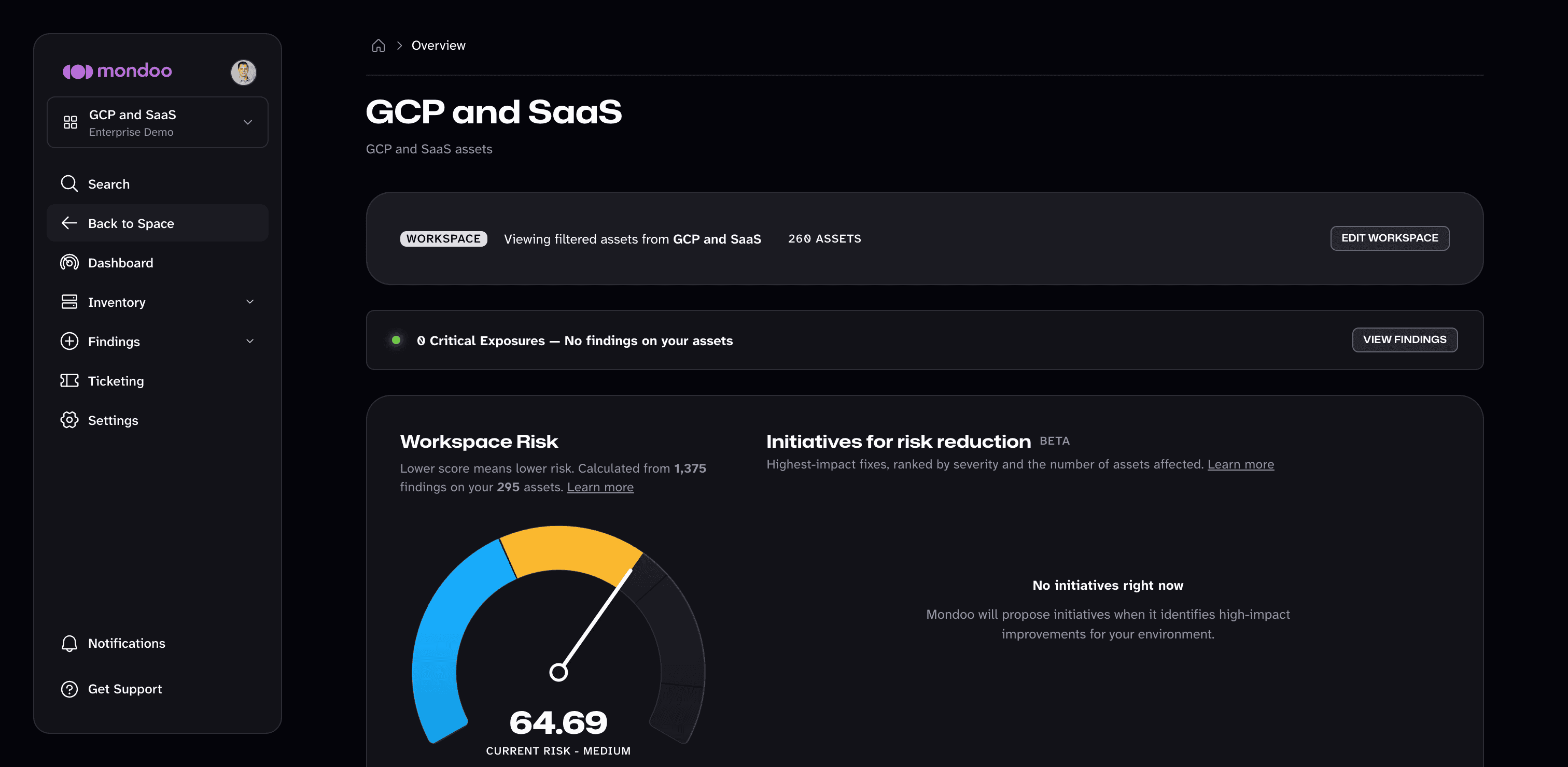
Inside a workspace, the left navigation bar shows Dashboard, Inventory, Findings, Ticketing, and Settings for the workspace. Select Back to Space to return to the whole space.
To find a specific asset inside the workspace, select Inventory to see the list of assets in the workspace. To learn more about the asset list, read Inventory Your Assets.
To see the tickets for the workspace, select Ticketing in the left navigation bar. For more on tickets, read Track and Fix Findings with Ticketing.
Manage workspaces
You can update a workspace's rules, rename it, or remove it at any time.
Edit a workspace
Edit a workspace to change the rules that decide which assets it includes, or to update its name or description.
-
Open the workspace you want to edit. See View workspaces above for how to find it.
-
In the workspace banner near the top of the page, select EDIT WORKSPACE. (You can also select Settings in the workspace's left navigation bar.)
-
To change which assets the workspace includes, update the asset selection and select SAVE CHANGES.
-
To rename the workspace or change its description, edit the Workspace Name or Description field under Workspace information. Mondoo saves the change when you leave the field.
Remove a workspace
Removing a workspace deletes only the saved view. The assets stay in their space and remain unaffected.
-
Open the workspace you want to remove. See View workspaces above for how to find it.
-
In the workspace banner near the top of the page, select EDIT WORKSPACE.
-
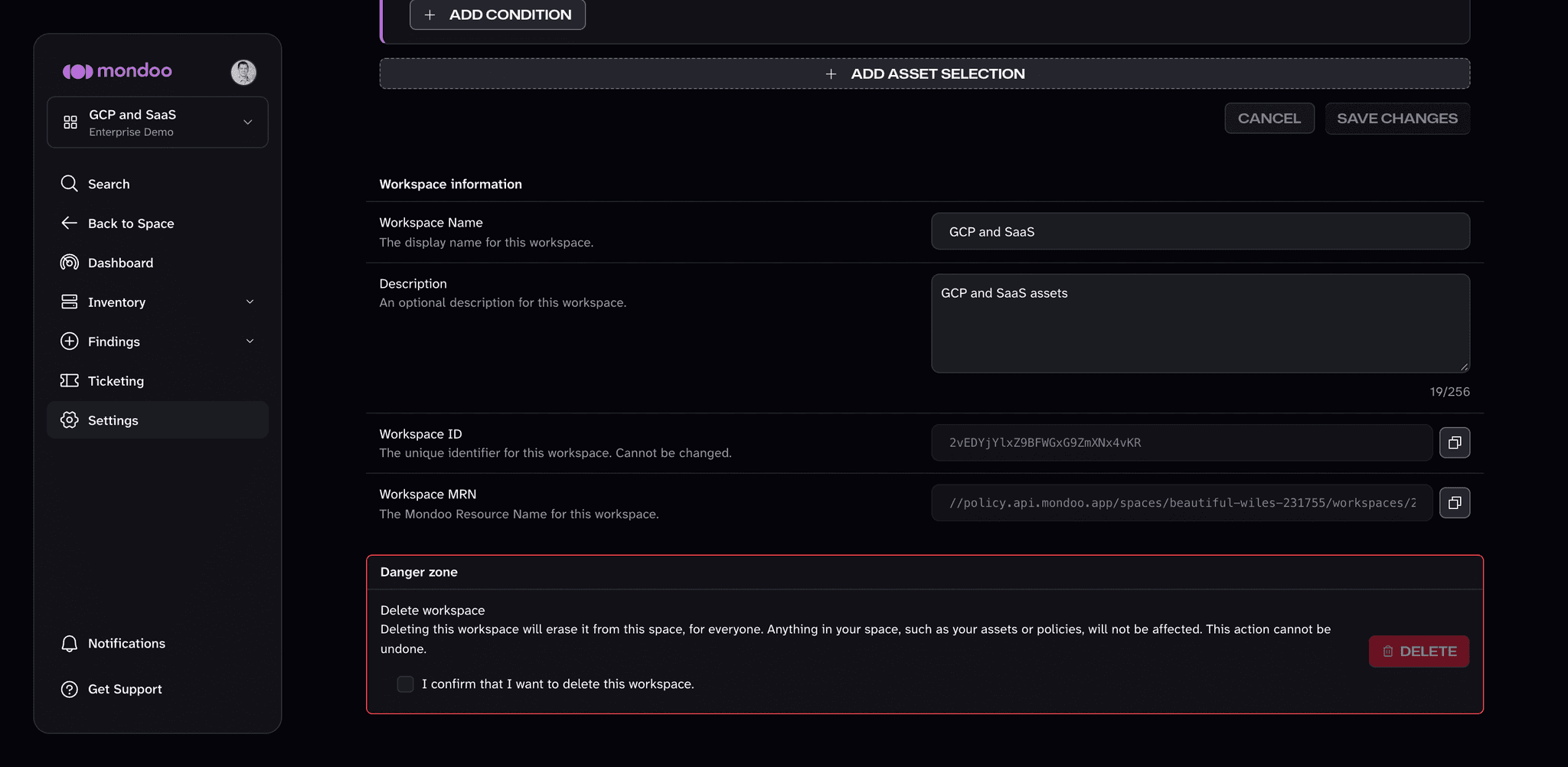
Scroll to the Danger zone at the bottom of the page.
-
Check the box to confirm the deletion and then select the DELETE button.
-
In the Delete Workspace? dialog, confirm that you want to delete the workspace.