Organizations
Group spaces together and manage team member access using Mondoo organizations.
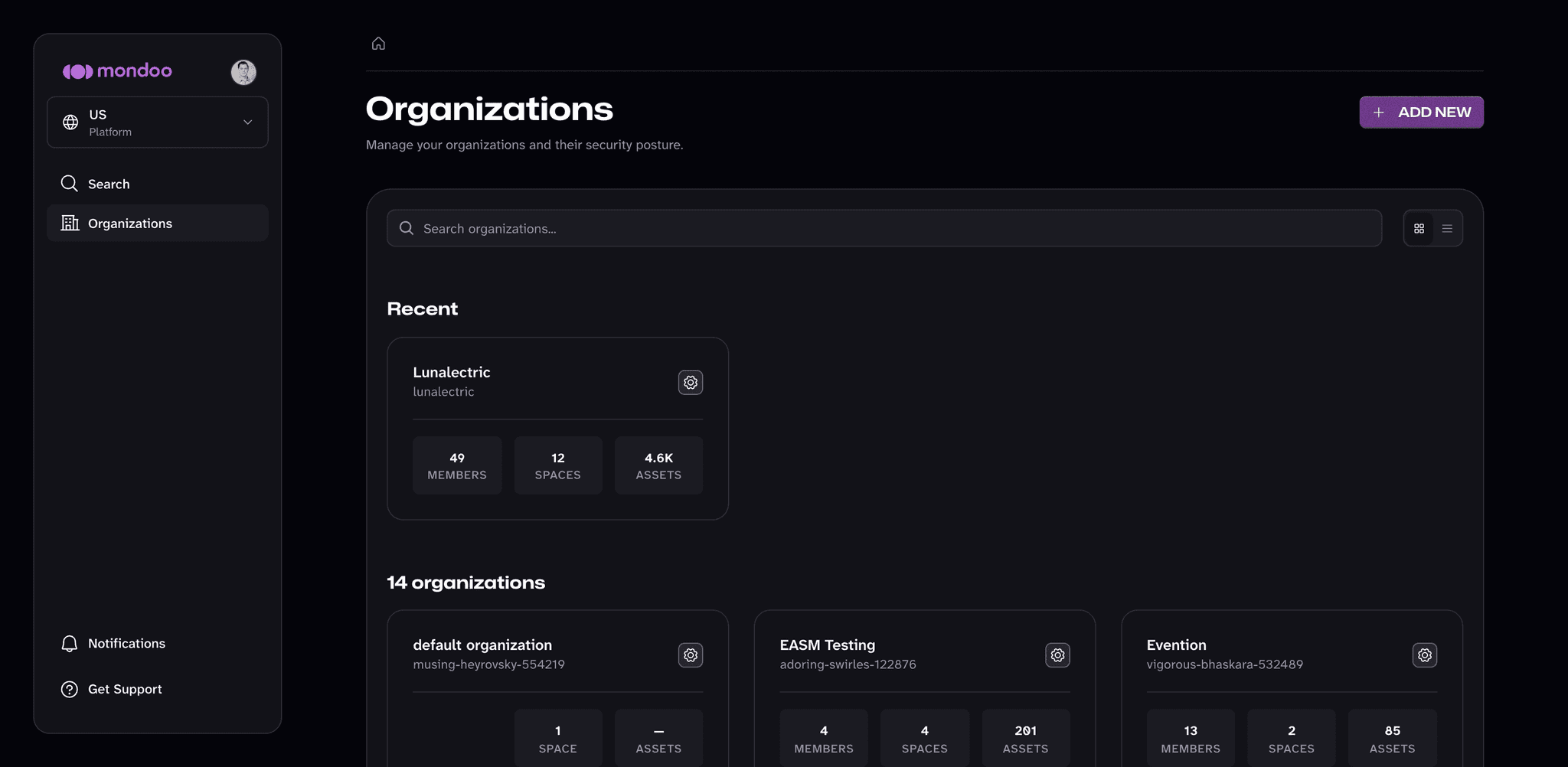
An organization is the top level of structure in Mondoo. It groups spaces together and controls who can access them.
Use organizations to separate the major parts of your business that have distinct teams and security requirements. Every Mondoo account has at least one organization. Most Mondoo customers need only one. Consider creating more than one only if you have business divisions that operate very differently and have separate dedicated teams.
Each organization has its own role-based access control (RBAC). You manage team member access and some Mondoo configuration (such as service accounts and tokens) for each organization.
Create a new organization
-
Open the Organizations page: Select the Mondoo logo at the top of the left navigation bar, or select the scope switcher and then Platform. If your account has more than one region, first switch to the region where you want to create the organization. (Enterprise customers with privately hosted accounts have a single region.)
-
Select the ADD NEW button.
-
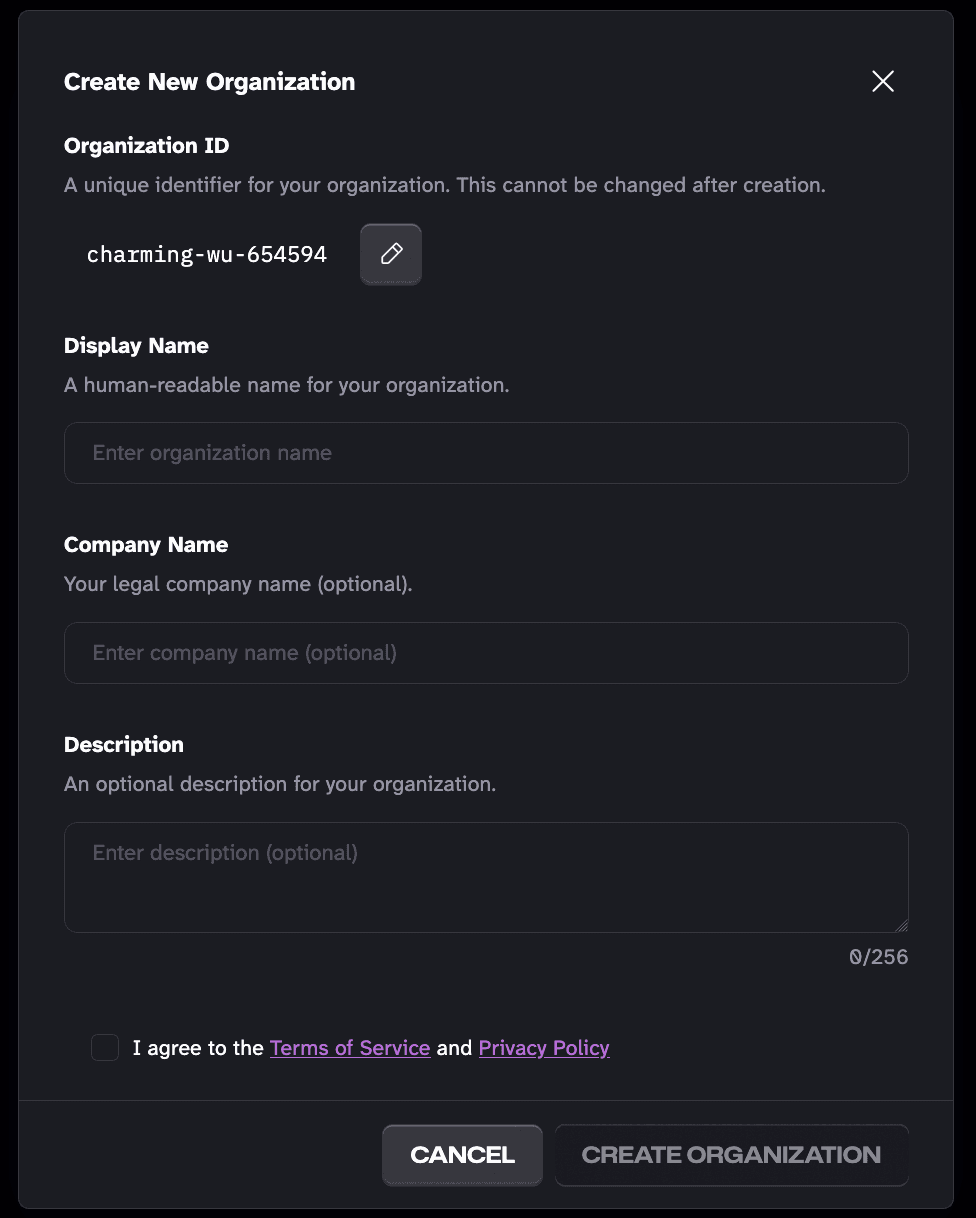
Mondoo picks an organization ID. To customize the ID, select the pencil icon and enter a new ID. The ID must be between 6 and 50 characters and can include lowercase letters, numbers, and hyphens. It must start with a lowercase letter and end with a letter or number. You can't change the ID after you create the organization.
-
In the Display Name box, enter a name for the organization. The name can be up to 50 characters long and can include letters, numbers, single quotes, hyphens, underscores, and spaces.
-
Optionally, enter a company name to help you track organizations across different companies.
-
Optionally, enter a description (up to 256 characters) to help your team understand the organization's purpose.
-
Check the box to agree to the terms of service and the privacy policy.
-
Select the CREATE ORGANIZATION button.
Mondoo creates the organization and opens its Spaces page, where you can create your first space.
Delete an organization
Deleting an organization permanently removes it, including all its spaces, assets, and reports. You can't undo this action.
-
Navigate to the organization you want to delete.
-
In the left navigation bar, expand Settings and select General.
-
In the Danger zone, under Delete Organization, check the box to confirm you want to delete the organization and all its related content.
-
Select the DELETE button.
To stop being a member of an organization without deleting it, use Leave Organization in the same Danger zone instead. Someone with permission must add you back if you want to return.