Export Data to an S3-Compatible Storage Service
Set up continuous export of assets, vulnerabilities, and scan results from Mondoo to MinIO, Ceph, or any other S3-compatible storage service.
Export your Mondoo security data to any S3-compatible object store, such as MinIO or Ceph, for long-term retention or integration with an on-premises data pipeline. For how exports work in general, read Continuous Data Exports.
Requirements
- Your S3-compatible object storage service up and running.
- The endpoint URL of the service. Consult your storage vendor or its documentation if you're not sure.
- An access key ID and secret access key pair for programmatic access. Consult your storage vendor for how to generate them.
- Editor or Owner access to the Mondoo space.
Create the integration
-
In the Mondoo App, navigate to the space. In the side navigation, select Integrations, then select INSTALL. Under Data Exports, select S3 Compatible Service.
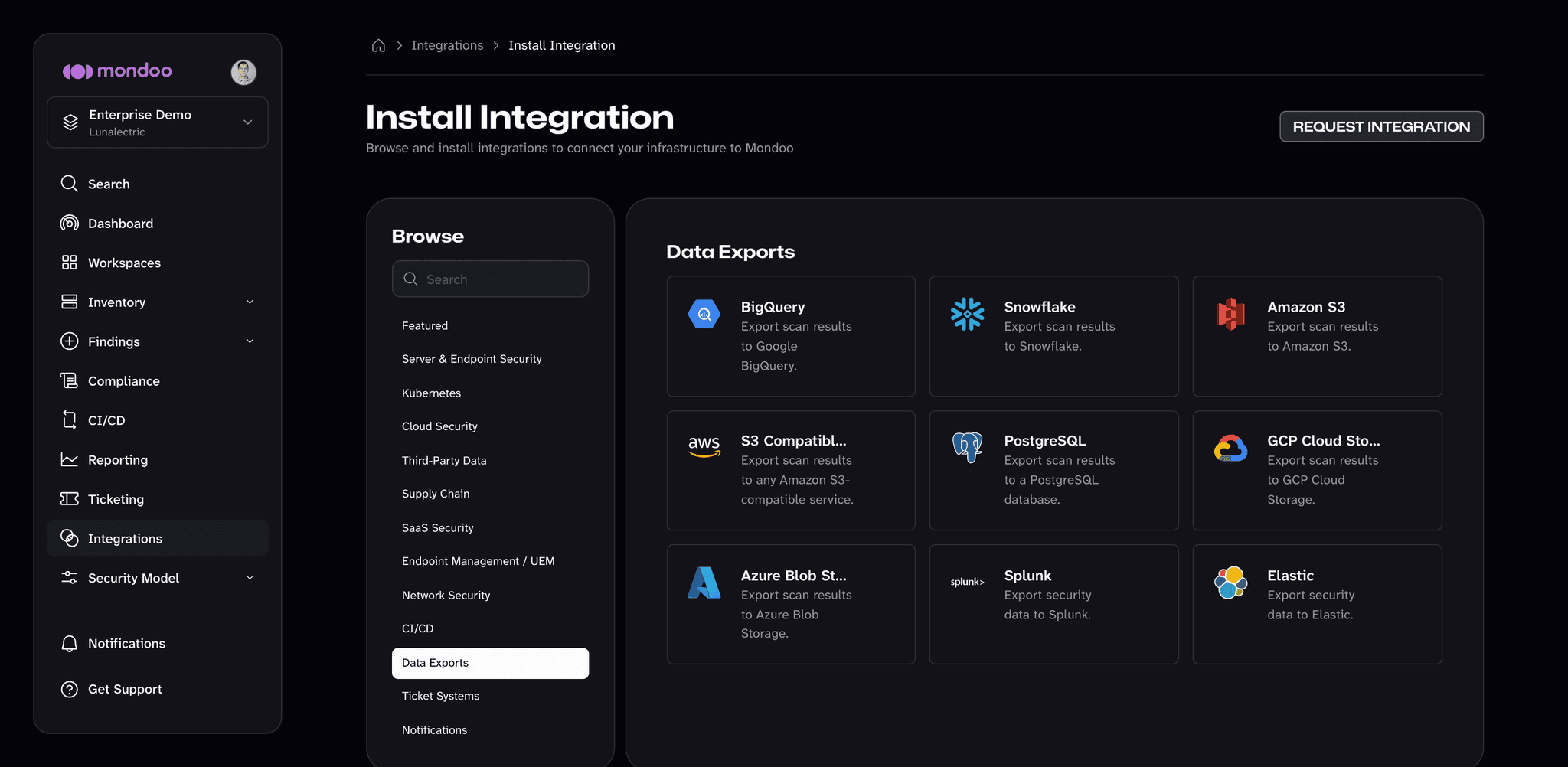
-
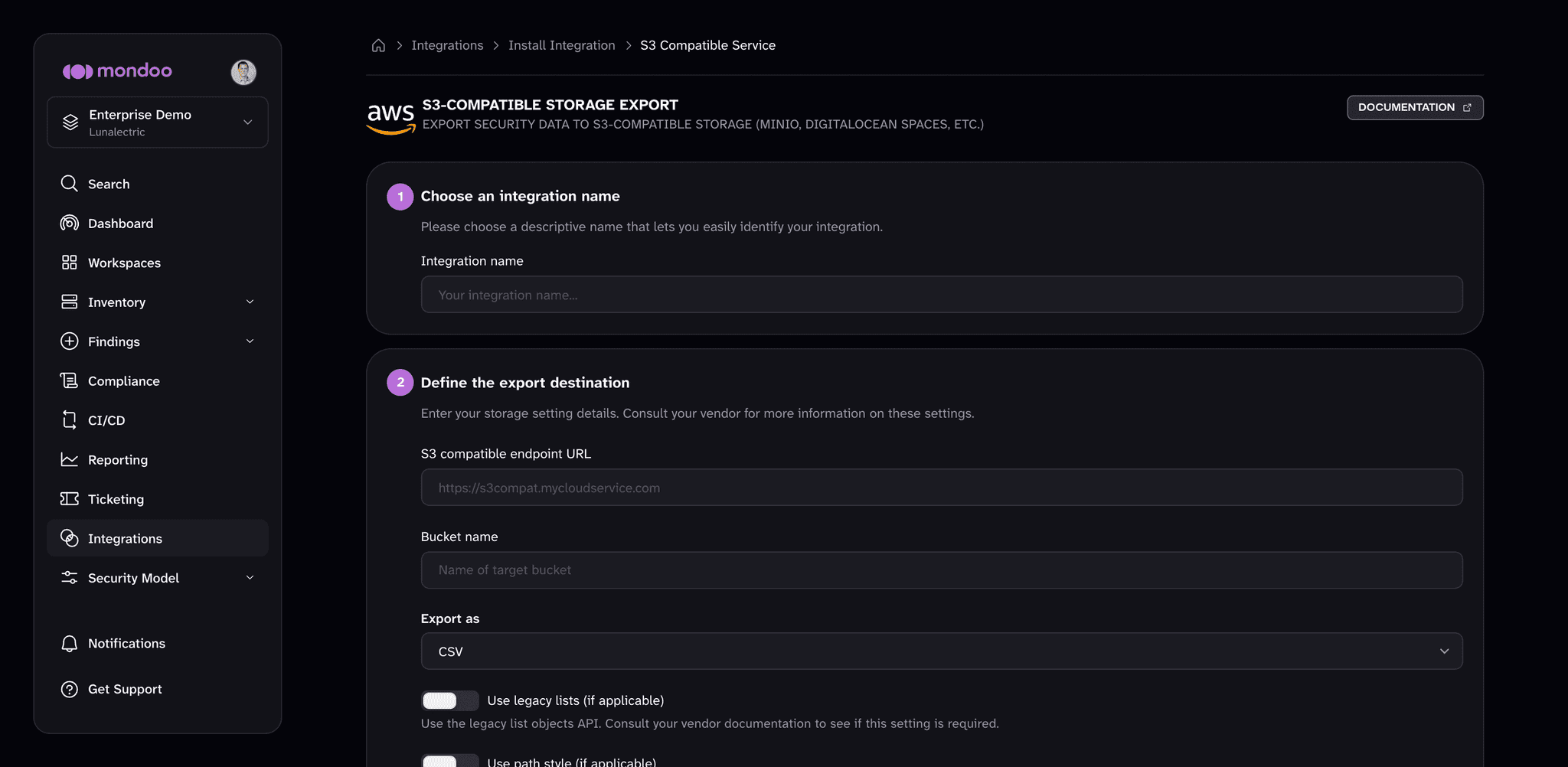
In the Integration name box, enter a name for the integration.
-
Under Define the export destination, fill in:
- S3 compatible endpoint URL. The endpoint URL for your service.
- Bucket name. The bucket Mondoo should write to.
- Export as. CSV or JSONL.
- Use legacy lists (if applicable) and Use path style (if applicable). Turn on either one if your service requires the legacy list objects API or path-style bucket addressing. Consult your vendor if you're unsure.
-
Under Enter your credentials, enter the Access key ID and Secret access key for programmatic access to the bucket.
-
Select Create Integration.
Mondoo starts the initial export. When it completes, the integration's status becomes ACTIVE and subsequent exports run automatically about every 24 hours.
Manage this integration
After it's created, find your integration under Integrations in your space's side navigation. Select it to open the detail page, where you can:
- Trigger a manual export. Exports run automatically about every 24 hours. To export immediately, select RUN.
- Check the status. ACTIVE means the integration is healthy and exporting on schedule. PENDING means Mondoo hasn't attempted the first export yet. ERROR means the last export failed. The Export Details section shows when the last export succeeded and when Mondoo last attempted one.
- Review the activity log. Most Recent Activity lists each export run's messages, such as when a job started, finished, or failed and why. Filter it to errors, warnings, or info messages.
- Change the settings. Select the pencil icon to edit the integration, for example to update credentials.
- Remove the integration. Select the trash can icon and confirm. Mondoo stops future exports but does not delete data that has already been exported.
Next steps
Google Cloud Storage
Set up continuous export of assets, vulnerabilities, and scan results from Mondoo to a Google Cloud Storage bucket using Workload Identity Federation or a service account key.
Google BigQuery
Set up continuous export of assets, vulnerabilities, and scan results from Mondoo to a Google BigQuery dataset using Workload Identity Federation or a service account key.