Export Vulnerability Findings to Elastic
Send Mondoo vulnerability findings to an Elasticsearch index as Elastic Common Schema (ECS) documents.
Send Mondoo vulnerability findings to Elasticsearch so you can search, visualize, and alert on them in Kibana or Elastic Security. Mondoo writes each finding to the index you choose as a document that follows the Elastic Common Schema (ECS). For how exports work in general, read Continuous Data Exports.
Requirements
- An Elasticsearch deployment reachable from the internet: either an Elastic Cloud deployment or a self-managed cluster.
- An Elasticsearch API key that can write to the target index. To learn how to create one, read Create an API key in the Elastic documentation.
- Editor or Owner access to the Mondoo space from which you want to export findings.
Create the integration
-
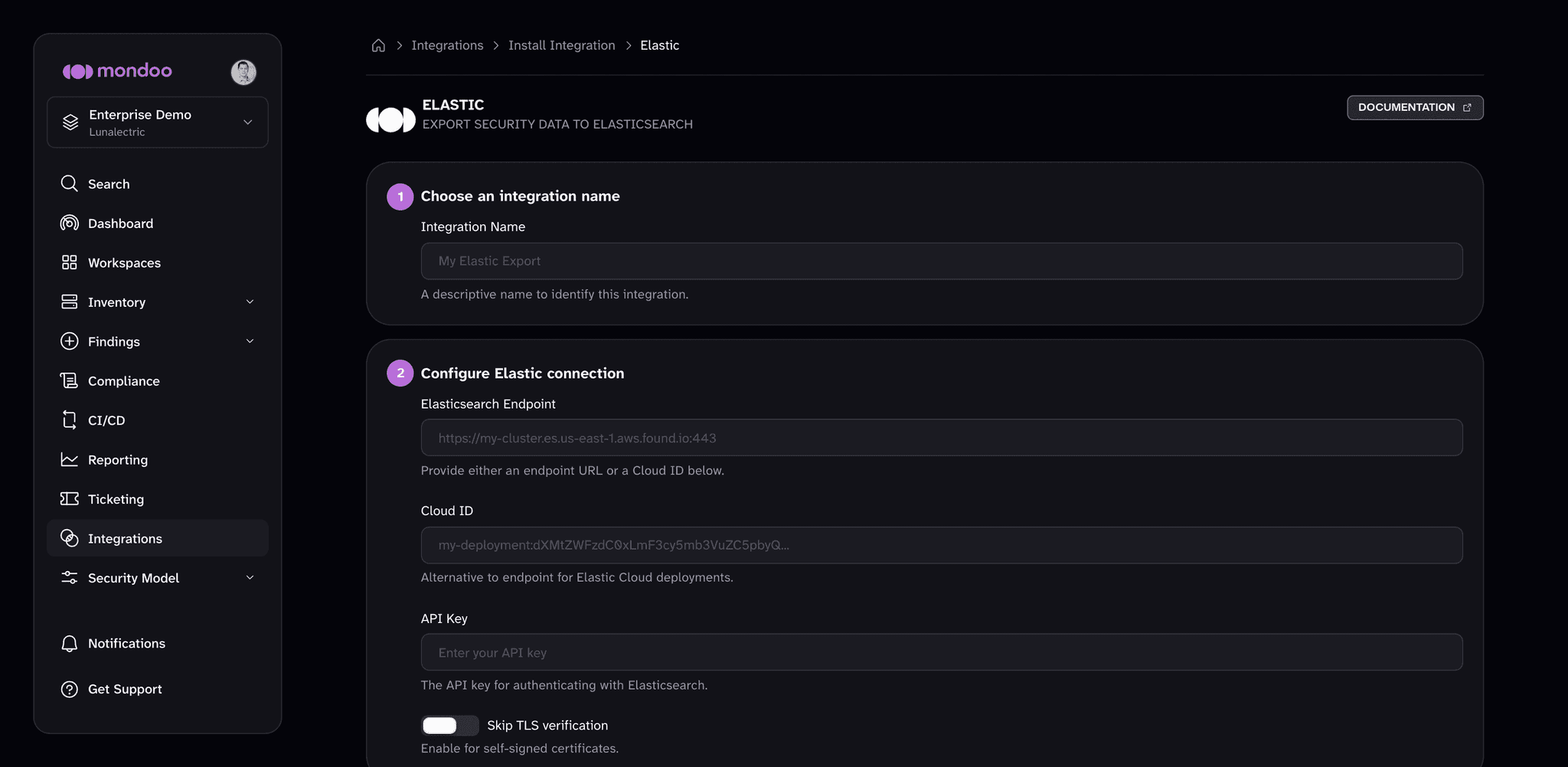
In the Mondoo App, navigate to the space. In the side navigation, select Integrations, then select INSTALL. Under Data Exports, select Elastic.
-
In the Integration Name box, enter a name for the integration.
-
Under Configure Elastic connection, identify your deployment with one of these, not both:
- Elasticsearch Endpoint. The URL of your cluster, for example
https://my-cluster.es.us-east-1.aws.found.io:443. - Cloud ID. The Cloud ID of your Elastic Cloud deployment, found on the deployment's overview page in Elastic Cloud.
- Elasticsearch Endpoint. The URL of your cluster, for example
-
In the API Key box, enter the API key. Turn on Skip TLS verification only if your endpoint uses a self-signed certificate.
-
Under Configure Elastic destination, in the Index box, enter the name of the index Mondoo writes to, for example
mondoo-vulnerabilities. -
Select Create Integration.
Mondoo doesn't send data as soon as you create the integration. The first export runs within about 24 hours. To send findings right away, open the integration's detail page and select RUN.
What Mondoo sends
Each export run writes one document per vulnerability finding in the space, using the Elasticsearch bulk API in batches of 100. Mondoo adds new documents on every run rather than updating earlier ones, so the index keeps a copy of each finding from each run. Filter on @timestamp to see the most recent run.
Each document uses these ECS fields:
| Field | Value |
|---|---|
@timestamp | The time of the export run |
event.kind | alert |
event.category | vulnerability |
event.module | mondoo |
event.dataset | mondoo.vulnerability |
vulnerability.id | The vulnerability ID, such as a CVE or advisory ID |
vulnerability.description | The vulnerability summary |
vulnerability.score.base | The CVSS score, for example 9.8 |
vulnerability.severity | The CVSS severity |
host.name | The name of the affected asset |
host.id | The Mondoo ID (MRN) of the affected asset |
observer.vendor | Mondoo |
Manage this integration
After it's created, find your integration under Integrations in your space's side navigation. Select it to open the detail page, where you can:
- Trigger a manual export. Exports run automatically about every 24 hours. To export immediately, select RUN.
- Check the status. ACTIVE means the integration is healthy and exporting on schedule. PENDING means Mondoo hasn't attempted the first export yet. ERROR means the last export failed. The Export Details section shows when the last export succeeded and when Mondoo last attempted one.
- Review the activity log. Most Recent Activity lists each export run's messages, such as when a job started, finished, or failed and why. Filter it to errors, warnings, or info messages.
- Change the settings. Select the pencil icon to edit the integration, for example to update credentials.
- Remove the integration. Select the trash can icon and confirm. Mondoo stops future exports but does not delete data that has already been exported.