Export Data to Azure Blob Storage
Set up continuous export of assets, vulnerabilities, and scan results from Mondoo to Azure Blob Storage containers.
Export your Mondoo security data to Azure Blob Storage for long-term retention, custom reporting, or integration with an Azure-based data pipeline. For how exports work in general, read Continuous Data Exports.
Requirements
-
A Microsoft Azure account with an active subscription
-
Permission to manage storage containers in the Azure account
-
Editor or Owner access to the space from which you want to export data
Create a new storage account
-
Log into the Azure portal as a global administrator, application administrator, or cloud application administrator.
-
Select or search for Storage accounts.
-
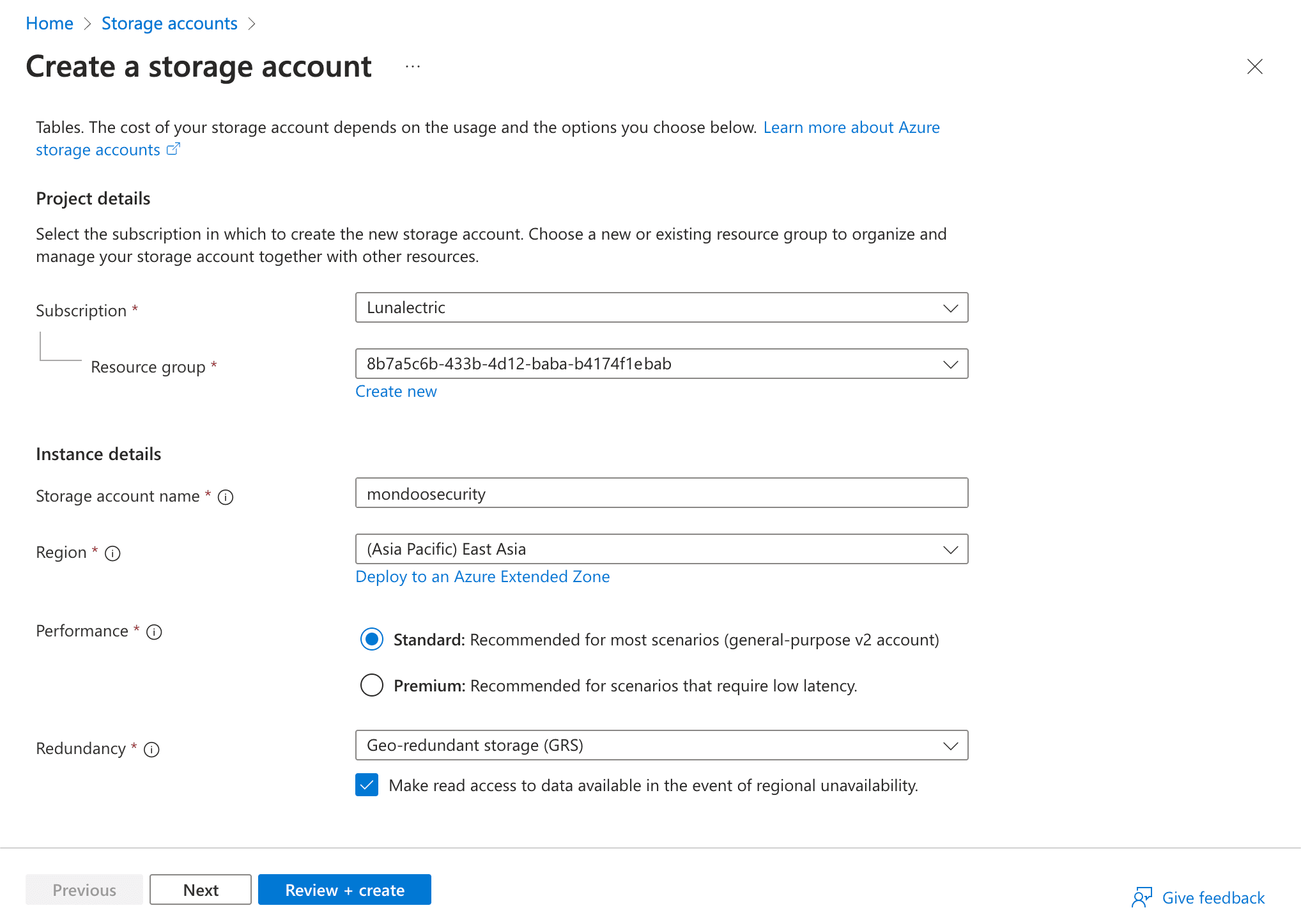
In the toolbar, select + Create.
-
Give the account a name that indicates it's for Mondoo. Choose your own region and performance options and select the Next button.
-
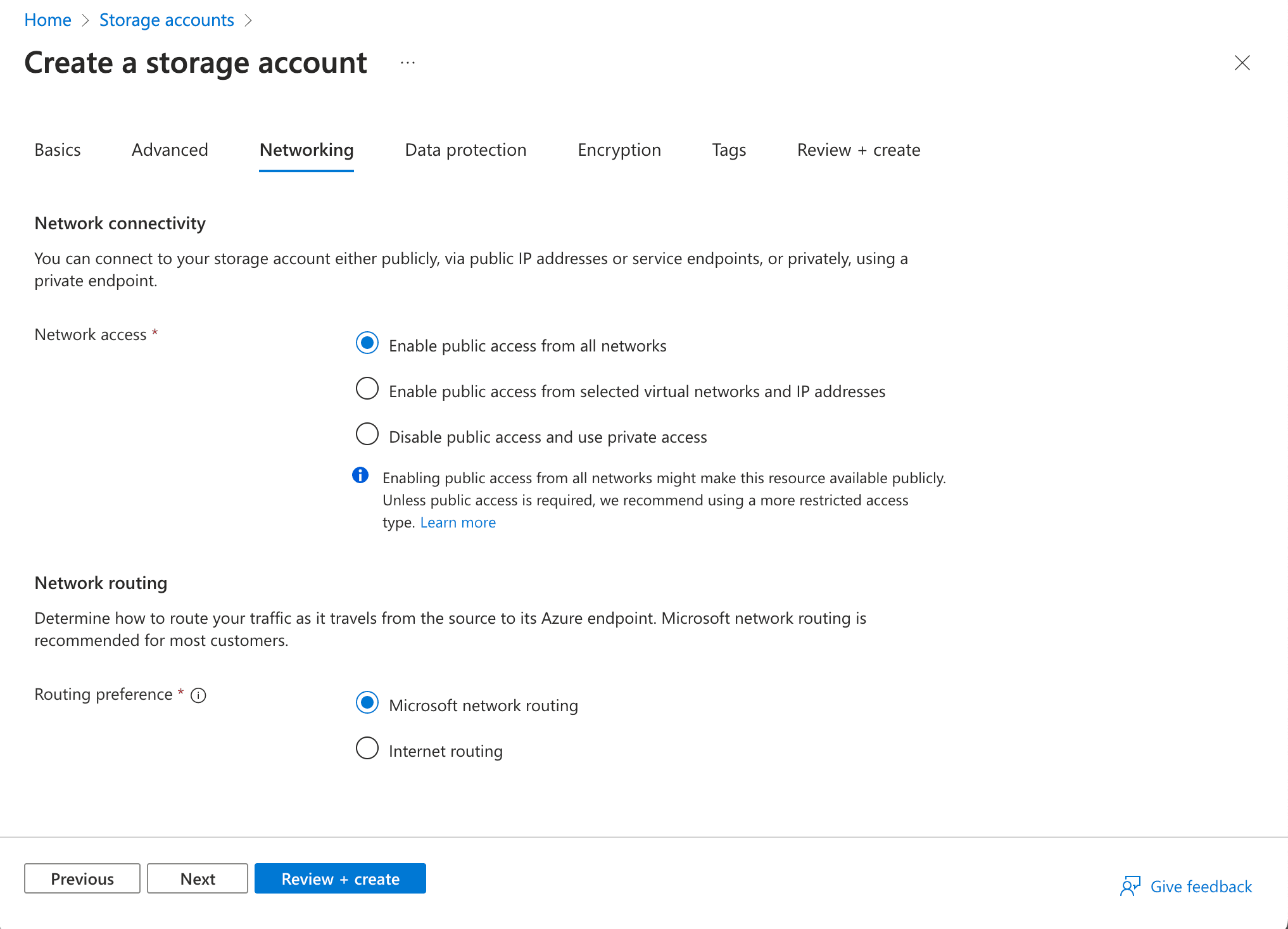
Select the Networking tab, select Enable public access from all networks, and select the Review and create button.
-
Select the Create button and wait for Azure to create and deploy the storage account. When finished, select the Go to resource button.
-
In the left menu, under Security and networking, select Networking. Ensure that Enabled from all networks is selected and there is no message about requiring a private endpoint.
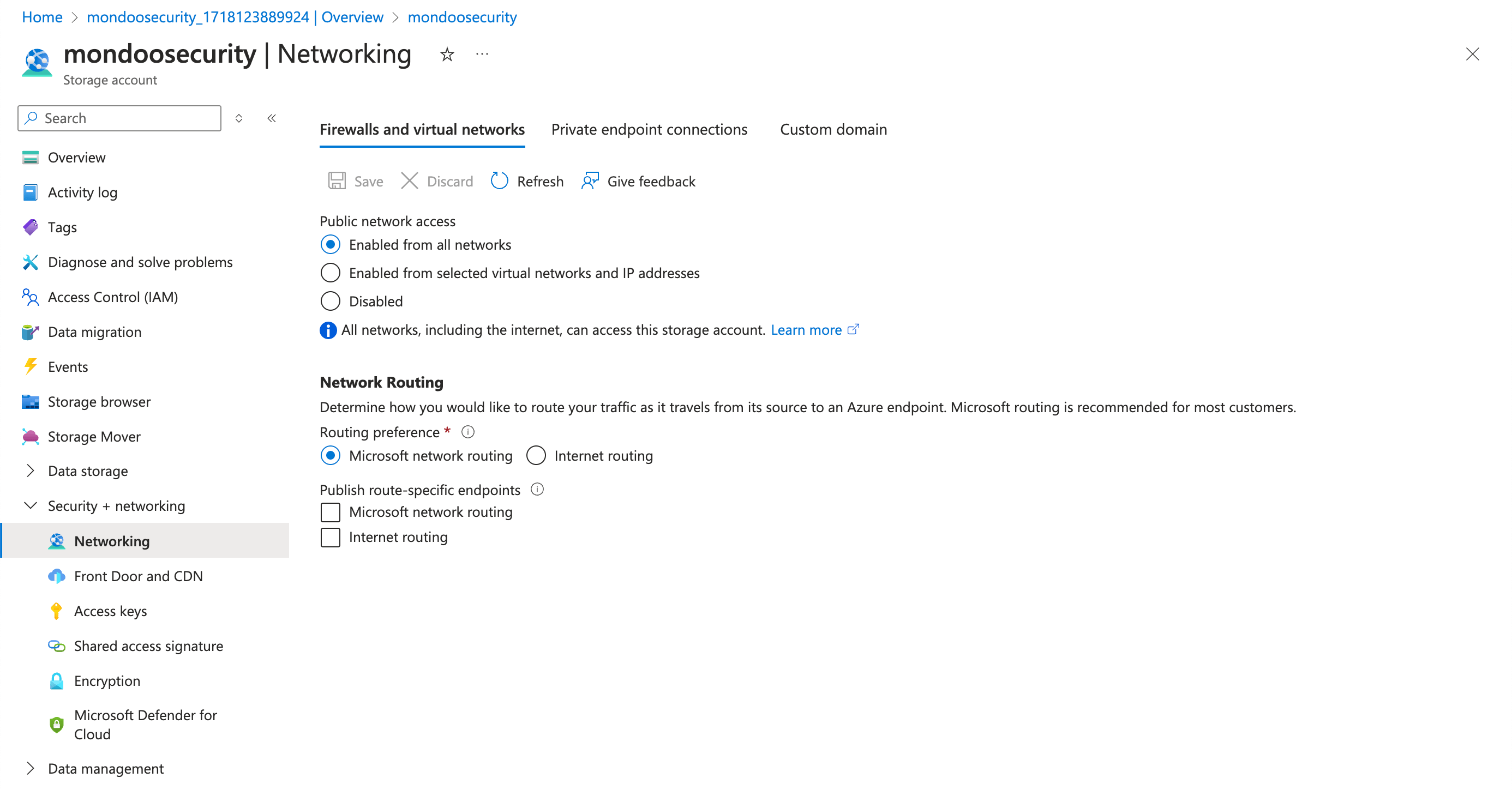
If Azure indicates (in a note below the Enabled from all networks option) that a private endpoint is required, create a private endpoint so that Mondoo can access the storage account. For instructions, read Create a private endpoint in the Azure documentation.
Create a new container
-
Log into the Azure portal as a global administrator, application administrator, or cloud application administrator.
-
Select or search for Storage accounts.
-
Select the storage account where you want to export your Mondoo data.
-
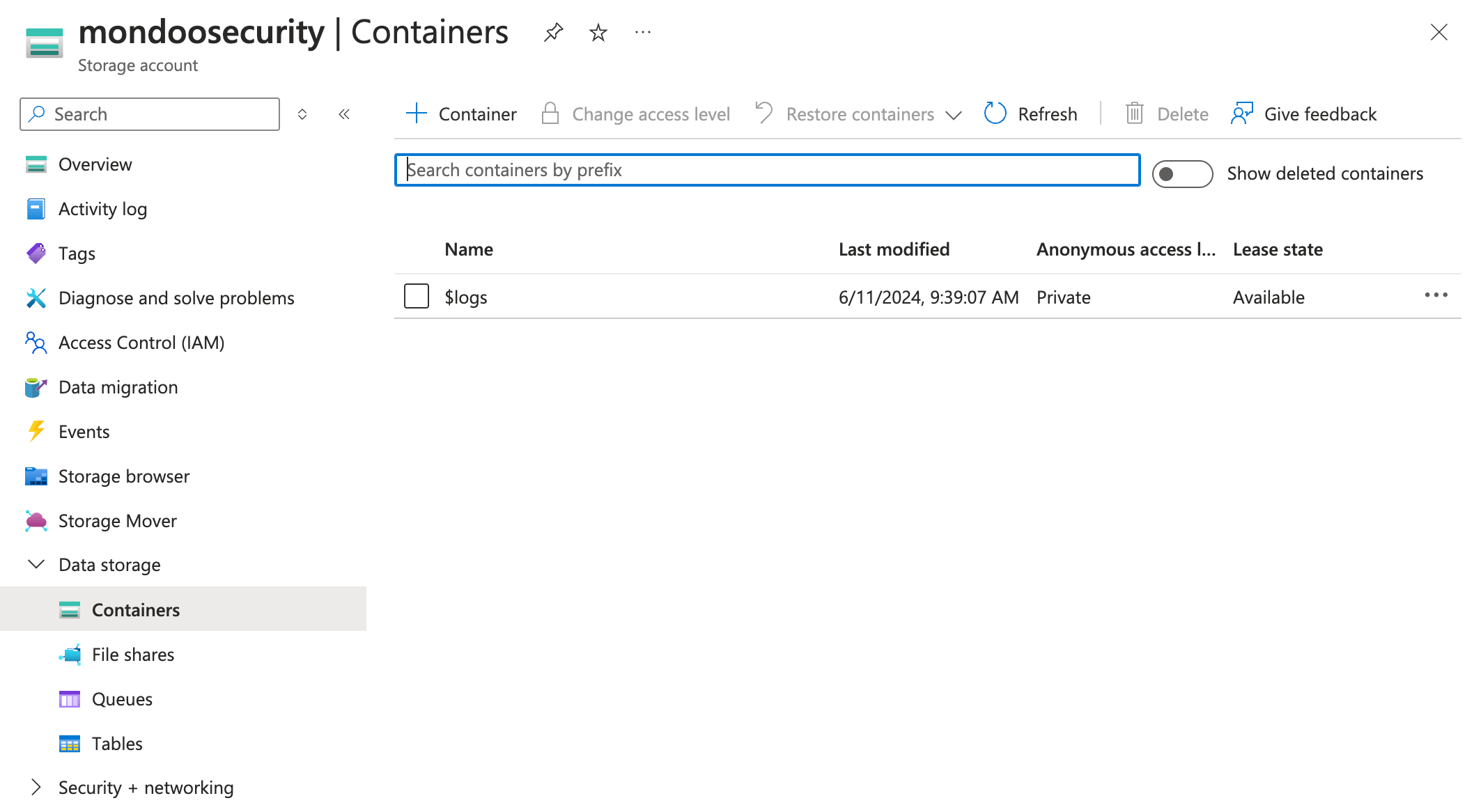
In the left menu, under Data storage, select Containers.
-
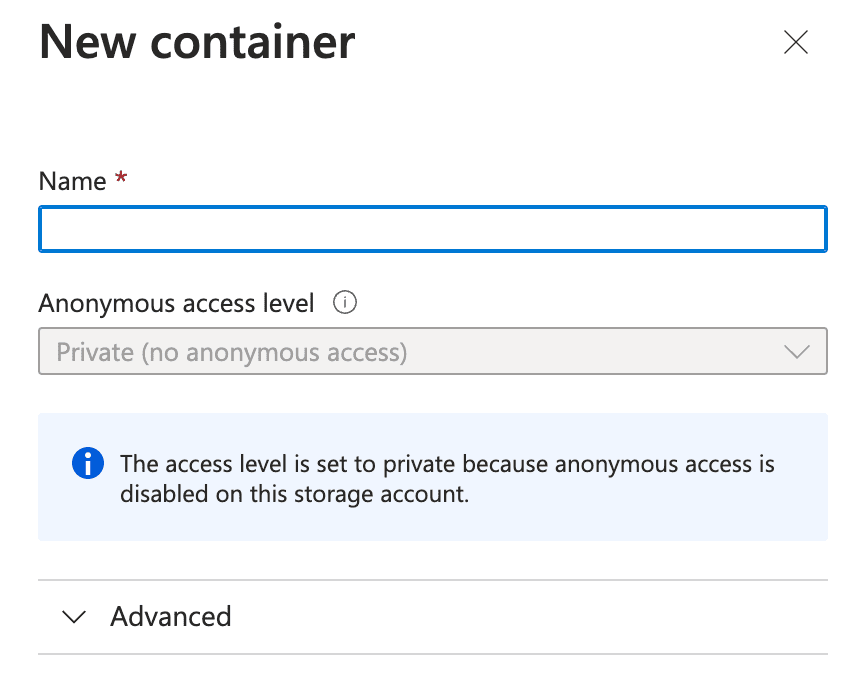
On the toolbar, select + Container.
-
Name the container and select the Create button.
Create a container access token
Mondoo relies on a shared access token to export data to Azure storage blobs. Create a shared access token for the container where you want Mondoo to export data from the Mondoo space.
-
Log into the Azure portal as a global administrator, application administrator, or cloud application administrator.
-
Select or search for Storage accounts.
-
Select the storage account that holds the container where you want to export Mondoo data.
-
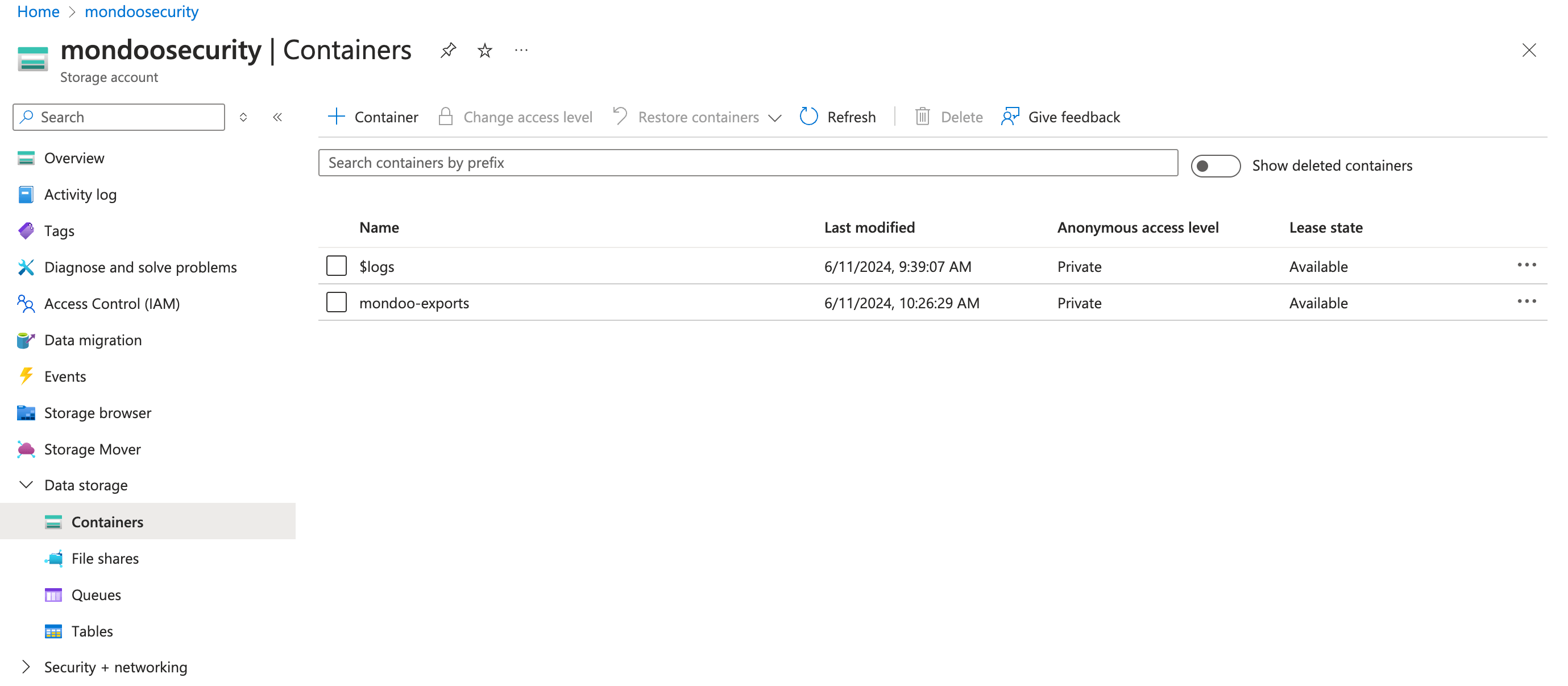
In the left menu, under Data storage, select Containers.
-
Select the container where you want to export Mondoo data.
-
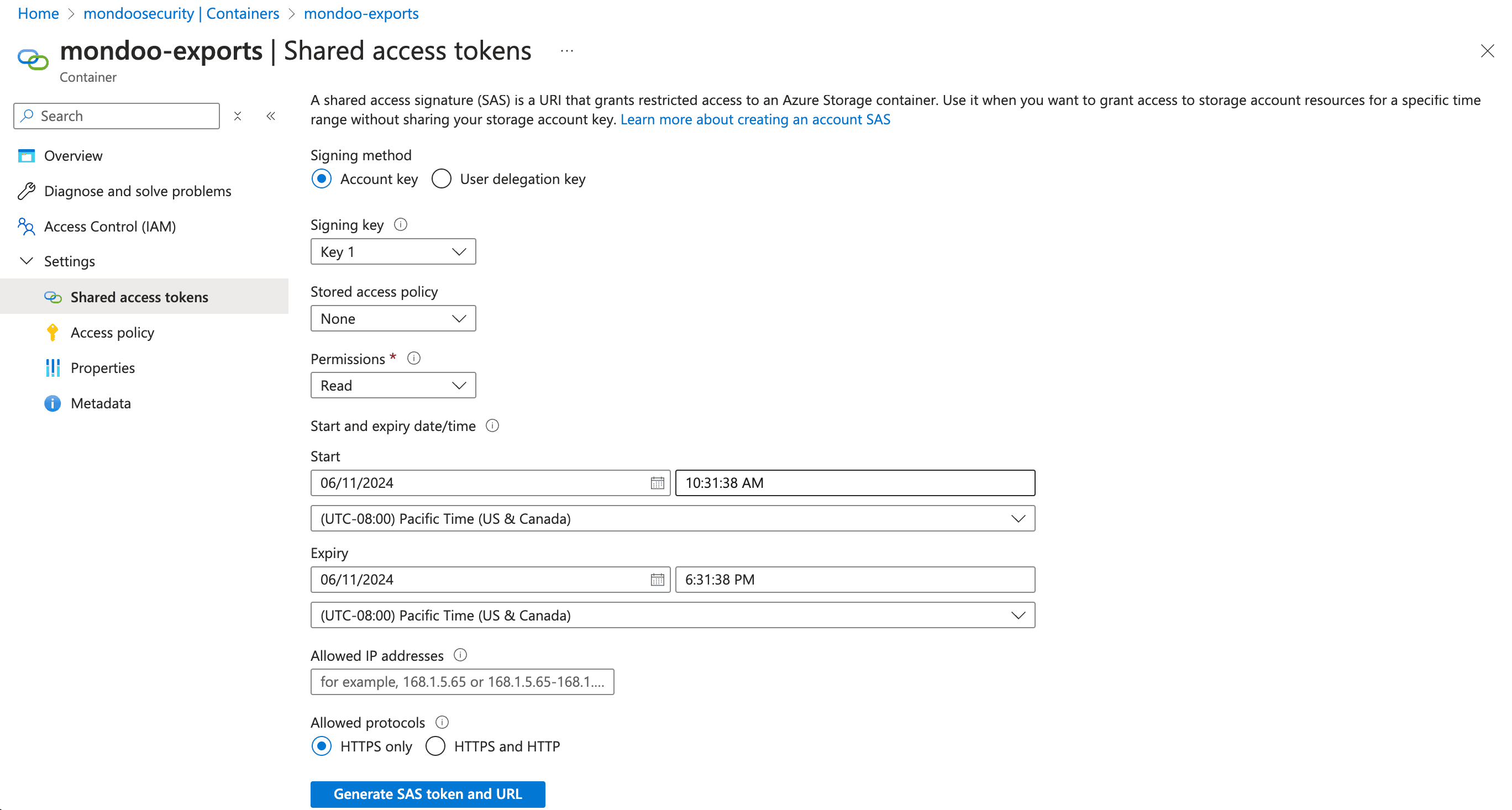
In the left navigation, under Settings, select Shared access tokens.
-
In the Permissions drop-down list, select:
-
Read
-
Add
-
Create
-
Write
-
List
-
-
Under Expiry, set a date far enough in the future that your Mondoo export continues working.
-
Select the Generate SAS token and URL button.

-
In the Blob SAS URL box, select the copy icon to copy the URL to your clipboard. You need this for your next steps below.
Add an Azure Blob Storage integration
-
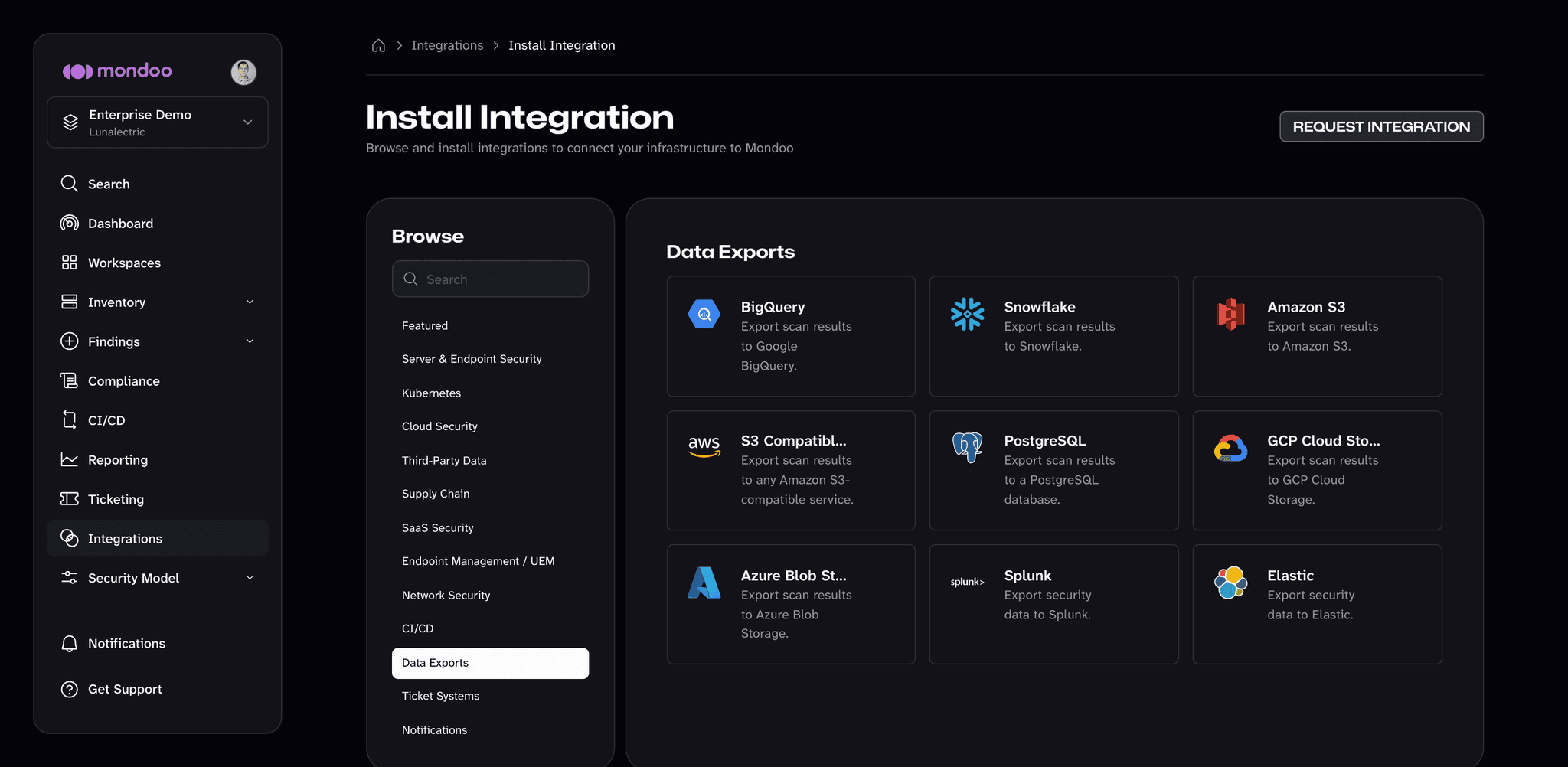
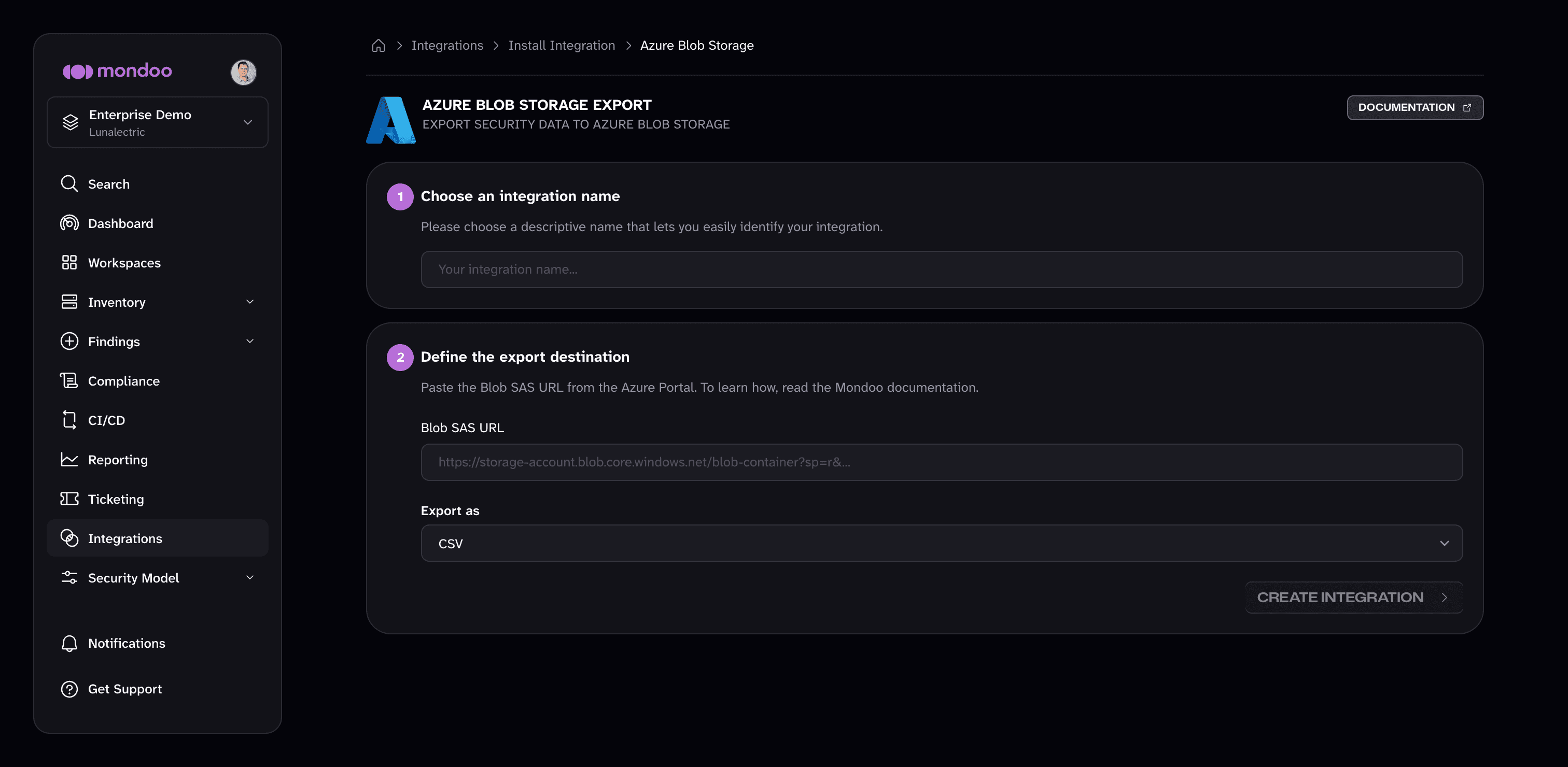
In a new browser tab, open the Mondoo App. Navigate to the space from which you want to export data. In the side navigation bar, select Integrations, then select INSTALL. Under Data Exports, select Azure Blob Storage.
-
In the Integration name box, enter a name for the integration.
-
In the Blob SAS URL box, paste the URL you copied in the previous section.
-
Under Export as, select CSV or JSONL.
-
Select Create Integration.
Mondoo begins exporting data from your space. When the initial export completes, the status becomes active. Exports then run automatically approximately every 24 hours.
Manage this integration
After it's created, find your integration under Integrations in your space's side navigation. Select it to open the detail page, where you can:
- Trigger a manual export. Exports run automatically about every 24 hours. To export immediately, select RUN.
- Check the status. ACTIVE means the integration is healthy and exporting on schedule. PENDING means Mondoo hasn't attempted the first export yet. ERROR means the last export failed. The Export Details section shows when the last export succeeded and when Mondoo last attempted one.
- Review the activity log. Most Recent Activity lists each export run's messages, such as when a job started, finished, or failed and why. Filter it to errors, warnings, or info messages.
- Change the settings. Select the pencil icon to edit the integration, for example to update credentials.
- Remove the integration. Select the trash can icon and confirm. Mondoo stops future exports but does not delete data that has already been exported.
Next steps
Amazon S3
Set up continuous export of assets, vulnerabilities, and scan results from Mondoo to an Amazon S3 bucket using one-click Workload Identity Federation, manual WIF, or an access key.
Google Cloud Storage
Set up continuous export of assets, vulnerabilities, and scan results from Mondoo to a Google Cloud Storage bucket using Workload Identity Federation or a service account key.