Automatically Set Up Microsoft 365 Continuous Scanning
Use the automated setup to configure the Mondoo Microsoft 365 integration via a generated command in Azure Cloud Shell.
The automated setup runs a generated command in Azure Cloud Shell to provision everything Mondoo needs to continuously scan your Microsoft 365 environment.
Need full control of the Azure app registration, or scanning a large environment? See the manual setup instead.
Prerequisites
- Editor or Owner access to the Mondoo space
- Azure Cloud Shell access
- An Azure account with an active subscription, plus a Microsoft Entra role that can manage applications:
Check your roles in the Azure portal: Microsoft Entra ID > Users > (your account) > Assigned roles.
Add a Microsoft 365 integration
In the Mondoo App, navigate to the space where you want to add the integration. In the side navigation bar, select Integrations. In the top right, select + INSTALL. On the integrations page, find the integration you want by browsing or searching by name:
-
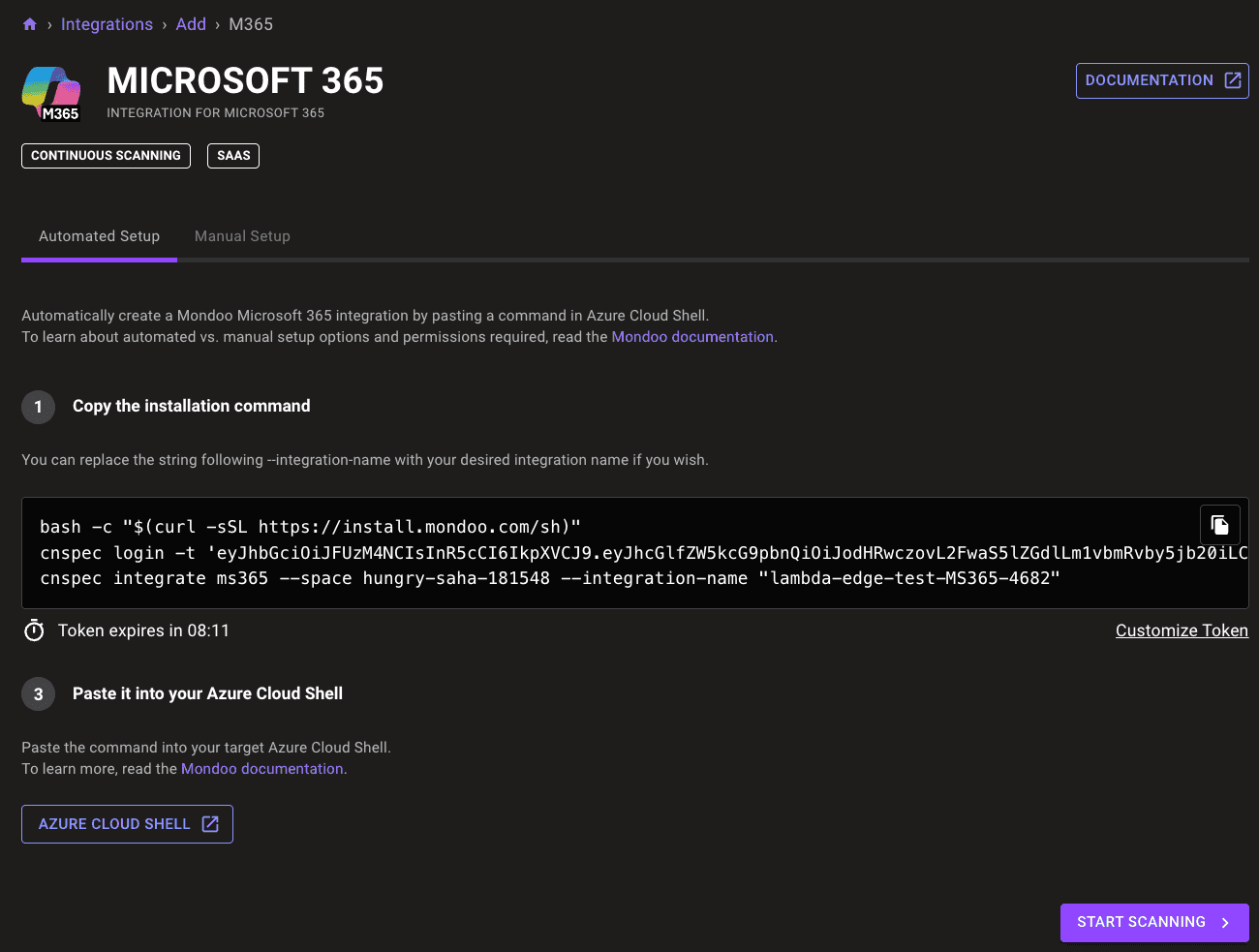
Under SaaS, select Microsoft 365.
-
Under Install cnspec and set your Mondoo credentials, select Generate setup command.
cnspec integrate ms365creates the integration in your space, so it needs a Mondoo credential with the Editor role. Mondoo mints a short-lived one for you and builds a command that installs cnspec and exports the credential asMONDOO_CONFIG_BASE64.This credential is used only to run the integrate command. Once the integration exists, it gets its own identity, so your scans keep running. The credential expires after 24 hours; if you come back later, generate a fresh one.
-
Select the copy icon to copy the setup command.
-
(Optional) Under Enable security policies, choose the policies you want to use to assess your Microsoft 365 environment. To learn more, read Manage Policies.
-
Under Copy the installation command, Mondoo generates a custom
cnspec integrate ms365command for you.Mondoo names the integration automatically. To use a different name, change the value after
--integration-namein the command, or rename later in the Mondoo App. The name must be 7–34 characters and may include lowercase letters, numbers, single quotes, hyphens, spaces, and exclamation points; it must start with a lowercase letter and end with a letter or number. -
Select the copy icon to copy the command.
-
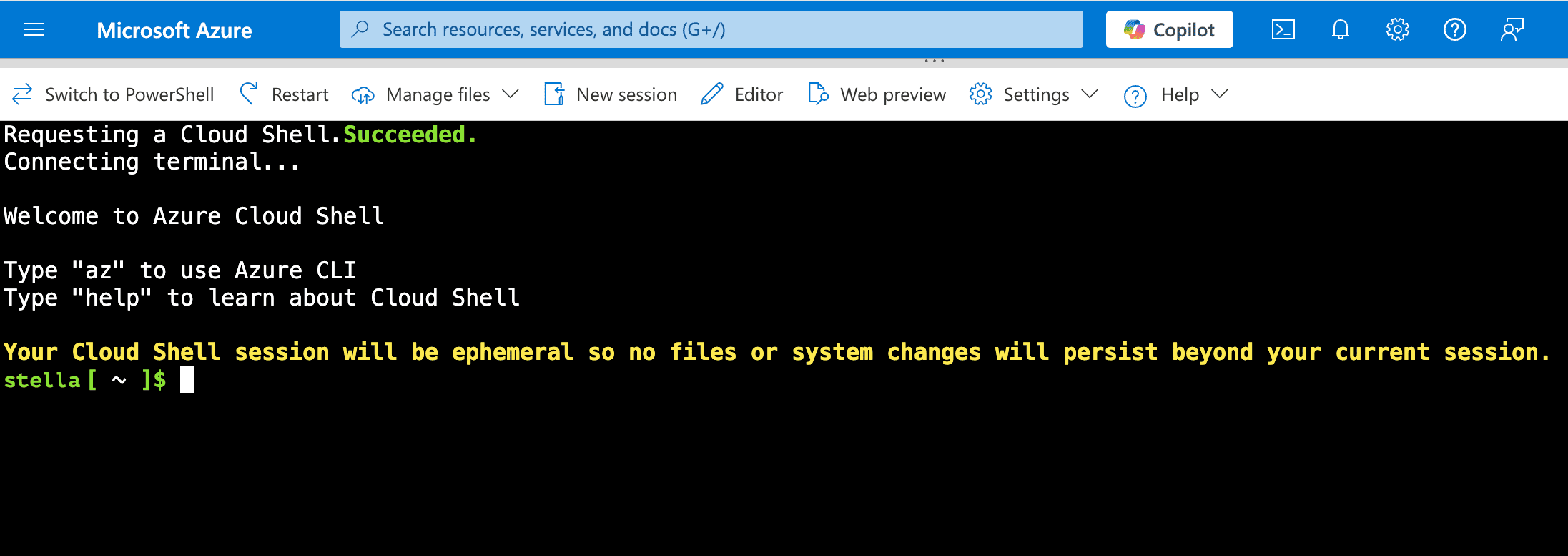
Select AZURE CLOUD SHELL to open Azure Cloud Shell. Paste and run the setup command from step 3, then the installation command from step 6.
-
Respond to the prompts:
a. Primary subscription. This is where Mondoo creates the resources it needs, not which subscription it scans. Use arrow keys to choose, then press Enter.

b. Show details. Pick 2. Show details and press Enter to review the resources the automation will create.
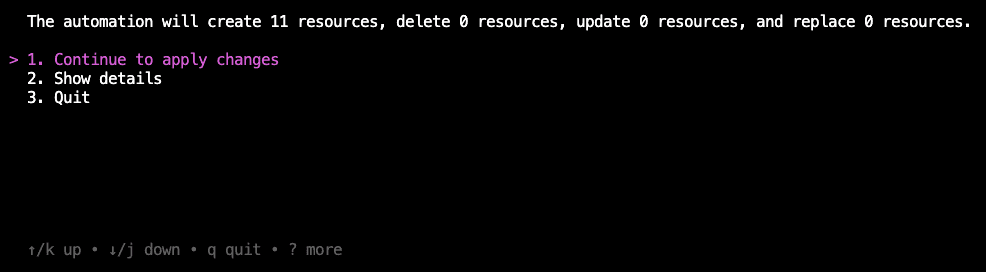
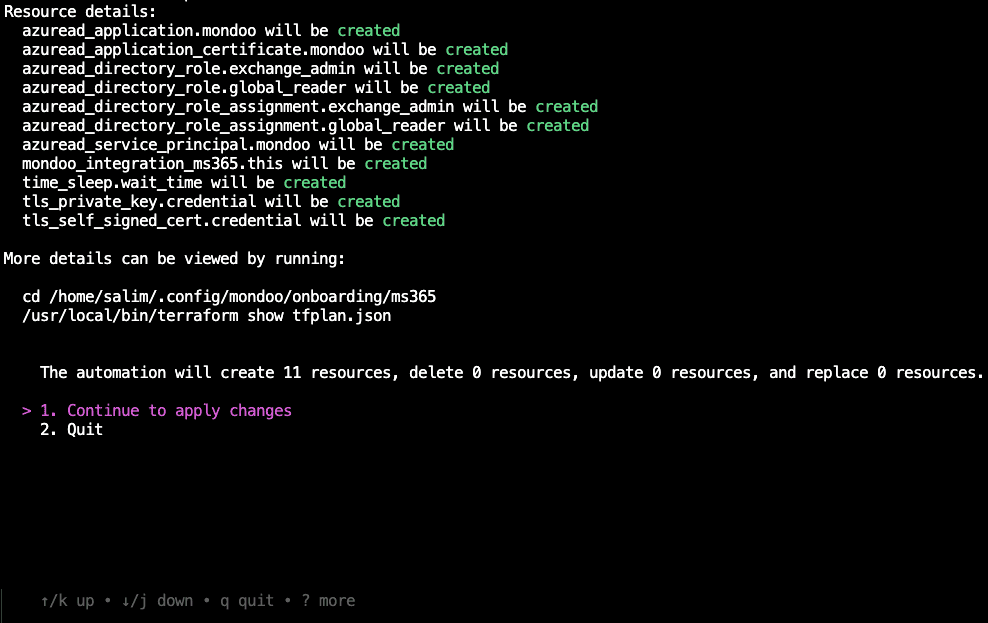
c. Confirm. Press Enter to continue. When the automation reports success, you're done in Cloud Shell.
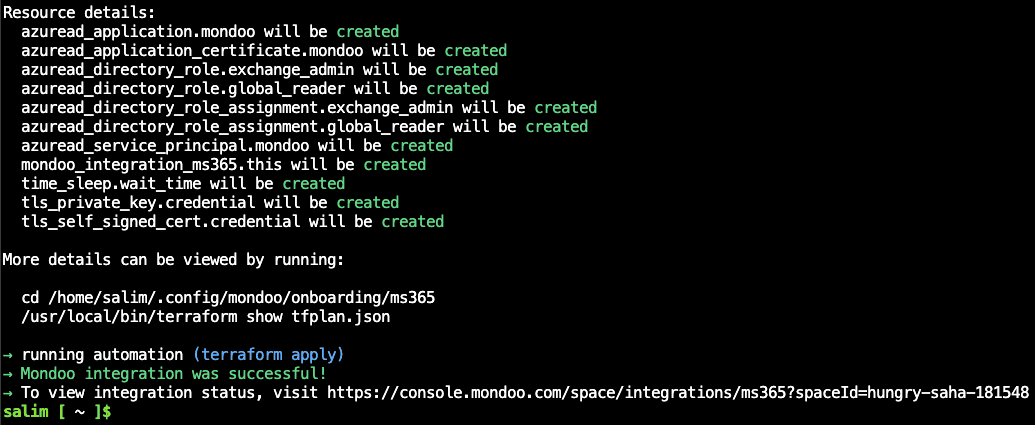
If the success message doesn't appear within 5 minutes, see Troubleshoot below.
-
Return to the Mondoo App. The new integration appears under Integrations and begins scanning your Microsoft 365 environment.
Troubleshoot
- The command fails with a permission error creating the integration. Your
MONDOO_CONFIG_BASE64credential expired or was never exported. Return to the add-integration page, select Generate setup command again, and run the fresh command before the installation command. - Automation pauses for more than two minutes after you choose the primary subscription. Press Ctrl+C to end, then paste the command again to re-run it.
- Automation fails. Confirm you're logged in to Azure with one of the required roles listed above.
- Integration not visible in the Mondoo App after the automation succeeds. Refresh the browser.
Renew the application certificate
cnspec integrate ms365 generates a self-signed certificate valid for 4,096 hours, roughly 170 days. When it expires, the integration stops working. Renew it with the Azure CLI, which issues certificates with a one-year default lifetime.
-
Note the application ID of the app registration Mondoo created.
-
In Azure Cloud Shell, run (substituting your application ID):
az ad app credential reset --id XXXXXXXX-XXXX-XXXX-XXXX-XXXXXXXX --create-cert -
Download the certificate from Cloud Shell's Manage files button.
-
In the Mondoo App, navigate to Integrations > Microsoft 365 > your M365 integration and edit it.
-
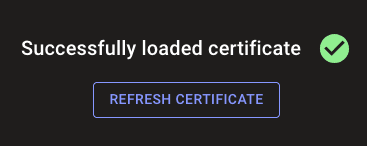
Upload the new certificate in the field shown:
-
Save the updated configuration.