Manually register the Azure app and configure the Mondoo Microsoft 365 integration.
Manually register an Azure app and configure the Mondoo Microsoft 365 integration. Most users should use the automated setup instead; choose the manual path when you need full control or your environment requires it.
Continuous M365 scanning requires a Microsoft Entra ID app registration. The registration creates a service principal that represents Mondoo in your tenant.
The setup is four steps: register the app, grant Microsoft Graph permissions, assign the Global Reader role, and upload an authentication certificate.
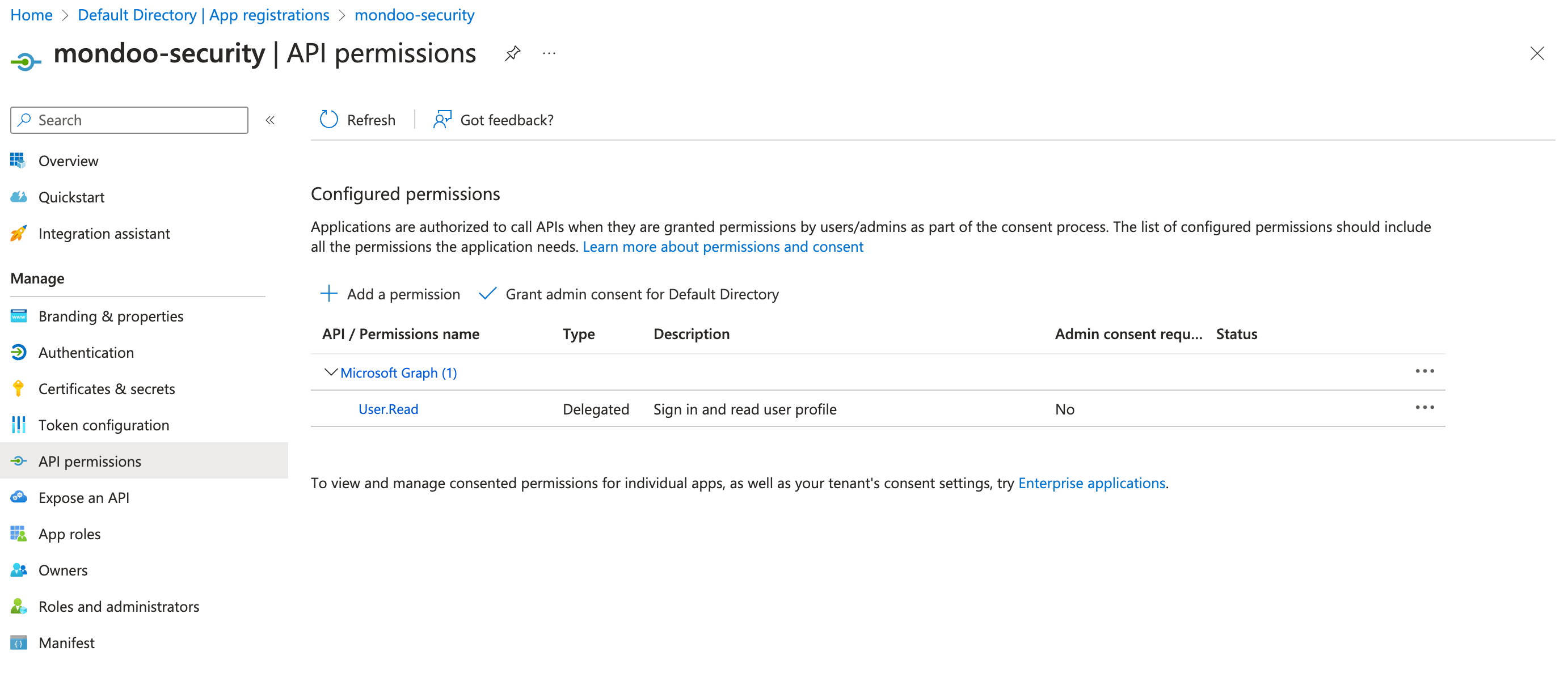
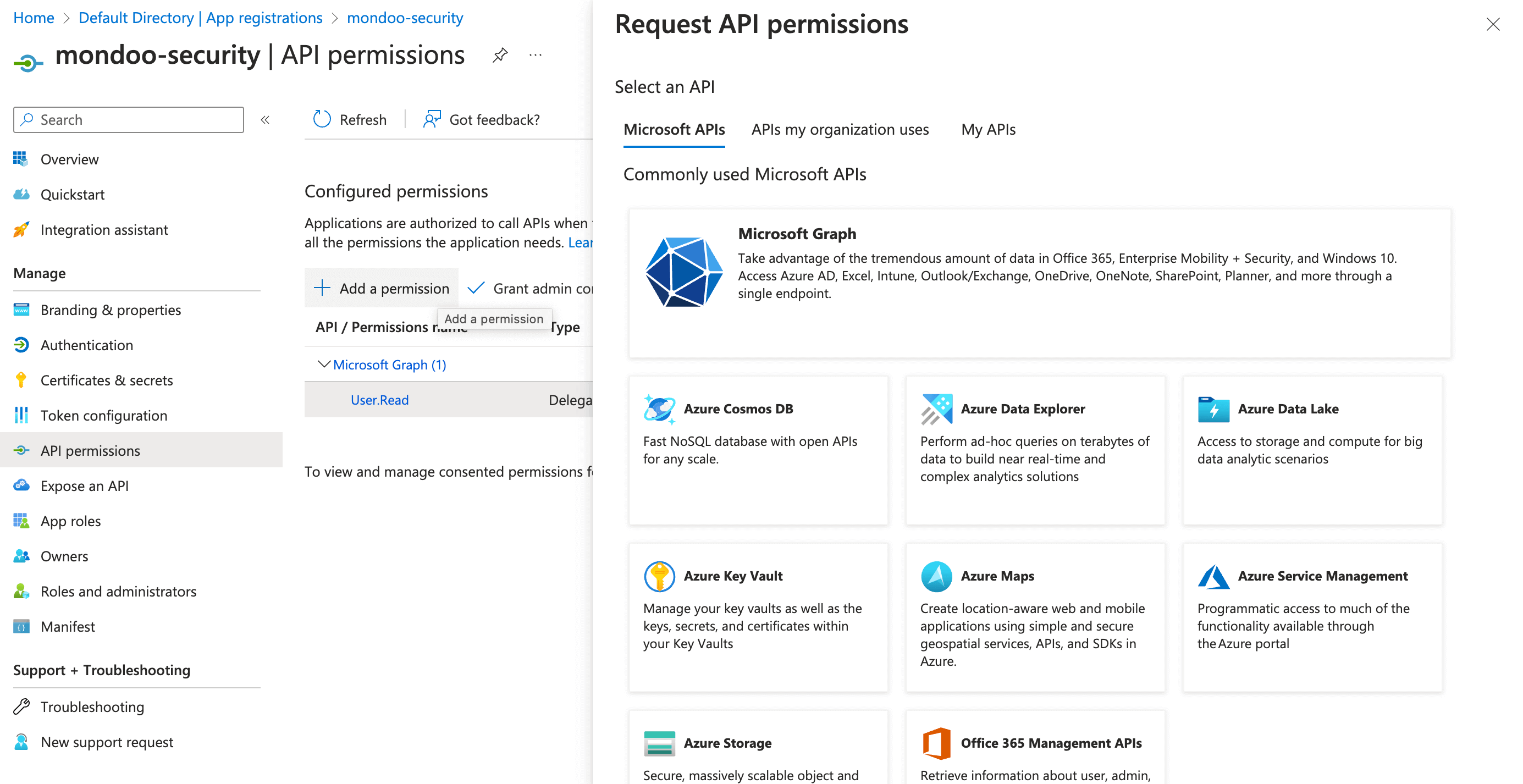
In the navigation sidebar, select API permissions.
By default, Microsoft grants your new application User.Read permission for Microsoft Graph. It's not required for Mondoo, so you can remove it.
Select + Add a permission.
From the list of Commonly used Microsoft APIs, select Microsoft Graph.
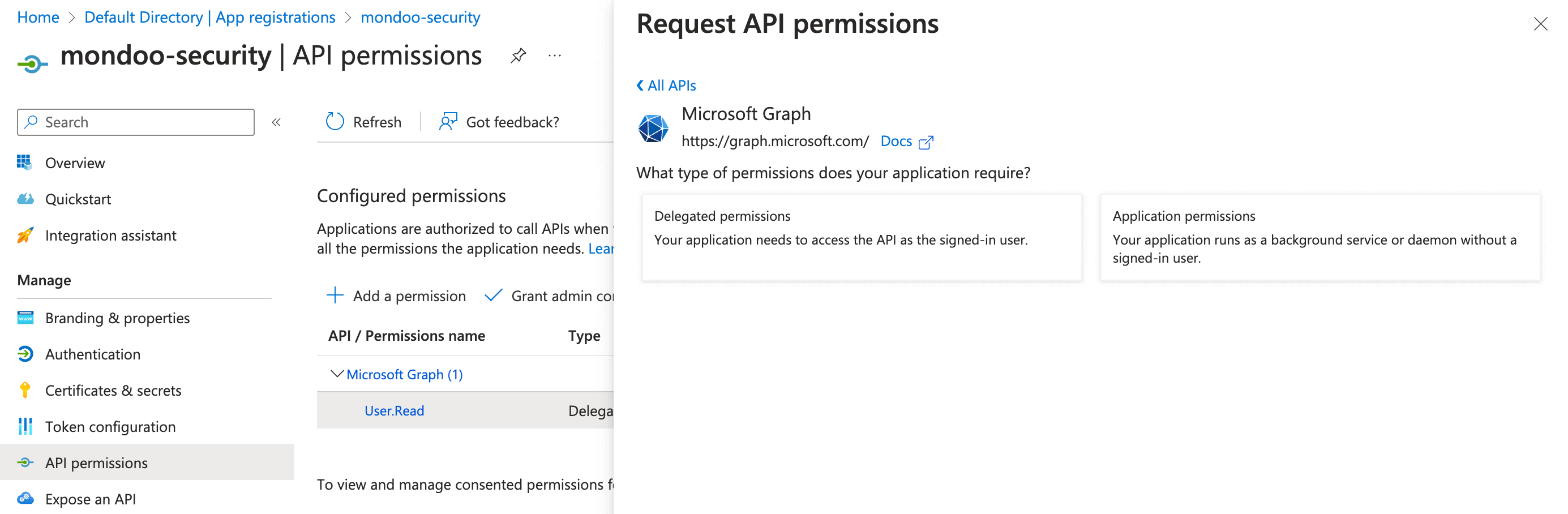
Because Mondoo acts as a service, select Application permissions.
Select expand all to see all permissions. Then select the required API permissions:
Microsoft Graph
Type
Description
Policy.Read.All
Application
Read your organization's policies
Policy.Read.PermissionGrant
Application
Read consent and permission grant policies
SecurityEvents.Read.All
Application
Read your organization's security events
DeviceManagementConfiguration.Read.All
Application
Read Microsoft Intune device configuration and policies
AuditLog.Read.All
Application
Read all audit log data
Directory.Read.All
Application
Read directory data
AccessReview.Read.All
Application
Read all access reviews
DeviceManagementServiceConfig.Read.All
Application
Read Microsoft Intune configuration
Domain.Read.All
Application
Read domains
Organization.Read.All
Application
Read organization information
OrgSettings-AppsAndServices.Read.All
Application
Read organization-wide apps and services settings
OrgSettings-Forms.Read.All
Application
Read organization-wide Microsoft Forms settings
UserAuthenticationMethod.Read.All
Application
Read all users' authentication methods
DeviceManagementApps.Read.All
Application
Read Microsoft Intune apps
DeviceManagementManagedDevices.Read.All
Application
Read Microsoft Intune devices
DeviceManagementRBAC.Read.All
Application
Read Microsoft Intune RBAC settings
IdentityRiskEvent.Read.All
Application
Read all identity risk event information
IdentityRiskyUser.Read.All
Application
Read all identity risky user information
InformationProtectionPolicy.Read.All
Application
Read all published labels and label policies for an organization
RoleManagement.Read.All
Application
Read role management data for all RBAC providers
SecurityAlert.Read.All
Application
Read all security alerts
SecurityIncident.Read.All
Application
Read all security incidents
EntitlementManagement.Read.All
Application
Read all entitlement management resources
Policy.Read.DeviceConfiguration
Application
Read your organization's device configuration policies
Domain-InternalFederation.Read.All
Application
Read internal federation configuration for a domain
TeamSettings.Read.All
Application
Read all teams' settings
ChannelSettings.Read.All
Application
Read the names, descriptions, and settings of all channels
Select the Add permissions button.
Grant Mondoo read permissions for SharePoint.
SharePoint APIs
Type
Description
Sites.FullControl.All
Application
Have full control of all site collections
Select the Add permissions button.
Grant Mondoo read permissions for Office 365 Exchange Online. You need to search in APIs my organization uses.
Office 365 Exchange Online
Type
Description
Exchange.ManageAsApp
Application
Run Exchange Online commands as if Mondoo was an administrator account
Select the Add permissions button.
Grant Mondoo read permissions for Microsoft Exchange Online Protection. You need to search in APIs my organization uses. This API is separate from Office 365 Exchange Online, and Mondoo needs both.
Microsoft Exchange Online Protection
Type
Description
Exchange.ManageAsApp
Application
Run Security & Compliance PowerShell cmdlets, such as reading DLP policies
Select the Add permissions button.
To complete the process, select Grant admin consent for (your tenant name) and select the Yes button to confirm.
Mondoo authenticates with a PEM certificate. You upload the certificate only to Azure, and the certificate plus private key to Mondoo. The PEM file you upload to Mondoo must use this format and order, with no password protection:
You need these values from the Azure app registration you created:
Application (client) ID
Directory (tenant) ID
The combined PEM file (private key + certificate)
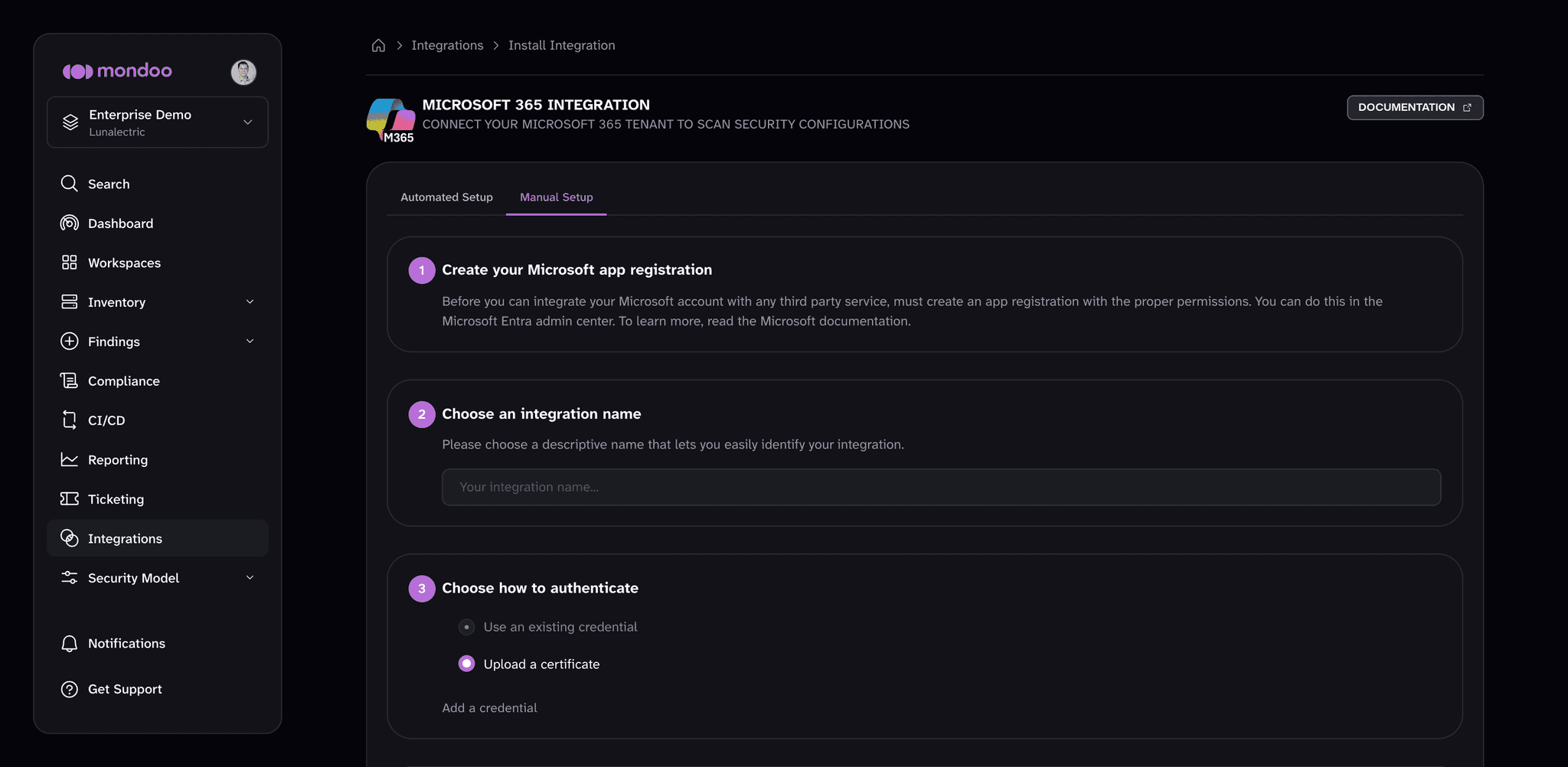
In the Mondoo App, navigate to the space where you want to add the integration. In the side navigation bar, select Integrations. In the top right, select INSTALL. On the Install Integration page, find the integration you want by browsing a category or searching by name:
Under SaaS Security, select Microsoft 365, then select the Manual Setup tab.
In Choose an integration name, enter a name that identifies the tenant.
Under Choose how to authenticate, select Upload a certificate. If your space already holds a credential for this app registration, you can select Use an existing credential instead and skip to step 6. To learn more, read Manage Integration Credentials.
Paste the Directory (tenant) ID and Application (client) ID in their respective boxes.
Under Provide your certificate and private key, select UPLOAD PEM FILE and choose the combined PEM file (private key plus certificate).
(Optional) Under Enable security policies (optional), enable the policies you want Mondoo to score your Microsoft 365 tenant against.
(Optional) Under Set Annotations (optional), select + ADD ANNOTATION to add key-value pairs that Mondoo applies to every asset this integration discovers. To learn more, read Annotate assets.
The certificate has a 1-year default lifetime. When it expires, the integration stops working.
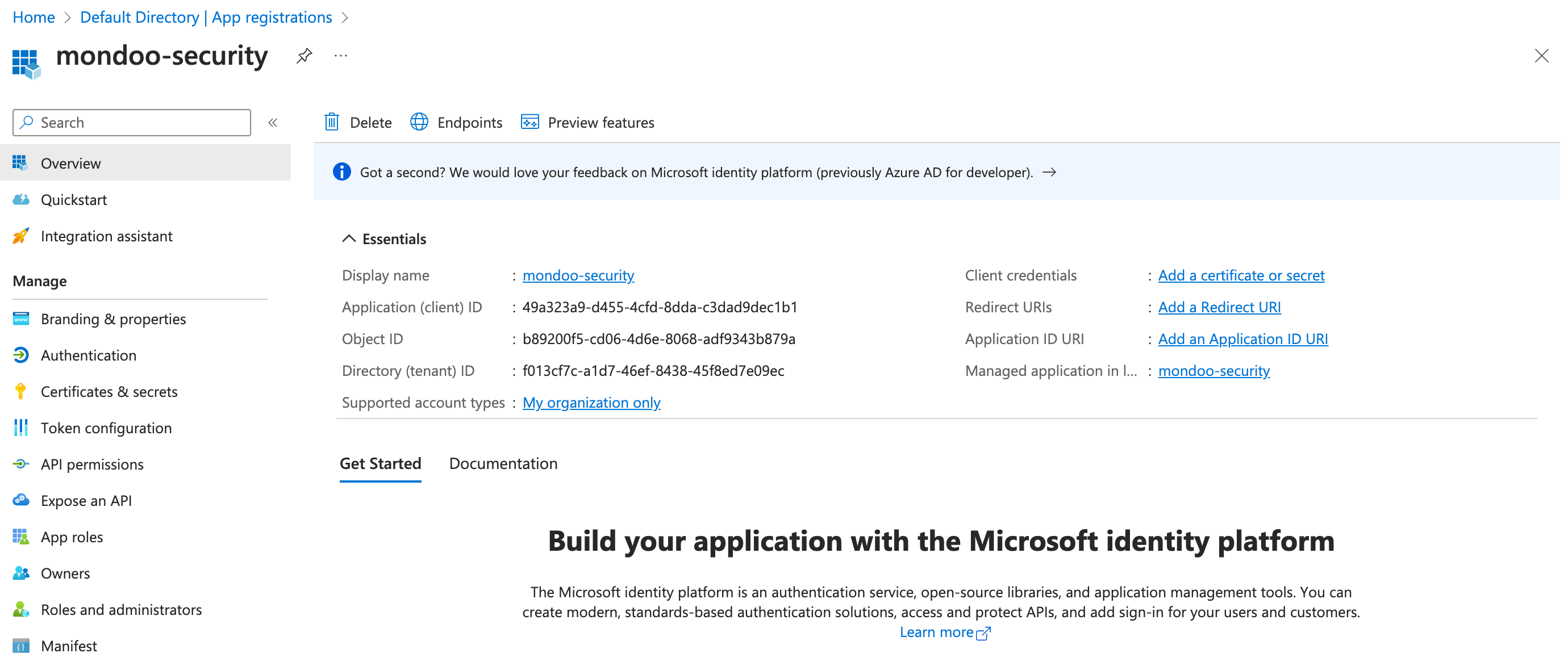
In the Azure portal, navigate to the app registration you created and copy the application ID.
In Azure Cloud Shell, run:
az ad app credential reset --id XXXXXXXX-XXXX-XXXX-XXXX-XXXXXXXX --create-cert
Download the new certificate from Cloud Shell's Manage files button.
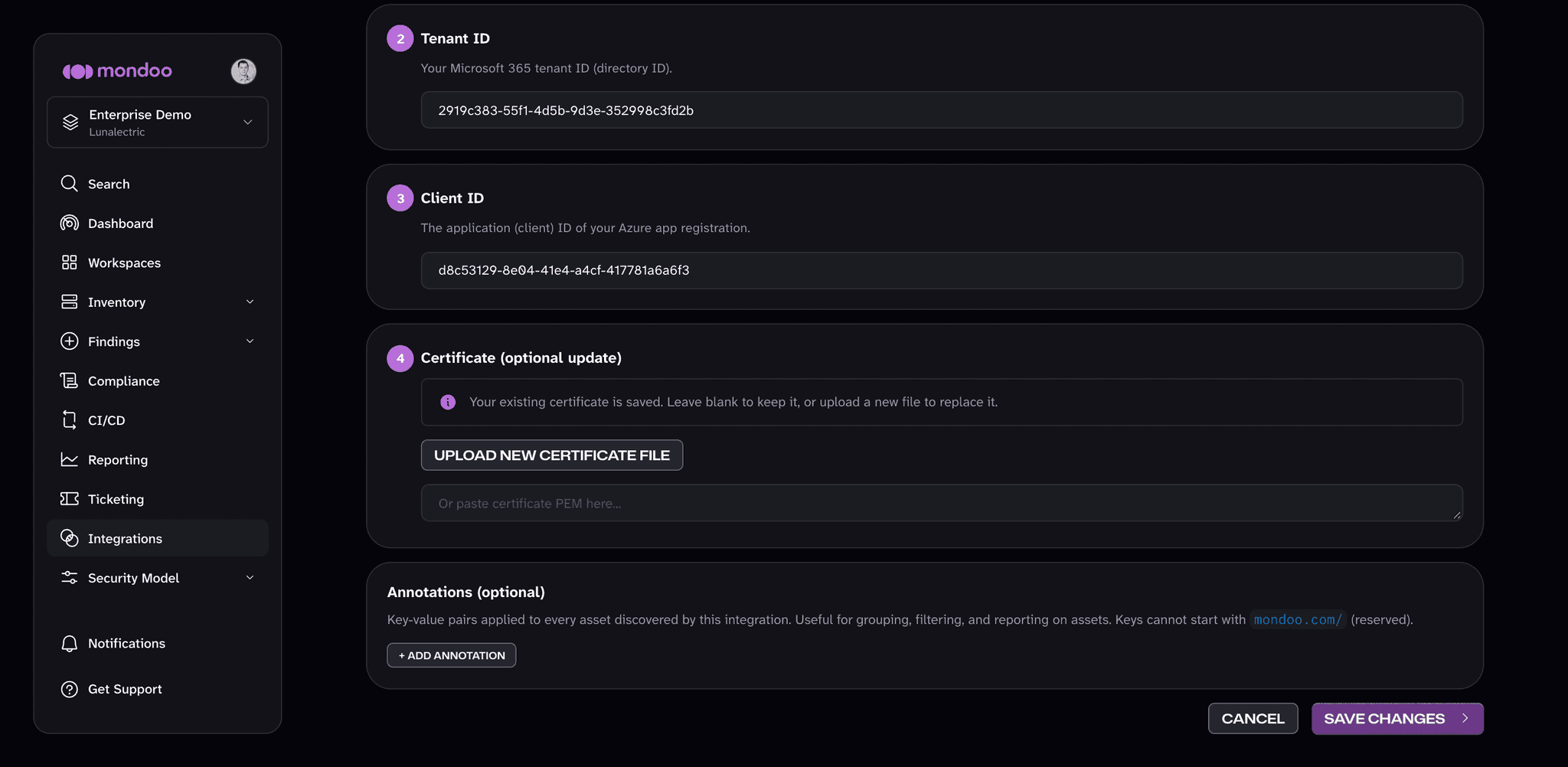
In the Mondoo App, navigate to Integrations > Microsoft 365 > your M365 integration and select the edit (pencil) icon.
Under Certificate (optional update), select UPLOAD NEW CERTIFICATE FILE and choose the new certificate file, or paste the certificate PEM into the box.