Scan in GitLab CI/CD
Integrate Mondoo security scans into GitLab CI/CD pipelines to catch issues before deployment.
Integrate Mondoo security scans with your GitLab projects using GitLab's built-in runner functionality. Scanning your Kubernetes manifests, Terraform configurations, and Docker images during your pipeline helps you catch security issues before deployment, when they're easier and faster to fix.
Configure GitLab CI/CD security
To set up a GitLab CI/CD integration with Mondoo:
-
Create Mondoo credentials
-
Store those credentials in GitLab
Create credentials in Mondoo
To fetch policies and send scan results to Mondoo Platform, first configure a Mondoo service account for use in your CI/CD pipeline:
-
In the Mondoo App, navigate to the space where you want to add the integration. In the side navigation bar, select Integrations. In the top right, select INSTALL.
-
On the integrations page, under CI/CD, select GitLab CI/CD (or search by name).
-
Copy the value in the Copy the Mondoo Platform credentials box to use it as a variable in your pipeline.
The credential is a base64-encrypted code that contains all the information needed to send the results of the scan to Mondoo. You can decrypt and check the content easily using this command:
echo <Credentials> | base64 -dSecurely store credentials in GitLab
-
In the GitLab console, select the repository you want to scan with Mondoo.
-
Go to Settings -> CI/CD and expand the Variables section.
-
Select Add variable.
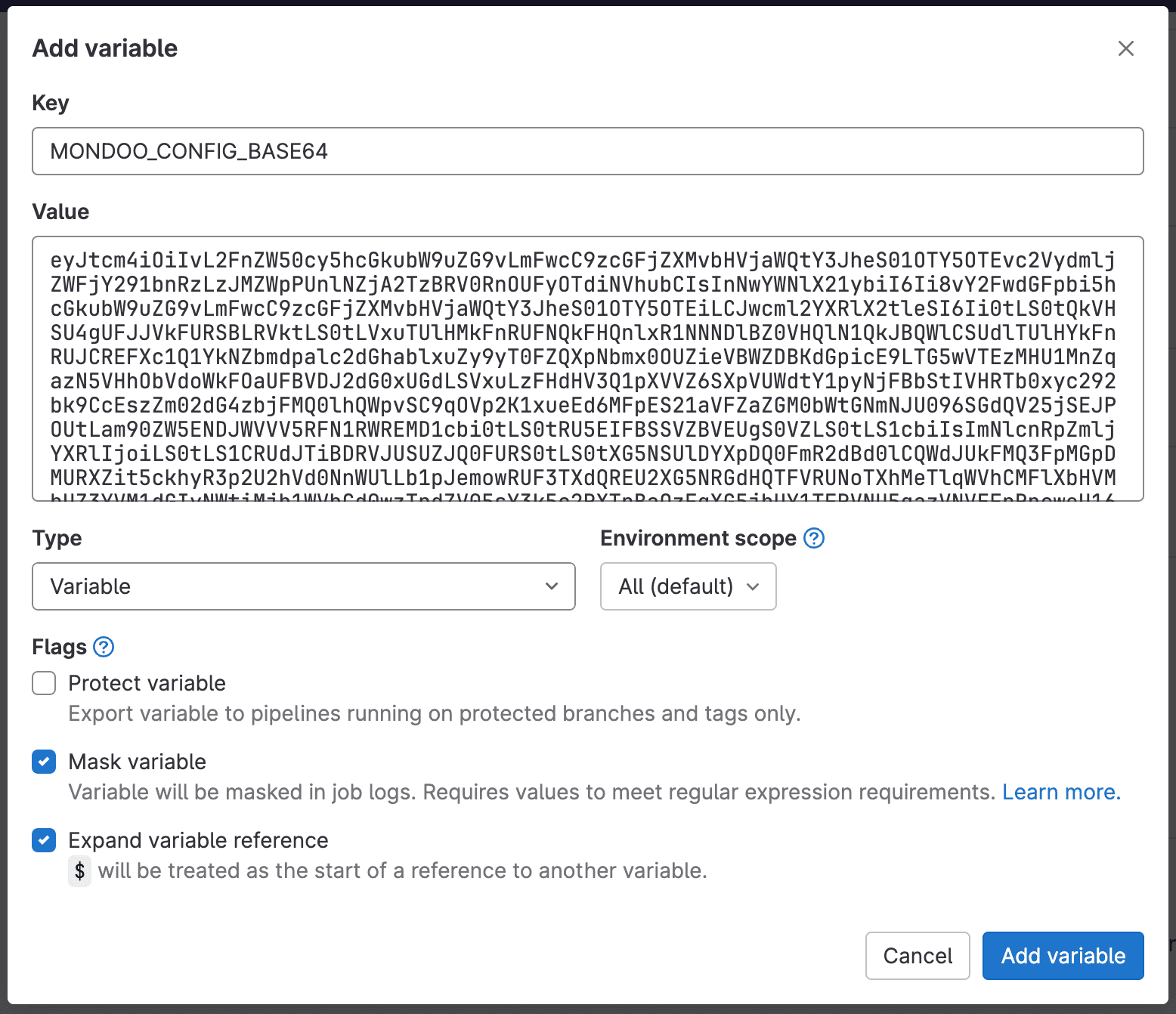
-
In the Add Variable dialog box, name the key
MONDOO_CONFIG_BASE64. -
Paste the Base64-encoded credential you downloaded from Mondoo.com into the Value field.
-
Keep the default values for Type and Environment scope.
-
Be sure to uncheck Protect variable so that this secret can be used for tests running in merge requests.
-
Check Mask variable to hide this secret in logs.
-
Select Add variable.
Create the GitLab pipeline config
Now that you have Mondoo credentials for running CI security scans, you can set up a GitLab Pipeline by creating a .gitlab-ci.yml configuration file.
Every release of cnspec is published as a Docker image to Docker Hub. Because GitLab makes heavy use of Docker containers as a runtime environment, it is easiest to use Mondoo's Docker image to run your scans.
This example creates a dummy GitLab pipeline configuration with two jobs, build-docker and mondoo-cnspec, as well as two stages, build and test:
stages:
  - build
  - test

# Build docker image
build-docker:
  image: docker:latest
  stage: build
  services:
    - docker:dind
  script:
    - docker build . --tag mondoo_test_image

# Scan docker image
mondoo-cnspec:
  stage: test
  image:
    name: mondoo/cnspec:latest
    entrypoint: ['']
  script:
    - mkdir -p /root/.docker/ && echo "{\"auths\":{\"$CI_REGISTRY\":{\"username\":\"$CI_REGISTRY_USER\",\"password\":\"$CI_REGISTRY_PASSWORD\"}}}" > /root/.docker/config.json
    # the job fails if any risk meets or exceeds the risk-threshold value; lower it to fail on less severe risks
    - cnspec scan container ${CI_REGISTRY_IMAGE}:${CI_COMMIT_REF_SLUG} --risk-threshold 90
  dependencies:
    - build-docker
--risk-threshold 90 fails the job only on critical risks (90 or higher). To also fail on high risks, set it to 70. To fail on medium risks too, set it to 40. To learn more, read Exit code handling.
JUnit report
If you prefer to store the report as a JUnit file to use GitLab's JUnit Report view feature, you can use:
mondoo:
  stage: test
  image:
    name: mondoo/cnspec:latest
    entrypoint: ['']
  script:
    - mkdir -p /root/.docker/ && echo "{\"auths\":{\"$CI_REGISTRY\":{\"username\":\"$CI_REGISTRY_USER\",\"password\":\"$CI_REGISTRY_PASSWORD\"}}}" > /root/.docker/config.json
    - cnspec scan container ${CI_REGISTRY_IMAGE}:latest --risk-threshold 90 --output junit --output-target mondoo-junit.xml
  artifacts:
    paths:
      - mondoo-junit.xml
    expire_in: 1 week
    reports:
      junit: mondoo-junit.xml
  # allow_failure: true
  dependencies:
    - build
Scan infrastructure as code
To scan every infrastructure as code entry point in the repository in one job, run cnspec scan iac. It finds and scans Ansible, Bicep, CloudFormation, Dockerfile, Helm, Kubernetes manifest, and Kustomize files, plus Terraform when you name it in --discover. New charts, templates, and modules are picked up without changing the pipeline.
The iac provider requires cnspec 14.0 or later, so pin the image to mondoo/cnspec:14:
mondoo-iac:
  stage: test
  image:
    name: mondoo/cnspec:14
    entrypoint: ['']
  script:
    # the job fails if any risk meets or exceeds the risk-threshold value; lower it to fail on less severe risks
    - cnspec scan iac . --discover auto,terraform --risk-threshold 90 --output junit --output-target mondoo-iac-junit.xml
  artifacts:
    when: always
    paths:
      - mondoo-iac-junit.xml
    expire_in: 1 week
    reports:
      junit: mondoo-iac-junit.xml
GitLab checks out the repository into the job's working directory, so . is the root of the repository. Add opentofu to --discover if the repository uses OpenTofu. The iac provider is experimental; to learn what it detects and how to tune it, read Scan a Whole Infrastructure as Code Repository.
To let engineers request exceptions in the repository, add a mondoo.yml file with an exceptions list and route its review through your owners file. cnspec reports the exceptions on every scan and submits them to Mondoo Platform from default branch pipelines. To learn how, read Manage Exceptions in Your Code Repositories.
Get more example pipeline configs
You can copy example GitLab pipeline configs from the Mondoo App.
-
In the Mondoo App, navigate to the space where you want to add the integration. In the side navigation bar, select Integrations. In the top right, select INSTALL.
-
On the integrations page, under CI/CD, select GitLab CI/CD (or search by name).
-
Scroll to step 3. Select the tab for the config you want to copy.
-
In the top-right corner of the sample config, select the copy icon to copy the config to your clipboard.
Set up a pipeline to scan your GitLab instance
You can set up a scan of your GitLab instance itself from within a pipeline configuration. See Scan from a GitLab CI/CD pipeline for more information.
Once your pipeline reports to Mondoo, head to the security overview to assess and prioritize the findings.