Create an Executive Report
Generate an Executive Report with the four-step wizard and export individual slides to PowerPoint or PNG.
Generate your first Executive Report. For positioning and the slide list, see the Executive Reports overview.
Quick start
If at least one space has scanned assets, you can be done in under five minutes:
- Navigate to your organization, then in the side navigation select Reporting → Executive.
- Step through the four wizard tabs: 1. Organization, 2. Spaces, 3. Frameworks, and 4. Review.
- Select Generate Report. The report opens in the viewer.
- Use Print to save the whole report as a PDF, or use Copy PNG or PPT on an individual slide to drop it into your board deck.
The rest of this page is reference detail for each wizard step plus troubleshooting.
Before you begin
Prerequisites:
- At least one space with scanned assets.
- For the Controls Assessment slide: at least one compliance framework enabled in the in-scope spaces.
Access Executive Reports
Executive Reports is in the organization-level navigation. If you are currently inside a space, navigate up to your organization first. Reporting → Executive does not appear in the space navigation.
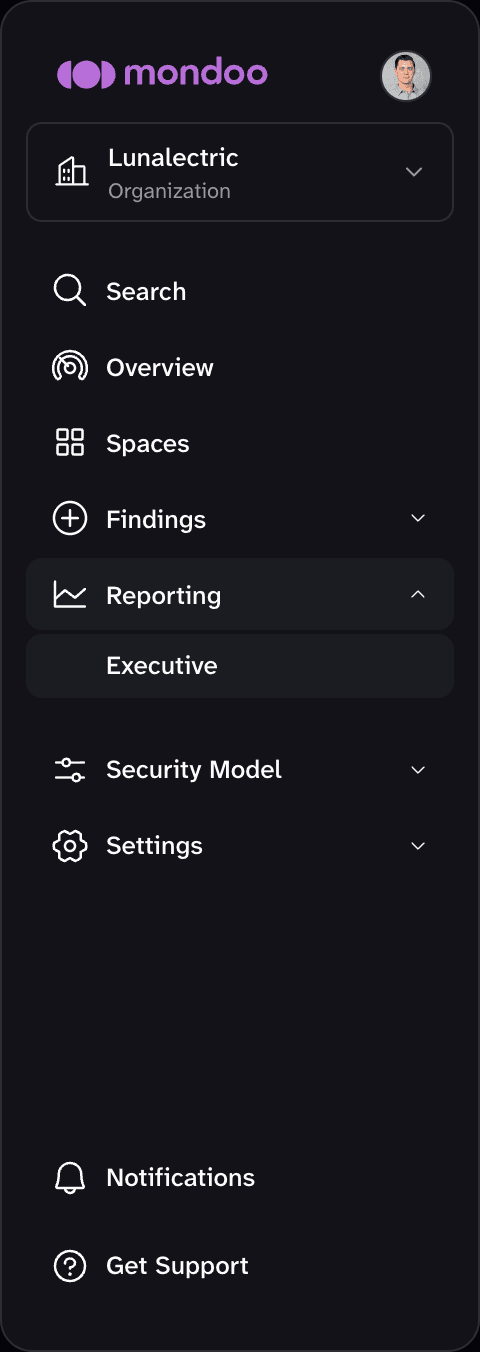
Walk through the wizard
In the side navigation, select Reporting → Executive. The Generate Executive Report wizard opens with four tabs. Mondoo saves the values you enter on the Organization and Frameworks tabs as you go (a Saved indicator appears next to each field), so they are already filled in the next time you generate a report.
Step 1: Organization
Describe the organization the board is hearing about. These values shape the Executive Scorecard and the Transformation slide.
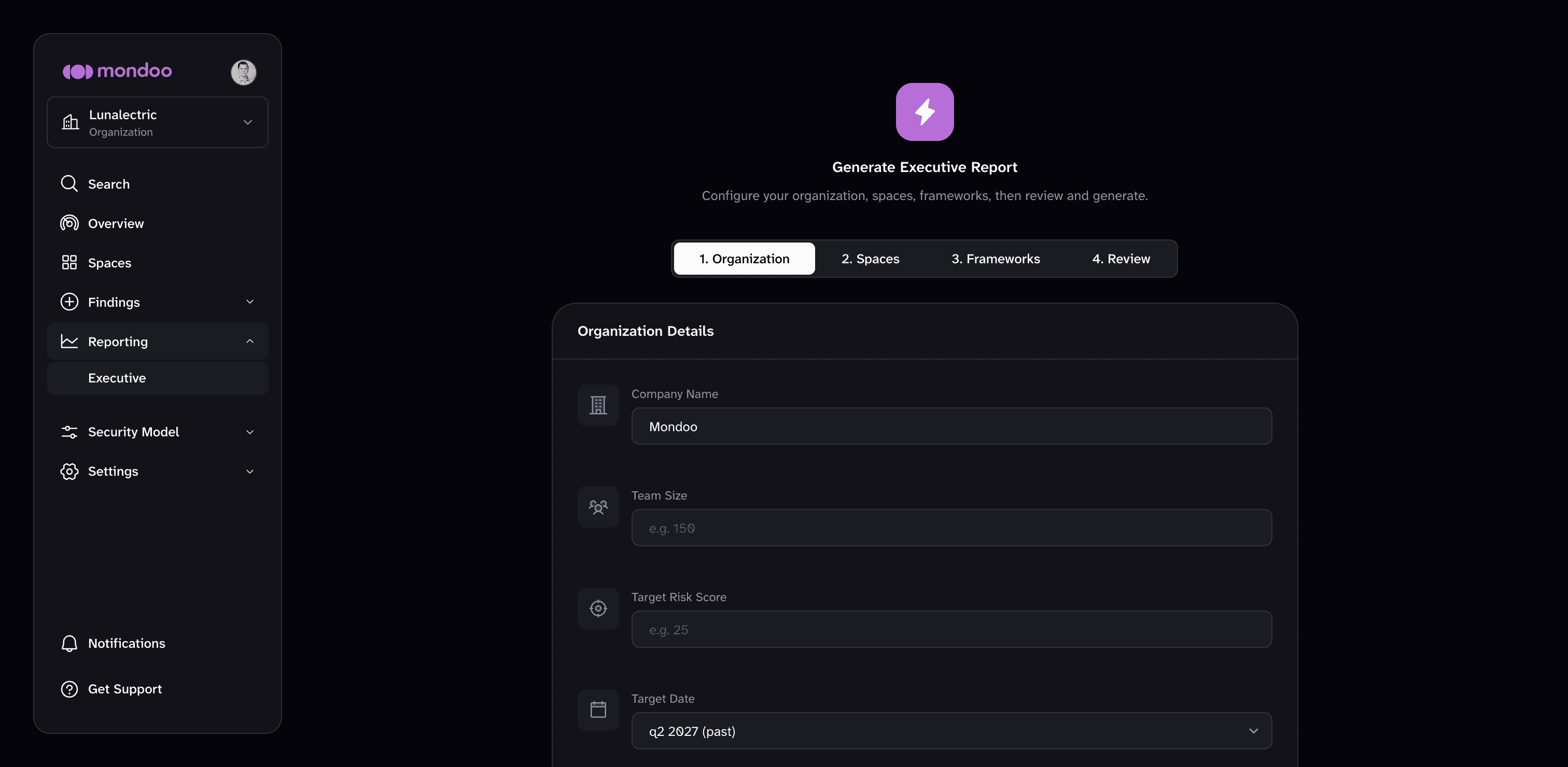
| Field | What it does |
|---|---|
| Company Name | Appears on the title slide and in slide headers. |
| Team Size | Head count of the VM program. Drives per-person throughput and hours saved. |
| Target Risk Score | Board-approved composite risk score target. The Executive Scorecard plots actual against this line. |
| Target Date | The quarter by which you expect to reach the target. Sets the horizon for the trend lines. |
| Pre-Mondoo Critical MTTR (days) | Customer-supplied baseline mean time to remediate critical vulnerabilities, in days, before Mondoo. The Transformation slide uses this as the starting point for the before/after comparison. |
| Pre-Mondoo Maturity Baselines | Optional. Your program's starting maturity (1.0 to 5.0) on each of the five SANS Vulnerability Management Maturity Model dimensions. The Transformation slide uses these as the "before" point for the maturity progression. A dimension left at Not set falls back to 1.0 (Initial). |
Step 2: Spaces
Choose the spaces the report covers. No spaces are selected by default, and the report needs at least one.
- Choose spaces: Search for spaces by name and select them. The report covers exactly the spaces you select.
- By label: Add annotation key-value pairs. The report includes every space whose labels match all of the filters. Keys and values autocomplete from the labels already set on your spaces.
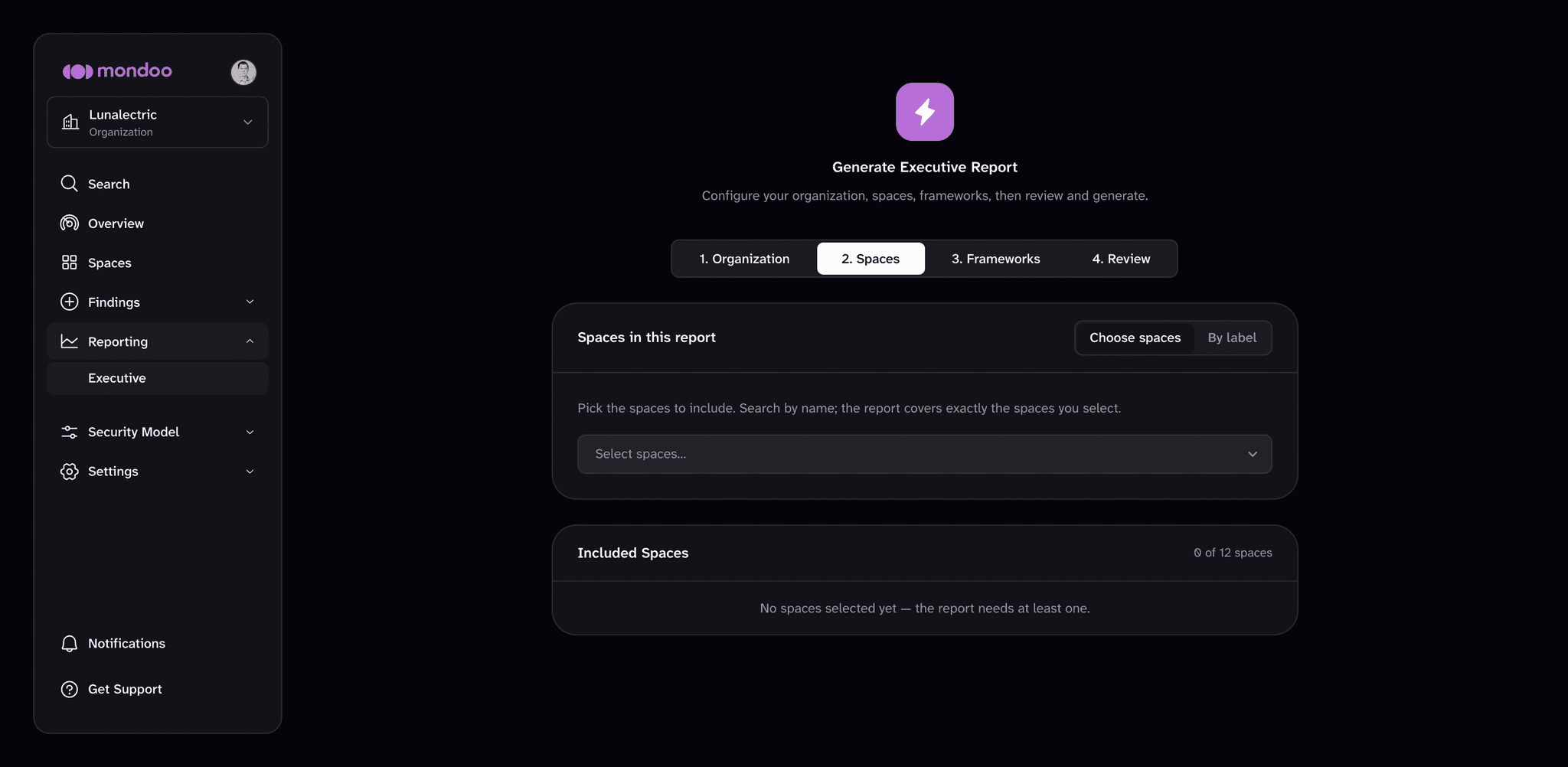
The Included Spaces panel shows the count and names of every space in scope. For a board-level chapter, include every production space. Each space you include appears as its own business unit row in the Executive Scorecard's SLA by Business Unit table.
Step 3: Frameworks
The frameworks you select here drive the Controls Assessment slide. It shows your organization's maturity against each selected framework. Use Select all to include every listed framework, or check them individually. For each one you set an Overall goal percentage, which determines the target line, and a Target by quarter, which sets the horizon for that framework's target.
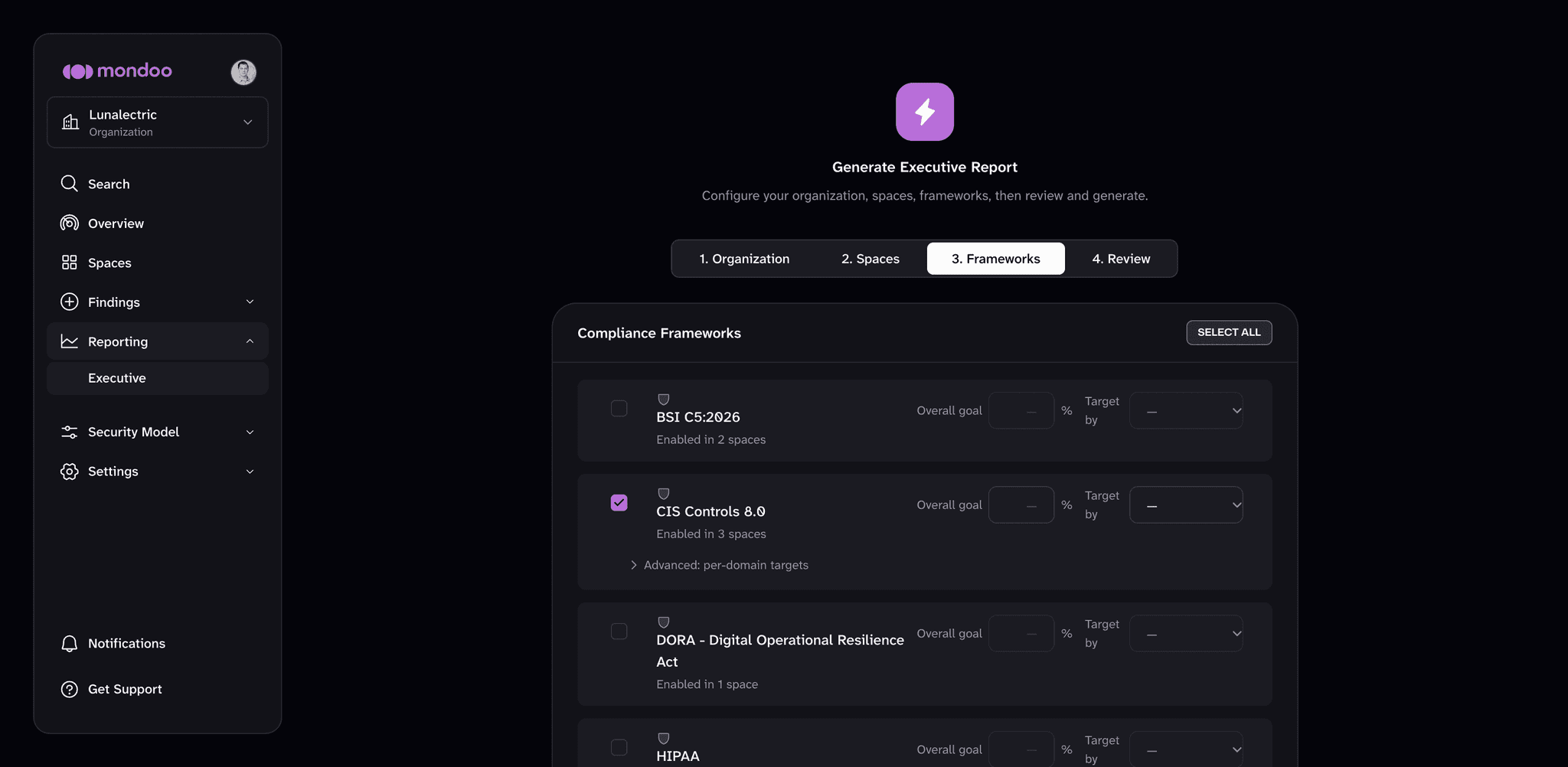
Each framework row shows how many spaces it's enabled in. To set a different goal for individual domains of a selected framework, expand Advanced: per-domain targets under it (for example, NIS2 Governance at 90% while Supply Chain Security stays at 85%). Domains without their own target use the overall goal.
Only frameworks enabled in an in-scope space appear here. If the list looks short, enable the frameworks you want covered under the space's Policies page first, then return to the wizard.
Step 4: Review
The Review & Generate panel summarizes your selections in three blocks: Organization (the fields from the first tab), Spaces (how many spaces are included), and Frameworks (each selected framework with its overall goal, or "no goal set").
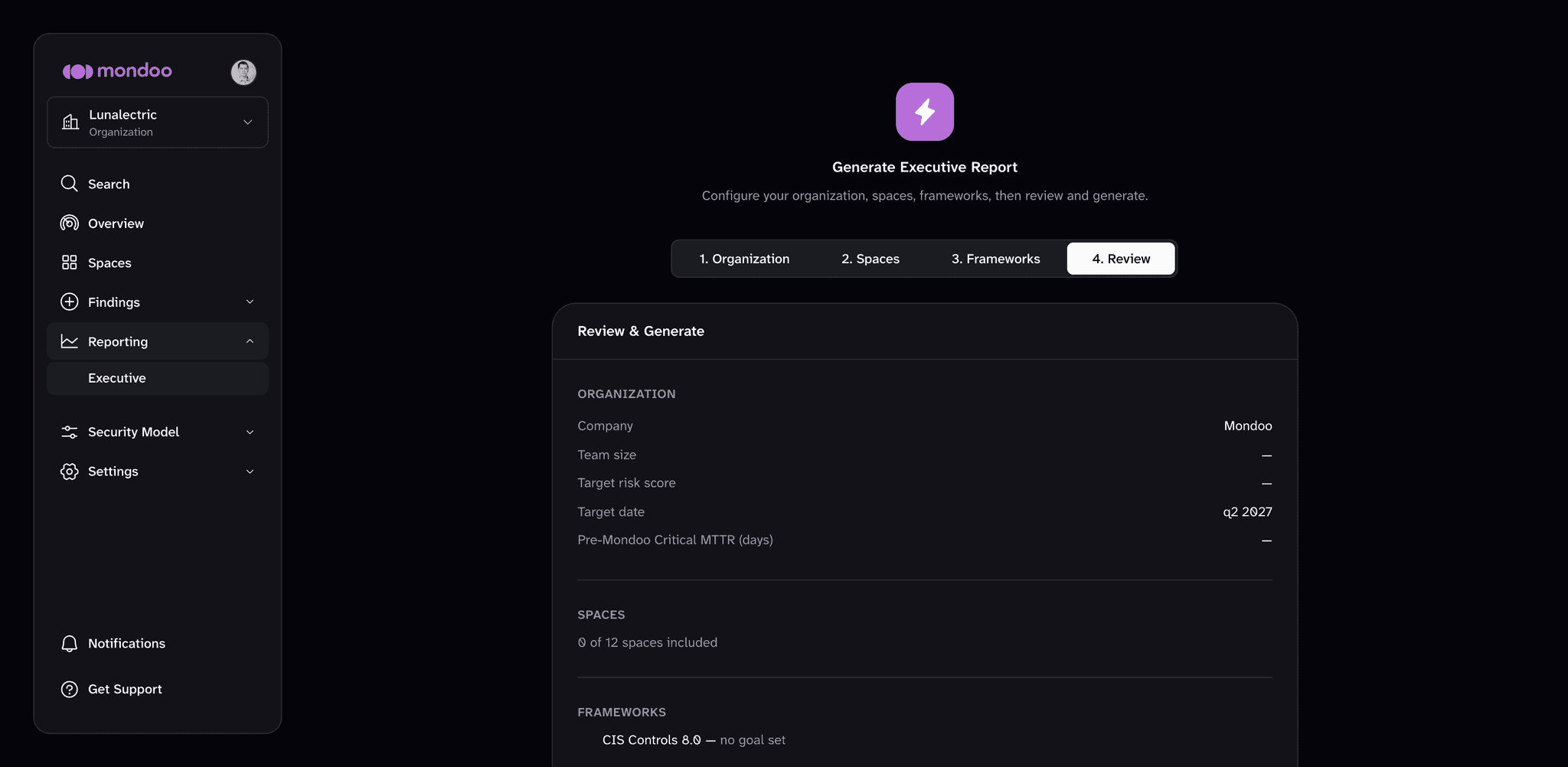
When you're ready, select Generate Report. The report opens in the viewer and renders from your live data, which can take a few seconds to a minute for large organizations.
Export the report
You can export the whole report at once, or export individual slides.
Whole report:
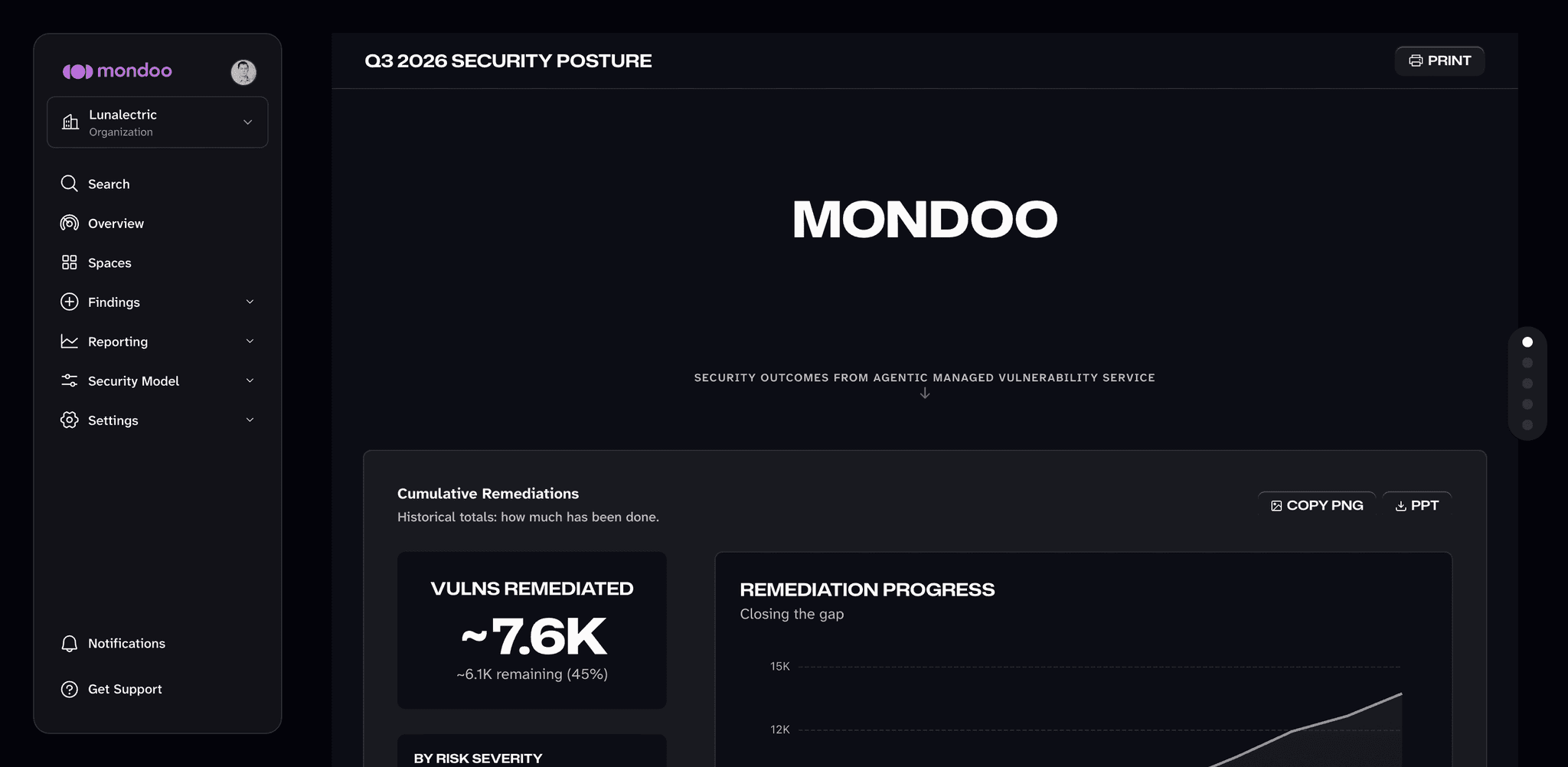
- Print. The button in the report header opens a print-ready version of the report in a new browser tab and starts your browser's print dialog. Choose your printer, or save the entire report as a single landscape PDF. Use this to hand off the full chapter in one file.
Individual slides:
- Copy PNG. Copy one slide as an image to your clipboard. Paste it into Slack, email, or Notion.
- PPT. Download one slide as a single-slide
.pptx. Embed it in an existing deck or your house board template.
Repeat per slide to assemble a multi-slide chapter.
Troubleshooting
The Reporting nav item doesn't appear. Make sure you are at the organization level, not inside a space. Executive Reports is not in the space navigation. If you're in a space, navigate up to your organization. If the item is still missing after refreshing, confirm that your account has access to the organization.
The Executive Scorecard's SLA by Business Unit table has too few rows. Each row is one space in the report. To add business units, include more spaces on the Spaces tab and generate the report again.
The Controls Assessment slide shows no maturity. The Controls Assessment slide depends on compliance frameworks being enabled and policies running against assets in the in-scope spaces. Confirm that the spaces have scanned assets, the relevant policies are enabled, and that you selected at least one framework in step 3.
An exported .pptx slide is blank or missing data. Usually the spaces in scope have no data for that slide yet, for example no remediated critical vulnerabilities. Confirm that the included spaces have scanned assets, or add spaces that do, and generate the report again.
FAQ
Is Executive Reports on my plan? Yes. It's included in every Mondoo plan at no add-on cost.
Can I edit a section after it's generated? Not in-product. Sections render from live data. To customize further, export to PowerPoint and edit there.
Can I add my own sections? No. The report currently consists of the four always-on slides plus the Transformation slide. You control which frameworks drive the Controls Assessment slide and which spaces are in scope, not the slide set or the order.
How many slides will my report have? A cover plus four always-on content slides (Cumulative Remediations, Fix Velocity, Controls Assessment, Executive Scorecard), plus the Transformation slide when Mondoo has data for it.
Does the report pull data from all my spaces at once? Only from the spaces you include on the Spaces tab. To cover every space, select them all in the space picker. To cover a subset (for example, production only), pick those spaces or filter by label.
Is my data sent anywhere external? No. Report generation runs inside Mondoo, and the PNG, PowerPoint, and PDF exports are assembled entirely in your browser on your own machine. The slide content is never sent to an external service to produce the export.
Can I generate historical reports? No. The report always covers the current quarter. Trend charts such as Cumulative Remediations and Fix Velocity include the history Mondoo has collected for the in-scope spaces.
What's next
Questions or feedback? Email support@mondoo.com or open a support case.
Overview
Generate a board-ready chapter on your vulnerability management program from live Mondoo data and export each slide to PowerPoint or PNG.
Overview
Explore your live Mondoo security data with built-in reports, configurable pivot tables, and custom reports. Export pages as PNG, decks as PowerPoint, and tables as data files.