Secure DigitalOcean with Mondoo
Continuously secure your DigitalOcean account with Mondoo.
Mondoo continuously scans your DigitalOcean account for misconfigurations and vulnerabilities. Create a DigitalOcean integration to give Mondoo the read-only access it needs.
Mondoo assesses the account itself, including resources such as its Droplets, SSH keys, images, TLS certificates, App Platform apps, and Functions. It also discovers these resources as their own assets, so you can review their findings individually:
- Managed databases
- Kubernetes (DOKS) clusters
- Load balancers
- Cloud firewalls
- GradientAI agents
The integration authenticates with an API token only, so it doesn't audit Spaces buckets, which DigitalOcean serves through a separate S3-compatible API with its own access keys. To audit Spaces buckets, scan them with cnspec and a Spaces access key, as described in Secure DigitalOcean with cnspec.
Prerequisites
- Editor or Owner access to the Mondoo space
- A DigitalOcean account (team)
Create a DigitalOcean personal access token
Mondoo authenticates to DigitalOcean with a personal access token.
-
Log in to the DigitalOcean control panel and switch to the team you want Mondoo to scan.
-
Go to API and, on the Tokens tab, select Generate New Token.
-
Enter a token name that identifies it as Mondoo's, and choose an expiration.
-
Under Scopes, select Read Only. Mondoo only reads configuration, and a Full Access token grants more than the integration needs.
-
Select Generate Token and copy the token. DigitalOcean shows it only once.
To learn more, see How to Create a Personal Access Token in the DigitalOcean documentation.
Treat the token like a password. Don't commit it to source control, and create a new token before the current one expires.
Add a DigitalOcean integration
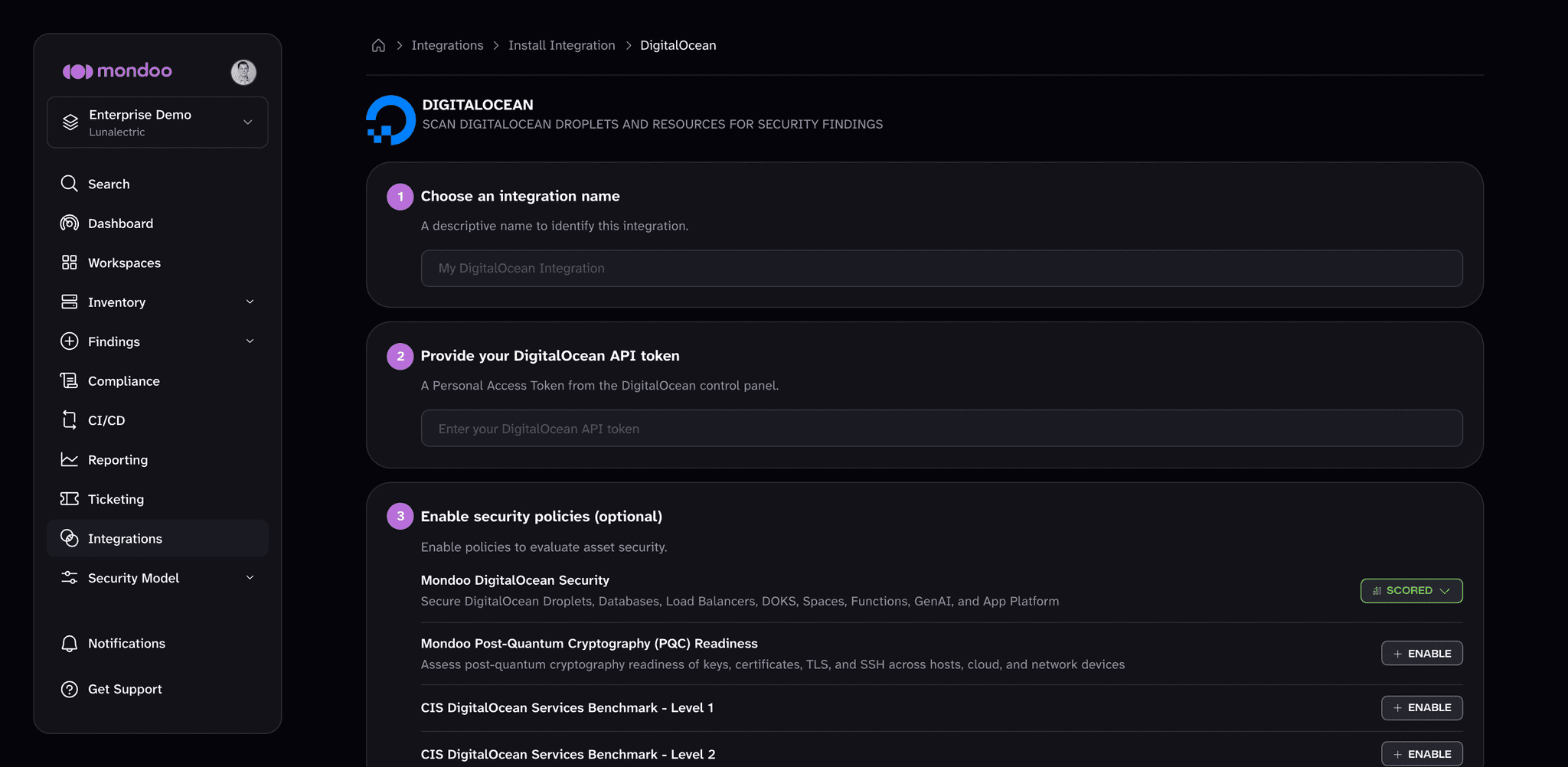
In the Mondoo App, navigate to the space where you want to add the integration. In the side navigation bar, select Integrations. In the top right, select INSTALL. On the Install Integration page, find the integration you want by browsing a category or searching by name:
-
Under Cloud Security, select DigitalOcean.
-
In the Choose an integration name box, enter a name that identifies the DigitalOcean team.
-
Paste the token into the Provide your DigitalOcean API token box.
-
(Optional) Under Enable security policies, review the policies that apply to DigitalOcean, such as Mondoo DigitalOcean Security and the CIS DigitalOcean Services Benchmark Level 1 and Level 2 policies. If a policy isn't enabled in the space yet, select ENABLE. A policy you enable here applies to the whole space, not only this integration.
-
Select CREATE INTEGRATION.
Mondoo starts the first scan as soon as the integration is created. To learn how policies work, read Manage Policies.
View results
Mondoo adds the DigitalOcean account and the discovered resources to the space inventory. To review them, navigate to the space and select Inventory > Assets. To see how the assets score against a policy, select Findings > Policies and choose the policy, such as Mondoo DigitalOcean Security.
Manage your integration
To open the integration, navigate to the space, select Integrations > DigitalOcean, and choose the integration.
From the integration detail page, you can:
- Scan now. Select RUN.
- Pause or resume scanning. Select the more actions menu, then Pause or Resume.
- Remove the integration. Select the trash can icon and confirm. Mondoo stops scanning the DigitalOcean account.
Mondoo doesn't support editing a DigitalOcean integration. To use a different token, remove the integration and add a new one.
Scan DigitalOcean from the command line
The integration scans continuously from the Mondoo Platform. To scan DigitalOcean from your workstation or a CI pipeline instead, see Secure DigitalOcean with cnspec.