Import Data from SentinelOne
Import SentinelOne vulnerability data into Mondoo alongside your own scan results.
Mondoo can import data from SentinelOne and combine it with your Mondoo findings. The unified view gives you Mondoo's security visualization, prioritization, and ticketing on top of SentinelOne vulnerability data.
Prerequisites
- Editor or Owner access to the Mondoo space
- A SentinelOne Singularity account with administrator privileges
Create a SentinelOne service user
Mondoo authenticates with a SentinelOne service user (a non-human account with an API token).
-
Log into the SentinelOne management console as an administrator.
-
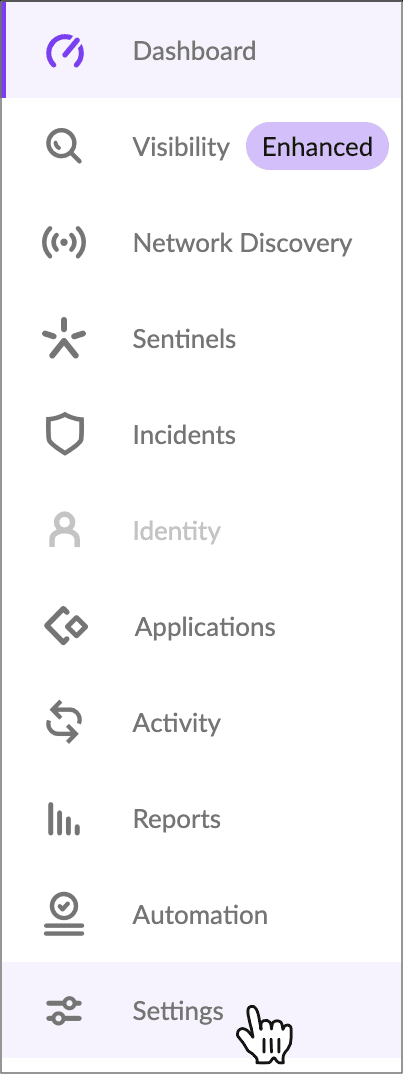
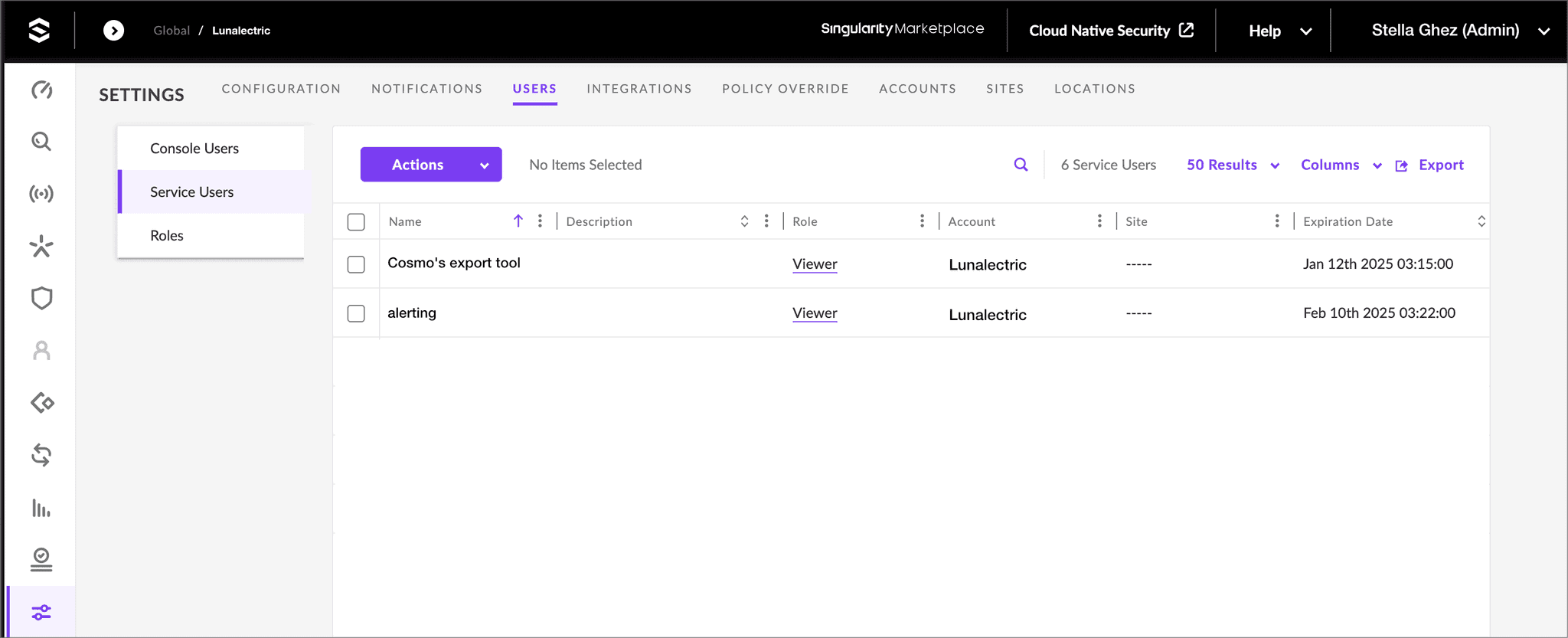
In the side navigation, select Settings > USERS > Service Users.
-
Select Actions > Create New Service User.
-
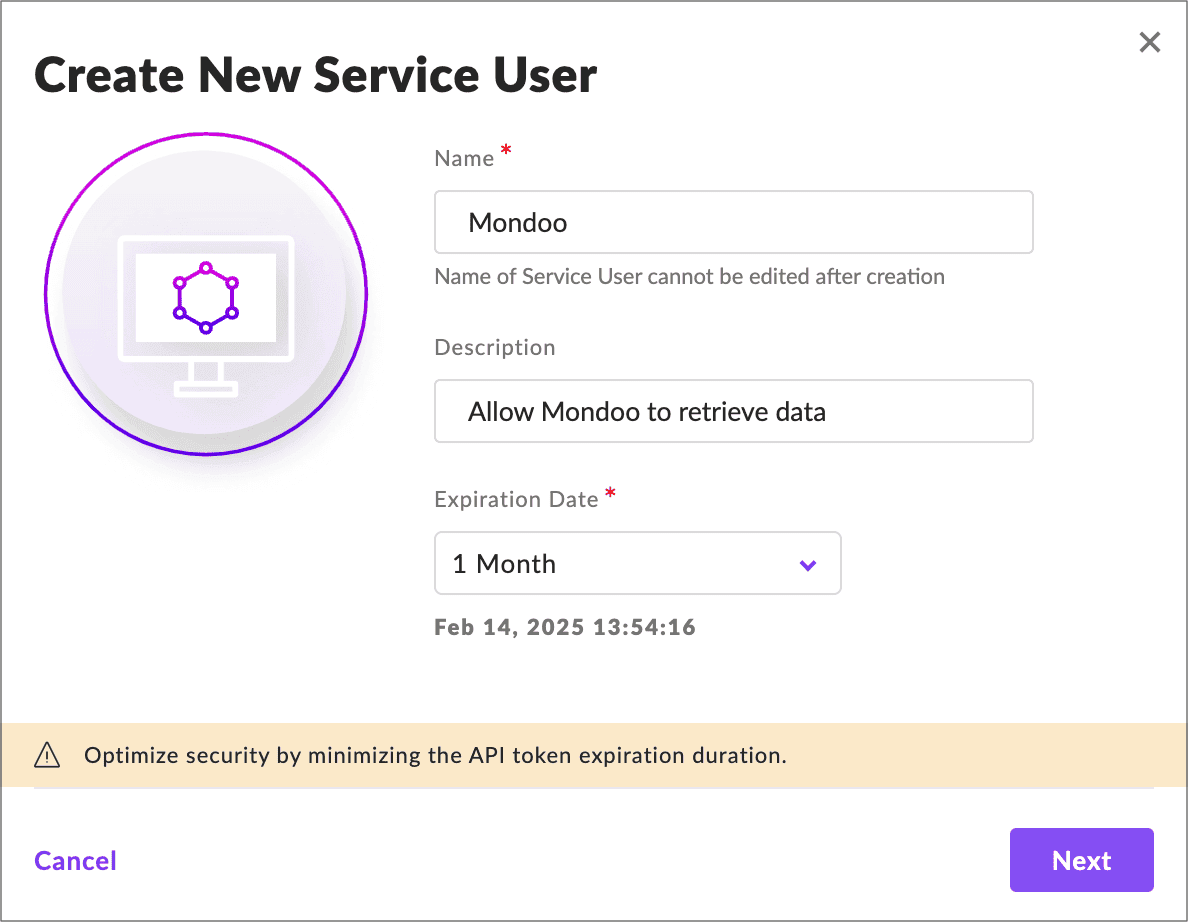
Give the user a name and description that identify it as Mondoo's, then select Next.
-
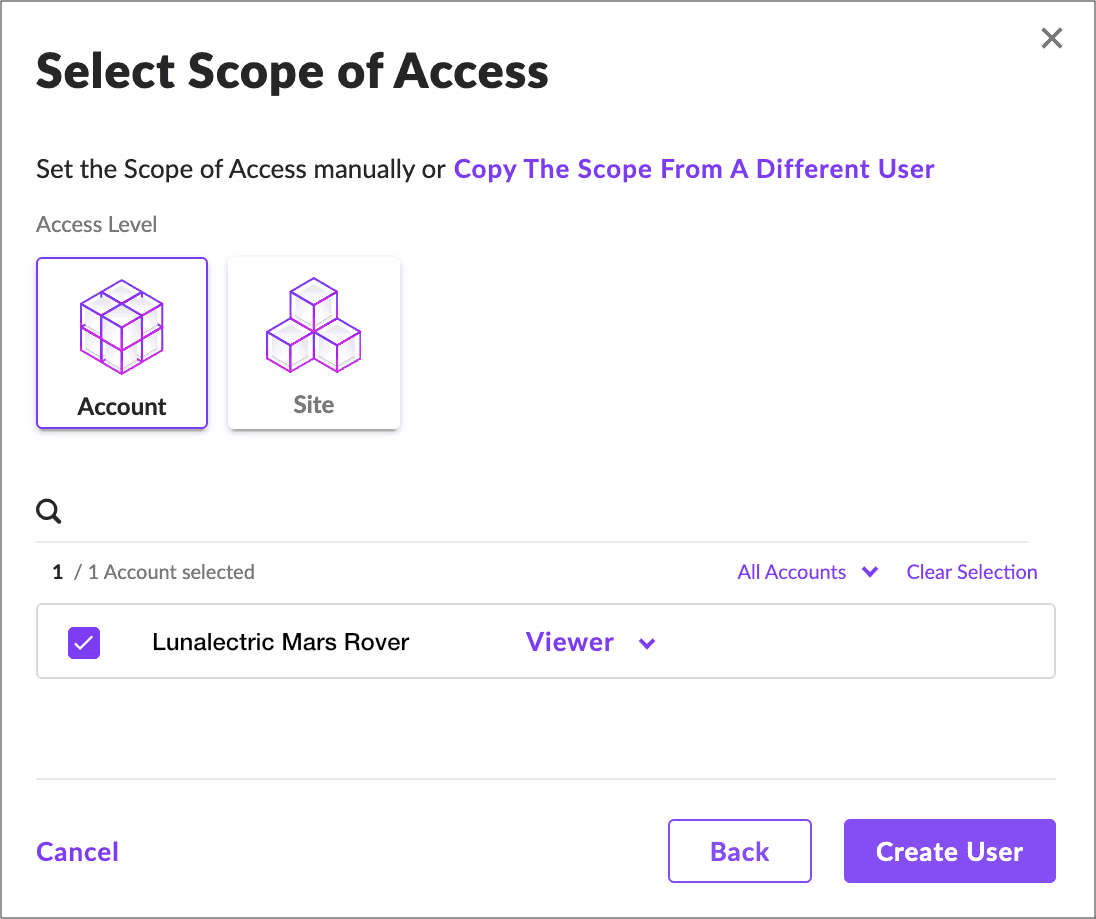
Choose the account(s) (not sites) you want Mondoo to access. Leave Viewer selected as the role.
-
Select Create User.
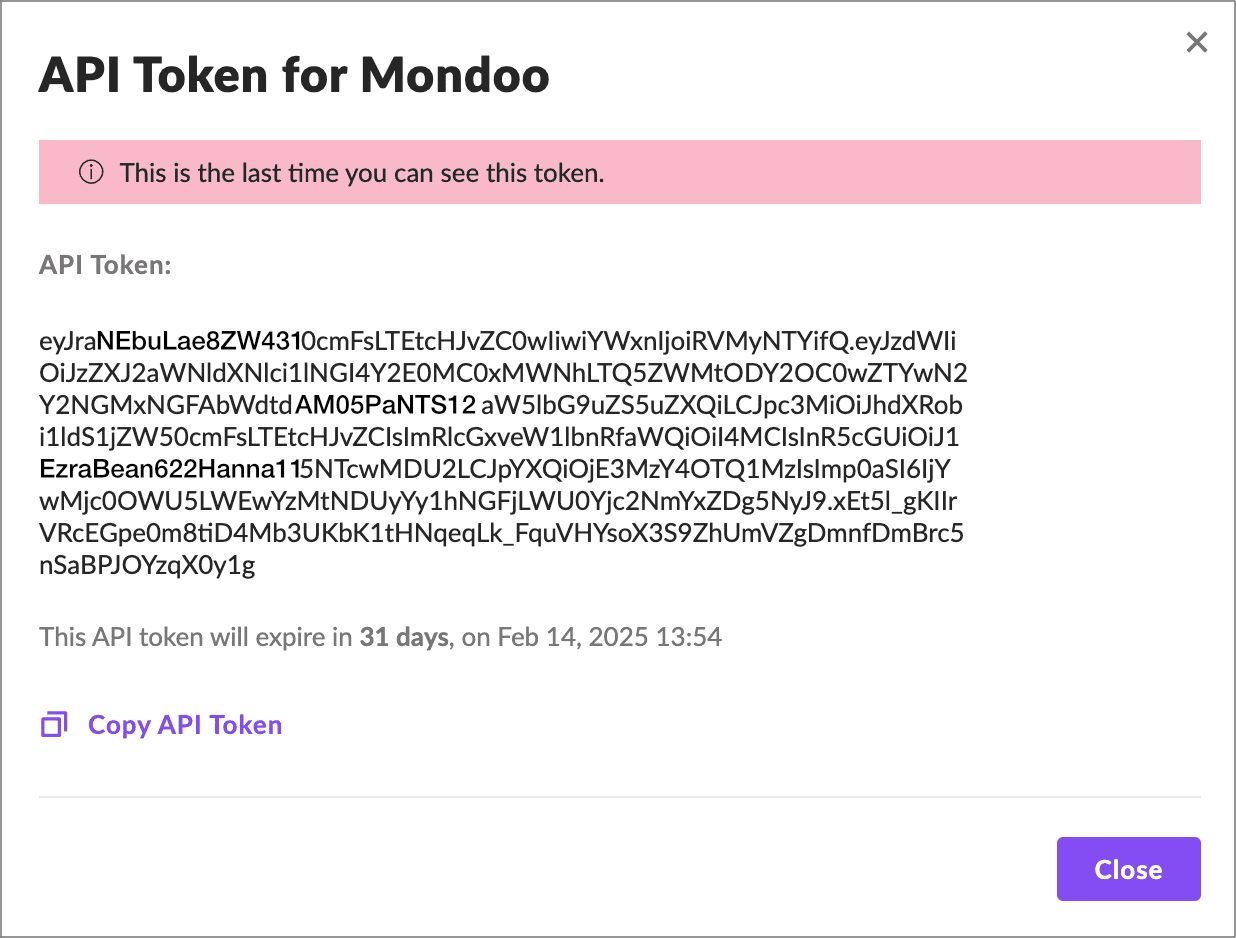
SentinelOne shows the API token. Copy it; you need it in the next section.
Add a SentinelOne integration
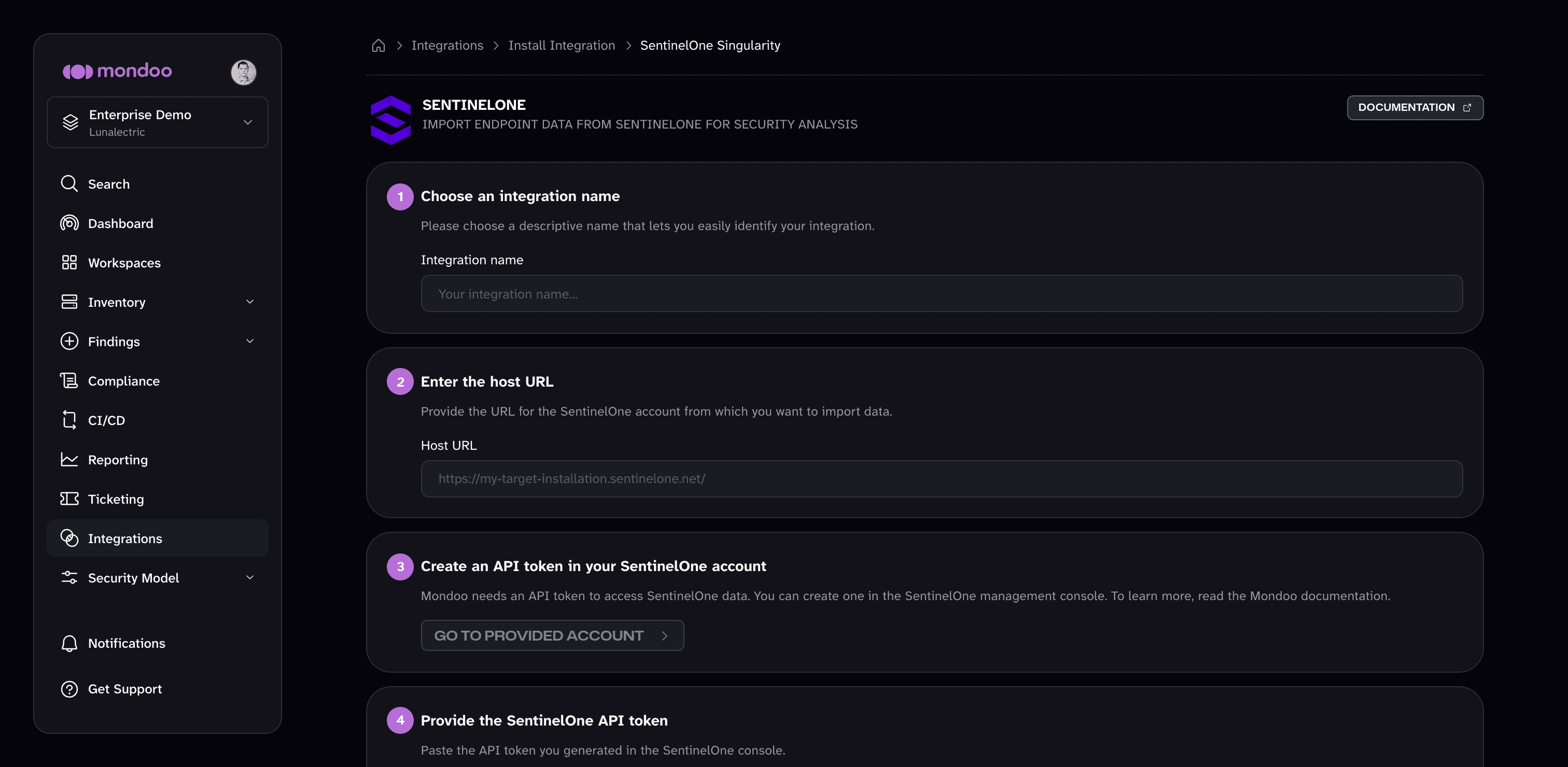
In the Mondoo App, navigate to the space where you want to add the integration. In the side navigation bar, select Integrations. In the top right, select INSTALL. On the Install Integration page, find the integration you want by browsing a category or searching by name:
-
Under Third-Party Data, select SentinelOne Singularity.
-
In Choose an integration name, enter a name for the integration.
-
In Enter the host URL, enter the base URL for your SentinelOne management console. For example, if you access the console at
https://my-company.sentinelone.net/dashboard, enterhttps://my-company.sentinelone.net. -
In Provide the SentinelOne API token, paste the token you copied.
-
Choose how Mondoo handles the imported data:
- Create new assets for unique detections (on by default): add an asset for each device SentinelOne reports that doesn't match an existing asset in the space.
- Enrich findings with Mondoo (on by default): run Mondoo's vulnerability database against the data SentinelOne reports so findings include remediation guidance.
- Import asset criticality levels (off by default): bring the asset criticality you maintain in SentinelOne into Mondoo as a business priority, so findings on your most important assets score higher.
-
Select CREATE INTEGRATION.
Manage this integration
To open an existing integration, navigate to the space, select Integrations in the side navigation, choose the integration type, then select the integration.
The integration detail page shows the integration's status, configuration, import details, and recent activity. From there, you can:
- Trigger an immediate import. Select RUN.
- Edit settings. Select the edit (pencil) icon.
- Remove the integration. Select the trash can icon and confirm.
After you connect
Once the import is running, your SentinelOne findings appear in Mondoo alongside its own. Assess and improve your security to review and prioritize them.