Scan External Kubernetes Clusters
Use the Mondoo Kubernetes Operator to scan remote clusters without installing the operator on each one.
The Mondoo Kubernetes Operator can scan remote Kubernetes clusters from a central installation. Instead of deploying the operator to every cluster, you install it once on a management cluster and configure it to reach out to your other clusters over the Kubernetes API.
This is useful when you:
- Cannot or do not want to install the operator on every cluster
- Want to centralize security scanning in a management or platform cluster
- Need to scan development or staging clusters from a single location
Prerequisites
- A running Mondoo Kubernetes Operator installation. See Scan Continuously for setup instructions.
- Network connectivity from the operator cluster to the API server of each target cluster.
- Read access to Kubernetes API resources on each target cluster.
Add external clusters to an integration
When creating or editing a Kubernetes integration in the Mondoo App, go to External clusters (optional) and select ADD EXTERNAL CLUSTER.
For each external cluster, provide:
- Cluster name: A unique identifier for this cluster (used in scan job names). Use lowercase letters, numbers, and hyphens.
- Authentication method: How the operator authenticates to the remote cluster's API server. See Authentication methods below.
- Scan container images (optional): Enable to also scan container images running on the remote cluster.
- Filter namespaces (optional): Restrict which namespaces are scanned on this cluster, with an allow list or a deny list.
You can add multiple external clusters to the same integration. Each cluster gets its own scan CronJob.
If you only want to scan external clusters (not the cluster where the operator runs), disable the Scan local cluster toggle.
After creating the integration, the Mondoo App walks you through the remaining setup steps, including any IAM bindings or target cluster RBAC commands specific to your chosen authentication method.
Authentication methods
The operator supports several authentication methods for reaching external clusters. Choose the one that fits your security requirements and infrastructure. The integration form shows the required fields for each method.
Kubeconfig Secret
The most flexible option. Store a kubeconfig file in a Kubernetes Secret and reference it in the integration. This works with any cluster and any authentication mechanism that kubectl supports (client certificates, OIDC tokens, exec plugins, and others).
In the integration form, select Kubeconfig Secret as the authentication method and, in the Kubeconfig secret name box, enter the name of a Secret in the mondoo-operator namespace that has a kubeconfig key.
Show manual Secret creation commands
Export a kubeconfig for the remote cluster and store it as a Secret in the operator namespace:
kubectl config view --minify --flatten --context=<remote-context> > remote-kubeconfig.yaml

kubectl create secret generic prod-kubeconfig \
  --namespace mondoo-operator \
  --from-file=kubeconfig=remote-kubeconfig.yaml
The Secret must have a key named kubeconfig.
Service account token
Use a Kubernetes service account token with a CA certificate. This is simpler than a full kubeconfig when you need a static credential.
In the integration form, select Service Account and provide the target cluster's API server URL and, in Credentials secret name, the name of a Secret containing the token and CA certificate.
Show manual setup commands
On the target cluster, create a service account with read access:
kubectl create serviceaccount mondoo-scanner -n kube-system
kubectl create clusterrolebinding mondoo-scanner \
  --clusterrole=view \
  --serviceaccount=kube-system:mondoo-scanner
Create a token and extract the CA certificate:
kubectl create token mondoo-scanner -n kube-system --duration=8760h > token
kubectl config view --raw -o jsonpath='{.clusters[0].cluster.certificate-authority-data}' | base64 -d > ca.crt
Create a Secret on the operator cluster:
kubectl create secret generic prod-sa-credentials \
  --namespace mondoo-operator \
  --from-file=token=./token \
  --from-file=ca.crt=./ca.crt
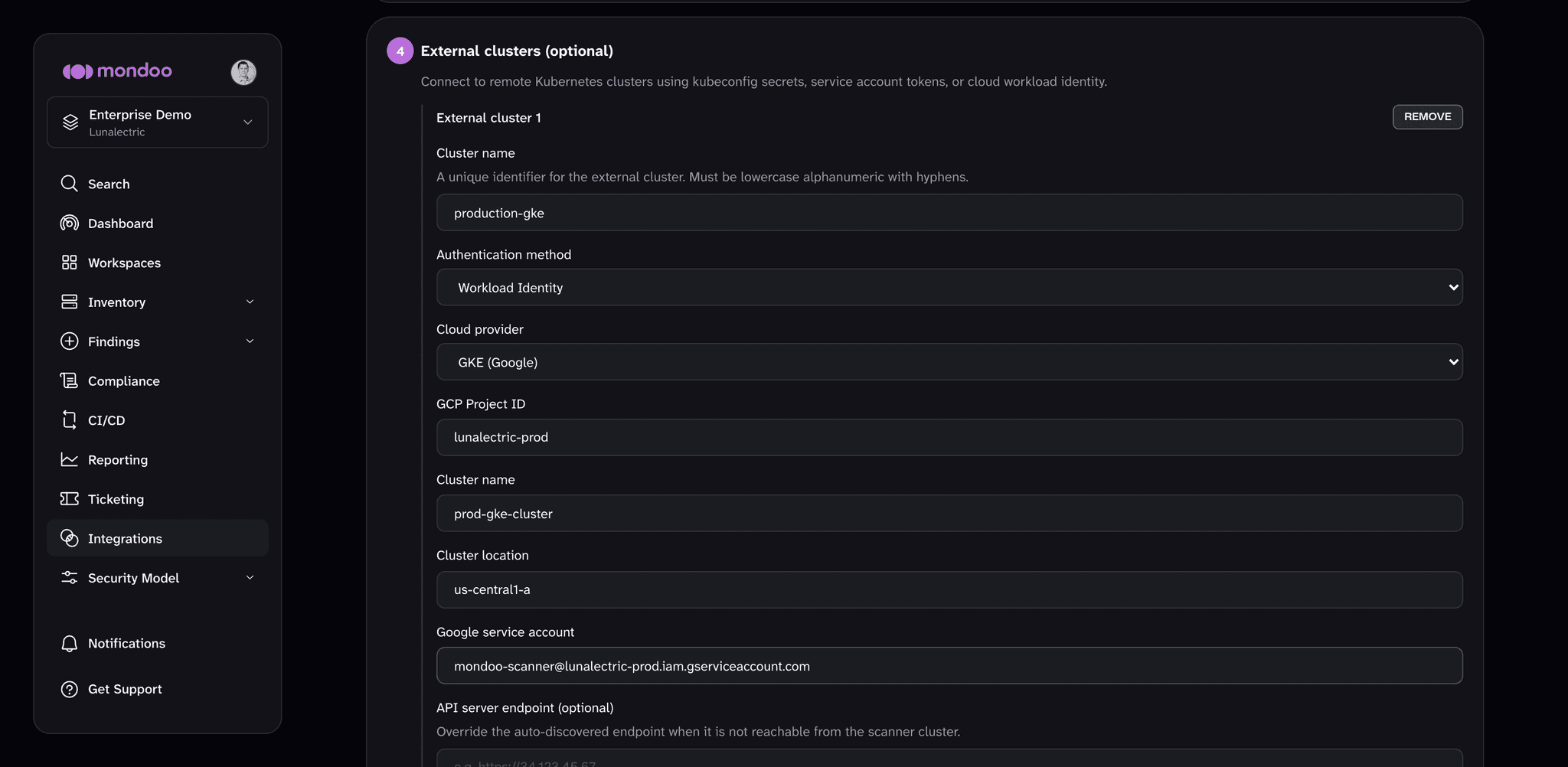
GKE Workload Identity
Use Google Cloud Workload Identity to authenticate to a remote GKE cluster with no static credentials.
In the integration form, select Workload Identity, choose GKE (Google) as the Cloud provider, and provide:
- GCP Project ID
- Cluster name
- Cluster location (zone or region)
- Google service account (email)
- API server endpoint (optional)
After creating the integration, the Mondoo App shows the IAM binding and target cluster RBAC commands you need to run.
Show IAM binding and target RBAC commands
IAM binding: Bind the operator's Kubernetes ServiceAccount to the Google service account:
gcloud iam service-accounts add-iam-policy-binding \
  scanner@my-gcp-project.iam.gserviceaccount.com \
  --project=my-gcp-project \
  --role="roles/iam.workloadIdentityUser" \
  --member="serviceAccount:my-gcp-project.svc.id.goog[mondoo-operator/<AUDIT_CONFIG_NAME>-wif-<CLUSTER_NAME>]"
Replace <AUDIT_CONFIG_NAME> with your MondooAuditConfig name (default: mondoo-client) and <CLUSTER_NAME> with the name you entered in the console.
Target cluster RBAC: On the target cluster, grant the Google service account read access:
apiVersion: rbac.authorization.k8s.io/v1
kind: ClusterRole
metadata:
  name: mondoo-operator-k8s-resources-scanning
rules:
  - apiGroups: ['*']
    resources: ['*']
    verbs: [get, watch, list]
---
apiVersion: rbac.authorization.k8s.io/v1
kind: ClusterRoleBinding
metadata:
  name: mondoo-operator-k8s-resources-scanning
roleRef:
  apiGroup: rbac.authorization.k8s.io
  kind: ClusterRole
  name: mondoo-operator-k8s-resources-scanning
subjects:
  - apiGroup: rbac.authorization.k8s.io
    kind: User
    name: scanner@my-gcp-project.iam.gserviceaccount.com
Apply this to the target cluster:
kubectl apply --context <target-cluster-context> -f target-rbac.yamlEKS IAM Roles for Service Accounts (IRSA)
Use AWS IRSA to authenticate to a remote EKS cluster with no static credentials.
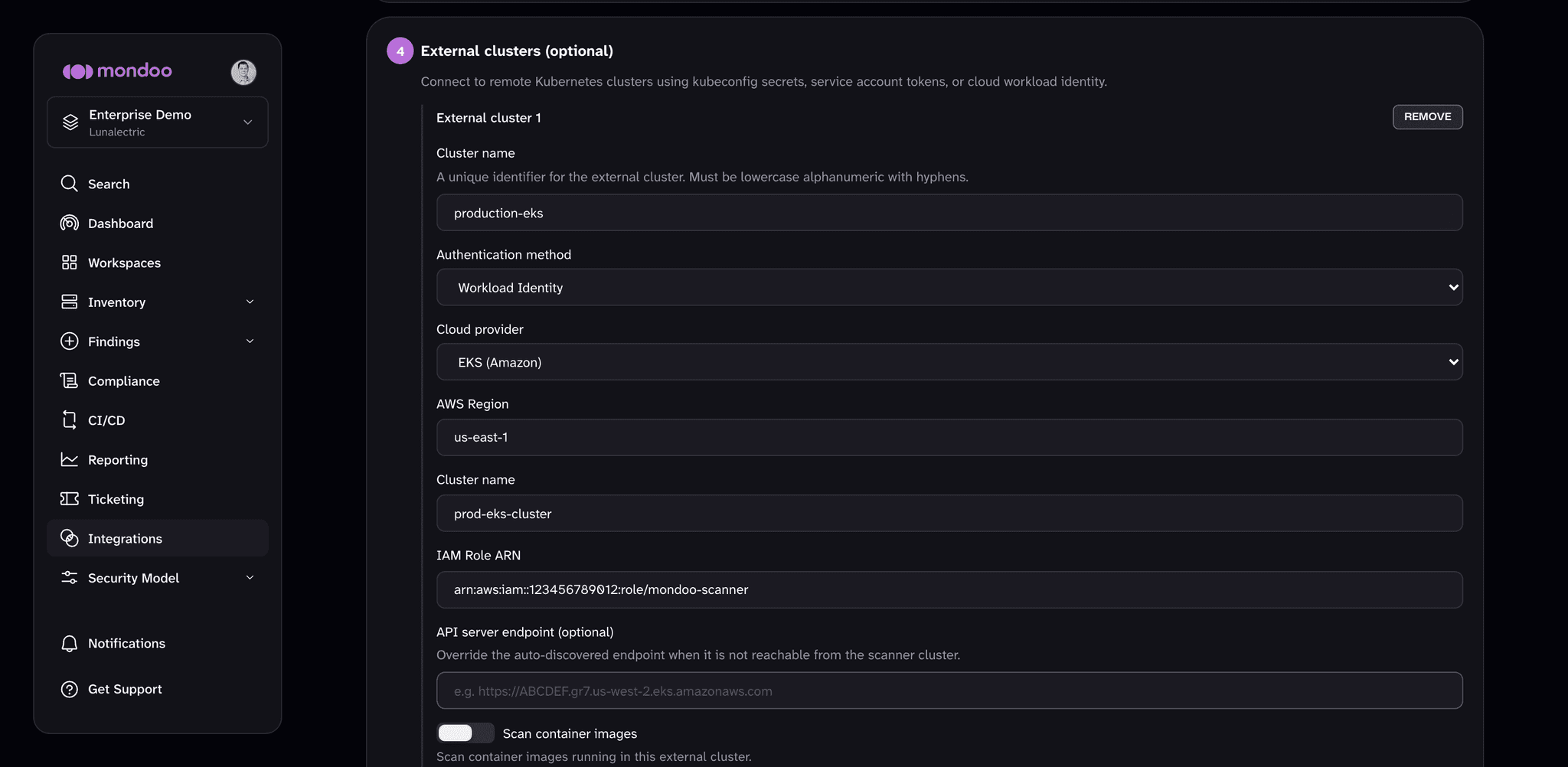
In the integration form, select Workload Identity, choose EKS (Amazon) as the Cloud provider, and provide:
- AWS Region
- Cluster name
- IAM Role ARN
- API server endpoint (optional)
After creating the integration, the Mondoo App shows the IAM trust policy and target cluster access commands you need to run.
Show IAM trust policy and target access commands
IAM trust policy: The IAM role needs a trust policy that allows the operator's Kubernetes ServiceAccount to assume it:
{
  "Effect": "Allow",
  "Principal": {
    "Federated": "arn:aws:iam::123456789012:oidc-provider/oidc.eks.us-west-2.amazonaws.com/id/OIDC_ID"
  },
  "Action": "sts:AssumeRoleWithWebIdentity",
  "Condition": {
    "StringEquals": {
      "oidc.eks.us-west-2.amazonaws.com/id/OIDC_ID:sub": "system:serviceaccount:mondoo-operator:<AUDIT_CONFIG_NAME>-wif-<CLUSTER_NAME>"
    }
  }
}
Target cluster access: Map the IAM role to a Kubernetes user on the target cluster using EKS access entries or the aws-auth ConfigMap. Then apply the same ClusterRole and ClusterRoleBinding as shown in the GKE section (using the IAM role ARN as the subject name).
AKS Workload Identity
Use Azure Workload Identity to authenticate to a remote AKS cluster with no static credentials.
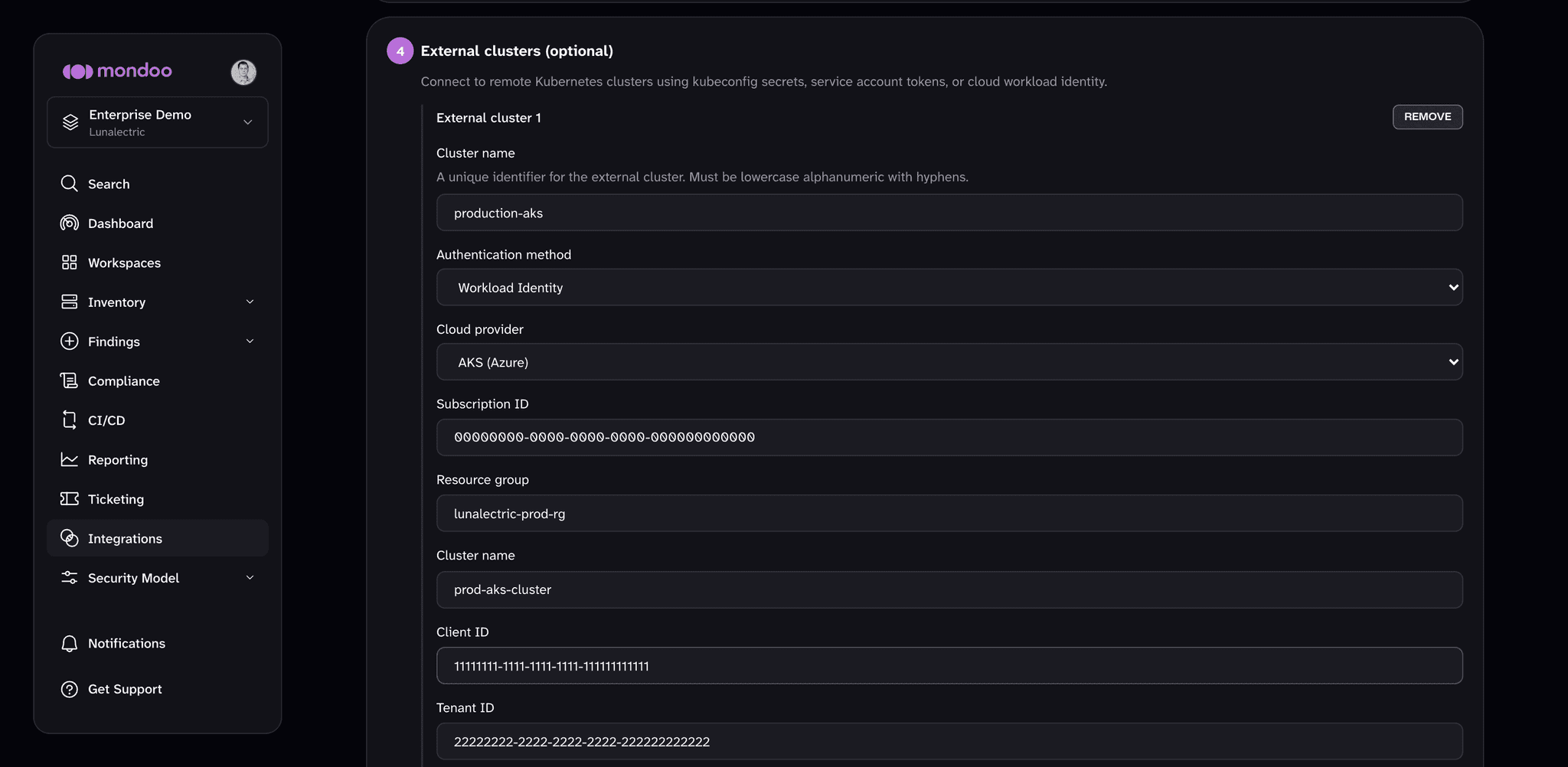
In the integration form, select Workload Identity, choose AKS (Azure) as the Cloud provider, and provide:
- Subscription ID
- Resource group
- Cluster name
- Client ID (managed identity)
- Tenant ID
- ACR login server (optional)
- API server endpoint (optional)
After creating the integration, the Mondoo App shows the federated credential and target cluster access commands you need to run.
Show federated credential and target access commands
Federated identity credential: Create a federated credential that trusts the operator's Kubernetes ServiceAccount:
az identity federated-credential create \
  --name mondoo-scanner-<CLUSTER_NAME> \
  --identity-name my-managed-identity \
  --resource-group my-resource-group \
  --issuer "$(az aks show -g my-resource-group -n scanner-cluster --query oidcIssuerProfile.issuerUrl -o tsv)" \
  --subject "system:serviceaccount:mondoo-operator:<AUDIT_CONFIG_NAME>-wif-<CLUSTER_NAME>" \
  --audience api://AzureADTokenExchange
Target cluster RBAC: Apply the same ClusterRole and ClusterRoleBinding as shown in the GKE section (using the managed identity's object ID as the subject name).
HashiCorp Vault
Use Vault's Kubernetes secrets engine to dynamically generate short-lived service account tokens for each scan. This avoids managing any static credentials for target clusters.
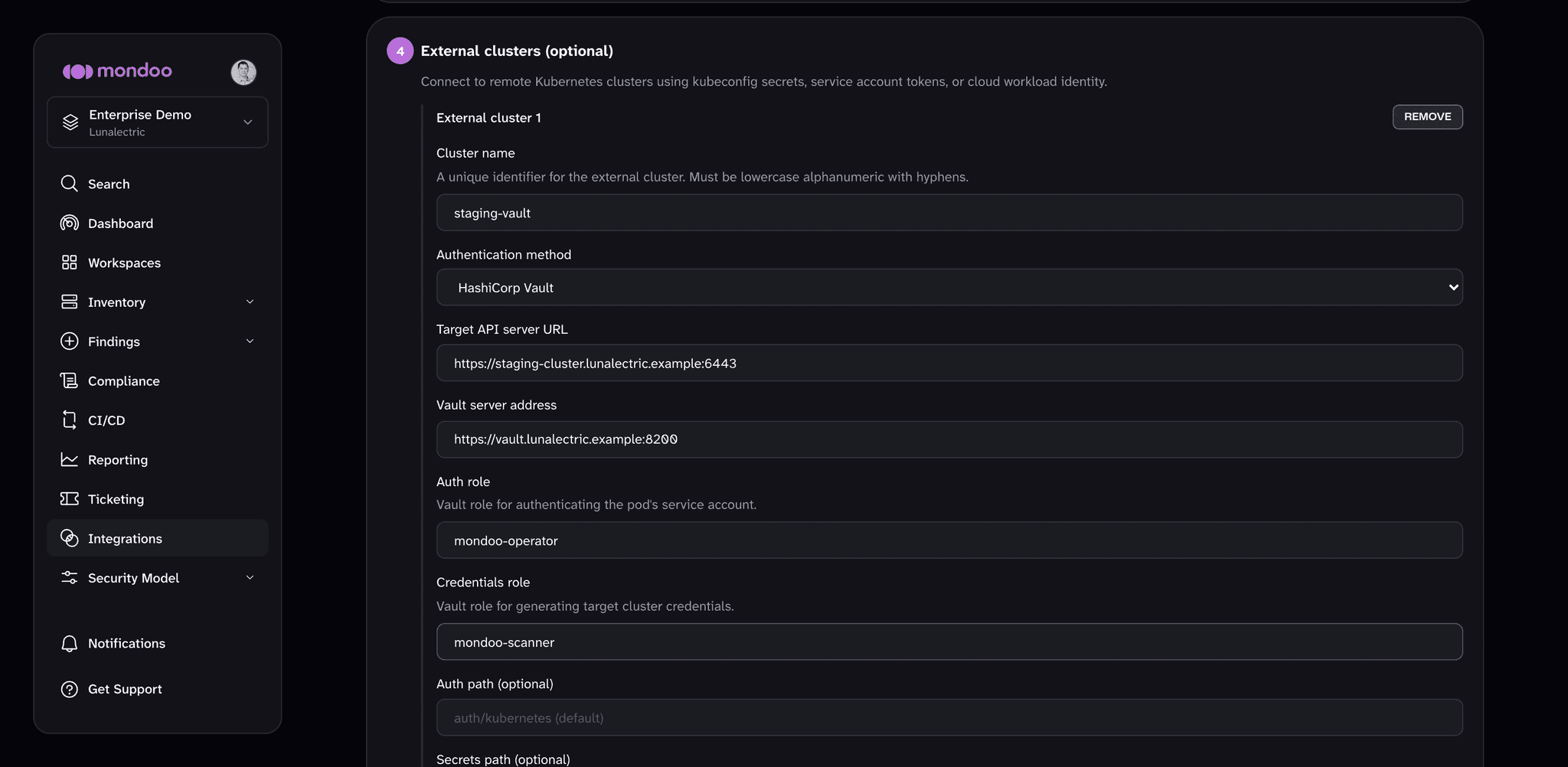
In the integration form, select HashiCorp Vault and provide:
| Field | Description |
|---|---|
| Target API server URL | The Kubernetes API server address of the remote cluster |
| Vault server address | The URL of your Vault instance |
| Auth role | The Vault Kubernetes auth role that the operator pod authenticates with |
| Credentials role | The Vault Kubernetes secrets engine role that generates tokens for the target cluster |
Optional fields:
| Field | Default | Description |
|---|---|---|
| Auth path | auth/kubernetes | Mount path for the Vault Kubernetes auth method |
| Secrets path | kubernetes | Mount path for the Vault Kubernetes secrets engine |
| Target namespace | (none) | Kubernetes namespace on the target cluster for generated tokens |
| TTL | (Vault default) | Requested lifetime for generated tokens |
| Vault CA cert secret | (none) | Secret containing a ca.crt key for Vault TLS verification |
| Target CA cert secret | (none) | Secret containing a ca.crt key for target cluster TLS verification |
Show Vault prerequisites
The following must be in place before configuring Vault authentication:
- Vault Kubernetes auth method configured for the operator's cluster.
- Vault Kubernetes secrets engine configured for the target cluster.
- A Vault role that allows the operator pod's service account to authenticate.
- A Vault credentials role that generates service account tokens on the target cluster.
The operator automatically refreshes Vault credentials before they expire (at half the TTL, clamped between 10 minutes and 1 hour).
SPIFFE/SPIRE
Use SPIFFE/SPIRE for zero-trust authentication with auto-rotating X.509 certificates.
In the integration form, select SPIFFE / SPIRE and provide:
- Remote API server URL: The Kubernetes API server address of the target cluster.
- Trust bundle secret name: A Secret in the operator namespace containing the SPIRE trust bundle (
ca.crtkey). - Socket path (optional): Custom SPIRE agent socket path. Defaults to
/run/spire/sockets/agent.sock. - Audience (optional)
Show SPIFFE prerequisites and target RBAC
SPIFFE authentication requires mounting the SPIRE agent socket from the host filesystem. Ensure your cluster's Pod Security Admission (or equivalent policy) allows HostPath volumes for the mondoo-operator namespace.
The target cluster's API server must be configured to accept SPIFFE X.509 client certificates. Apply the same ClusterRole and ClusterRoleBinding as shown in the GKE section, using the SPIFFE ID as the subject name (for example, spiffe://trust-domain/ns/mondoo-operator/sa/scanner).
Configure external clusters without the console
If you prefer to manage the MondooAuditConfig directly instead of using the console wizard, you can configure external clusters in YAML.
Show MondooAuditConfig examples
Add the externalClusters field under kubernetesResources:
apiVersion: k8s.mondoo.com/v1alpha2
kind: MondooAuditConfig
metadata:
  name: mondoo-client
  namespace: mondoo-operator
spec:
  mondooCredsSecretRef:
    name: mondoo-client
  kubernetesResources:
    enable: true
    externalClusters:
      - name: production
        kubeconfigSecretRef:
          name: prod-kubeconfig
      - name: staging
        kubeconfigSecretRef:
          name: staging-kubeconfig
Each external cluster supports its own schedule, namespace filtering, and container image scanning settings:
externalClusters:
  - name: production
    kubeconfigSecretRef:
      name: prod-kubeconfig
    schedule: '0 */2 * * *'
    filtering:
      namespaces:
        exclude:
          - kube-system
          - monitoring
    containerImageScanning: true
    privateRegistriesPullSecretRef:
      name: prod-registry-creds
For WIF, Vault, SPIFFE, and service account token authentication in YAML, see the Mondoo Operator user manual.
Private container image scanning with Workload Identity
When scanning container images on external clusters (or the local cluster), you can use Workload Identity Federation to authenticate to cloud container registries instead of managing static pull secrets. The operator creates a dedicated Kubernetes ServiceAccount with the appropriate cloud annotations and uses short-lived registry credentials at runtime.
This supports GCR/Artifact Registry (GKE), ECR (EKS), and ACR (AKS).
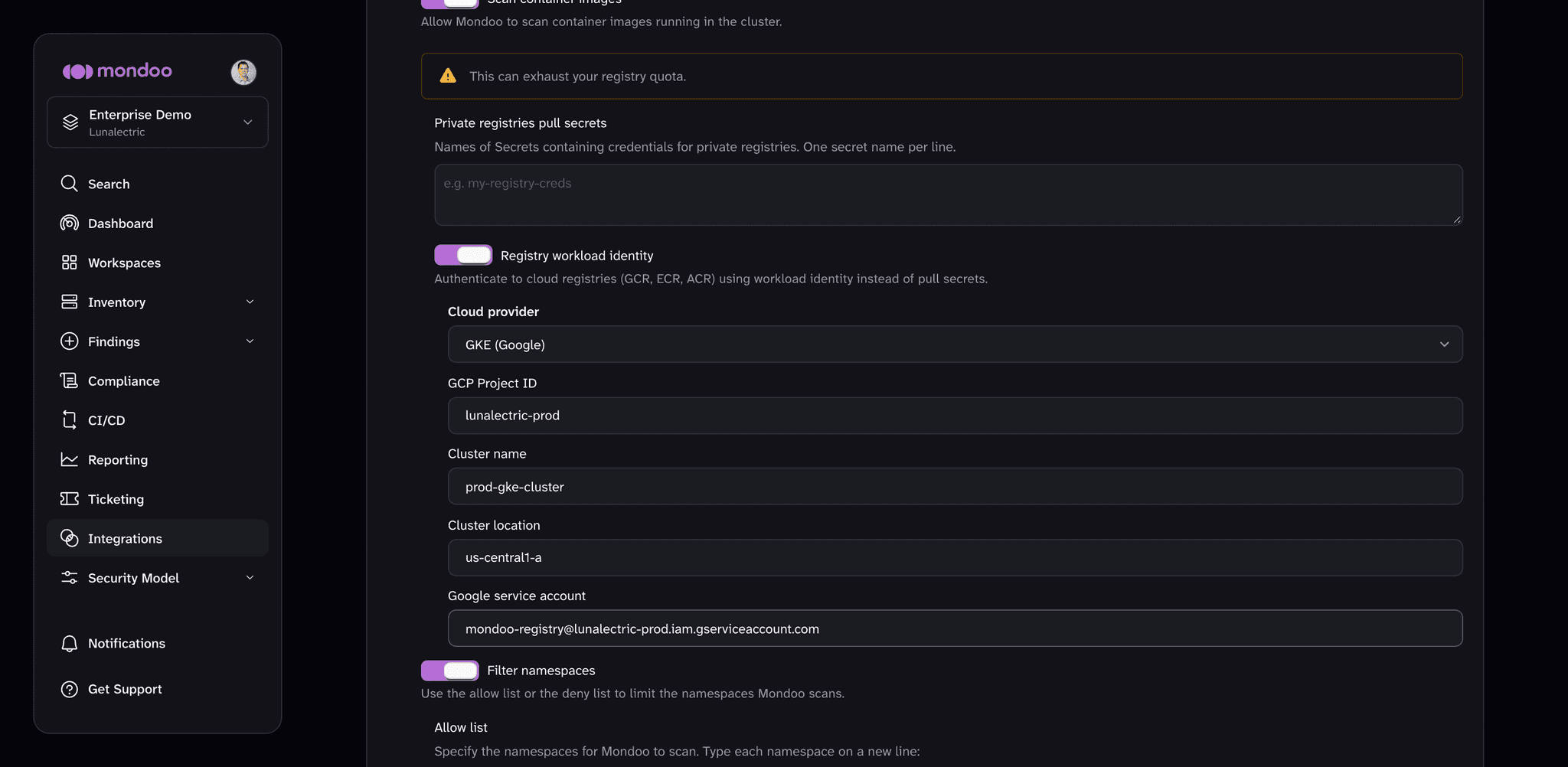
In the integration form, enable Scan container images (for the local cluster, or on an external cluster), then turn on Registry workload identity and select your Cloud provider. The form prompts for provider-specific fields, and the Mondoo App shows the IAM binding commands after you create the integration.
Next steps
- Scan Continuously to learn about operator installation, integration setup, and multi-integration support.
- Run ad hoc Kubernetes security scans from your workstation for one-time scans without the operator.