Gather Evidence of Compliance
View compliance progress, drill into controls and assets, and generate PDF reports for auditors.
Once you've enabled compliance frameworks and their recommended policies, Mondoo continuously assesses every asset in your space. You can read the compliance score at any time, drill into controls and assets, and export PDF reports as evidence for auditors.
Open the Compliance page
Every task on this page starts in the same place:
-
In the Mondoo App, navigate to the space.
-
In the side navigation, select Compliance.
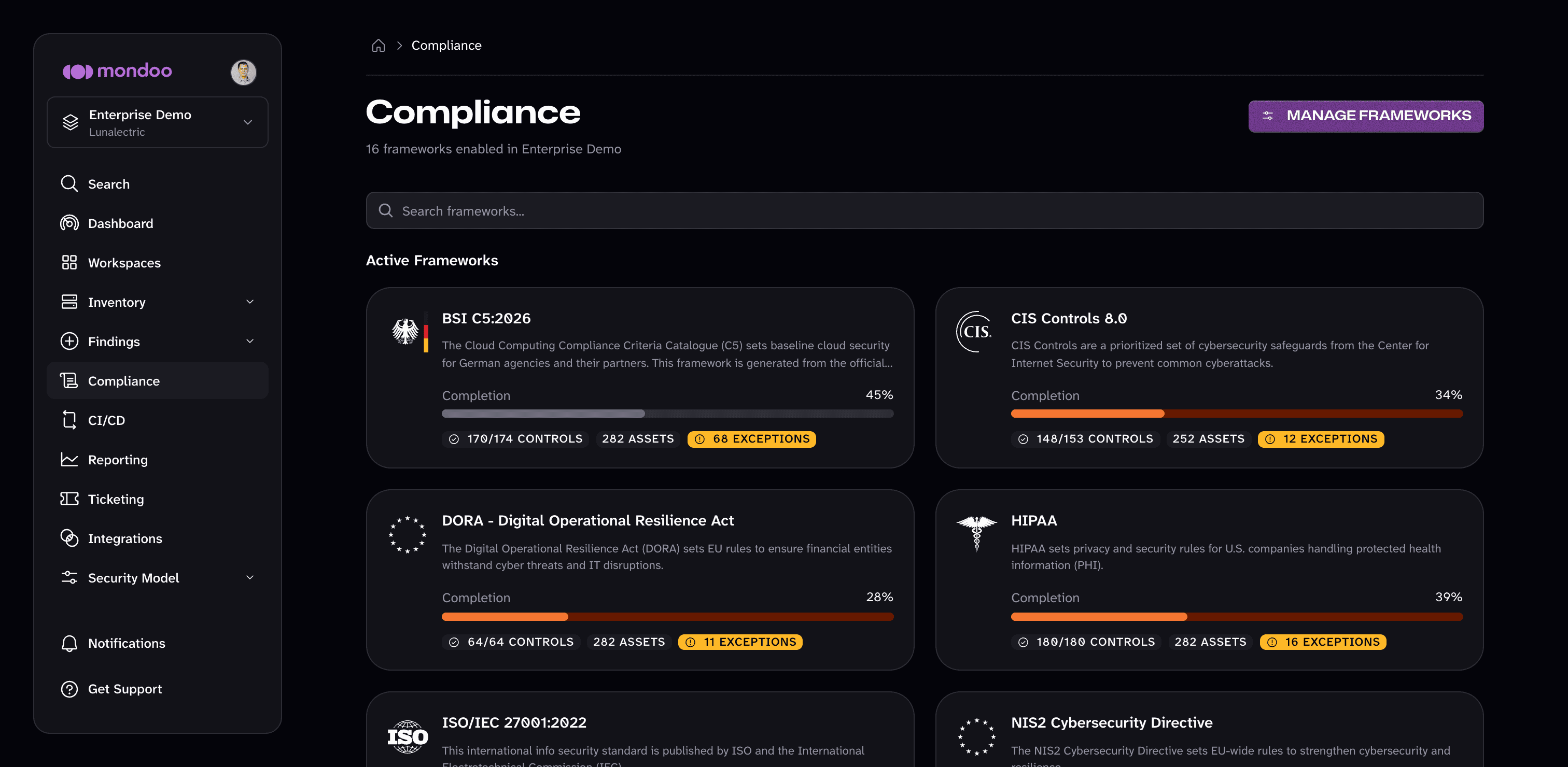
The Compliance page shows a card for each framework enabled in the space, grouped under Active Frameworks and Preview Frameworks. Each card shows the space's completion percentage for that framework and counts of its controls, assets, and exceptions. A space is fully compliant with a framework only when it reaches 100%. To turn frameworks on or off, select MANAGE FRAMEWORKS; to learn more, read Enable Compliance Frameworks.
Drill into a framework
Select a framework on the Compliance page to see detailed evidence.
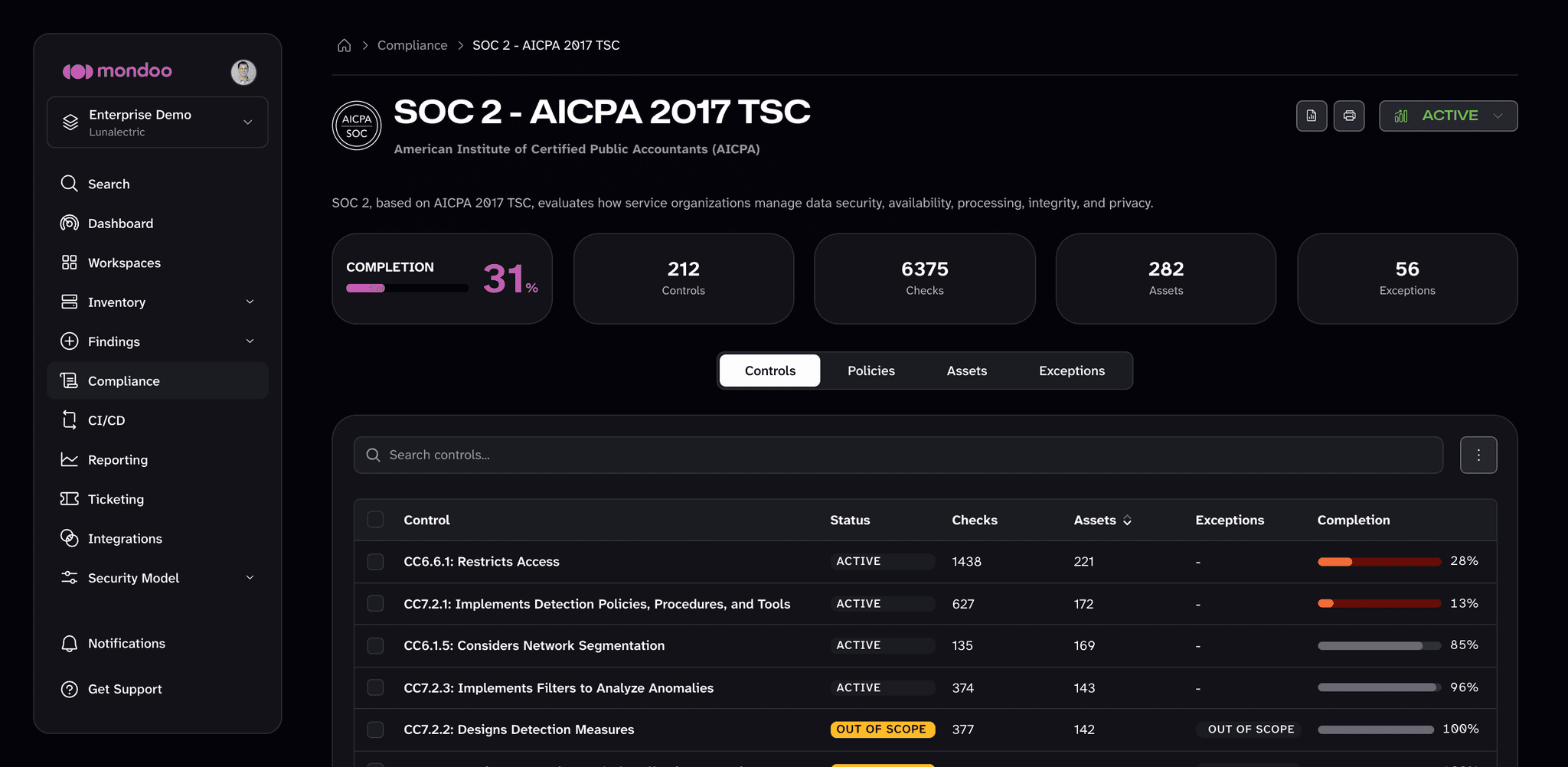
COMPLETION at the top is the overall score. Next to it are the number of controls, checks, assets, and exceptions that apply to the framework in this space. The tabs below break it down:
| Tab | Contents |
|---|---|
| Controls | Every control in the framework with its status (such as Active or Out of Scope), check and asset counts, any exception, and completion. Select a control to open its detail page. |
| Policies | Every policy whose checks back this framework. You can enable policies from here or change the state of enabled ones. |
| Assets | Per-asset compliance progress. Select an asset for its detail page. |
| Exceptions | The exceptions set on the framework's controls and checks, with each one's type, scope, expiration, and review status. |
Drill into a control
Select a control on the Controls tab to open its detail page. The top of the page shows the control's completion and its number of checks, data queries, assets, and exceptions. The tabs below hold the evidence:
| Tab | Contents |
|---|---|
| Findings | Every check that backs the control, the policy it comes from, the number of assets it runs on, and its risk. |
| Data Queries | Queries that collect configuration data as evidence for the control. |
| Assets | Per-asset progress on the control. |
| Exceptions | Exceptions on the control or on the checks within it. |
From a control's detail page you can also set an exception or set the control out of scope using the TAKE ACTION menu.
Generate a compliance report
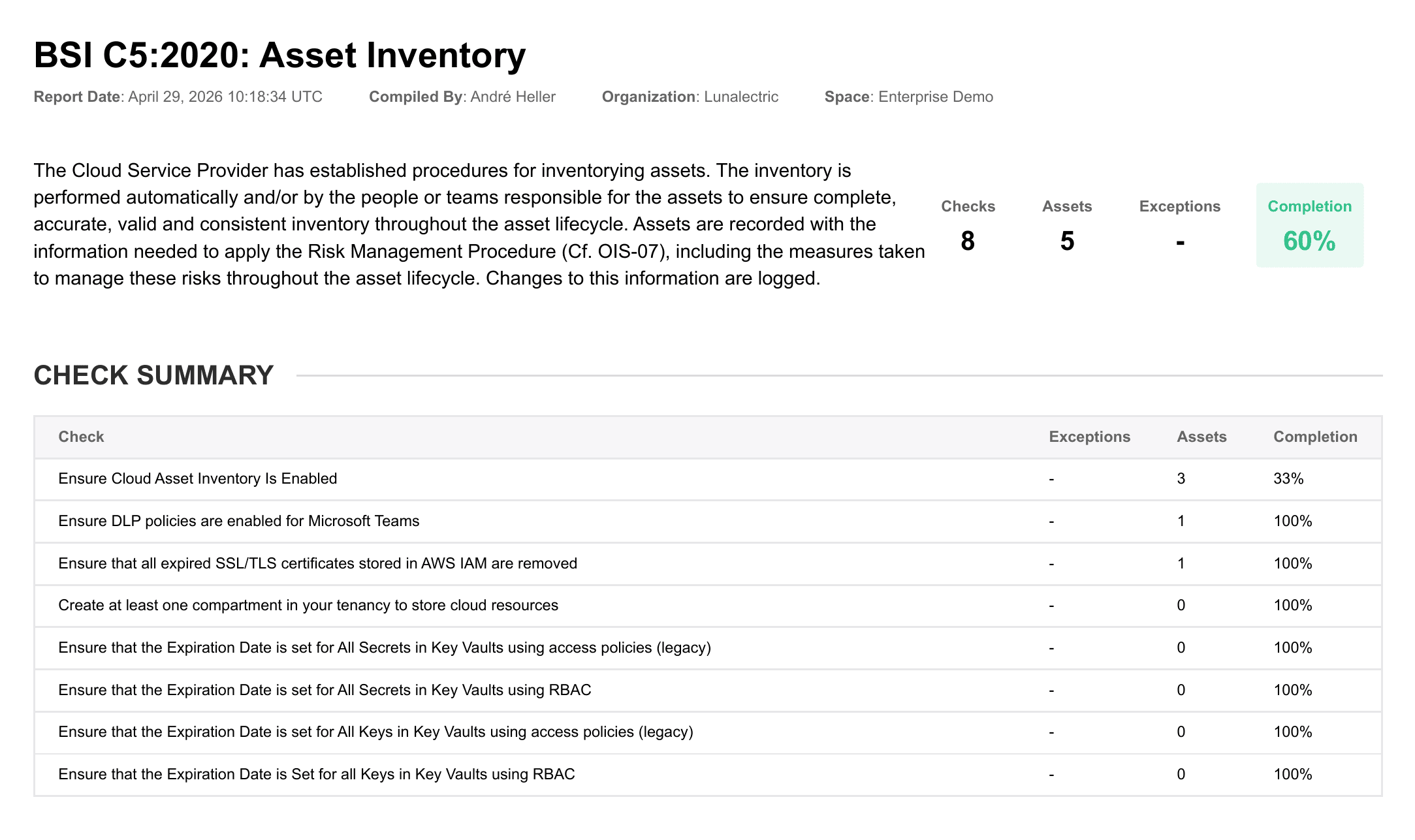
PDF reports give your auditors an evidence-ready snapshot of compliance with a whole framework or a single control.
-
From the Compliance page, select the framework you want to report on. To report on a single control instead, open the framework and then select the control in the Controls table.
-
To the right of the framework or control title, select the Generate report icon (the document symbol).
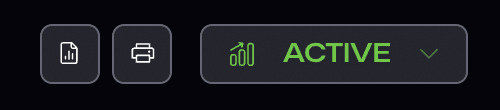
The icon next to it, Print view, opens a printable version of the framework or control in a new browser tab instead of generating a stored PDF.
-
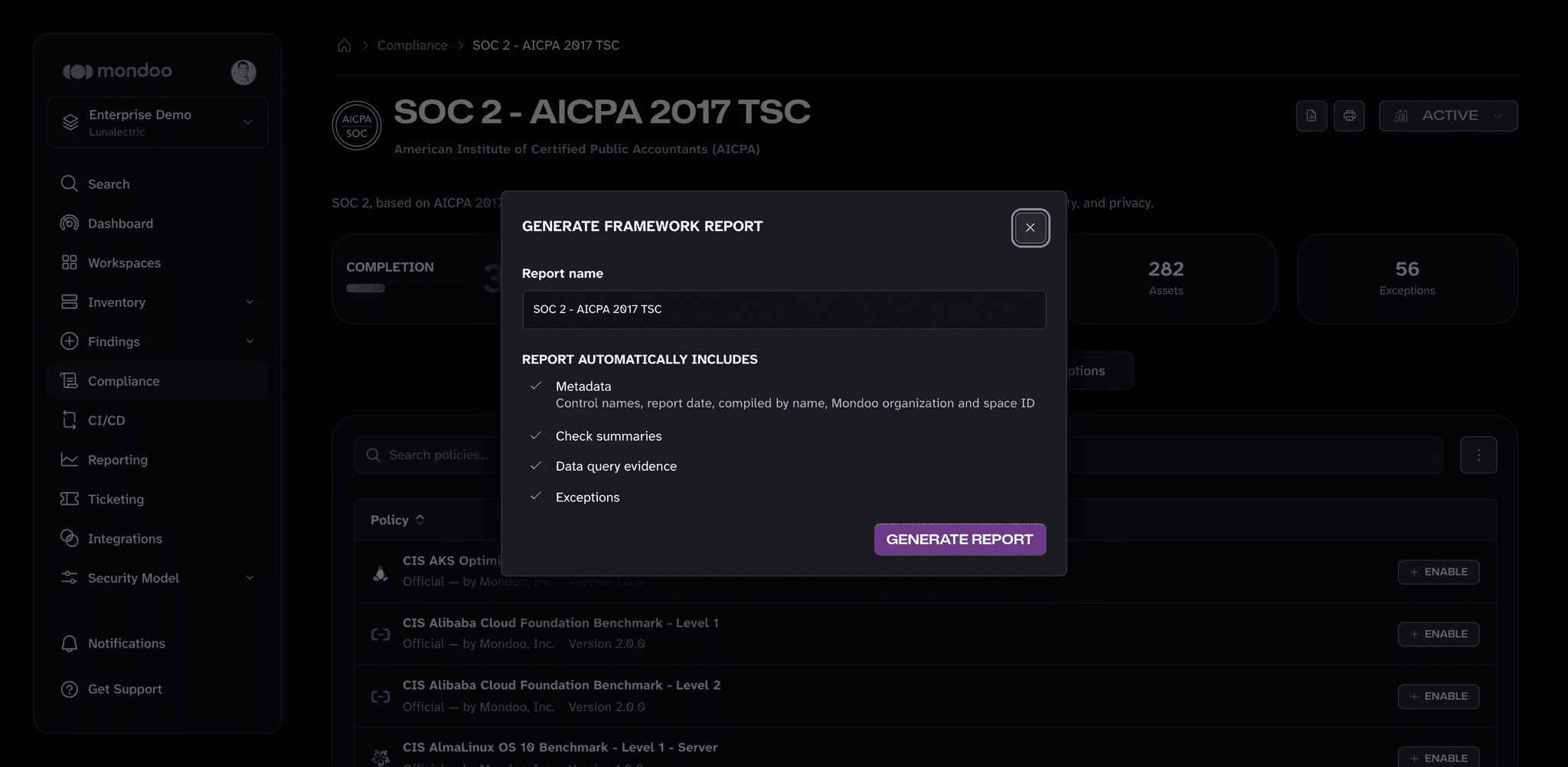
Name the report and select GENERATE REPORT. The dialog lists what the report automatically includes: metadata, check summaries, data query evidence, and exceptions.
-
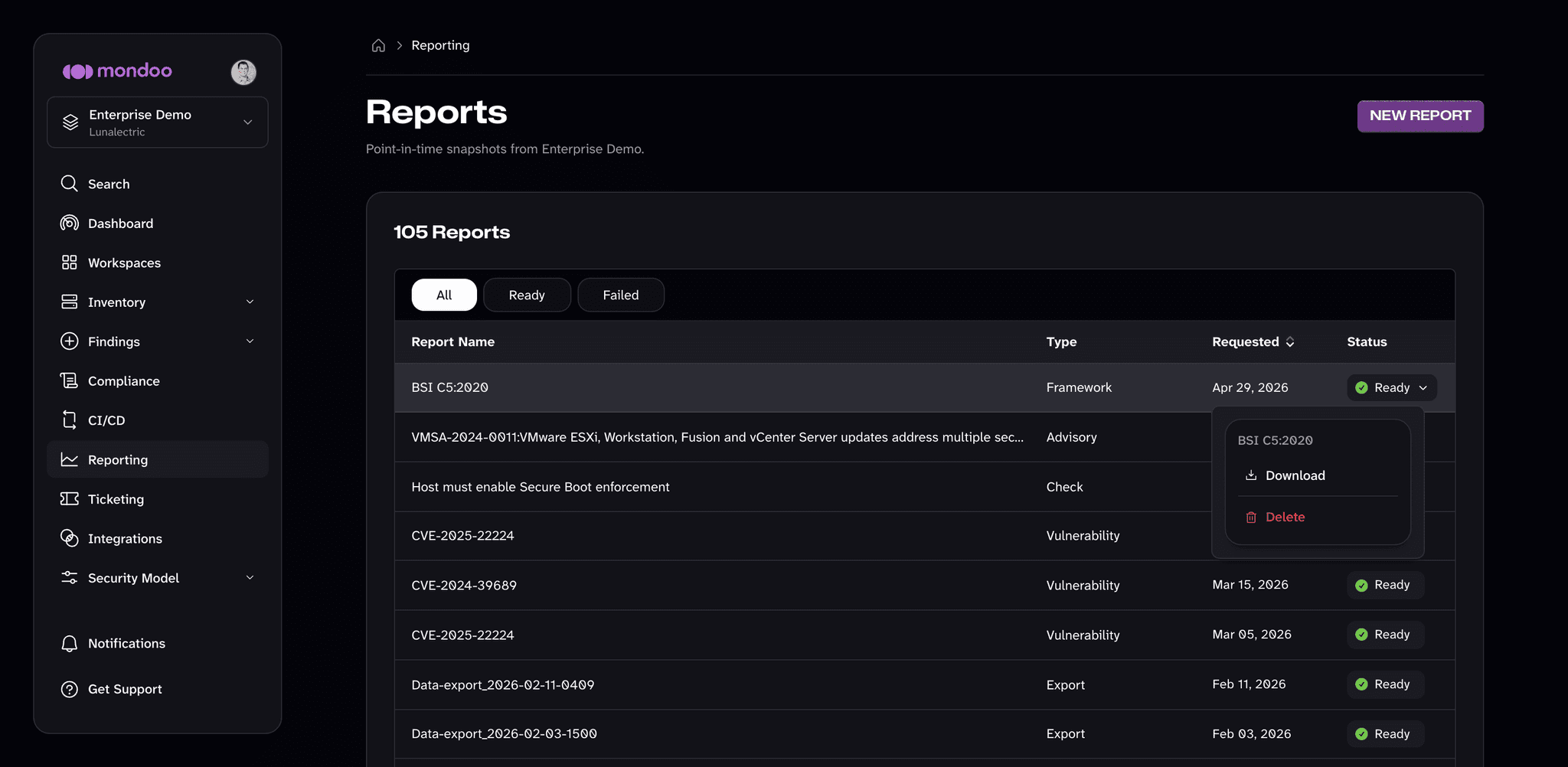
In the side navigation, select Reporting to open the Reporting page. Your report appears in the list with a Status of Ready once it finishes.
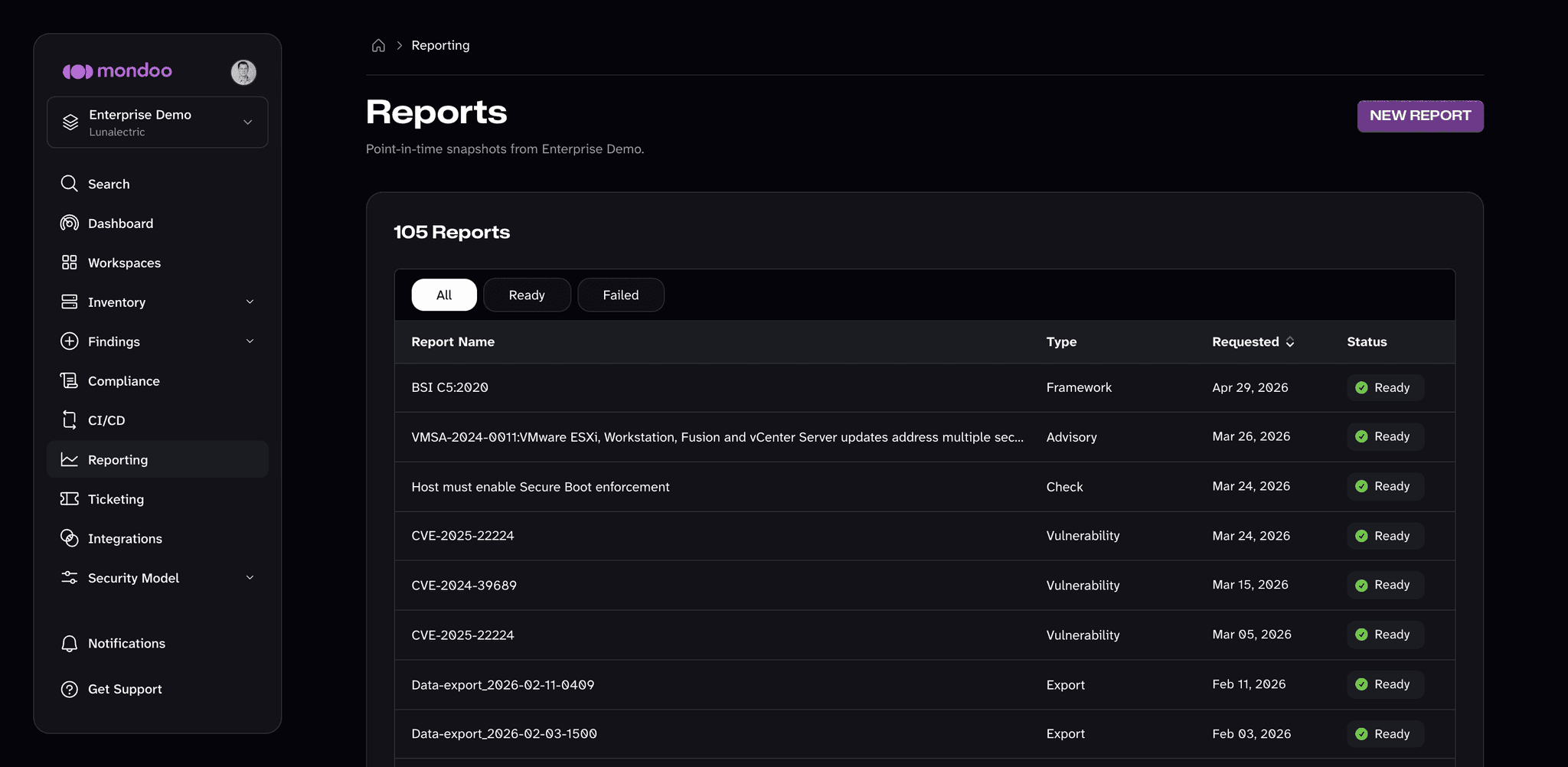
Large PDFs take a moment to generate. If the report is still in progress, you can leave the page and come back; it will be waiting when it's ready. Use the All, Ready, and Failed tabs to filter by status.
-
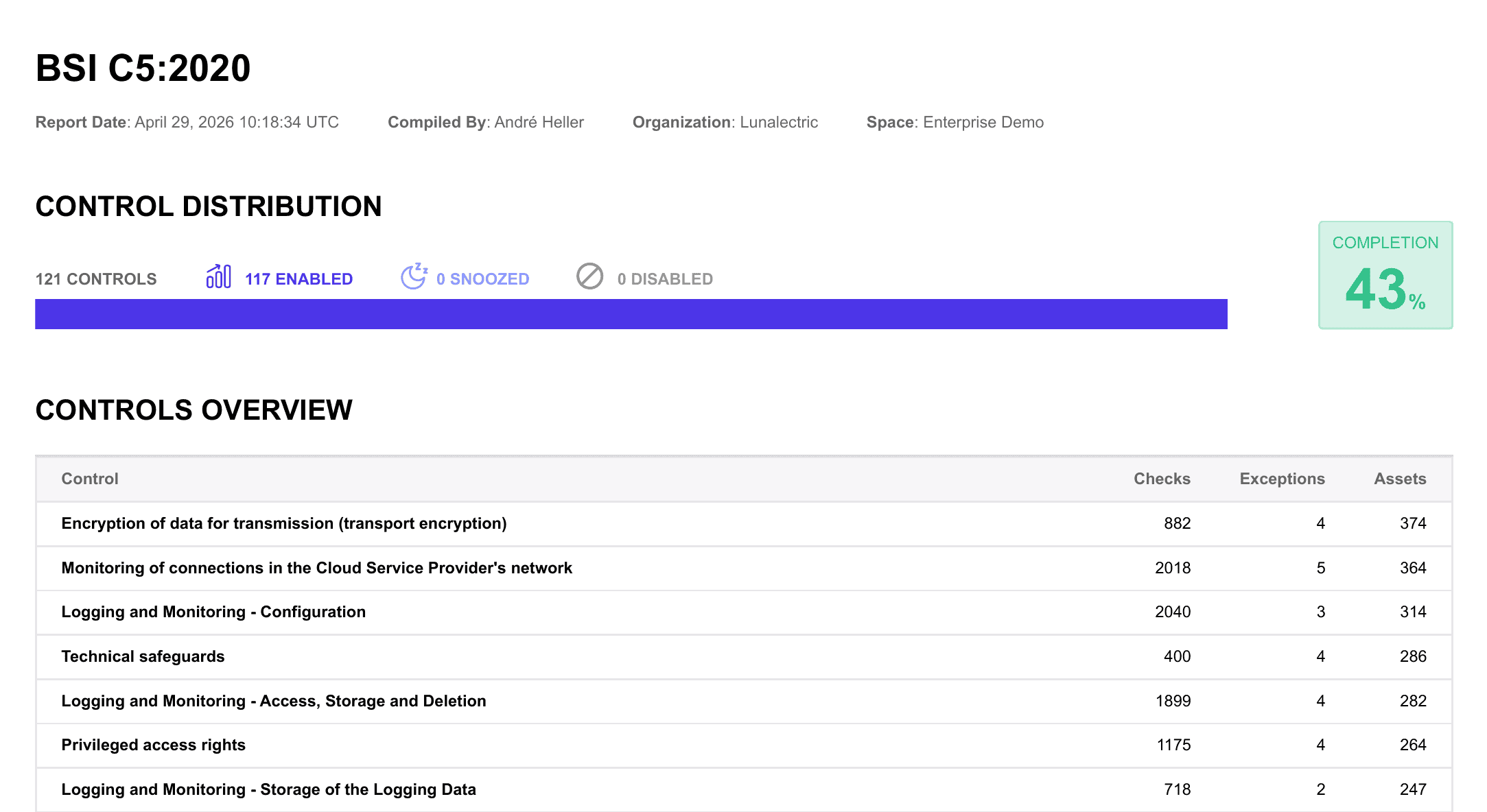
To download the report, select the report's Status menu (the Ready dropdown), then select Download. A framework report downloads as a ZIP file that holds a summary PDF for the framework, an About This Report PDF, and one PDF for each control.
Delete reports
-
In the Mondoo App, navigate to the space.
-
In the side navigation, select Reporting.
-
Find the report you want to delete, select its Status menu (the Ready dropdown), then select Delete.