Set Exceptions on Controls
Add, approve, reject, and remove exceptions on compliance controls.
Exceptions exclude a control from your compliance score while documenting the reason for your team and auditors. Unlike setting a control out of scope, which hides the control from reports entirely, an exception leaves the control in reports along with your justification.
For the four exception types and the space-level settings that affect approval, read Customize Compliance.
To exclude a single check within a control while keeping the rest of the control active, see Set Exceptions on Checks.
Set an exception on one control
-
From a space, select Compliance in the side navigation, then select the framework. Scroll to the list of controls.
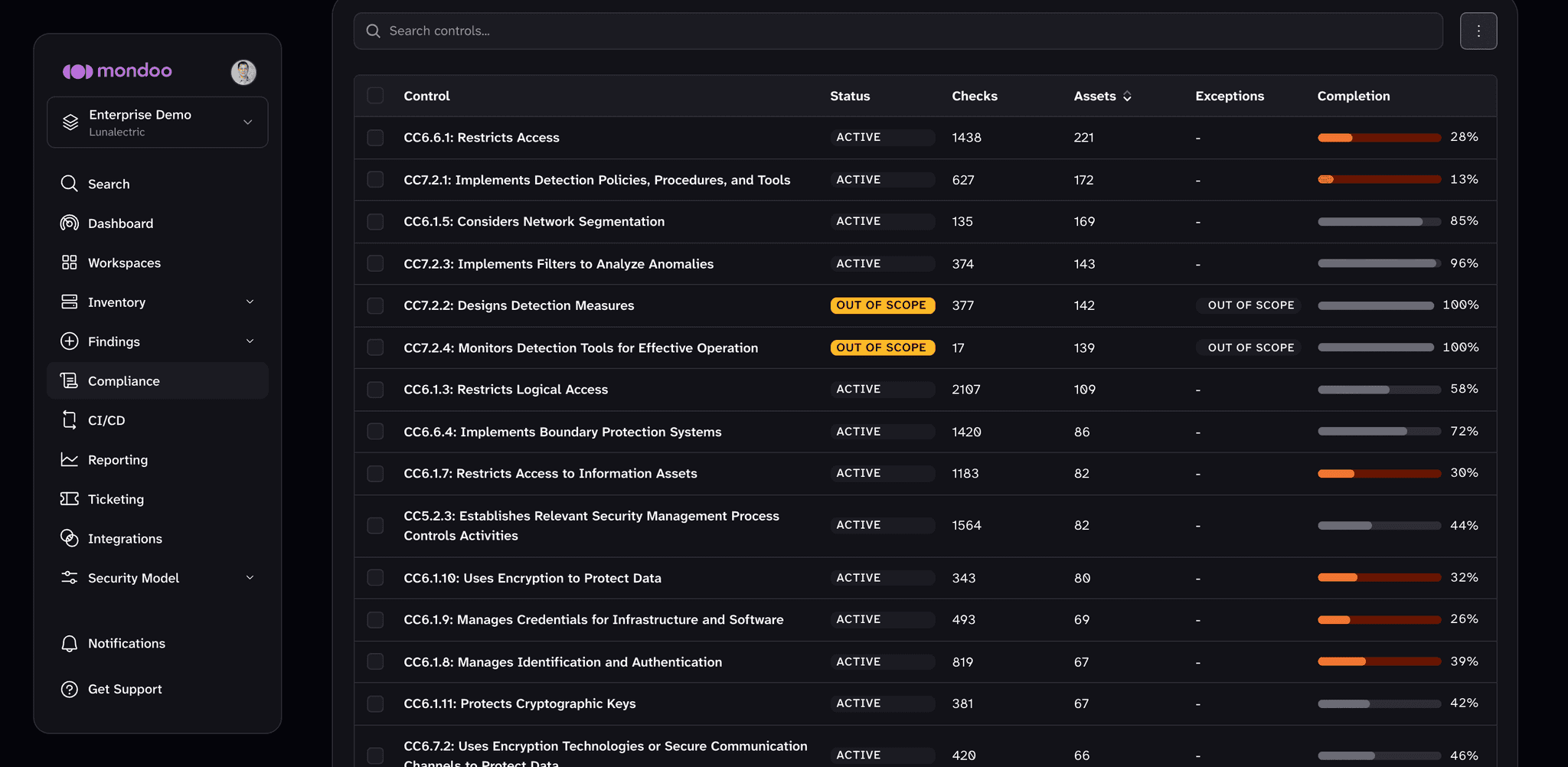
-
Select the control you want to except.
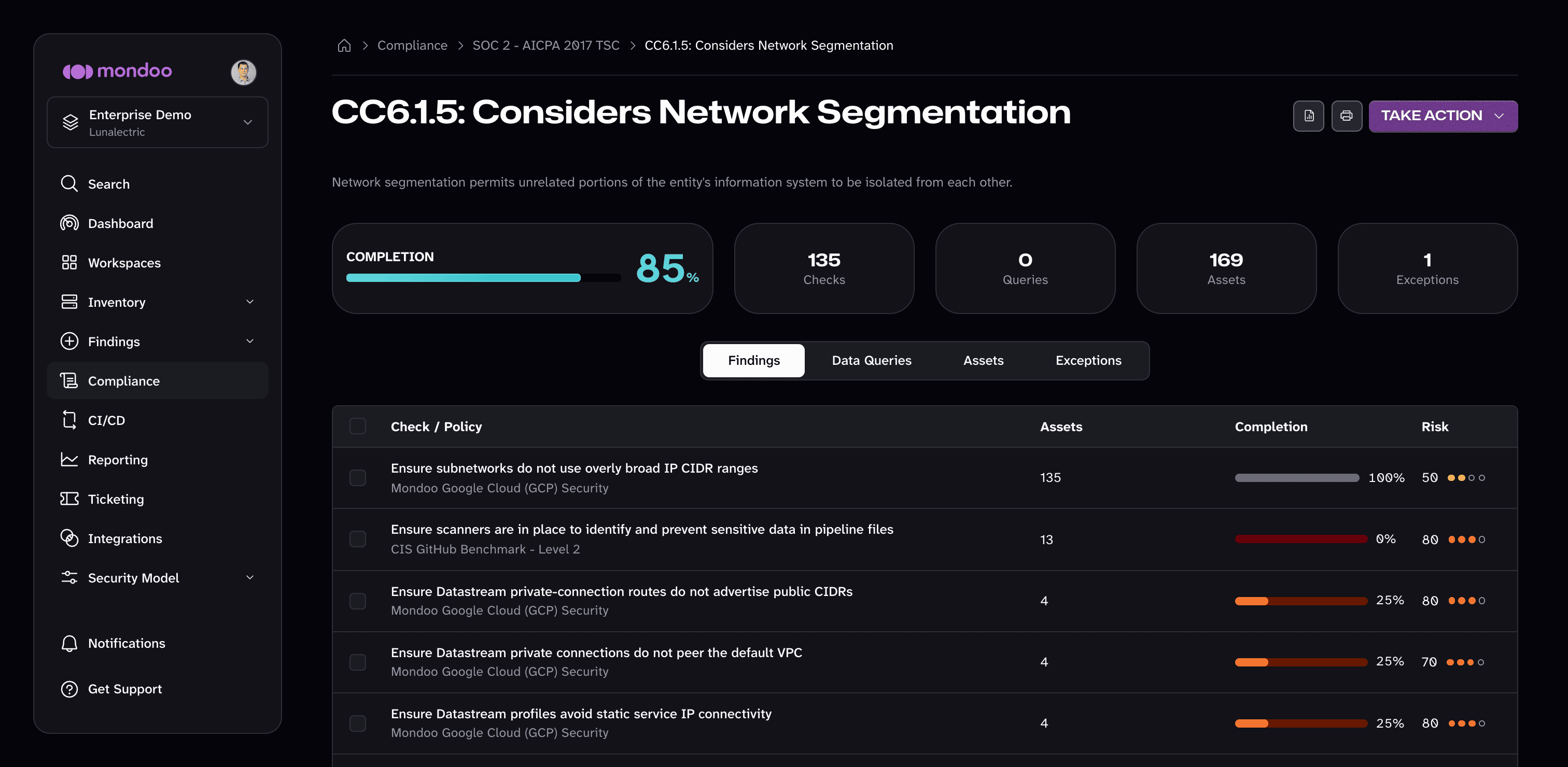
-
In the top-right corner, select TAKE ACTION > Set Exception.
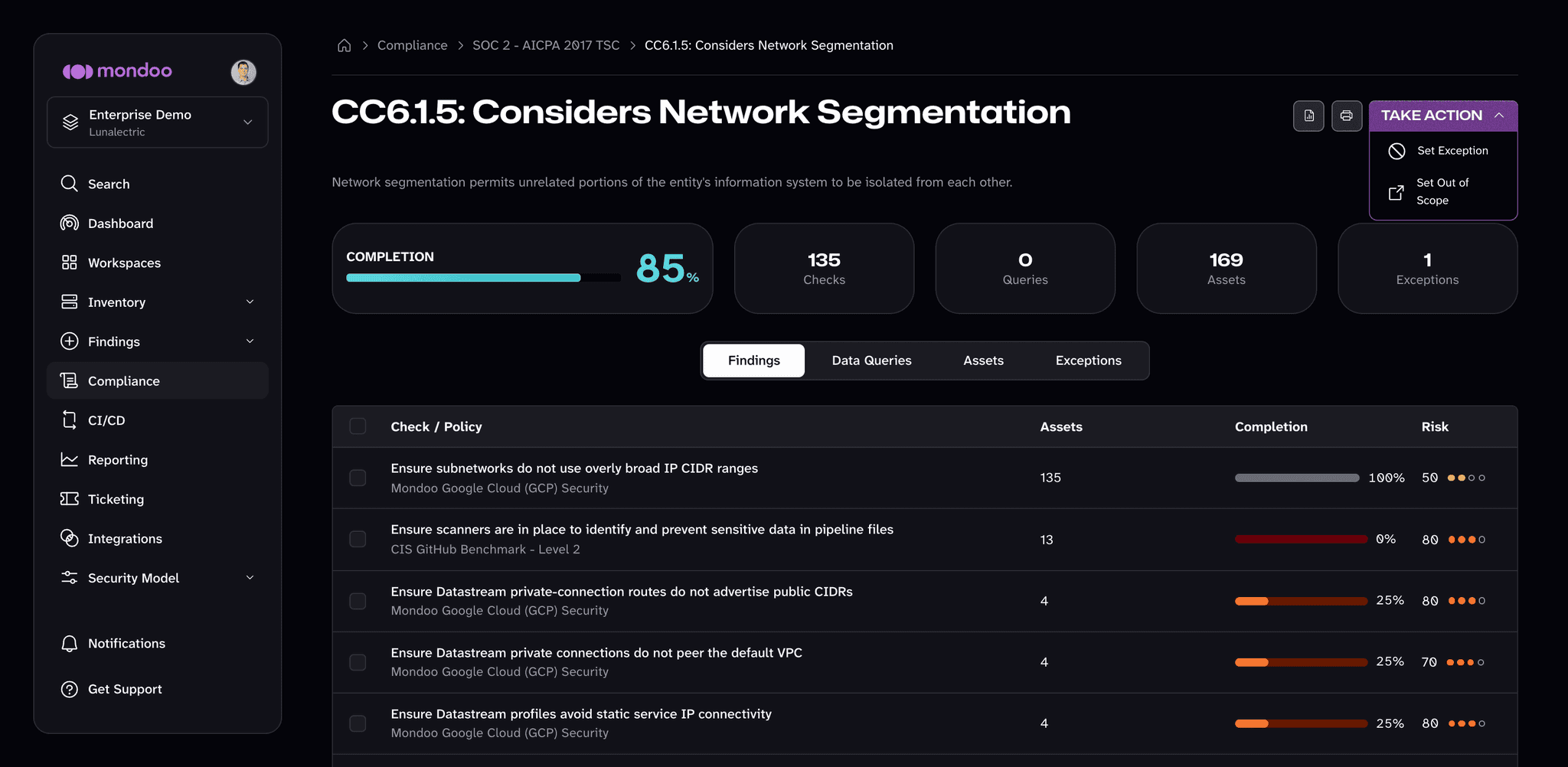
-
Choose the exception type: Risk Accepted, Workaround, False Positive, or Disable.
-
Choose a Time Limit: a number of custom days, 1 week, 1 month, 3 months, or 6 months, or Indefinitely. (Indefinitely is available only if the space allows non-expiring exceptions.)
-
Optionally, give the exception a name. If you leave it blank, Mondoo generates one.
-
Write a justification. It's required, and reviewers see it.
-
Select SAVE EXCEPTION.
Set an exception on several controls at once
-
From the framework's controls list, check the boxes beside the controls you want to except. A bar appears at the bottom of the page.
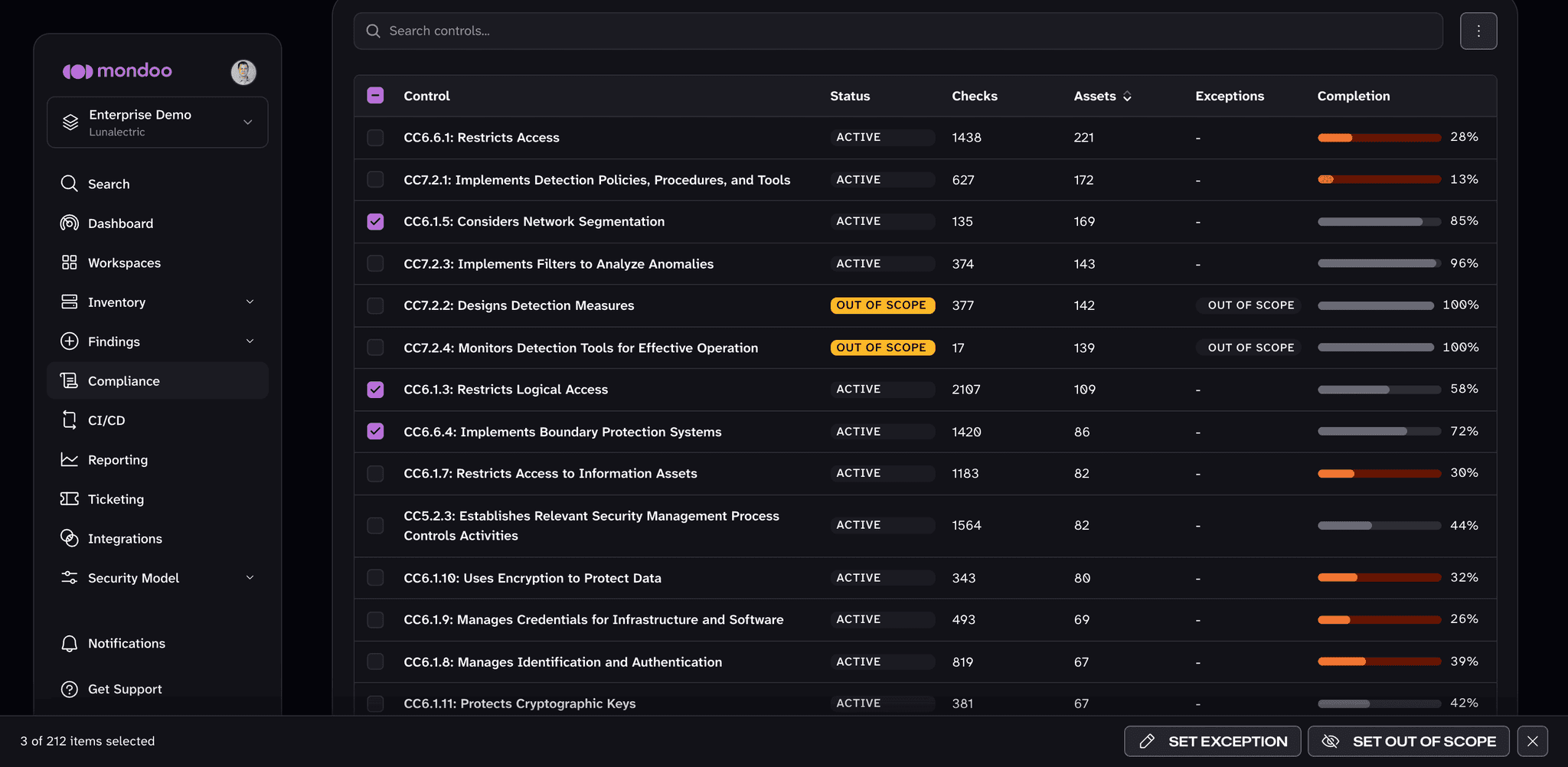
-
In that bar, select SET EXCEPTION.
-
Choose the exception type and time limit, then provide one justification that applies to every selected control.
-
Select SAVE EXCEPTION.
Approve or reject an exception
An exception's approval flow depends on your space's exception settings. In new spaces, an exception stays pending until a team member with the Owner, Exception Reviewer, or Exception Manager role approves it. If a space owner has turned off Require exception approvals, exceptions apply as soon as they're created. Approving keeps the exception. Rejecting removes it and re-enables the control.
Only team members with Owner access or the Exception Reviewer or Exception Manager role can perform this task.
-
From a space, select Compliance in the side navigation, then select the framework.
-
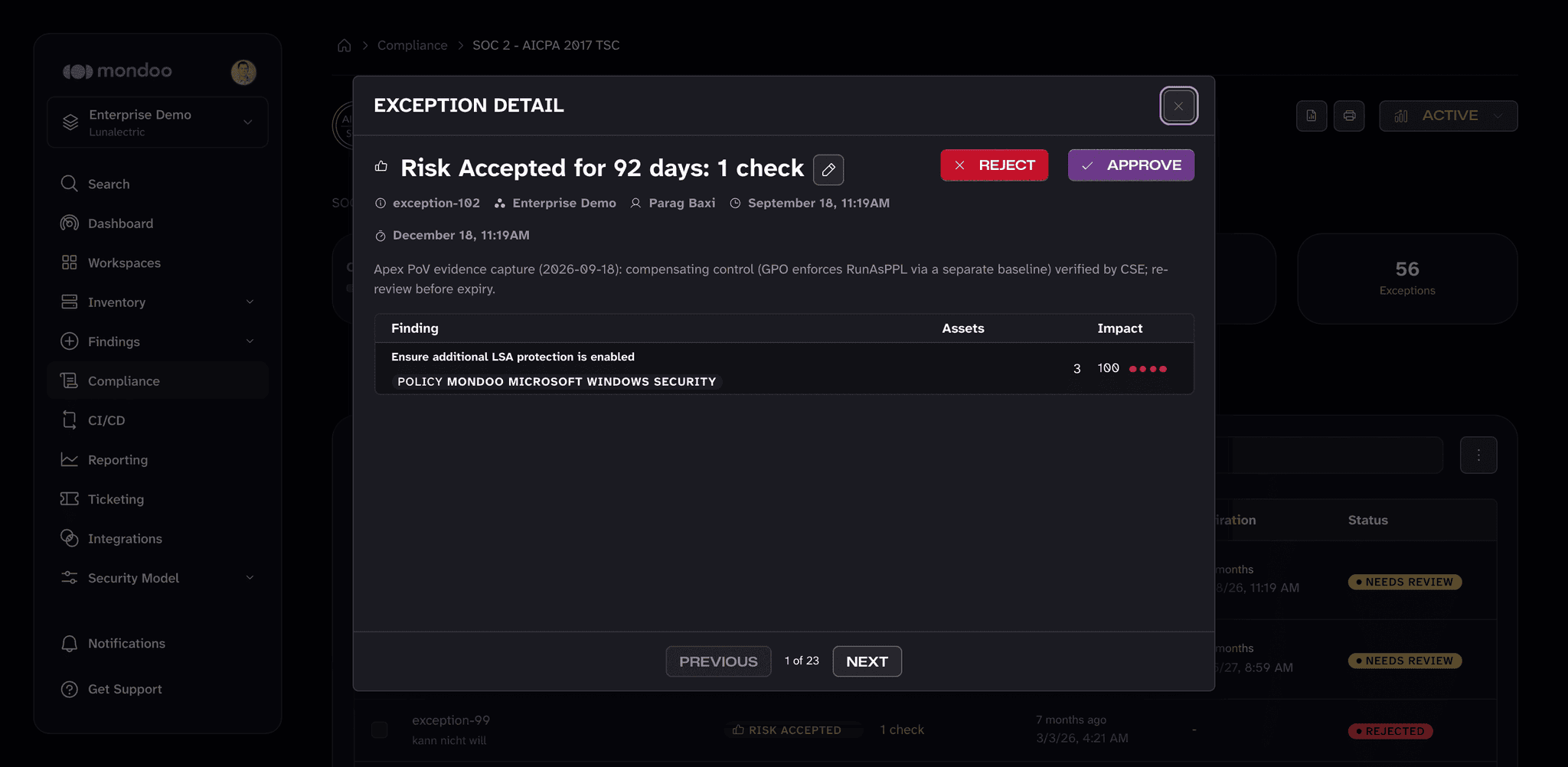
Select the Exceptions tab to see every exception on the framework, then select an exception to open its detail.
-
For an exception with a NEEDS REVIEW status, select APPROVE to keep the exception or REJECT to remove it.
To review several pending exceptions at once, check the boxes beside them on the Exceptions tab and select APPROVE or REJECT in the bar at the bottom of the page.
Re-enable a control
To remove an approved exception and restore the control to your compliance score:
-
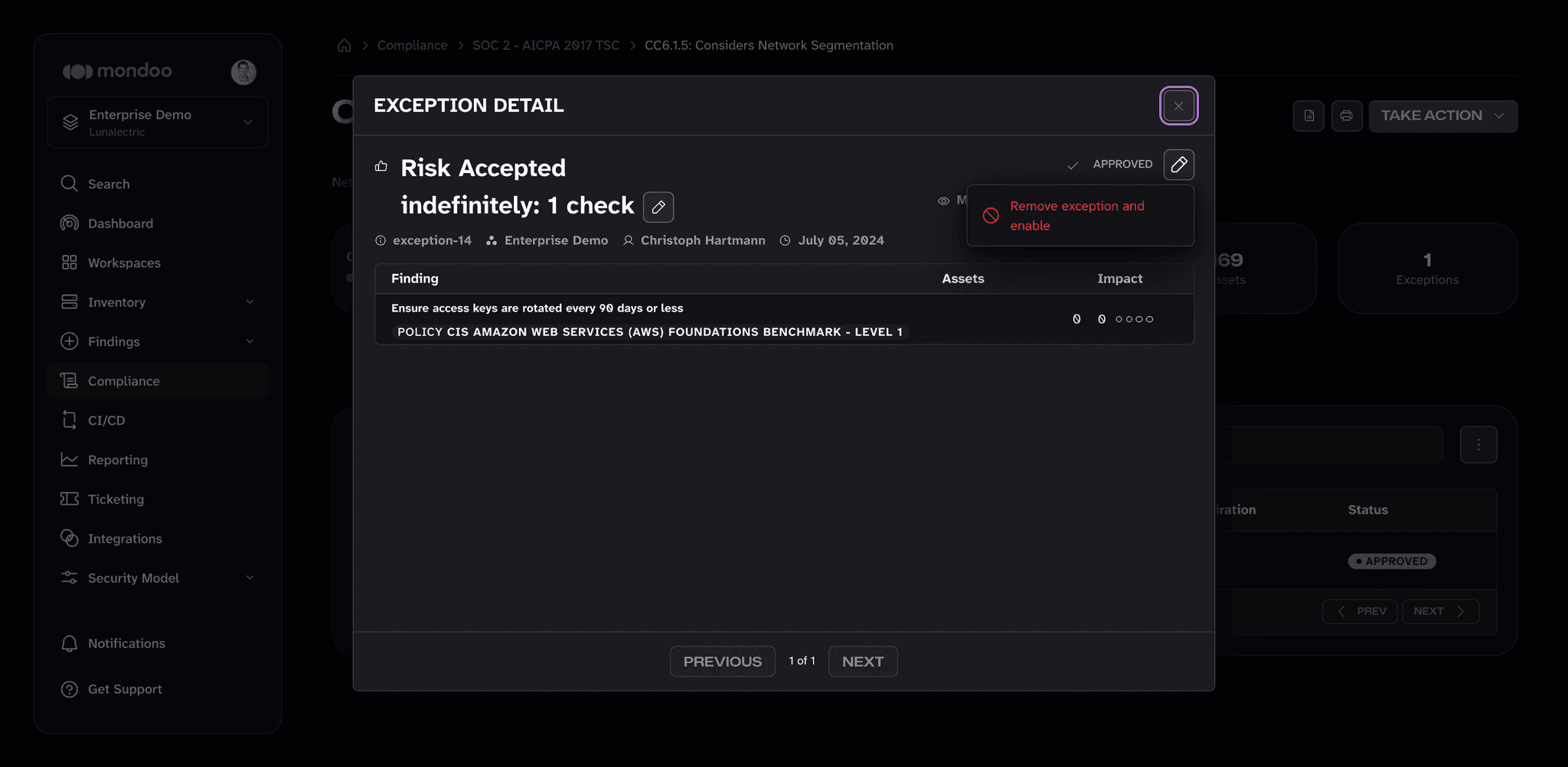
Open the framework's Exceptions tab and select the exception to open its detail.
-
Select the Modify exception (pencil) button, then select Remove exception and enable.
-
Confirm the removal.
An exception that's still pending review can be removed by selecting REJECT.