Change Check Properties
Override the values that policy checks compare against.
Many policies have properties: the ideal values that checks compare against. If your organization's standard differs from a policy's default, change the property rather than disabling the check.
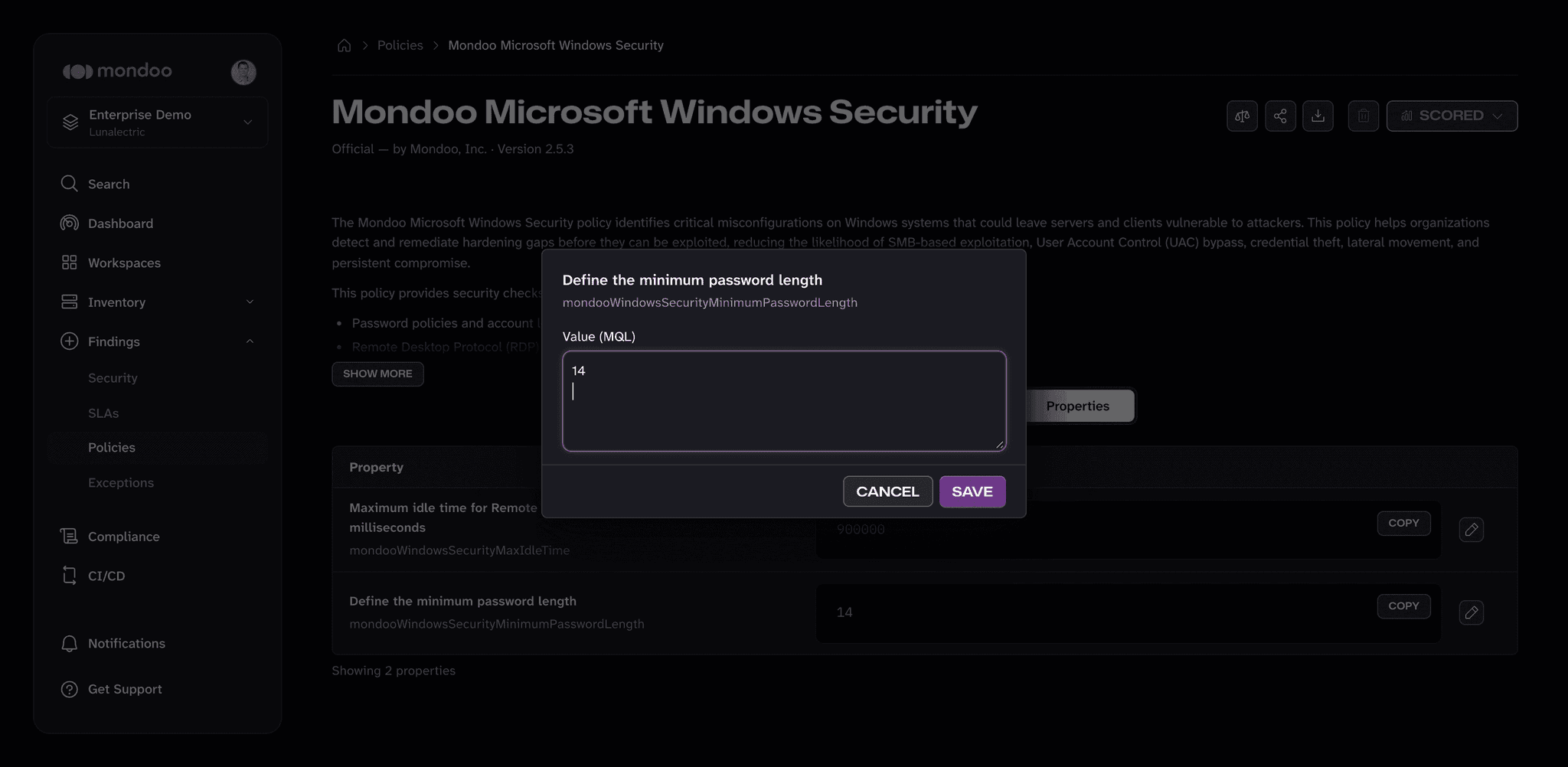
For example, the "Mondoo Microsoft Windows Security" policy checks that Windows requires passwords at least 14 characters long. That value lives in the mondooWindowsSecurityMinimumPasswordLength property. Change the property if your organization requires a different minimum.
Other examples of properties:
- Whether to alert on certain events
- Maximum time between password or key rotations
- Allowed SSL or TLS ciphers
- Allowed domains
- Allowed algorithms
- Blocked ports
Property changes apply only to the current space.
Change a property
Note: Requires Owner, Editor, or Policy Manager access to the space.
-
In the Mondoo App, navigate to the space.
-
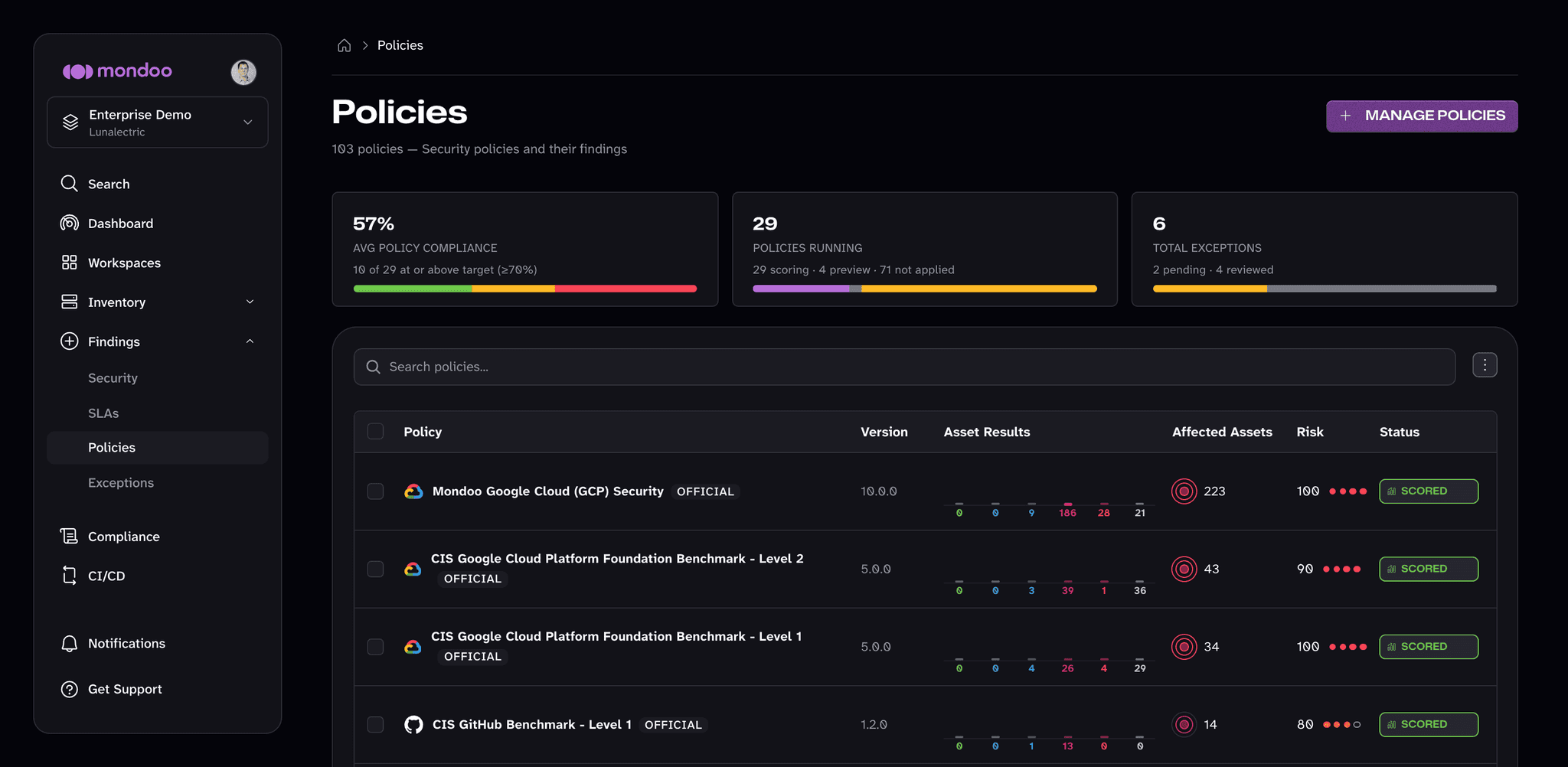
In the side navigation, under Findings, select Policies.
-
Find the policy with the property you want to change and select it.
-
If the policy has properties, a Properties tab appears. Select it to see each property and its current Value (MQL).
-
Select the edit (pencil) button next to the property you want to change.
-
In Value (MQL), enter the new value and select SAVE.
The change takes effect immediately. The next scan uses the new value.
To go back to the policy's default, open the property again, select Reset to default, and then select SAVE.