Enable Compliance Frameworks
Enable compliance frameworks in Mondoo so it monitors your infrastructure against SOC 2, HIPAA, PCI DSS, and other standards.
To monitor compliance, you pick the frameworks your space should be assessed against and enable the policies that back them. A framework is a published set of requirements your organization must meet.
Some frameworks are mandatory in particular contexts:
- BSI C5 is required for public cloud services provided to German federal agencies.
- HIPAA is required for health care organizations in the USA.
Others are voluntary but important to your customers or partners:
- SOC 2 is required by many American businesses for their partners and vendors.
- PCI DSS is globally accepted for protecting cardholders against misuse of personal information.
How frameworks map to checks
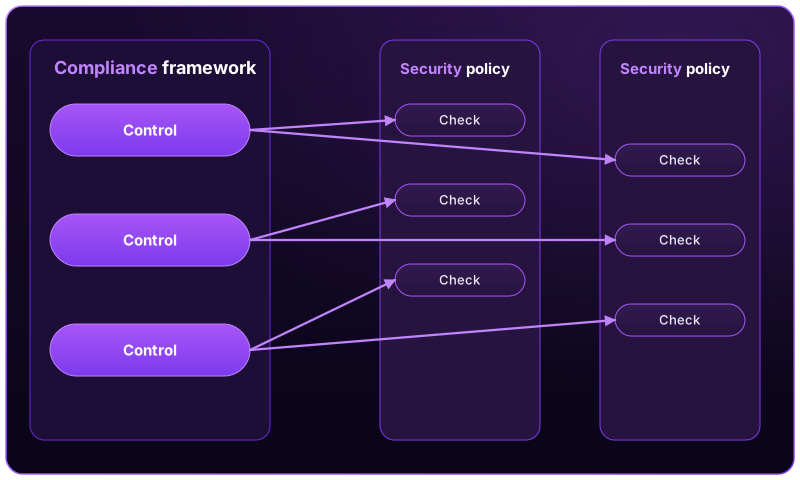
Mondoo's security team translates each published framework into automated tests. Three layers connect a written requirement to the assets it's evaluated on:
- Control. A broad requirement in the framework, such as "Implement and manage a firewall on end-user devices."
- Check. A specific test that runs against an asset, such as "Windows Firewall blocks incoming connections by default."
- Policy. A bundle of checks that target a particular platform (Ubuntu, Windows, macOS, AWS, and so on).
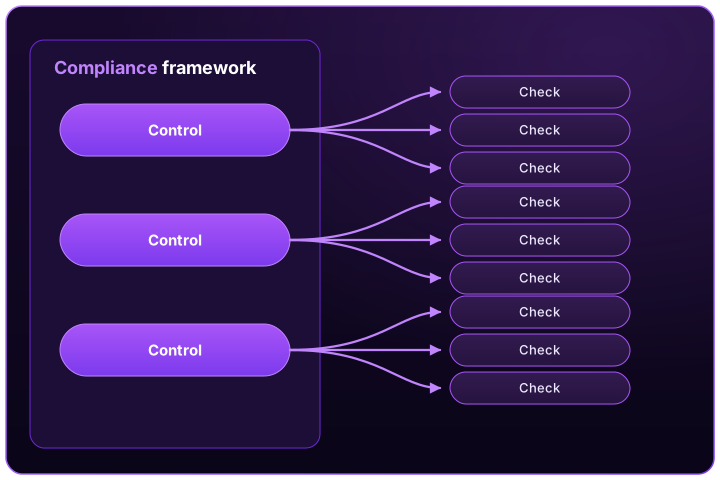
A single control typically maps to many checks across many policies. For the CIS firewall control above, Mondoo runs checks for Ubuntu (UFW installed, iptables denying inbound), Windows 11 (firewall logging dropped packets), macOS 12 (stealth mode enabled), and more. For the framework to score accurately, every relevant policy must be enabled in your space.
Available frameworks
Mondoo's framework catalog includes:
- BSI C5:2026
- BSI IT-Grundschutz Baustein SYS.1.5 Virtualisierung
- CIS Controls 8.0
- Cloud Controls Matrix (CCM) from the Cloud Security Alliance
- Cyber Resilience Act (EU) 2024/2847
- DORA (Digital Operational Resilience Act)
- HIPAA
- IKT-Minimalstandard zur Verbesserung der IKT-Resilienz
- ISO/IEC 27001:2022
- NIS2 Cybersecurity Directive
- NIST AI Risk Management Framework (AI RMF 1.0)
- NIST Cybersecurity Framework (CSF) 1.1
- NIST Cybersecurity Framework (CSF) 2.0
- NIST SP 800-53 Rev 5
- NIST SP 800-171
- PCI DSS
- PCI DSS 4.0
- SOC 2 (AICPA 2017 TSC)
- VDA ISA / TISAX
If you need a standard that isn't in the catalog, or your own internal control set, you can upload a custom framework.
Enable a framework
Enabling a framework adds it to your space and turns on scoring, which tells your team you're working toward an audit. You can also set a framework to Preview to collect data without scoring while you explore it.
-
In the Mondoo App, navigate to the space.
-
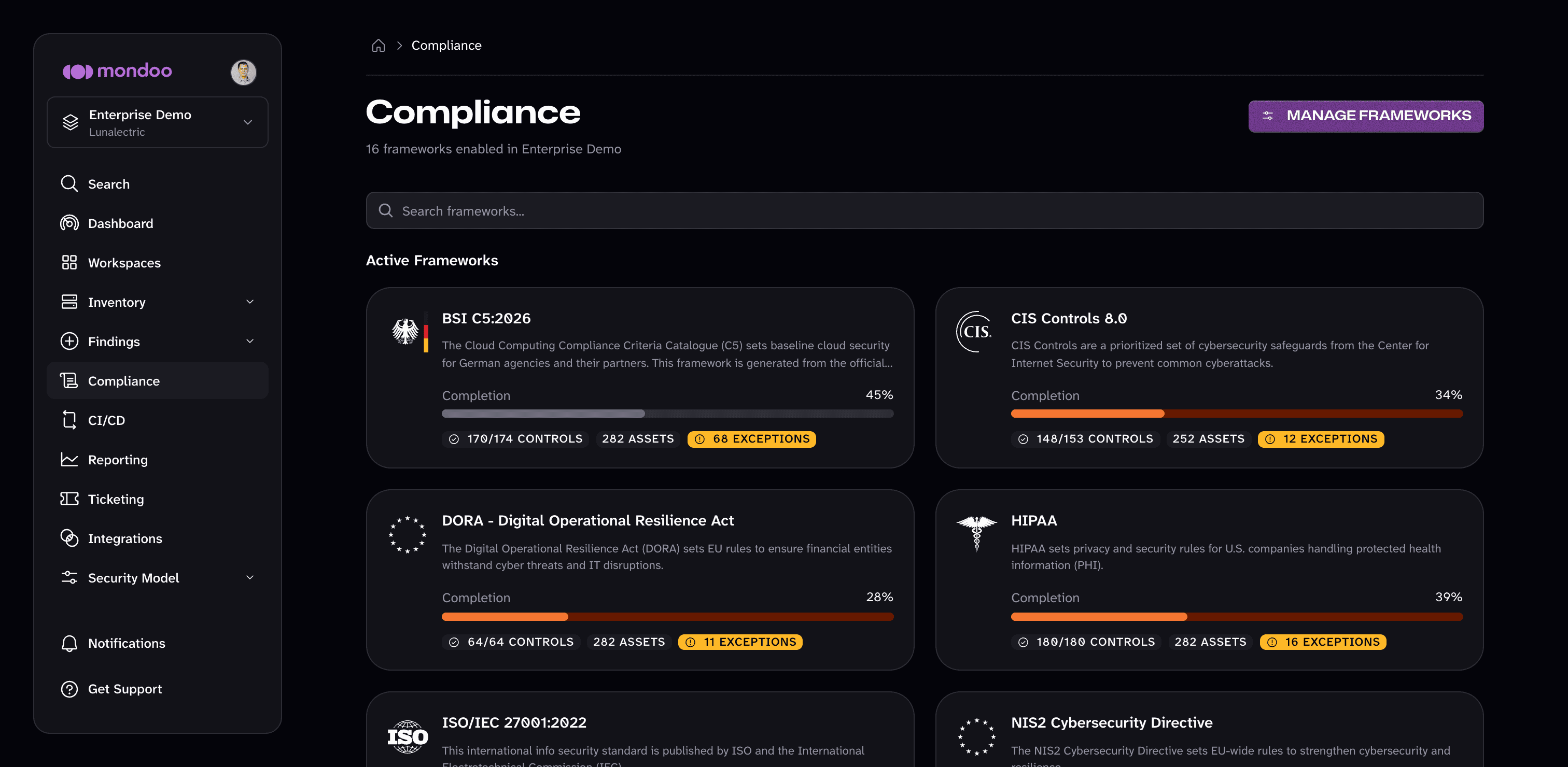
In the side navigation, select Compliance. The Compliance page shows the frameworks you've turned on, grouped under Active Frameworks and Preview Frameworks.
-
Select MANAGE FRAMEWORKS. (If no framework is enabled in the space yet, the Compliance page instead shows a getting started screen; select SELECT COMPLIANCE FRAMEWORK.)
-
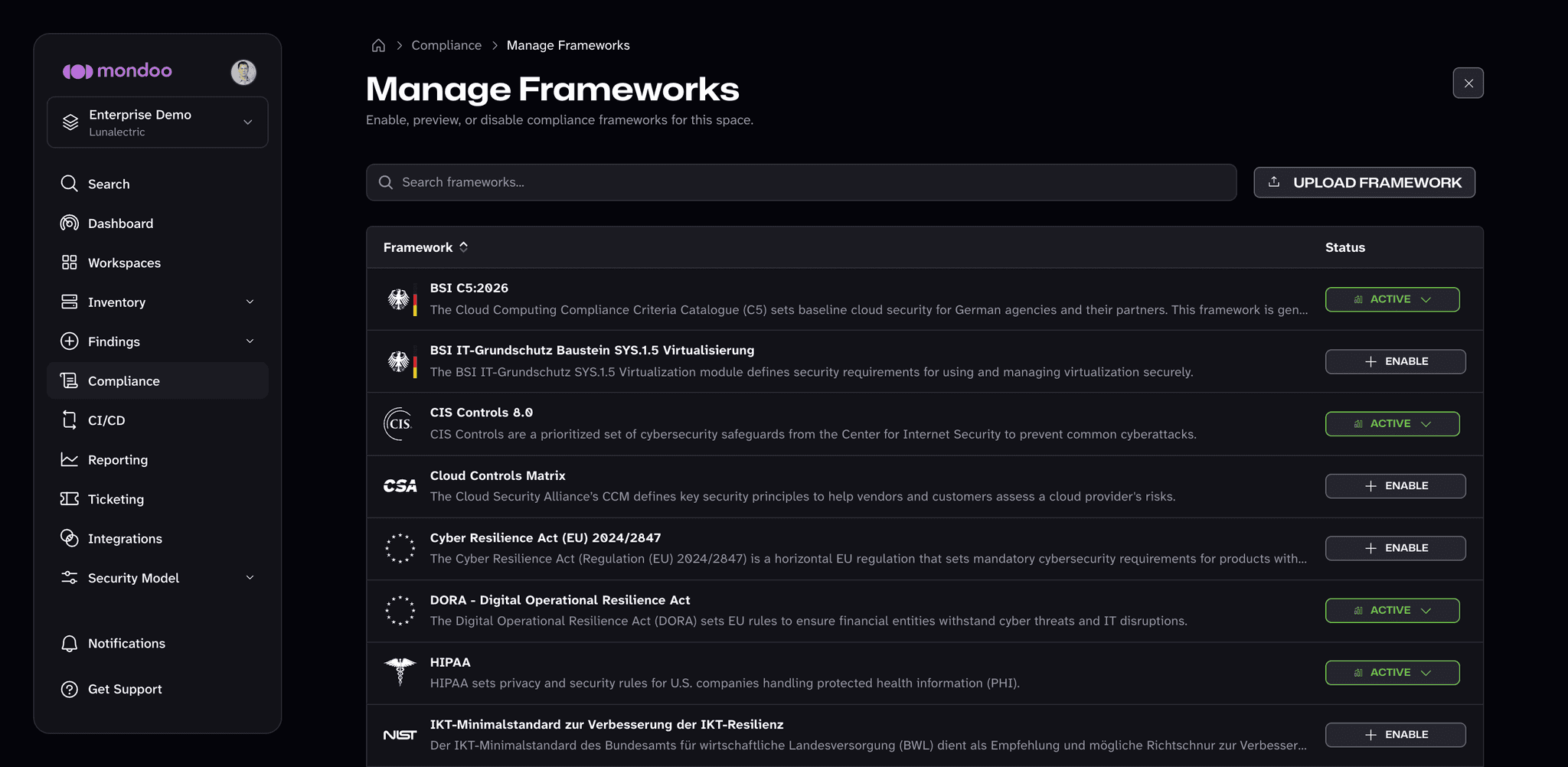
The Manage Frameworks page lists every framework in the catalog, plus any custom frameworks uploaded to the space, with each one's current status. Find the framework you want and select ENABLE. Mondoo begins scoring your space against it, and it appears under Active Frameworks on the Compliance page.
-
To change the status of a framework you've already turned on, select its status button (ACTIVE or PREVIEW) on the Manage Frameworks page and choose a new status:
- Active. Mondoo scores your space against the framework as you work toward an audit.
- Preview. Mondoo evaluates the framework and shows preliminary progress, but the framework doesn't contribute to your space's scores.
- Disabled. Mondoo stops evaluating the framework in this space.
You can make the same change from the framework's own page: open the framework from the Compliance page and use the status menu in the top-right corner.
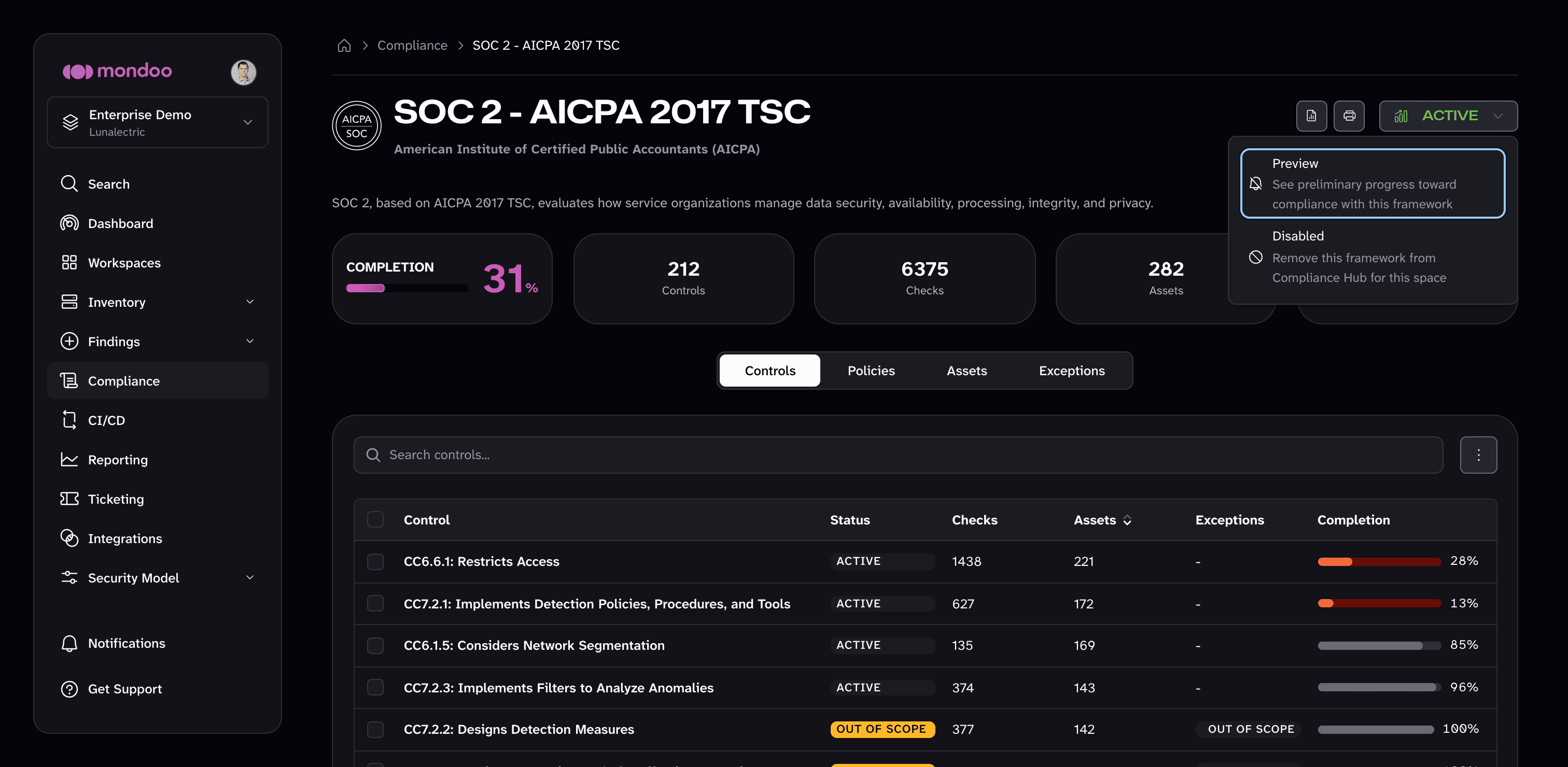
You can also change a framework's status from the command line. See cnspec framework active, cnspec framework preview, and cnspec framework disabled.
Upload a custom framework
Upload your own framework to assess a space against an internal control set or a standard that isn't in the catalog. A custom framework is a YAML file that defines controls and maps them to Mondoo checks. It belongs to the space you upload it to.
-
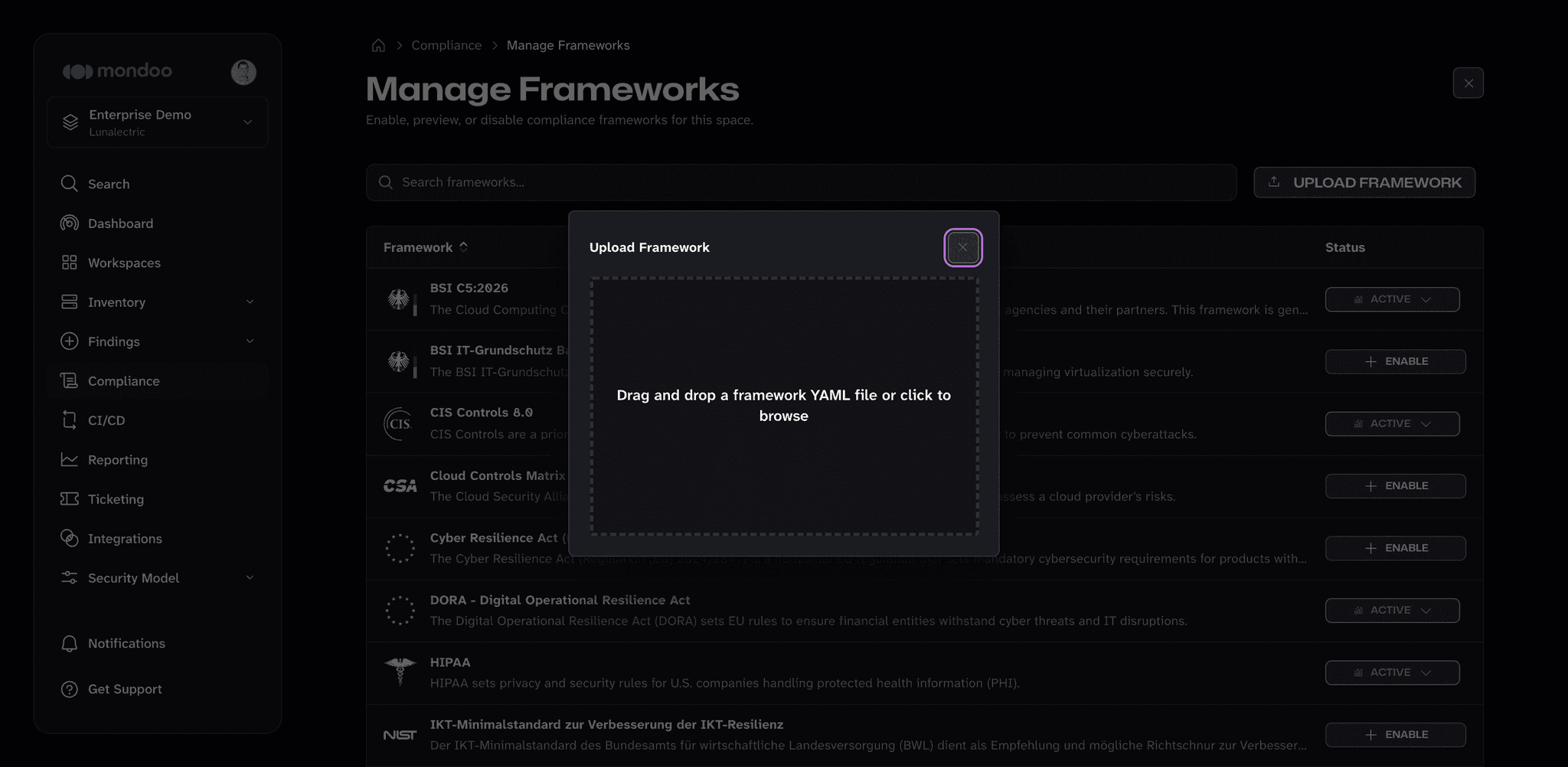
From the Compliance page, select MANAGE FRAMEWORKS.
-
Select UPLOAD FRAMEWORK, then drag your framework YAML file into the dialog or click to browse for it.
-
The uploaded framework appears in the Manage Frameworks list. Enable it like any other framework.
To start from an existing framework, download it with cnspec framework download, edit the YAML, and upload the result. You can
also upload from the command line with cnspec framework upload.
Enable the framework's policies
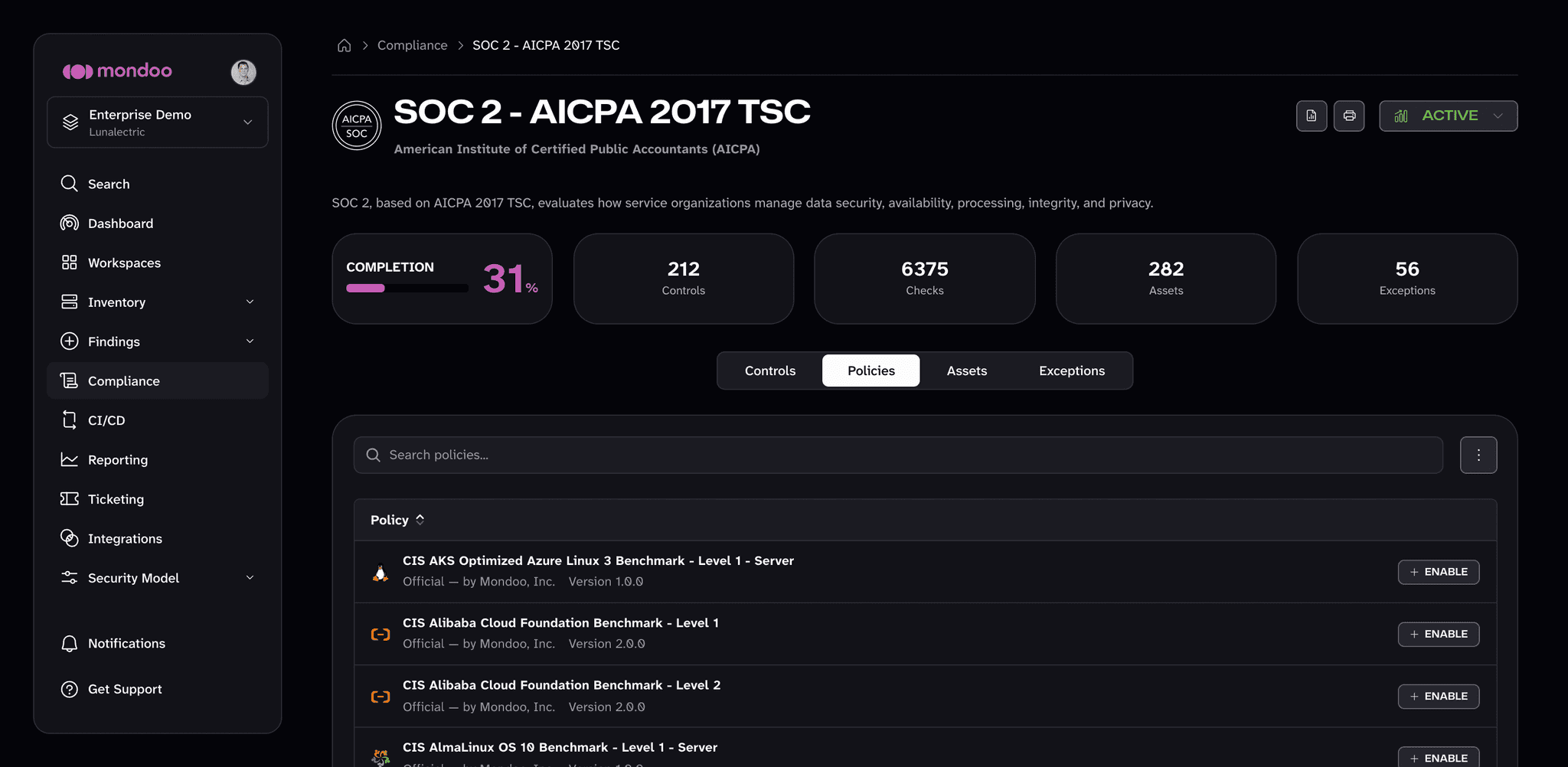
Every Mondoo policy contributes to compliance, so Mondoo recommends the specific policies that give a framework full coverage. Open the framework and select the Policies tab to see those recommended policies. Policies that aren't enabled in the space show an ENABLE button; select it for each one you want to turn on. Policies that are already enabled show their current state (such as SCORED or PREVIEW) instead.
Once the framework and its policies are enabled, Mondoo runs the relevant checks against every asset in the space on every scan. To see results, read Gather Evidence of Compliance.