Build Secure VM Images in Google Cloud with cnspec and HashiCorp Packer
Build secure machine images in Google Cloud by scanning Packer builds with cnspec for vulnerabilities and misconfigurations.
Run security scans during HashiCorp Packer builds using the cnspec Packer plugin by Mondoo. This tutorial covers both unregistered and registered modes.
This tutorial provisions resources in your Google Cloud project. Mondoo isn't responsible for charges that you incur.
Prerequisites
Before you begin, be sure you have:
- A Google Cloud account
- The Google Cloud SDK installed and authenticated using Application Default Credentials
- The latest HashiCorp Packer installed
The user or service account must have these roles:
roles/iam.serviceAccountUser(Service Account User)roles/compute.instanceAdmin.v1(Compute Instance Admin v1)
For other authentication methods supported by the googlecompute builder, see the Packer
documentation.
Configure the Google Cloud project
Machine images live in a Google Cloud project. Run gcloud projects list to see the projects you have access to, or gcloud projects create to create a new one.
Enable the required APIs in the project:
gcloud services enable sourcerepo.googleapis.com
gcloud services enable compute.googleapis.com
gcloud services enable servicemanagement.googleapis.com
gcloud services enable storage-api.googleapis.com
How the cnspec Packer plugin works
The cnspec Packer plugin by Mondoo scans Linux and Windows HashiCorp Packer builds for vulnerabilities and security misconfigurations. It works with any supported Packer builder, including container builders.
Plugin modes
- Unregistered: Runs without a Mondoo Platform account, providing a baseline scan with minimal configuration. The plugin runs the Linux Security by Mondoo policy on Linux builds and the Windows Security by Mondoo policy on Windows builds. Results are printed to stdout during the build.
- Registered: Registers the plugin to your Mondoo Platform space using a service account. You can configure custom policies, run CIS benchmarks, and store every build's results in Mondoo Platform.
Vulnerability scanning requires a registered cnspec. Sign up for a free account to enable it.
Plugin configuration
The cnspec plugin exposes these options:
risk_threshold: An integer score threshold. If the scan produces a score below the threshold, the build fails. Defaults to100. (score_thresholdis deprecated; userisk_thresholdinstead.)on_failure: Set tocontinueto let the build succeed even when the score is below the threshold. Defaults tofail.sudo: Enablessudofor checks that need elevated privileges (for example, readingsshd_config). Setsudo { active = true }.asset_name: Override the asset name in Mondoo Platform. Registered mode only.annotations: Custom annotations attached to the build asset. Registered mode only.
Register with Mondoo Platform
To run the cnspec Packer plugin in registered mode, you need a Base64-encoded Mondoo Platform service account.
-
Navigate to the space in which you want to create a service account.
-
In the left navigation, select Settings, then select Identity & Access.
-
Select the Service accounts group, then select CREATE SERVICE ACCOUNT.
-
Provide a Name and (optionally) a Description.
-
Under Permissions, check Agent, then select GENERATE SERVICE ACCOUNT.
-
In the Base64 text box, select the copy icon to copy the Base64-encoded credentials, then select FINALIZE.
-
In the terminal where you'll run Packer, export the credentials:
export MONDOO_CONFIG_BASE64=<paste Base64-encoded token>
Run Packer
A Packer template is a configuration file that defines the image you want to build and how to build it. Packer templates use the HashiCorp Configuration Language (HCL).
Ubuntu 24.04 template
Create a directory and switch to it:
mkdir mondoo_packer
cd mondoo_packer
Create gcp-ubuntu2404.pkr.hcl with the following content:
packer {
  required_plugins {
    googlecompute = {
      version = ">= 1.1.0"
      source  = "github.com/hashicorp/googlecompute"
    }
    cnspec = {
      version = ">= 12.0.0"
      source  = "github.com/mondoohq/cnspec"
    }
  }
}

variable "zone" {
  default     = "us-east5-a"
  description = "Google Cloud zone to build the image in"
}

variable "project_id" {
  type        = string
  description = "Google Cloud project ID to build the image in"
}

variable "image_prefix" {
  type        = string
  description = "Prefix to be applied to the image name"
  default     = "cnspec-tested-ubuntu-2404"
}

locals { timestamp = regex_replace(timestamp(), "[- TZ:]", "") }

source "googlecompute" "ubuntu2404" {
  image_name              = "${var.image_prefix}-${local.timestamp}"
  machine_type            = "e2-small"
  source_image_family     = "ubuntu-2404-lts-amd64"
  source_image_project_id = ["ubuntu-os-cloud"]
  ssh_username            = "packer"
  temporary_key_pair_type = "rsa"
  temporary_key_pair_bits = 2048
  zone                    = var.zone
  project_id              = var.project_id
}

build {
  sources = ["source.googlecompute.ubuntu2404"]

  provisioner "shell" {
    inline = [
      "echo Hello From ${source.type} ${source.name}",
    ]
  }

  provisioner "cnspec" {
    risk_threshold = 80
    on_failure     = "continue"
    sudo {
      active = true
    }
  }
}
This template builds an Ubuntu 24.04 image in the us-east5-a zone.
The template defines three variables: zone (default us-east5-a), project_id (required), and image_prefix (default cnspec-tested-ubuntu-2404). Override them using any of the standard Packer variable methods.
The template uses source_image_family to always pull the latest published Ubuntu 24.04 image, so
the build doesn't break when older image versions are retired.
Initialize Packer
packer init gcp-ubuntu2404.pkr.hclBuild the image
packer build gcp-ubuntu2404.pkr.hclPacker prints output similar to this (truncated for readability):
==> <image-name>: Checking image does not exist...
==> <image-name>: Creating temporary RSA SSH key for instance...
==> <image-name>: Creating instance...
==> <image-name>: Waiting for the instance to become running...
==> <image-name>: Using SSH communicator to connect: 34.162.0.117
==> <image-name>: Waiting for SSH to become available...
==> <image-name>: Running cnspec packer provisioner by Mondoo
==> <image-name>: scan packer build
...
==> <image-name>: Deleting instance...
==> <image-name>: Creating image...
==> <image-name>: Deleting disk...
Build '<image-name>' finished.
View the scan report in Mondoo Platform (registered mode only)
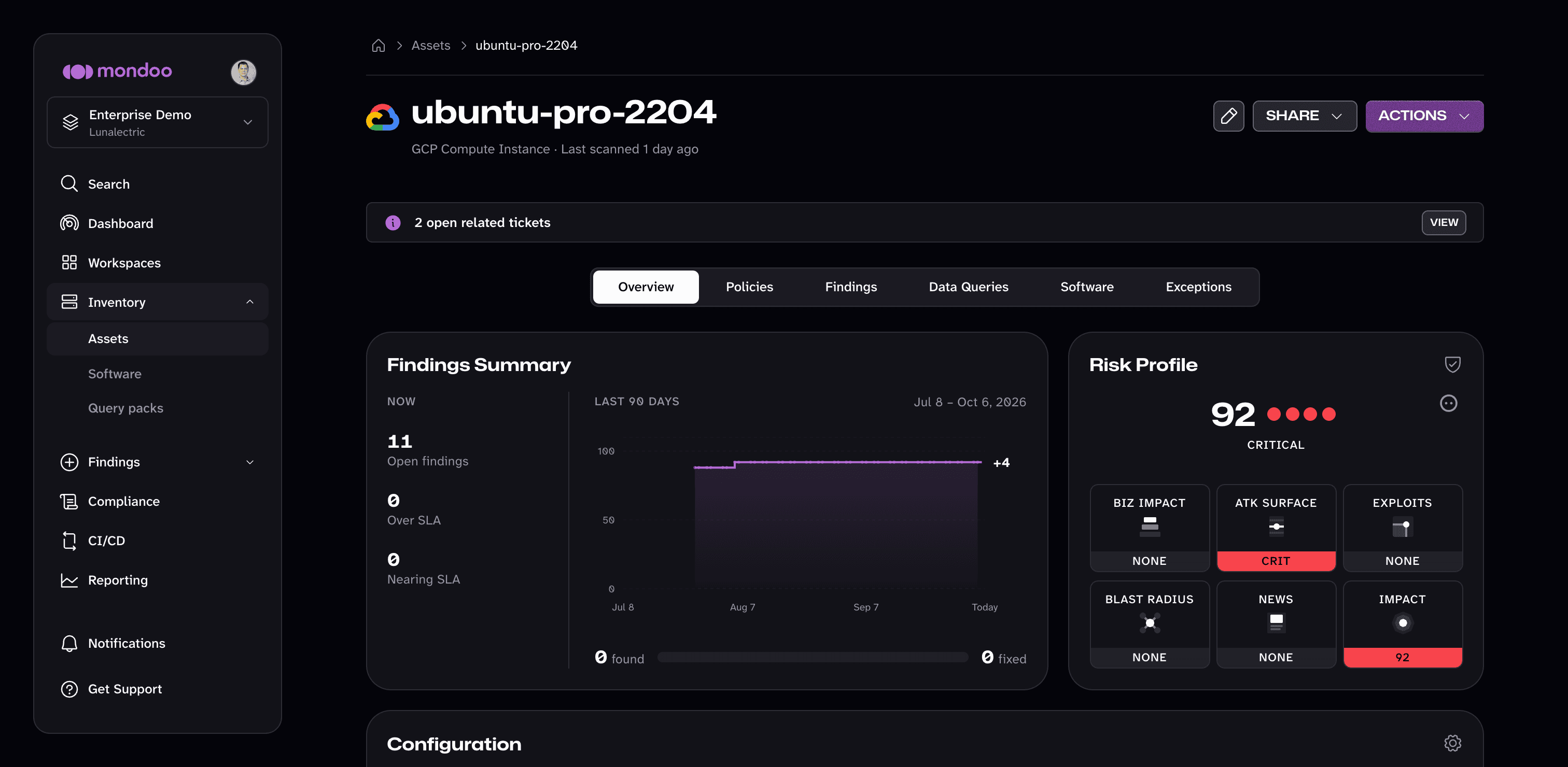
The cnspec plugin sends scan results to Mondoo Platform. To view a build's report, open the Mondoo App, navigate to Inventory > Assets, and select your asset.
View the findings details
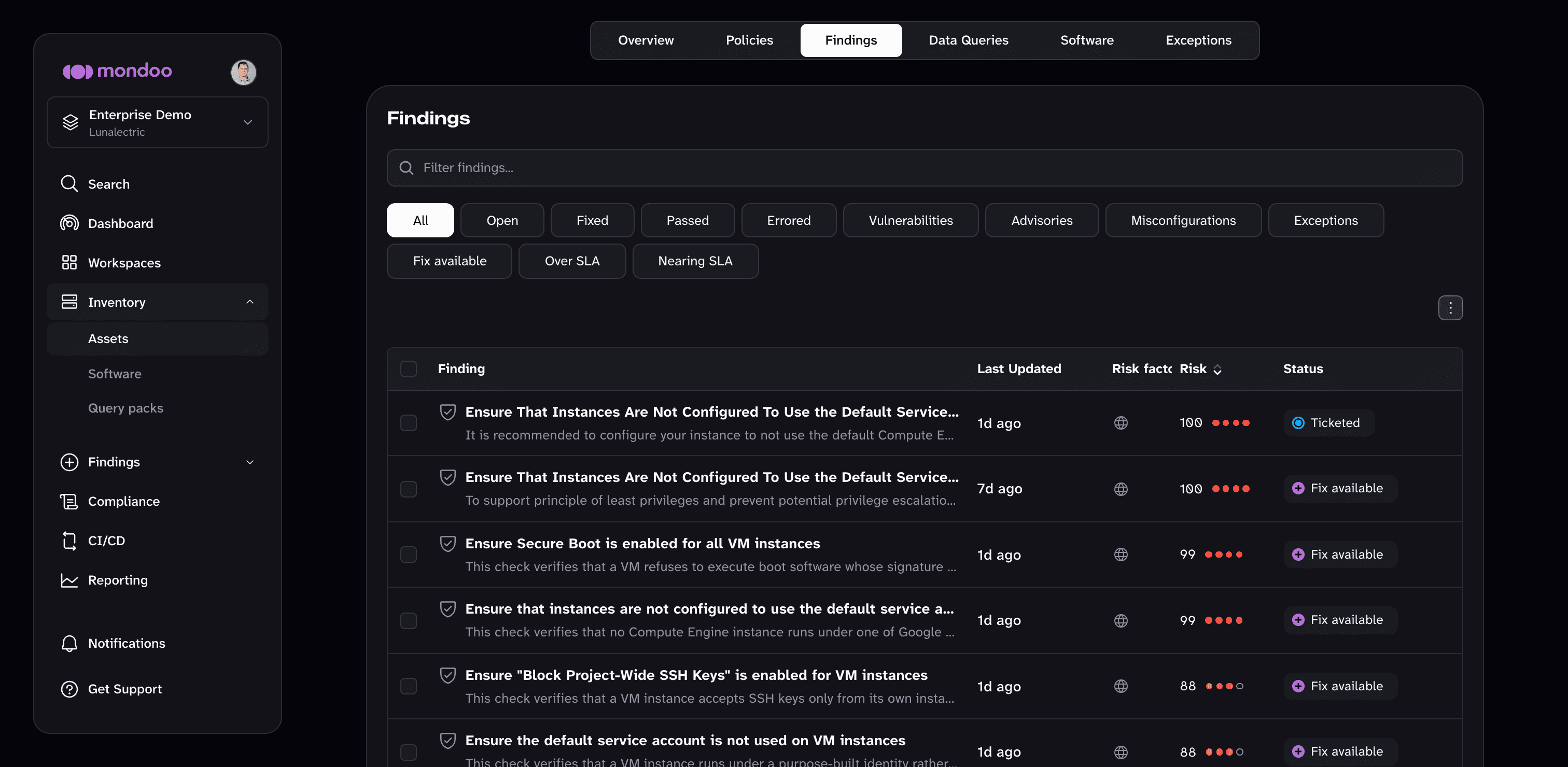
Select the Findings tab.
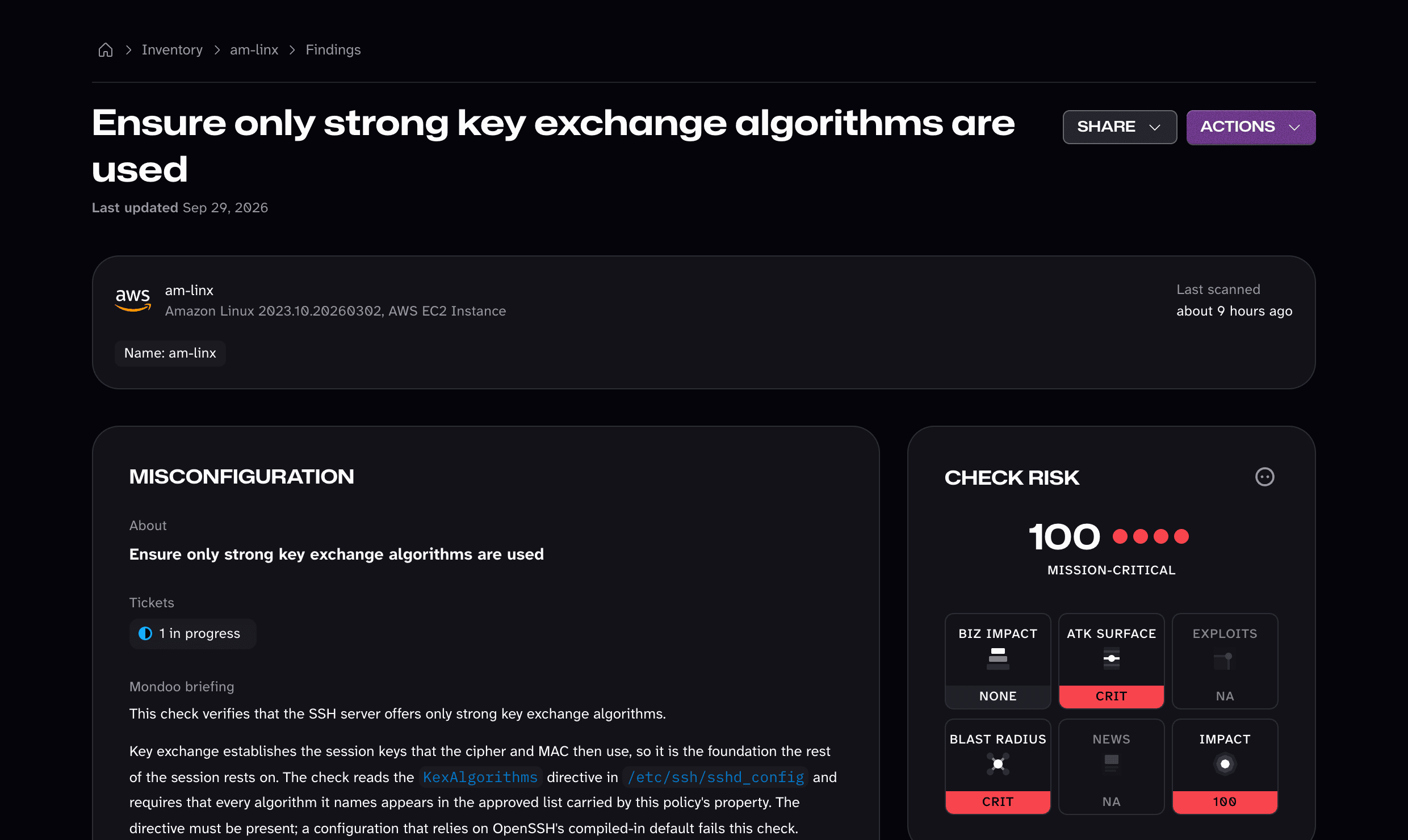
Select any finding to see documentation, audit context, and remediation steps:
View the image in Google Cloud Console

After the build completes, open the Compute Engine Images page in Google Cloud Console.
Next steps
You built a Google Cloud machine image and scanned it for vulnerabilities and misconfigurations with cnspec.
The cnspec Packer plugin repository contains additional templates for other Linux distributions, Windows, and container builders.
To scan running infrastructure built from your images, see the Google Cloud overview.
Cross-Project Snapshot Scanning
Configure cnspec to scan Google Cloud Compute Engine snapshots that reside in a different project than your scanner VM.
Workload Identity Federation
Use Workload Identity Federation to let a service account in one Google Cloud project scan resources in other Google Cloud projects without exporting keys.