Set up keyless authentication with Azure (Microsoft Entra ID)
Prerequisites
-
Sufficient Microsoft Entra ID privileges to create and manage service principals
-
Editor or Owner privileges in the Mondoo space to which your workload needs access
Step A: Prepare your Microsoft environment for WIF
-
Register a Microsoft Entra app and create a service principal. You can use the default Application (client) ID or specify a custom URI. Be sure to note the Application ID URI. You need this value when you configure the workload identity provider.
-
Create a managed identity. Be sure to note its Object ID. You need this value when you configure the workload identity provider.
-
Assign the managed identity to a virtual machine or another resource where your workload runs. To learn how, read User-assigned managed identity.
Step B: Create an identity provider in Mondoo
-
In the Mondoo Console, navigate to the space in which you want to set up keyless access for non-human users.
-
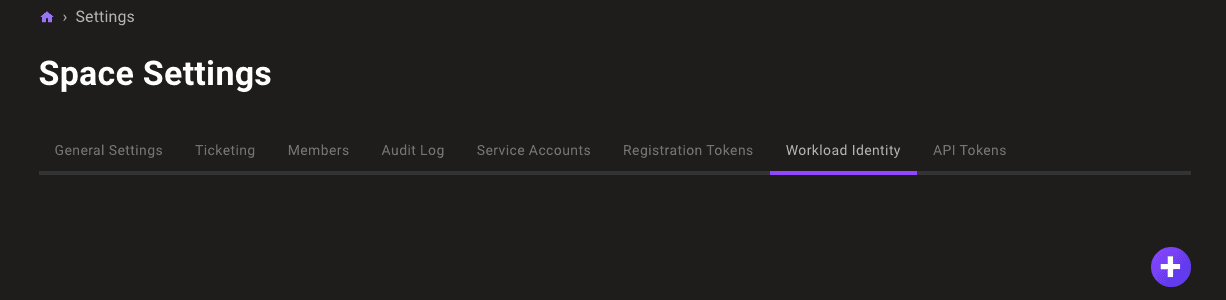
In the left navigation, select Settings. Then select the Identity Providers tab.
-
Select the ADD IDENTITY PROVIDER button or the plus (+) symbol near the top-right corner of the tab and select Azure.
-
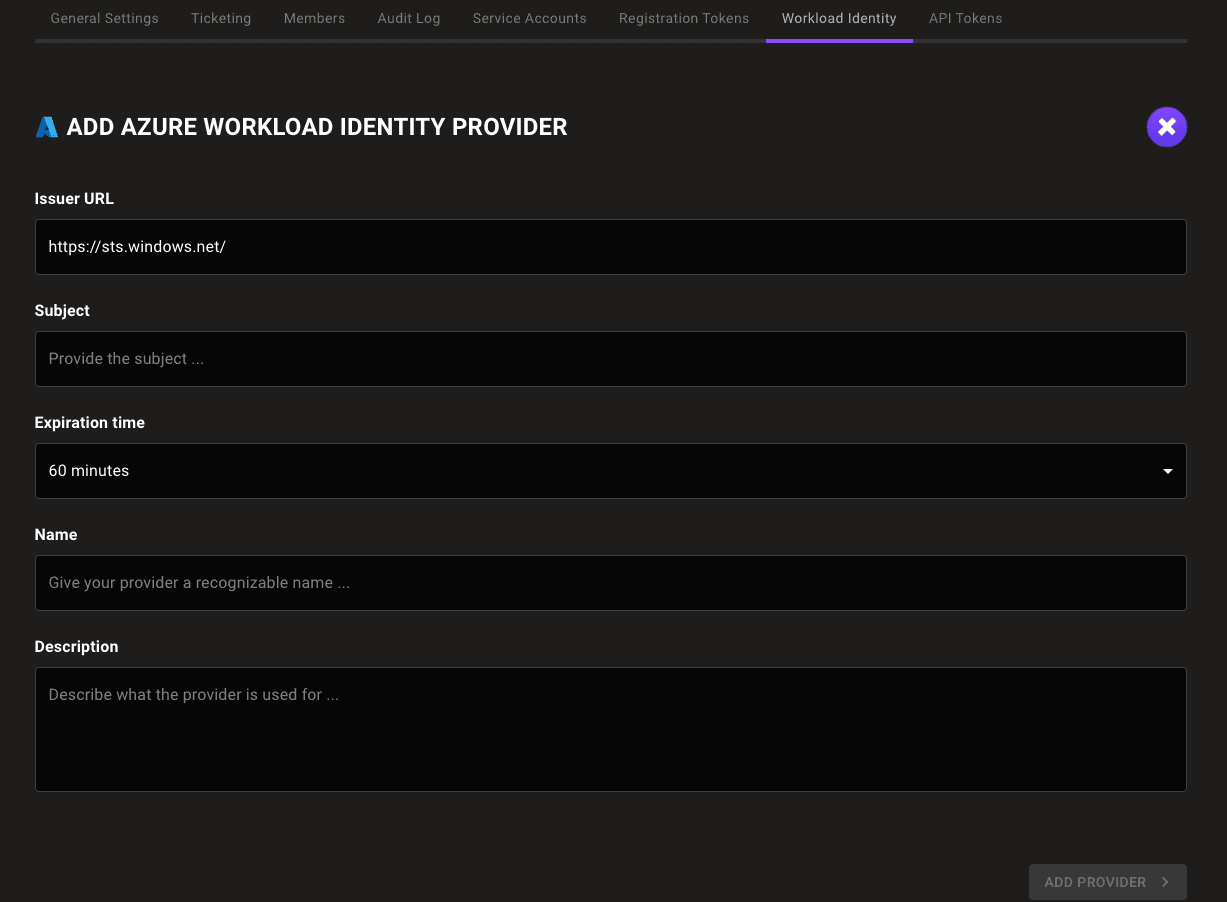
In the Issuer URL box, enter
https://sts.windows.net/YOUR_TENANT_ID. For YOUR_TENANT_ID, substitute the tenant ID of the Microsoft directory in which you created the service principal. -
In the Subject box, enter the Application ID URI from Step A.
-
In the Expiration time list, choose the duration of sessions authenticated with this WIF provider.
-
In the Name and Description boxes, provide a short name and longer description that help you and your teammates recognize the source and purpose of the identity provider.
-
Select the ADD IDENTITY PROVIDER button.
Mondoo generates and displays the configuration values that you need to give your workload access to your Mondoo space.
Step C: Exchange your token for access to the Mondoo space
Fetch the local token:
curl http://localhost:50342/oauth2/token --data "resource=https://management.azure.com/" -H Metadata:true -s | jq -r ".access_token"Make a curl call to exchange a local token for a short-lived Mondoo service account:
curl --request POST \
  --url 'UNIVERSE_DOMAIN/SecureTokenService/ExchangeExternalToken?=' \
  --header 'content-type: application/json' \
  --data '{
  "audience": "AUDIENCE",
  "issuer_uri": "ISSUER",
  "jwt_token": "TOKEN"
}'| For... | Substitute... |
|---|---|
| AUDIENCE | The audience value Mondoo provided when you followed the instructions in Step B above |
| ISSUER | The issuer value Mondoo provided when you followed the instructions in Step B above |
| TOKEN | The Microsoft-issued, locally available token |
This call returns a Mondoo service account in the form of a base64_credential value, which your workload can use to access the Mondoo space by setting MONDOO_CONFIG_BASE64 to the returned value.