PlatformInfraSaasM365
- In the navigation sidebar, select API permissions.
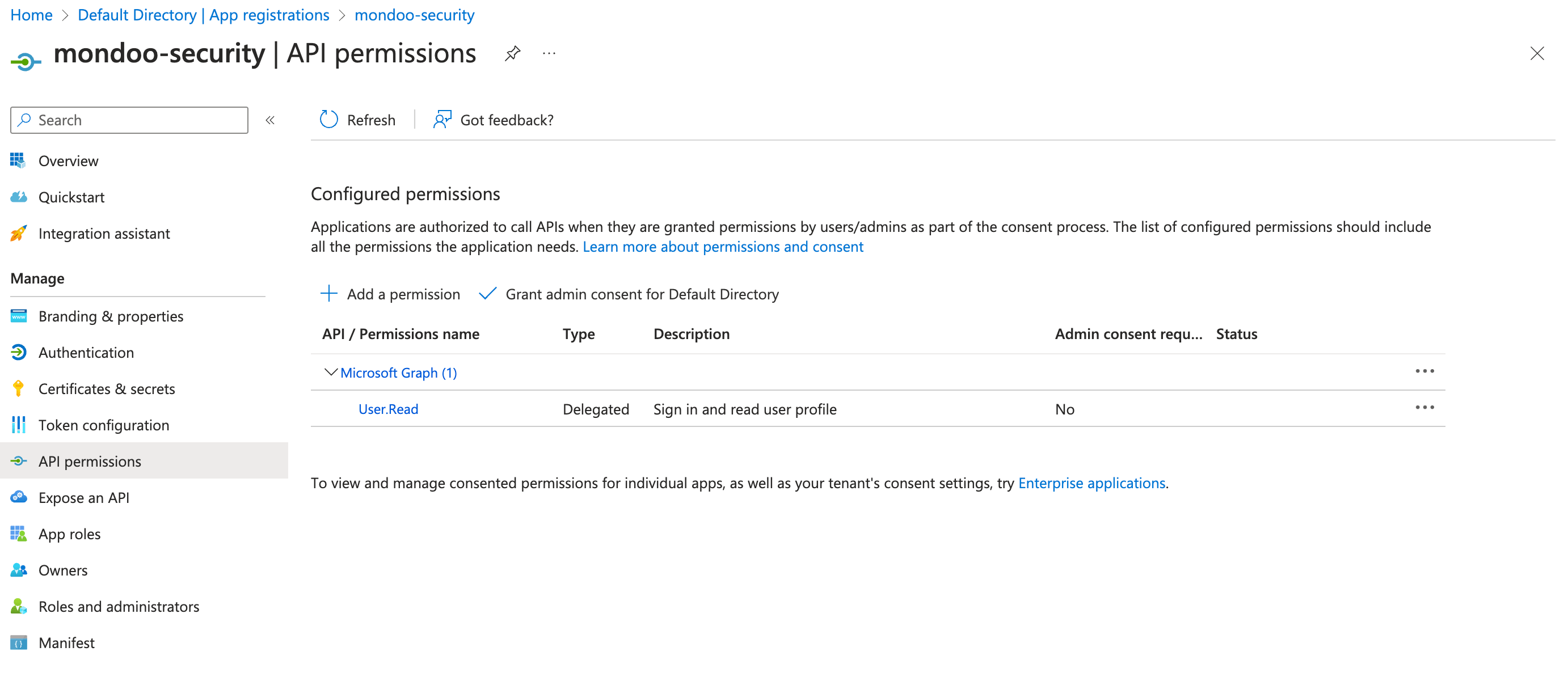
By default, Microsoft grants your new application User.Read permission for Microsoft Graph. It's not required for Mondoo, so you can remove it.
- Select + Add a permission.
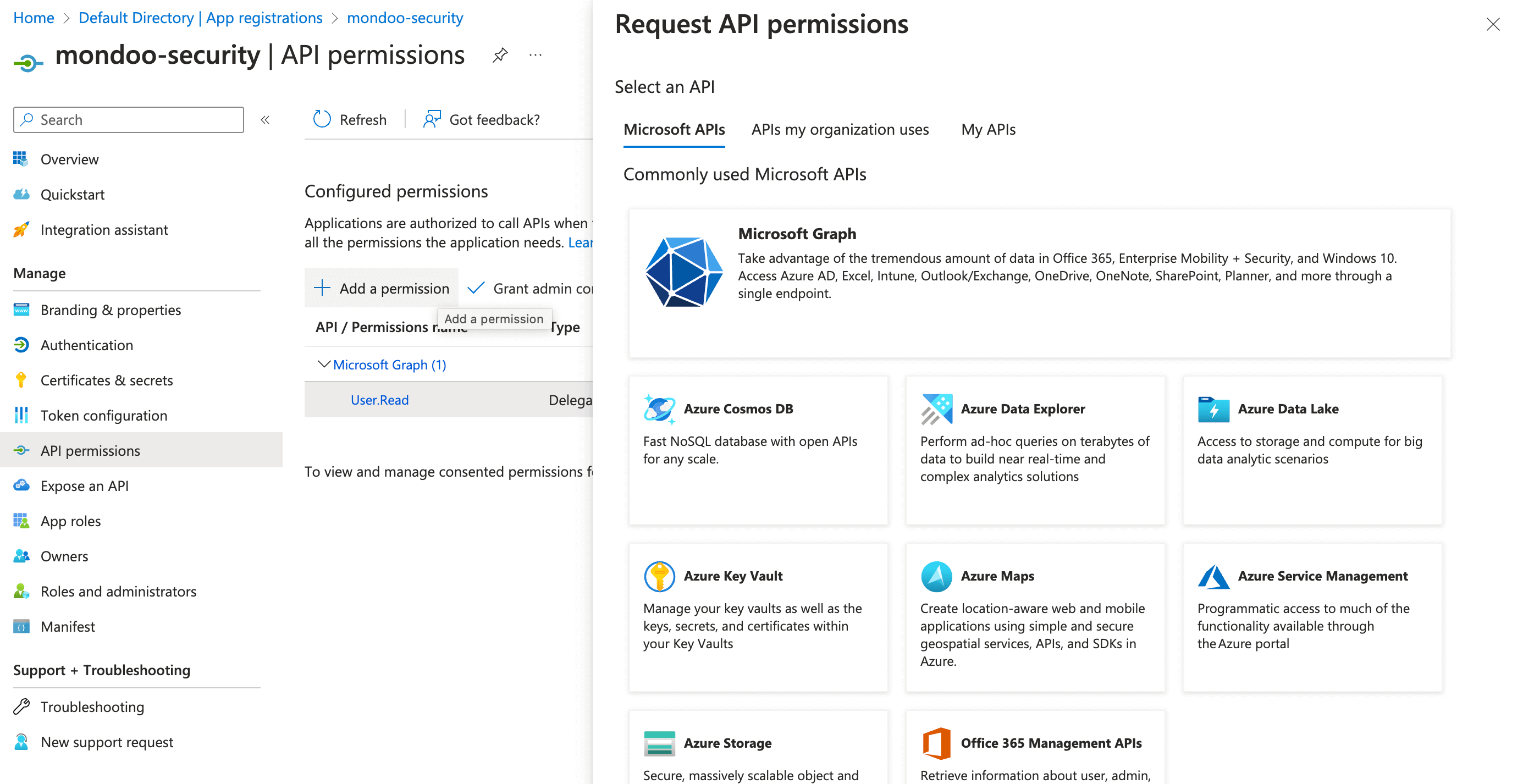
- From the list of Commonly used Microsoft APIs, select Microsoft Graph.
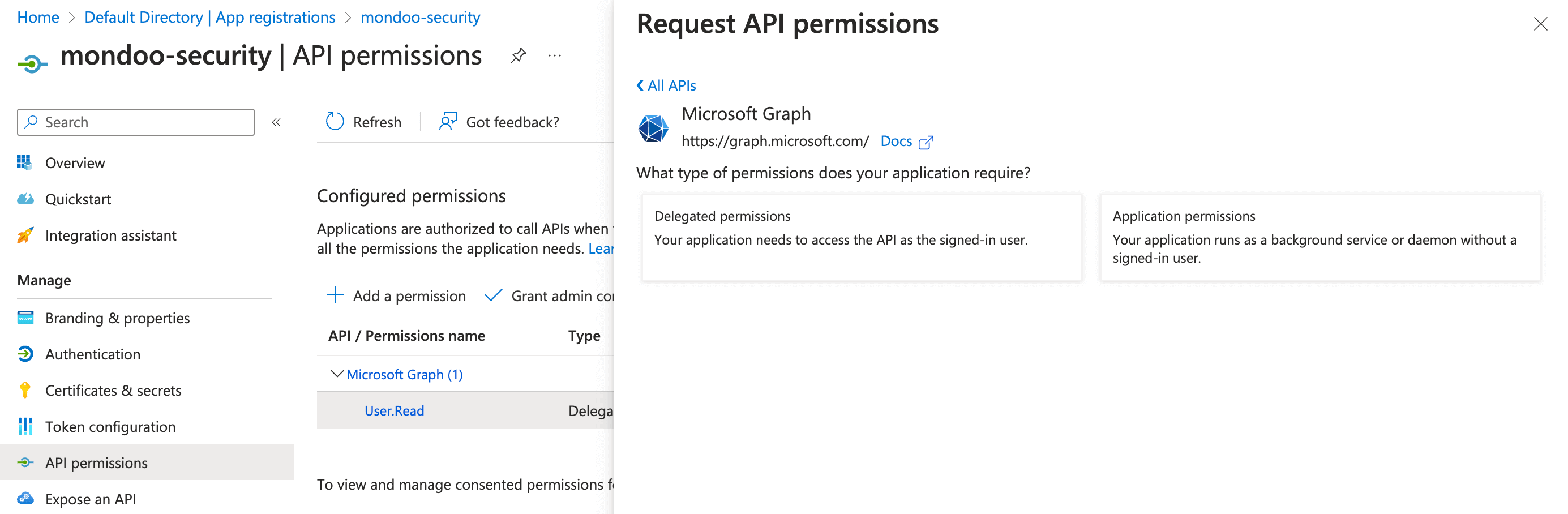
-
Because Mondoo acts as a service, select Application permissions.
-
Select expand all to see all permissions. Then select the required API permissions:
| Microsoft Graph | Type | Description |
|---|---|---|
| IdentityProvider.Read.All | Application | Read identity providers |
| Policy.Read.All | Application | Read your organization's policies |
| Policy.Read.ConditionalAccess | Application | Read your organization's conditional access policies |
| Policy.Read.PermissionGrant | Application | Read consent and permission grant policies |
| SecurityActions.Read.All | Application | Read your organization's security actions |
| SecurityEvents.Read.All | Application | Read your organization's security events |
| DeviceManagementConfiguration.Read.All | Application | Read Microsoft Intune device configuration and policies |
| AuditLog.Read.All | Application | Read all audit log data |
| Directory.Read.All | Application | Read directory data |
-
Select the Add permissions button.
-
Grant Mondoo read permissions for SharePoint.
SharePoint APIs Type Description Sites.FullControl.All Application Have full control of all site collections -
Select the Add permissions button.
-
Grant Mondoo read permissions for Office 365 Exchange Online. You need to search in APIs my organization uses.
Office 365 Exchange Online Type Description Exchange.ManageAsApp Application Run Exchange Online commands as if Mondoo was an administrator account -
To complete the process, select Grant admin consent for (your tenant name) and select the Yes button to confirm.