Grant web app permissions by creating a custom RBAC role for Mondoo and assigning the custom role to your new app registration.
-
In the sidebar under the subscription name, select Overview.
-
Copy the subscription ID and save it somewhere handy.
-
In the sidebar under the subscription name, select Access control (IAM).
-
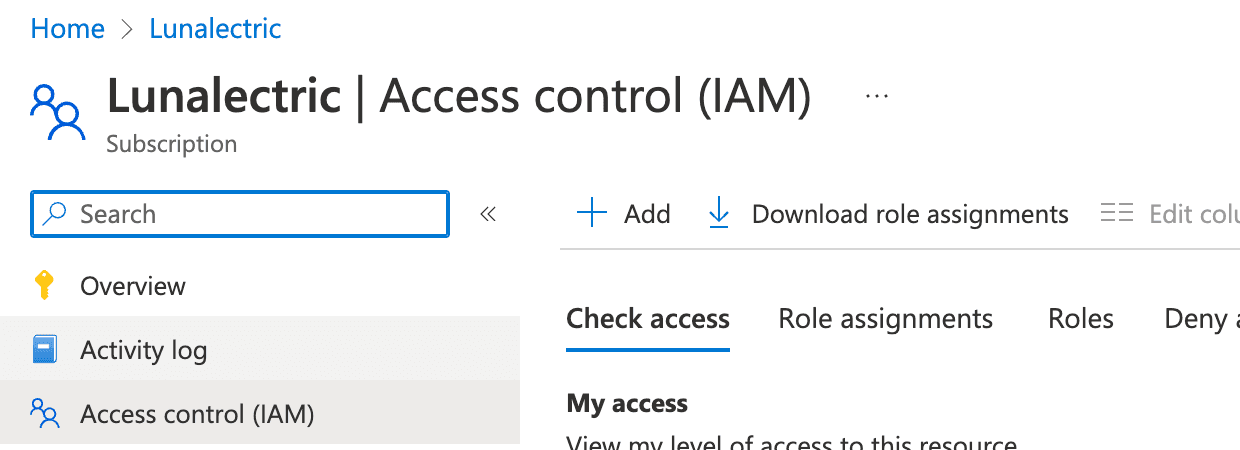
On the subscription's Access control (IAM) page toolbar, select + Add and select Add custom role.
-
Name the new role
mondoo-role, provide a description, and then select the JSON tab. -
On the JSON tab, select the Edit button and delete all existing content from the edit box.
-
Copy this JSON content and paste it into the edit box on the JSON tab:
{
  "Name": "mondoo-role",
  "IsCustom": true,
  "description": "Custom role for Mondoo integration",
  "assignableScopes": ["/subscriptions/YOUR-SUBSCRIPTION-ID"],
  "actions": [
    "Microsoft.Authorization/*/read",
    "Microsoft.ResourceHealth/availabilityStatuses/read",
    "Microsoft.Insights/alertRules/*",
    "Microsoft.Resources/deployments/*",
    "Microsoft.Resources/subscriptions/resourceGroups/read",
    "Microsoft.Support/*",
    "Microsoft.Web/listSitesAssignedToHostName/read",
    "Microsoft.Web/serverFarms/read",
    "Microsoft.Web/sites/config/read",
    "Microsoft.Web/sites/config/web/appsettings/read",
    "Microsoft.Web/sites/config/web/connectionstrings/read",
    "Microsoft.Web/sites/config/appsettings/read",
    "Microsoft.web/sites/config/snapshots/read",
    "Microsoft.Web/sites/config/list/action",
    "Microsoft.Web/sites/read",
    "Microsoft.KeyVault/checkNameAvailability/read",
    "Microsoft.KeyVault/deletedVaults/read",
    "Microsoft.KeyVault/locations/*/read",
    "Microsoft.KeyVault/vaults/*/read",
    "Microsoft.KeyVault/operations/read",
    "Microsoft.Compute/virtualMachines/runCommands/read",
    "Microsoft.Compute/virtualMachines/runCommands/write",
    "Microsoft.Compute/virtualMachines/runCommand/action"
  ],
  "notActions": [],
  "dataActions": [
    "Microsoft.KeyVault/vaults/*/read",
    "Microsoft.KeyVault/vaults/secrets/readMetadata/action"
  ],
  "notDataActions": []
}
To integrate with more than one subscription, list them:
"assignableScopes": [
  "/subscriptions/YOUR-SUBSCRIPTION-ID-1",
  "/subscriptions/YOUR-SUBSCRIPTION-ID-2",
  "/subscriptions/YOUR-SUBSCRIPTION-ID-3"
]
To integrate at the management group level, copy this JSON content and paste it into the edit box on the JSON tab:
{
  "properties": {
    "roleName": "mondoo-role",
    "description": "Custom role for Mondoo integration",
    "assignableScopes": [
      "/providers/Microsoft.Management/managementGroups/YOUR-MANAGEMENT-GROUP-ID"
    ],
    "permissions": [
      {
        "actions": [
          "Microsoft.Authorization/*/read",
          "Microsoft.ResourceHealth/availabilityStatuses/read",
          "Microsoft.Resources/subscriptions/resourceGroups/read",
          "Microsoft.Web/listSitesAssignedToHostName/read",
          "Microsoft.Web/serverFarms/read",
          "Microsoft.Web/sites/config/read",
          "Microsoft.Web/sites/config/web/appsettings/read",
          "Microsoft.Web/sites/config/web/connectionstrings/read",
          "Microsoft.Web/sites/config/appsettings/read",
          "microsoft.web/sites/config/snapshots/read",
          "Microsoft.Web/sites/config/list/action",
          "Microsoft.Web/sites/read",
          "Microsoft.Web/sites/*/read"
        ],
        "notActions": [],
        "dataActions": [],
        "notDataActions": []
      }
    ]
  }
}
For YOUR-MANAGEMENT-GROUP-ID, substitute the name of the management group you want to monitor. If you don't have management groups, you can use your tenant ID because your tenant is your root management group.
-
Select the Save button.
-
Select the Review + create button (or the Next button), check your work, and then select the Review + create button again.
-
Assign the created Custom role to the app: On the subscription's Access control (IAM) page toolbar, select + Add and select Add role assignment.
-
Search for and select the role you just created,
mondoo-role. -
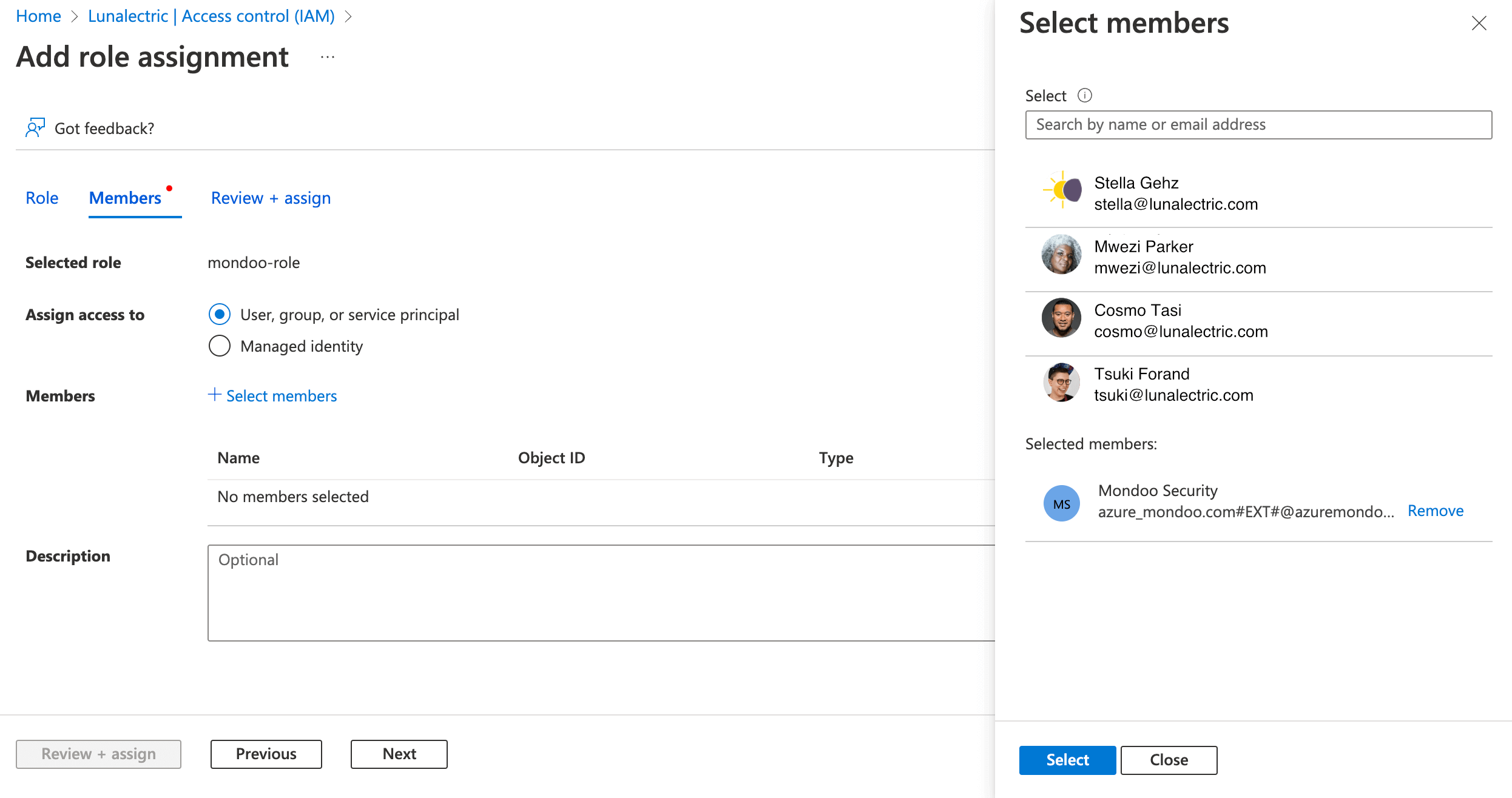
Select the Members tab and select User, group, or service principal.
-
Select the + Select Members link, find and select your Mondoo app registration, and select the Select button.
-
Select the Review + assign button to check the assignment. Select the Review + assign button again to assign the
mondoo-rolerole to your Mondoo app registration.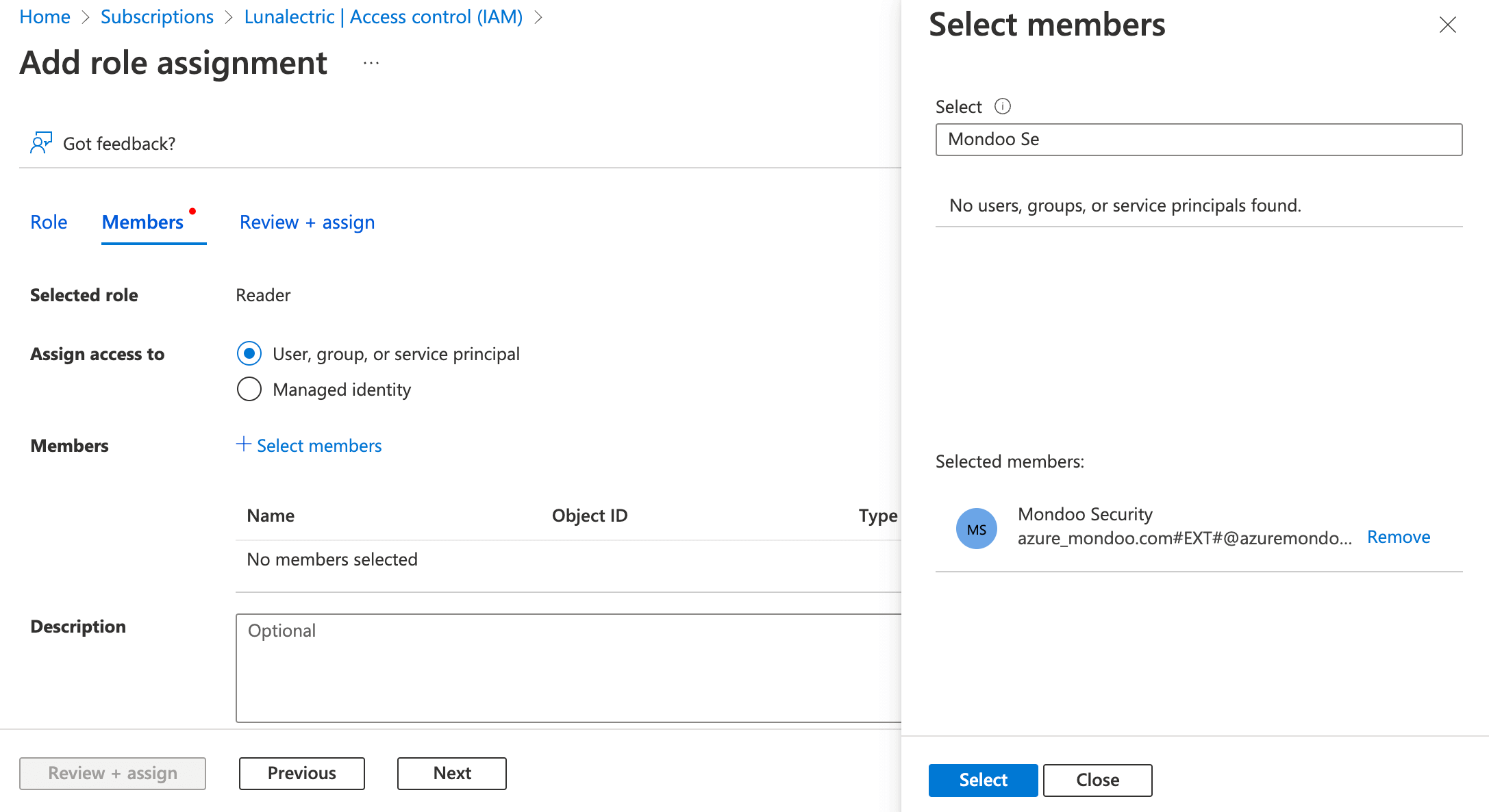
-
Make sure that you have two RBAC roles for the app you created: On the subscription's Access control (IAM) page toolbar, select Check Access.
-
Keep "User, group, or service principal" selected and type the name you gave the app, such as
mondoo-security. -
Select the app. Verify that you see two roles: Reader and the custom role that you created.
It can take a few minutes for the roles you assigned to take effect.